
How to Use BrowserScan with BigDataCloud IP Geolocation APIs
How to Use BrowserScan with BigDataCloud - Precise IP Geolocation & Reverse Geocoding APIs
BrowserScan shows you what your browser leaks about your location, hardware, and network. BigDataCloud turns raw IP addresses and coordinates into precise geographic context. Used together, they answer a question neither tool answers alone: does the location your browser exposes actually match the location your IP address claims?
This guide walks through the workflow, setup, and practical examples for combining BrowserScan's fingerprint detection with BigDataCloud's IP geolocation and reverse geocoding APIs.
Why Pair BrowserScan with BigDataCloud?
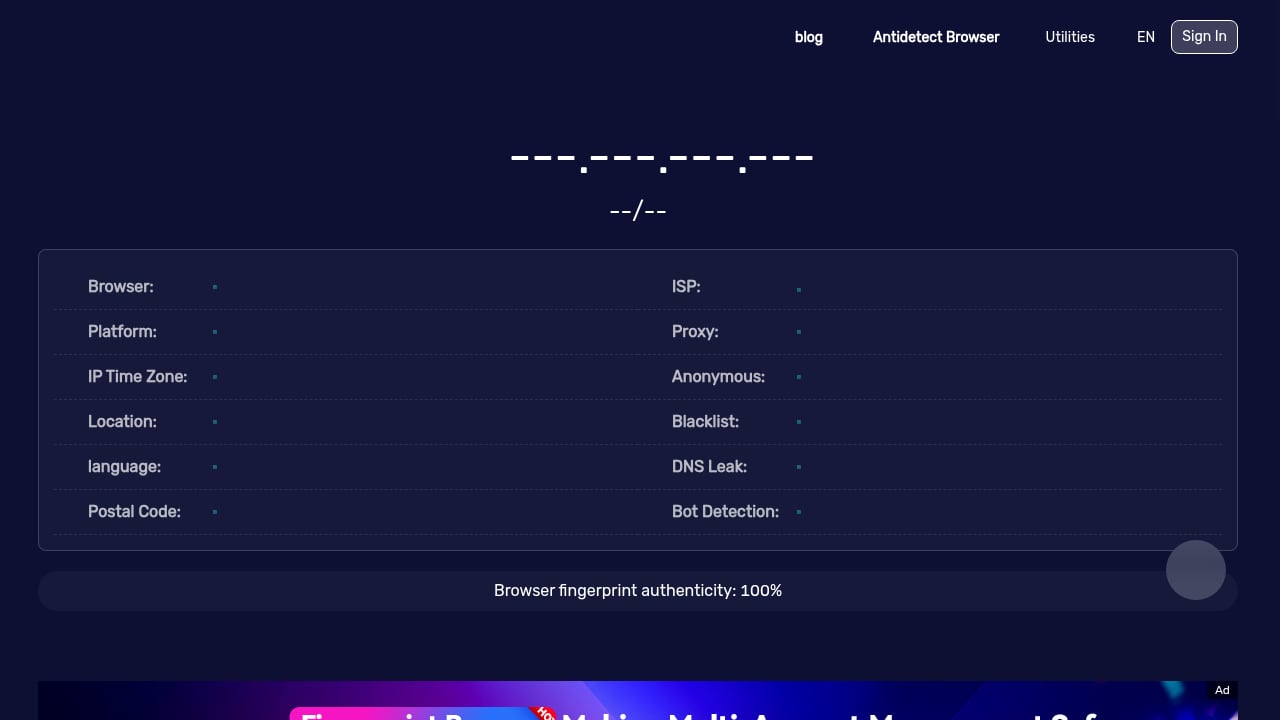
First viewport screenshot of Best BrowserScan Fingerprint Detection Tool - Improve your online privacy security.
BrowserScan is a free online suite of browser fingerprint detection and privacy testing tools. It analyzes browser properties, hardware signals, network behavior, and more. Its reports include IP and proxy detection, DNS leak tests, WebRTC leak tests, bot detection, browser kernel detection, canvas fingerprint analysis, client hints inspection, and a real-time fingerprint authenticity score.
BigDataCloud provides patented IP geolocation and reverse geocoding APIs with daily public accuracy benchmarks. It is free to start and scales to billions of requests.
The combination solves a specific problem: location signal mismatch. Your browser can expose location data through several channels — IP address, WebRTC, DNS, and JavaScript geolocation — and those channels can disagree. BrowserScan reveals the signals; BigDataCloud validates what the IP address actually resolves to.
What BrowserScan reveals
- Your public IP address and whether it appears to be a proxy, VPN, or datacenter address
- DNS leak results showing which DNS servers your requests reach
- WebRTC leak results showing whether your real IP is exposed behind a proxy
- Browser fingerprint components including canvas, WebGL, and client hints
- A fingerprint authenticity score indicating how unique or suspicious your browser looks
What BigDataCloud adds
- Precise IP geolocation with city-level accuracy and daily benchmarked results
- Reverse geocoding that converts latitude and longitude into structured addresses
- Confidence and accuracy metadata so you know how reliable a location result is
- Consistent structured fields (country, region, city, postcode) for automated comparison
The Core Workflow
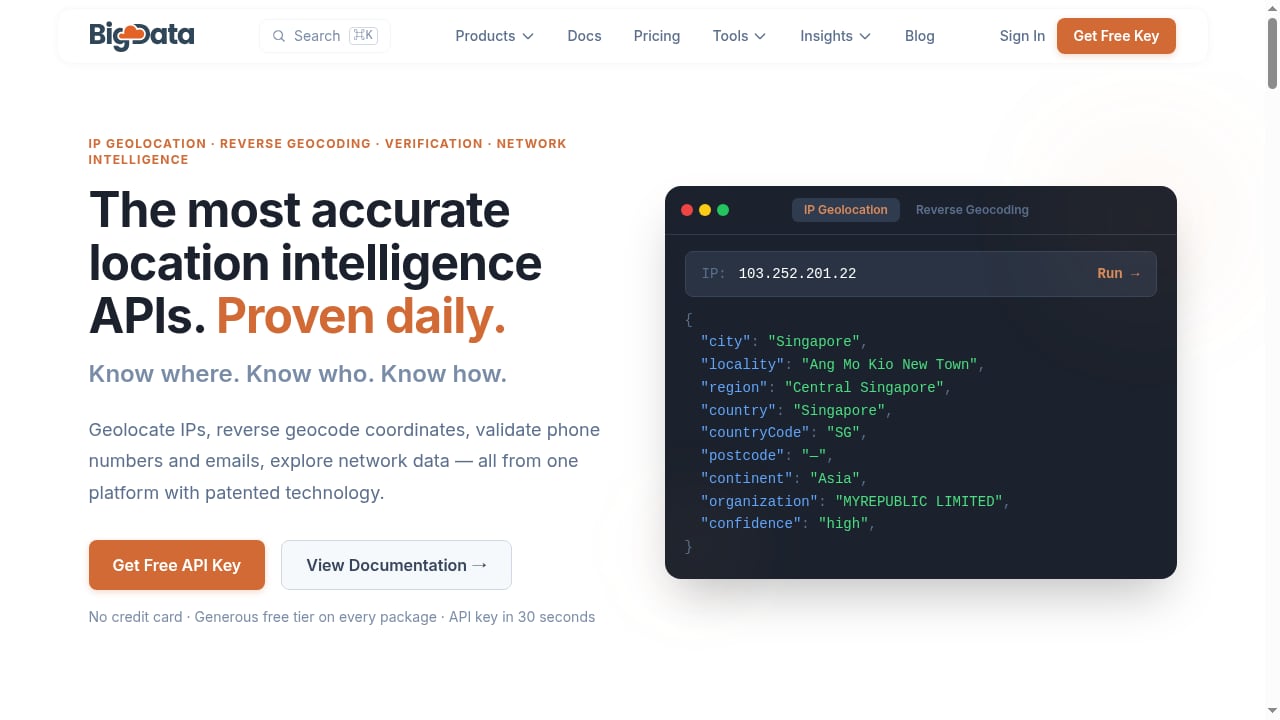
First viewport screenshot of BigDataCloud - Precise IP Geolocation & Reverse Geocoding APIs.
Here is the step-by-step process for using both tools together.
Step 1: Capture your browser's location signals with BrowserScan
Open BrowserScan and run a full fingerprint and leak test. Record the following from the report:
- Public IP address — the IP the website sees
- IP type — residential, datacenter, proxy, or VPN
- DNS leak result — which DNS servers responded and from which region
- WebRTC leak result — whether a local or public IP was exposed
- Geolocation signals — any location data the browser volunteered
Step 2: Resolve the IP address with BigDataCloud
Take the public IP from BrowserScan and query BigDataCloud's IP geolocation API. The response returns structured location data: country, region, city, latitude, longitude, and accuracy indicators.
curl "https://api.bigdatacloud.net/data/ip-geolocation-full?ip=203.0.113.45&localityLanguage=en&key=YOUR_API_KEY"
Compare the returned city and country against what BrowserScan reported. If they differ, you have a location mismatch worth investigating.
Step 3: Reverse geocode any coordinates you collected
If BrowserScan or your own scripts captured latitude and longitude, send those coordinates to BigDataCloud's reverse geocoding endpoint to get a human-readable address.
curl "https://api.bigdatacloud.net/data/reverse-geocode-client?latitude=40.7128&longitude=-74.0060&localityLanguage=en"
This is useful when you have raw coordinates from WebRTC or geolocation APIs and need to know what physical place they correspond to.
Step 4: Compare and diagnose
Build a simple comparison table:
| Signal source | Location reported | Matches IP geolocation? |
|---|---|---|
| BrowserScan public IP | New York, US | Baseline |
| BigDataCloud IP lookup | New York, US | Yes |
| BrowserScan DNS leak | Amsterdam, NL | No — investigate |
| WebRTC exposed IP | 192.168.1.10 (local) | N/A — local only |
Any row that disagrees with the baseline is a potential leak or misconfiguration.
Practical Examples
First viewport screenshot of Release Notes.
Example 1: Verifying a VPN does not leak your real location
You connect to a VPN server in Frankfurt. BrowserScan reports a public IP in Frankfurt but a DNS leak test shows a resolver in your home country. Query the leaked DNS resolver IP with BigDataCloud's IP geolocation API. If it resolves to your actual city, your DNS traffic is bypassing the VPN tunnel.
Fix: Enable DNS leak protection in your VPN client or switch to a provider that routes DNS through the tunnel.
Example 2: Checking whether a proxy actually changes your apparent location
You configure a residential proxy. BrowserScan shows the proxy IP but WebRTC exposes a different public IP. Look up both IPs with BigDataCloud. If the WebRTC IP resolves to your real city while the proxy IP resolves elsewhere, the proxy is not covering WebRTC.
Fix: Disable WebRTC in your browser or use a browser profile that blocks it.
Example 3: Validating geolocation API results in an application
You are building an app that uses the browser Geolocation API. Users report wrong city names. Capture the coordinates the browser returns, reverse geocode them with BigDataCloud, and compare against the IP-based location from BrowserScan. If the coordinates resolve to a different city than the IP, the browser may be using a stale or cached location.
Fix: Request fresh coordinates and cross-check with IP geolocation before displaying a location to the user.
Comparison: When to Use Which Tool
| Task | BrowserScan | BigDataCloud |
|---|---|---|
| Detect browser fingerprint uniqueness | Yes | No |
| Test DNS and WebRTC leaks | Yes | No |
| Resolve IP to city and country | Basic | Precise, benchmarked |
| Reverse geocode coordinates | No | Yes |
| Batch geocode large datasets | No | Yes |
| Check proxy and VPN detection | Yes | Partial |
| Verify bot or automation signals | Yes | No |
Use BrowserScan when you need to see what your browser exposes. Use BigDataCloud when you need to interpret the geographic meaning of an IP or coordinate. Use both when location accuracy matters.
Common Problems This Combination Solves
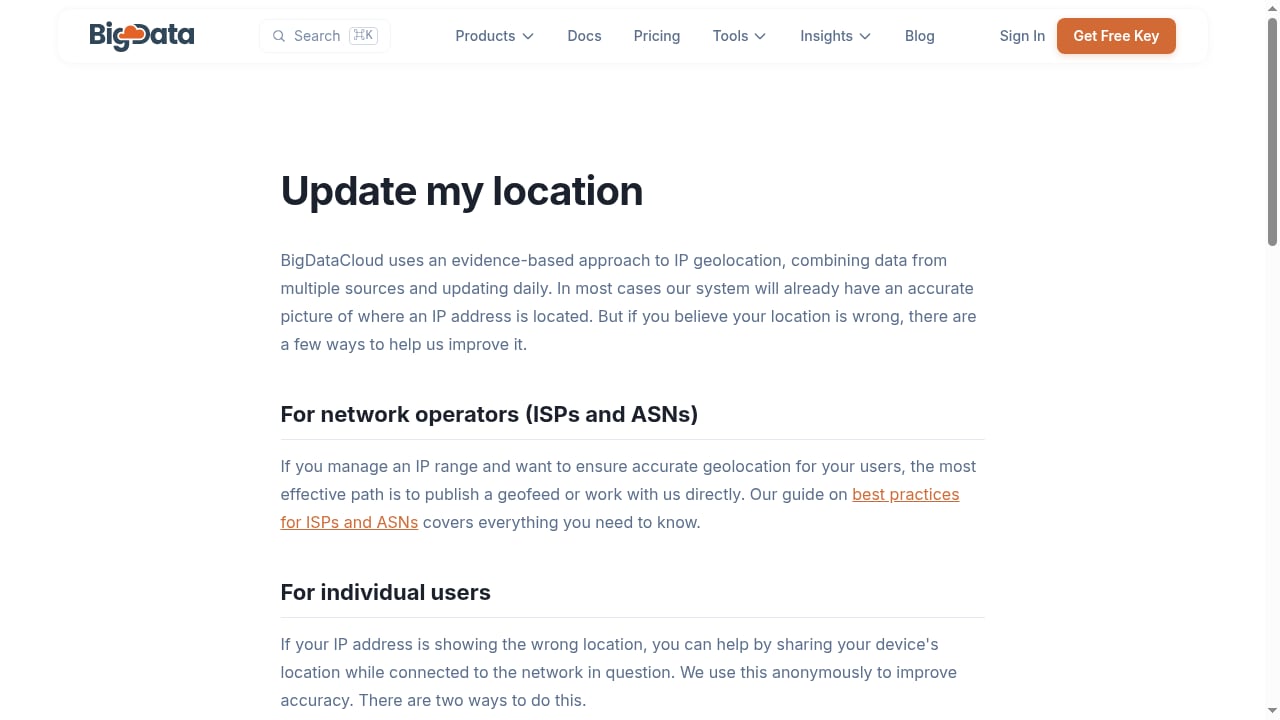
First viewport screenshot of Update my location | BigDataCloud.
- Silent DNS leaks — BrowserScan flags the leak; BigDataCloud tells you where the leaked resolver actually is.
- WebRTC IP exposure — BrowserScan shows the exposed IP; BigDataCloud confirms whether it matches your real location.
- Proxy misconfiguration — BrowserScan shows the proxy is active; BigDataCloud verifies the proxy's apparent location is consistent.
- Geolocation API inaccuracy — BrowserScan captures browser signals; BigDataCloud reverse geocodes coordinates to check accuracy.
- Fingerprint-location inconsistency — A fingerprint that claims one locale while the IP resolves to another is a red flag for fraud detection systems.
Setup Tips
- Get a BigDataCloud API key. The free tier is sufficient for testing. Register and copy your key.
- Store the key securely. Do not embed it in client-side JavaScript for production use. Route requests through a server.
- Respect rate limits. BigDataCloud publishes daily accuracy benchmarks and rate limits. Cache results for repeated IPs and coordinates.
- Use structured fields. Request country, region, city, and postcode separately rather than relying on a formatted address string.
- Log both signals. When testing, record BrowserScan output and BigDataCloud responses together so you can compare over time.
For a broader look at how BrowserScan compares to other fingerprinting tools, see our BrowserScan vs BrowserLeaks vs Pixelscan comparison. If you want a deeper walkthrough of BrowserScan's own capabilities, read the BrowserScan fingerprint detection guide.
Related reading
- BrowserScan vs BrowserLeaks: Best Fingerprint Detection Tool? - Compare BrowserScan and BrowserLeaks for fingerprint detection, DNS, WebRTC and proxy leak testing. See which privacy tool fits your workflow in 2026.
- ToDetect Review 2026: Free Fingerprint & IP Purity Test - Hands-on ToDetect review: browser fingerprint detection, IP purity checks, proxy and WebRTC leak signals, pricing, setup, and who it actually fits.
Sources and further reading
- How do I do reverse geocoding for a batch of latitude and longitude in Excel? - Answer (1 of 2): The easiest way to do this is by exporting your latitude,longitude data as a CSV file from Excel, then upload it on
- Best OSRM (OpenStreetMap Routing Machine) API Alternatives & Competitors (API) | Build Studio NG - Compare the top OSRM (OpenStreetMap Routing Machine) API alternatives and competitors for Nigerian developers. Review features, pricing, documentation, and developer experience.
- Web API Hub | Free Public APIs Directory | CCTor - Explore free public APIs by category with documentation, authentication, HTTPS, and CORS details.
FAQ
Can BrowserScan tell me the city my IP resolves to?
BrowserScan shows your public IP and basic network signals, but for precise city-level geolocation with accuracy benchmarks, BigDataCloud's IP geolocation API is the better tool. Use BrowserScan to capture the IP, then query BigDataCloud for the detailed location.
Do I need a paid BigDataCloud plan to test this workflow?
No. BigDataCloud is free to start, which is enough for individual testing and small-scale verification. Paid tiers are available when you need higher volume or additional features.
What is reverse geocoding used for in privacy testing?
Reverse geocoding converts latitude and longitude into a readable address. In privacy testing, it helps you understand what physical location a set of coordinates corresponds to, so you can check whether browser geolocation signals match your IP-based location.
Why would my DNS location differ from my IP location?
DNS queries can travel through different network paths than your regular traffic. If your VPN or proxy does not route DNS through the same tunnel, your DNS resolver may be in a different country than your apparent IP address. BrowserScan's DNS leak test reveals this, and BigDataCloud confirms where the resolver actually is.
Can I automate this workflow?
Yes. BrowserScan provides browser-based reports you can read manually or capture programmatically. BigDataCloud offers REST APIs you can call from scripts. Combine them in a monitoring script that runs periodically and alerts you when location signals diverge.
Does BigDataCloud work for batch reverse geocoding?
Yes. BigDataCloud's reverse geocoding API can be called repeatedly for batches of coordinates. For large volumes, implement caching and respect rate limits, or use a paid tier that supports higher throughput.
Conclusion
BrowserScan and BigDataCloud solve complementary halves of the same problem. BrowserScan reveals what your browser exposes — fingerprints, leaks, and network signals. BigDataCloud interprets the geographic meaning of the IP addresses and coordinates those signals contain.
Together, they let you verify that your location signals are consistent, detect leaks that would otherwise go unnoticed, and build applications that handle geolocation accurately. Start with a BrowserScan fingerprint test, capture your IP and any leaked signals, then validate them with BigDataCloud's APIs. The comparison table you build will tell you exactly where your privacy setup stands.