
How to Use IPhey: Browser Fingerprint Test Guide
How to Use IPhey: A Practical Guide to Browser Fingerprint Testing
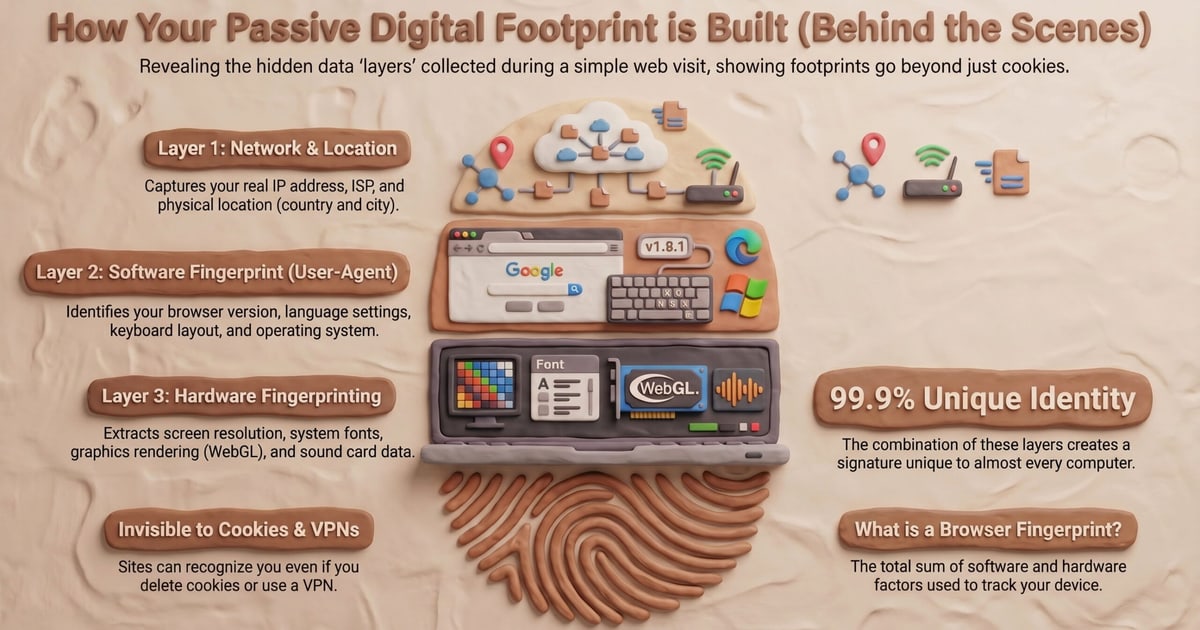
IPhey is a free, browser-based fingerprinting test that shows what your browser reveals about your device. If you have ever wondered why ads follow you across sites or why a VPN does not always make you anonymous, IPhey is a fast way to see the raw signals websites collect. This guide walks through what IPhey does, how to run it step by step, how to read the results, and how to verify your setup with additional checks when you need a second opinion.
What IPhey Actually Tests
How to Use IPhey: Browser Fingerprint Test Guide - What IPhey Actually Tests.
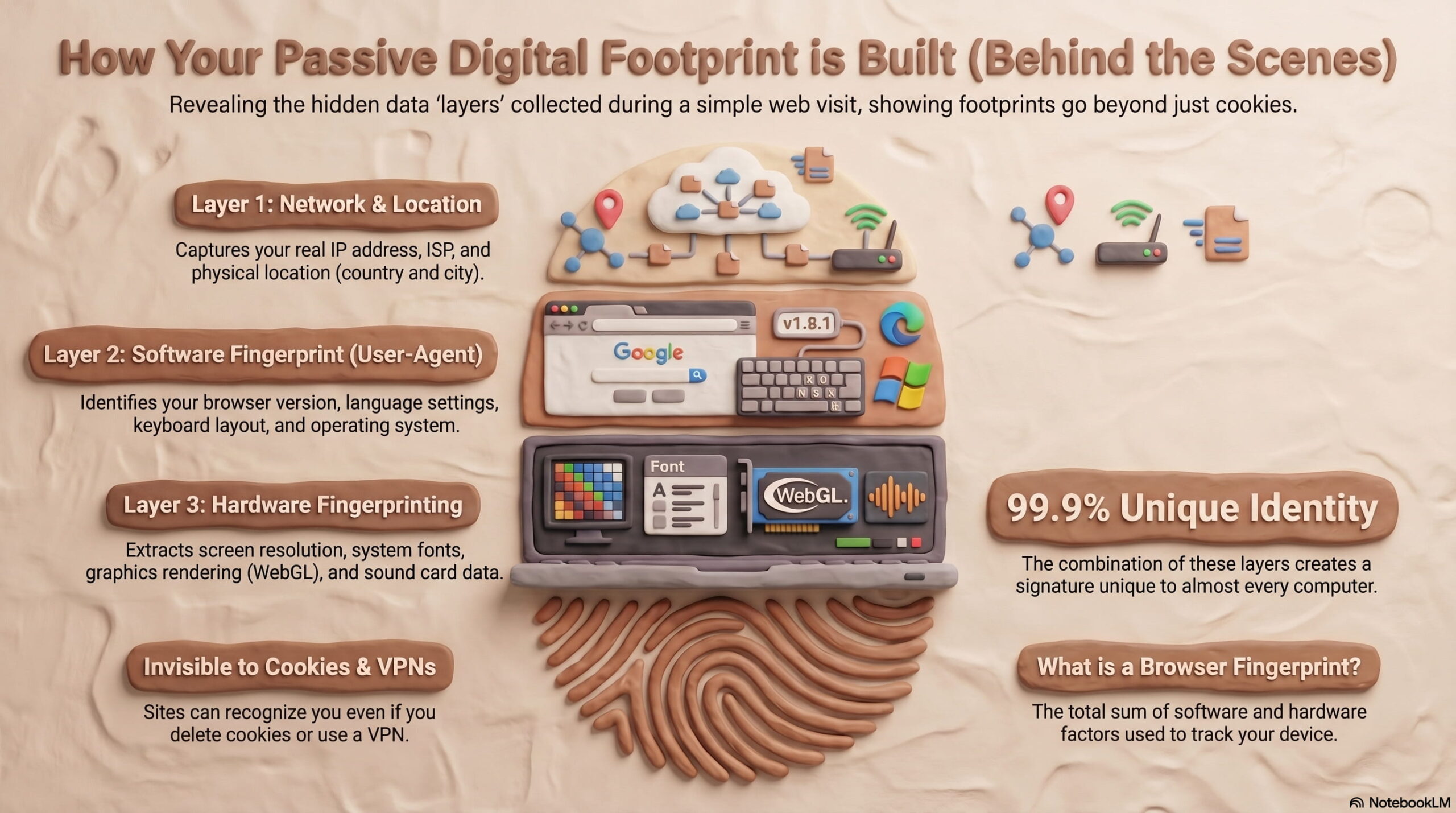
IPhey runs a real-time fingerprint check inside your browser. It does not install anything. When you open the site, it collects and displays data such as:
- Browser and system details – user agent, operating system, browser version, rendering engine, and language settings.
- IP and network information – public IPv4 or IPv6 address, ISP, organization, and country-level geolocation.
- Hardware signals – screen resolution, color depth, device memory, GPU details via WebGL, and audio stack characteristics.
- Software signals – installed fonts, plugins, timezone, and cookie settings.
- Leak indicators – WebRTC exposure and DNS behavior that may reveal your real location behind a VPN or proxy.
IPhey also includes checks for bot detection, IP blacklist status, and proxy or VPN leaks. The goal is not just to show one number but to surface the combination of traits that make your browser identifiable.
How to Use IPhey: Step by Step
How to Use IPhey: Browser Fingerprint Test Guide - How to Use IPhey: Step by Step.
1. Open IPhey in the browser you want to test
Go to the IPhey site directly. No account or sign-up is required for the basic fingerprint check. Test the exact browser profile you use for the activity you care about, because extensions and settings change the result.
2. Let the initial scan finish
IPhey analyzes your browser automatically. The first screen usually shows a summary with a trust or uniqueness indicator. Wait until the page stops updating before you draw conclusions.
3. Review each section of the report
Scroll through the results and note anything unexpected:
- Does the reported timezone match your IP location?
- Is WebRTC exposing a local or real IP address?
- Does the GPU or platform string look generic or inconsistent with your operating system?
- Are the fonts and plugins plausible for your device?
4. Run the extended checks
IPhey offers additional tests such as IP leak, DNS leak, VPN checker, and bot check. Run the ones relevant to your setup. If you use a VPN, the DNS and WebRTC checks are the most important.
5. Record a baseline, then change one thing at a time
Save a screenshot or note the key values. If you adjust a setting, a proxy, or a browser extension, re-run IPhey and compare. Changing multiple things at once makes it hard to know what fixed the problem.
6. Re-test after every meaningful change
Fingerprints shift when browsers update or when you add extensions. A quick re-run after updates keeps you from assuming you are still covered when you are not.
How to Read IPhey Results Without Overreacting
A high uniqueness score is not automatically bad. Real devices are unique. The problem is when your fingerprint looks artificially clean or inconsistent.
| Signal | What it may mean | Practical response |
|---|---|---|
| Very high uniqueness | Your setup is rare or overly tidy | Use a realistic device preset or accept some natural variation |
| Timezone does not match IP | VPN or proxy routing issue | Align browser timezone with the exit IP location |
| WebRTC shows a local IP | Real network address may leak | Disable or proxy WebRTC in your browser or VPN |
| Generic GPU or renderer string | Possible spoofing or virtual machine | Match GPU details to the claimed device |
| Short or unusual font list | Inconsistent with the claimed OS | Use font packs that match your platform |
| Missing standard APIs | Looks like automation or tampering | Spoof plausible values instead of disabling APIs |
The goal is plausibility, not invisibility. An empty or contradictory fingerprint often stands out more than a normal one.
IPhey vs. Other Fingerprint Checkers
IPhey is a solid starting point, but it is not the only option. Different tools emphasize different things:
- IPhey – real-time fingerprint, IP, VPN, DNS, bot, and blacklist checks in one place.
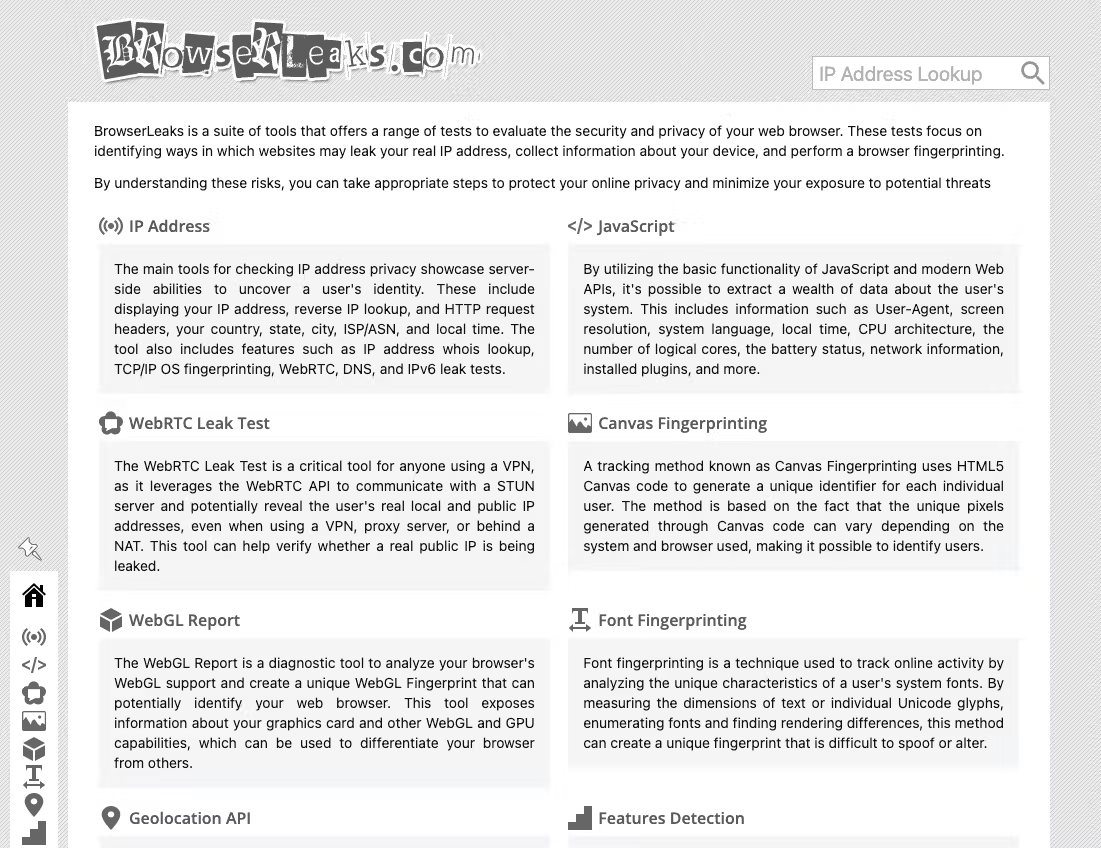
- BrowserLeaks – deep technical breakdowns for advanced users.
- AmIUnique – compares your fingerprint against a database of other visitors.
- Whoer – quick anonymity overview with a simple score.
- BrowserScan – free browser fingerprint analysis with authenticity scoring, plus DNS, WebRTC, and IP leak tests in one dashboard.
Using two tools is often more useful than trusting one score. If IPhey flags something, confirm it elsewhere before you change your whole setup. BrowserScan's fingerprint detection and leak tests are a practical second opinion because they cover the same core signals without installation.
When IPhey Is Not Enough
IPhey is diagnostic. It shows what is visible; it does not fix anything for you. It also does not spoof or randomize your fingerprint, and results can drift as browsers update. If you manage multiple profiles or need consistent identities, you will need a browser or tool that controls fingerprint values, then verify the output with an independent checker.
For a broader view of what your browser exposes, see this guide to running a privacy check that covers fingerprints, IP leaks, DNS, and WebRTC in one workflow. If you are testing an antidetect setup, the same verification logic applies: configure the profile, then confirm it with an external tool as described in this antidetect browser verification guide.
Practical Example: Checking a VPN Setup
Suppose you connect to a VPN in Germany but IPhey reports a timezone of UTC-5 and a WebRTC local IP. That combination suggests the VPN is not fully covering your browser environment.
- Confirm the exit IP country in IPhey's IP section.
- Run the DNS leak test and note which resolver responds.
- Run the WebRTC check and see whether a private or public IP appears.
- Adjust your VPN settings or browser flags, then re-run IPhey.
- Cross-check with a second tool such as BrowserScan to confirm the leak is closed.
This loop — test, change one variable, re-test — is the core habit that makes fingerprint tools useful.
Related reading
- What Is Algo VPN? Self-Hosted WireGuard & IPsec Guide - Algo VPN is an open-source Ansible toolkit that deploys a personal WireGuard or IPsec server on your own cloud account. Learn how it works and how to verify it.
- Algo VPN Login: Setup, Client Access & Privacy Checks - Algo VPN has no central login. Learn how to set up the server, connect WireGuard or IPsec clients, and verify your IP is hidden with free leak tests.
Sources and further reading
- What is IPhey and How to Test Your Browser Fingerprint - Explore what is Iphey and try to test your browser fingerprint with IPhey testing tool here. Then, improve the cleaness of your fingerprint with antidetect browser.
- How to use Iphey to check and improve your anti‑detect browser - Learn how to use Iphey to audit your antidetect browser profiles, identify weak spots and make your fingerprint more realistic.
- Iphey - Real-Time Browser Fingerprinting Test - IPhey - See what your browser reveals about you. Run a real-time browser fingerprinting test to detect tracking risks and hidden leaks.
FAQ
Is IPhey free to use?
Yes. The core fingerprint and leak checks are available without payment. Some advanced or partner features may require sign-up.
Do I need to install anything for IPhey?
No. IPhey runs entirely in your browser. That also means it can only see what your browser exposes, which is exactly what websites see too.
Can IPhey hide my fingerprint?
No. IPhey is a diagnostic tool. It reports what is visible but does not spoof, randomize, or block fingerprinting. You need a separate privacy tool or browser configuration to change the values.
Why does my IPhey score change between visits?
Browser updates, new extensions, VPN server changes, and even network conditions can alter the signals collected. Small changes are normal; large swings usually point to a configuration change.
What is the best IPhey alternative?
It depends on your goal. For a quick anonymity score, Whoer works. For deep technical detail, BrowserLeaks is strong. For a free fingerprint check with authenticity scoring plus DNS, WebRTC, and IP leak tests in one place, BrowserScan is a practical alternative. Many users run IPhey and BrowserScan together for cross-validation.
Does IPhey detect VPNs and proxies?
IPhey includes proxy and VPN checks that look for leaks and inconsistencies. It can flag mismatches between your IP location and browser settings, but it does not guarantee that every proxy will be detected or missed.
Conclusion
Using IPhey is straightforward: open the site, let it scan, read the sections carefully, and re-test after every change. The real value comes from treating it as one part of a verification routine rather than a single verdict. Combine IPhey with a second checker like BrowserScan, keep your timezone aligned with your IP, close WebRTC and DNS leaks, and aim for a fingerprint that looks ordinary instead of perfect. That approach will serve you better than chasing a single score.