
How to Use BrowserScan with Decodo: Proxy + Scraping Workflow
How to Use BrowserScan with Decodo: Proxy + Scraping Workflow
Browser fingerprinting and proxy infrastructure solve two halves of the same problem. BrowserScan shows you what a website can infer about the browser making a request. Decodo supplies the network layer — residential, mobile, ISP, and datacenter proxies plus a Web Data API — that determines where that request appears to come from. Used together, they form a verification loop: route traffic through Decodo, confirm the fingerprint and IP with BrowserScan, then scrape with confidence.
This guide walks through the workflow, setup steps, practical examples, and the failure modes the combination prevents.
Why pair a fingerprint test with a proxy platform
First viewport screenshot of Billing – Proxy Payment Questions | FAQ.
A proxy changes your exit IP. It does not change your canvas hash, WebGL renderer string, font list, timezone, language headers, or automation signals. That mismatch is exactly what anti-bot systems look for: a residential IP in Frankfurt paired with a browser reporting Pacific time and a headless Chrome user agent.
BrowserScan exposes those contradictions in one scan. Decodo gives you the IP diversity to fix the network half. Neither tool is sufficient alone:
- Proxy only: You rotate IPs but keep leaking a consistent, detectable browser profile.
- Fingerprint test only: You see the mismatch but have no clean IP pool to correct it.
- Both: You verify that route, locale, and rendering signals agree before sending production traffic.
What each tool contributes
First viewport screenshot of Decodo - All-in-One Proxy & Web Scraping Platform.
BrowserScan: the diagnostic layer
BrowserScan is a free online suite that reports network, browser, hardware, software, and automation signals visible during a page visit. Its report groups include:
- Network and location: visible IP, provider, proxy status, blacklist status, country, city
- Leak checks: WebRTC addresses and DNS resolver selection
- Hardware: canvas, WebGL, audio, client rectangles, screen, touch, media devices
- Browser: request headers, JavaScript results, version, OS, private mode
- Software: timezone, local time, languages, cookie availability, fonts, bot findings
It also produces an authenticity score. Treat that percentage as triage, not a pass/fail grade — a coherent profile can still be highly recognizable, and a privacy-hardened profile can score lower because its exposed values are deliberately inconsistent.
Decodo: the network and collection layer
Decodo provides 125M+ residential, mobile, ISP, and datacenter proxies alongside a Web Data API, with 99.99% uptime. For this workflow, three capabilities matter:
- Geo-targeted residential IPs so the exit location matches the browser locale you intend to present.
- Mobile and ISP pools for sessions where residential ranges are flagged or rate-limited.
- The Web Data API for scaled collection when you would rather not maintain browser automation yourself.
The verification workflow, step by step
First viewport screenshot of Can customers from Russia and Belarus use Decodo services?.
Step 1: Define the expected profile before you connect anything
Write down the target: browser and version, operating system, language, timezone, approximate location, and connection type. This baseline is what every later signal gets compared against. Skipping this step is the most common reason people misread their scan results.
Step 2: Configure the Decodo route inside the exact browser profile you will test
Apply the proxy at the browser or profile level, not system-wide, if you run multiple identities. Keep the session stable until the scan finishes — rotating mid-scan produces a report that describes two different environments.
Step 3: Open BrowserScan and let the automatic scan complete
Load the home page and wait for the overview fields to populate. Do not change settings, install extensions, or switch networks while it runs.
Step 4: Check the network layer first
Compare the observed IP, provider, country, and city against your intended exit. If the route is wrong, stop and fix it — every downstream comparison depends on this baseline. Also review the WebRTC and DNS results here; an alternate public address or an unexpected resolver usually points to a routing or resolver configuration problem rather than a browser problem.
Step 5: Inspect the detailed groups
Work through hardware, browser, and software findings. Record the specific field behind each warning, not just the score. A canvas hash change and a timezone mismatch have completely different causes and fixes.
Step 6: Change one variable and retest
Correct a single confirmed mismatch, restart the profile if needed, and rerun. One-variable retesting is what makes the results actionable instead of noisy.
Practical example: a geo-targeted scraping job
Suppose you need pricing data from a retailer that serves different content by region and blocks datacenter ranges.
- Pick a Decodo residential exit in the target country.
- Set the browser profile's timezone and
Accept-Languageheader to match that country. - Run BrowserScan. Confirm the visible IP geolocates to the expected city, the timezone agrees, and no WebRTC address leaks your real one.
- If the canvas or WebGL hash looks like a stock headless configuration, adjust the browser build or rendering environment and retest.
- Only then start the scrape. If you use the Web Data API instead of a local browser, verify the proxy endpoint you configure there with the same scan method using a browser pointed at that route.
Practical example: verifying a headless automation setup
Headless browsers fail fingerprint checks in predictable ways. Before a large run:
- Point the automation browser at a Decodo proxy.
- Load BrowserScan inside that headless session.
- Check the bot detection result and the automation-related software findings.
- Compare the reported browser and OS against what your user agent claims.
If the bot result flags automation, the fix is in the browser configuration, not the proxy. Rotating IPs will not help.
Common problems this combination solves
| Problem | What it looks like | Which tool addresses it |
|---|---|---|
| Geo mismatch | IP says one country, browser says another | Decodo geo-targeting + BrowserScan verification |
| WebRTC leak | Real IP appears alongside proxy IP | BrowserScan leak test |
| DNS leak | Unexpected resolver reveals true location | BrowserScan DNS check |
| Flagged IP range | Proxy works but is blacklisted | BrowserScan blacklist status, then switch Decodo pool |
| Automation detection | Bot result flags the session | BrowserScan bot findings, then fix browser config |
| Inconsistent profile | Score drops without an obvious cause | BrowserScan field-level detail |
When to use the Web Data API instead of a local browser
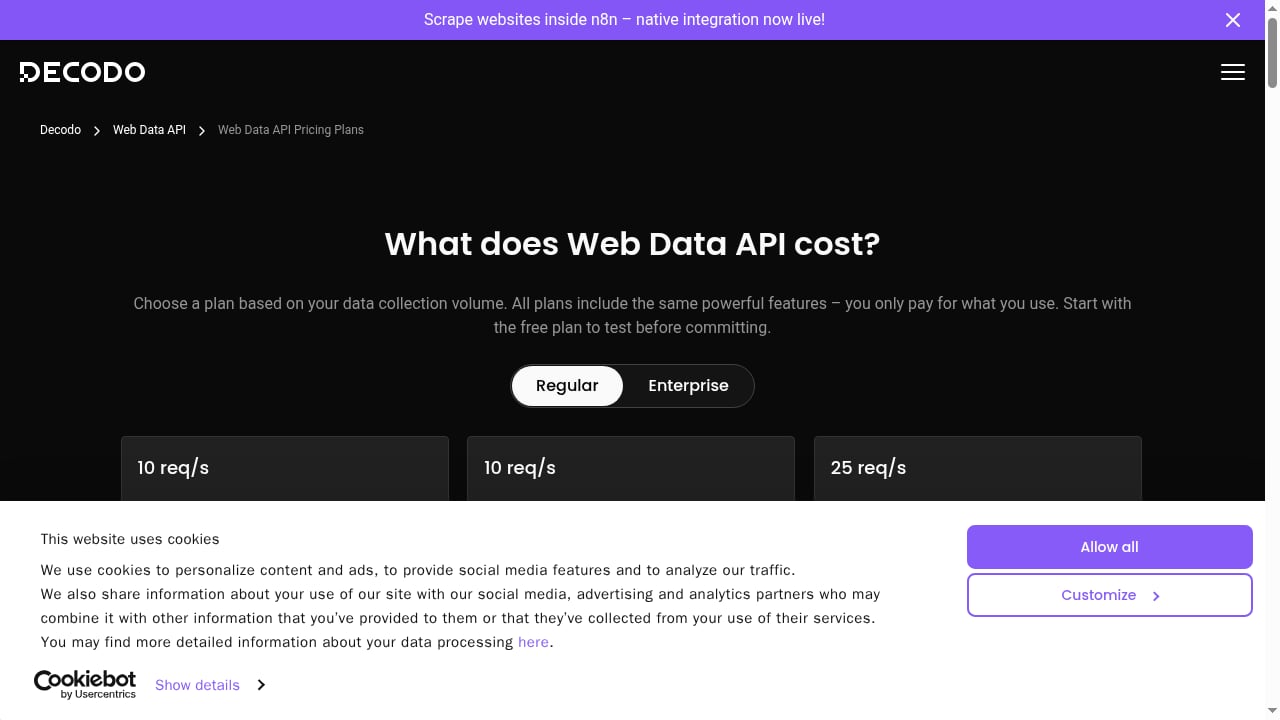
First viewport screenshot of Tailored Web Data API Subscriptions.
If your goal is bulk collection rather than interactive automation, the Web Data API removes the need to maintain browser infrastructure. You still need to verify that the request path presents a coherent identity, but the operational burden shifts to Decodo. Use a local browser plus BrowserScan when you need to debug fingerprint-level issues; use the API when the pipeline is already validated and you need volume.
For a broader comparison of fingerprint testing tools before committing to this stack, see BrowserScan vs IPhey vs WebBrowserTools and BrowserScan vs ToDetect. If your main concern is what your IP address itself reveals, Check IP: What Your Address Reveals Online covers geolocation, ASN, and risk signals in detail.
Related reading
- PrivacyTestLab Review 2026: Free Leak Tests, Limits & Fit - Independent PrivacyTestLab review: free WebRTC, DNS and fingerprint tests, who it suits, trust signals, limitations, and how it compares to other tools.
Sources and further reading
- JavaScript Web Scraping Tutorial (2026) - Ever wished you could make the web work for you? JavaScript web scraping allows you to gather valuable information from websites in an automated way, unlocking insights that would be difficult to collect manually. In this guide, you'll learn the key tools, techniques, and best practices to scrape data efficiently, whether you're a beginner or a developer looking to streamline data collection.
- How Do You Check Your Digital Fingerprint With BrowserScan? - Use BrowserScan to check your digital fingerprint and find browser or proxy mismatches. Learn how to interpret its score and limits.
- 🐍 Python Web Scraping: In-Depth Guide 2026 - Welcome to 2026! What better way to celebrate than by mastering ? If you’re new to web scraping, don’t worry – this guide starts from the basics, guiding you step-by-step on collecting data from websites. Whether you’re curious about automating simple tasks or diving into more significant projects, Python makes it easy and fun to start. Let’s slither into the world of web scraping and see how powerful this tool can be!
FAQ
Does using a Decodo proxy change my browser fingerprint?
No. A proxy changes the network route and the visible IP. Canvas, WebGL, fonts, timezone, and automation signals stay the same unless you change the browser environment itself. That is why running BrowserScan after connecting is the only way to confirm the two layers agree.
Can BrowserScan detect that I am using a proxy?
It reports proxy status and blacklist status based on the observed IP and provider data. Whether a specific proxy is flagged depends on the pool and the detection databases involved, which is why testing your actual Decodo endpoint matters more than assuming a category is safe.
How often should I re-verify a proxy setup?
Re-verify whenever you change browser version, proxy pool, target region, or automation library. For long-running jobs, spot-check periodically — IP reputation and detection logic both change over time.
Is a high BrowserScan authenticity score enough to avoid blocks?
No. The score summarizes consistency checks during one visit. It does not measure uniqueness or guarantee that a target site will accept the session. Read the detailed fields and treat the score as a starting point.
Can I use BrowserScan with headless browsers?
Yes, and it is one of the more useful things you can do with it. Load the scan inside the headless session to see exactly which automation and rendering signals are exposed before you scale up.
Conclusion
BrowserScan and Decodo address different layers of the same request: what the browser reveals and where the traffic appears to originate. The workflow is straightforward — define the expected profile, route through Decodo, scan with BrowserScan, check the network layer first, then work through hardware, browser, and software findings one variable at a time. That loop catches geo mismatches, WebRTC and DNS leaks, blacklisted ranges, and automation flags before they cost you a scraping run.
Start by scanning your current setup, then introduce the proxy layer and scan again. The difference between those two reports tells you exactly what your network configuration is and is not doing.