
Use BrowserScan with NordVPN to Catch Every Privacy Leak
How to Use BrowserScan with NordVPN to Catch Every Privacy Leak
NordVPN does a great job encrypting your traffic and hiding your IP, but even the best VPN can’t prevent every privacy slip. DNS requests might leak, WebRTC can expose your real address, and your browser fingerprint remains uniquely identifiable. That’s where BrowserScan comes in—a comprehensive online privacy checker that uncovers exactly what NordVPN alone can’t stop. At BrowserScan, we regularly pair them to verify VPN setups and harden our browser privacy. This guide shows you how to do the same, step by step.
Why Combine BrowserScan and NordVPN?
Use BrowserScan with NordVPN to Catch Every Privacy Leak product interface and feature overview.
A VPN is your first line of defense, but it’s not a silver bullet.
- IP and DNS leaks: A poorly configured VPN can still let DNS queries slip to your ISP’s servers, revealing your browsing activity.
- WebRTC leaks: Your browser’s real-time communication APIs can expose your true IP address even when the VPN is active.
- Browser fingerprinting: Your screen resolution, installed fonts, time zone, and dozens of other signals create a unique identifier that tracks you from site to site, VPN or not.
BrowserScan fills these gaps with a full suite of free, no-plugin tests. It checks your IP and geolocation, runs DNS and WebRTC leak tests, scores your browser fingerprint uniqueness, scans open ports, and measures connection speed. NordVPN provides the encrypted tunnel and IP camouflage; BrowserScan audits whether that tunnel is truly watertight.
Setting Up NordVPN for Maximum Privacy
Use BrowserScan with NordVPN to Catch Every Privacy Leak product interface and feature overview.
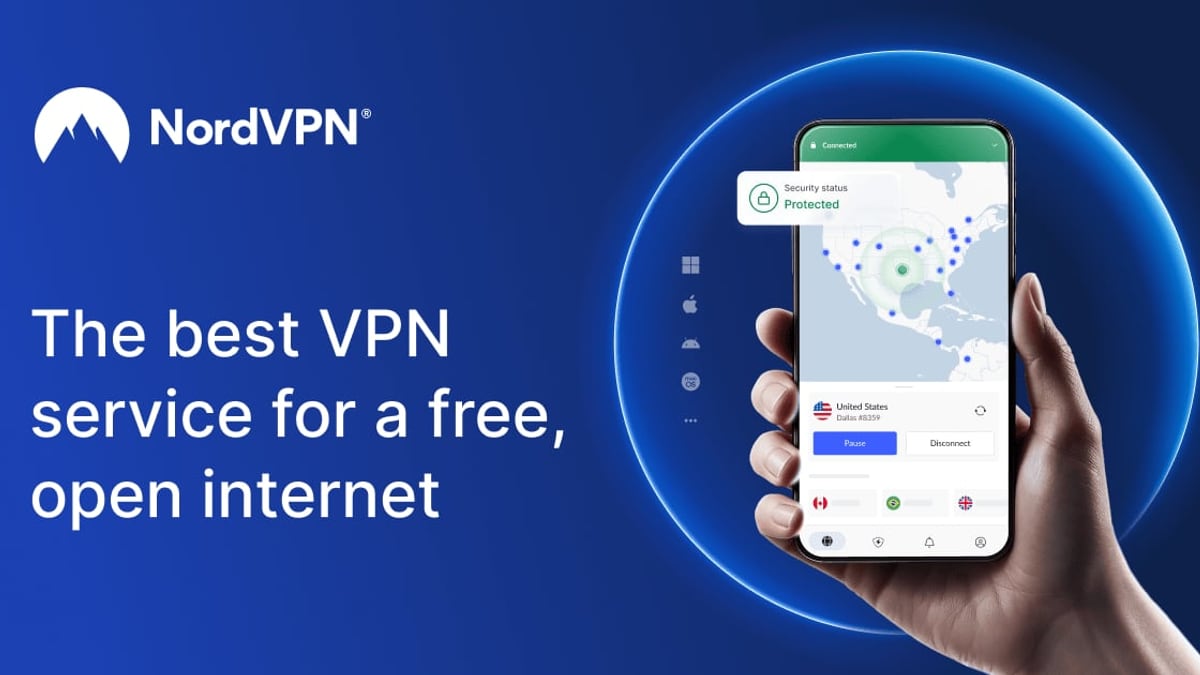
Before you start testing, set up NordVPN to minimize leaks from the start. You have two main options.
Option 1: Full NordVPN App (Recommended for Complete Coverage)
The desktop and mobile apps encrypt all system traffic—not just your browser. They also include the NordLynx protocol, kill switch, and threat protection.
- Download NordVPN for your operating system from the official site.
- Log in and enable Kill Switch (Internet Kill Switch on macOS, or app-specific on Windows).
- Connect to a server in your preferred location.
- Go to Settings > DNS and ensure Use NordVPN DNS addresses is enabled.
Option 2: NordVPN Browser Extension (Lightweight Proxy)
The browser extension is a fast TLS proxy that changes your virtual location but only secures browser traffic. It’s ideal if you can’t install apps or only need browser-level privacy.
- Add the extension from the Chrome, Firefox, or Edge store.
- Log in with your Nord Account.
- Activate WebRTC leak prevention in the extension’s settings.
- Enable Auto-connect to protect every session automatically.
Quick decision: Use the full app when you want all internet traffic on your device protected. The extension is lighter but leaves other apps unprotected and may still reveal your real IP through system-level WebRTC calls. For a thorough audit, we recommend testing with the full app first.
Step-by-Step: Auditing Your Connection with BrowserScan

Use BrowserScan with NordVPN to Catch Every Privacy Leak product interface and feature overview.
Once NordVPN is running, open BrowserScan and run each test. Here’s exactly what to look for.
1. IP and Geolocation Check
Head to BrowserScan’s IP lookup tool. You should see the VPN server’s IP address and a matching geolocation (city, country). If your real ISP-assigned IP appears, you have an IPv6 leak, a DNS leak, or the VPN isn’t connected correctly. Re-check your kill switch and IPv6 settings.
2. DNS Leak Test
Run the DNS leak test. It will show all DNS servers currently handling your queries. If you see entries belonging to your ISP instead of NordVPN’s DNS (e.g., dns.nordvpn.com), you have a DNS leak. Fix this by forcing NordVPN’s DNS in the app settings and disabling your router’s default DNS.
3. WebRTC Leak Test
This is critical. WebRTC can bypass your VPN and reveal your real local and public IP addresses. BrowserScan pings multiple STUN servers to simulate a real-time communication session. The result should show only the VPN IP (not your real one). If your actual IP appears, activate WebRTC leak prevention in the NordVPN extension, or if using the app, disable WebRTC in your browser via chrome://flags or a separate extension like uBlock Origin.
4. Browser Fingerprinting Analysis
BrowserScan’s fingerprint test examines dozens of attributes—user agent, screen resolution, canvas hash, fonts, time zone, and more—and gives you a uniqueness score. With NordVPN active, your IP is hidden, but your fingerprint may still be distinct. To reduce your score:
- Use a common browser (e.g., Chrome stable) on a standard resolution.
- Disable unnecessary plugins and custom fonts.
- Match your browser’s time zone to the VPN server location (use the NordVPN extension’s location spoofing feature).
- Consider a privacy browser like Tor when you need extreme anonymity, though it’s slower.
For more background on why fingerprinting matters, NordVPN’s own deep dive on device fingerprinting explains how even VPN users can be tracked.
5. Advanced Checks: Port Scanner and Speed Test
BrowserScan also includes a port scanner (powered by nmap) that checks your device for open ports that could be exploited. With NordVPN’s app running, any port that isn’t part of the VPN tunnel should appear closed or stealth. Run the internet speed test to measure throughput with and without the VPN—this helps you pick the fastest NordVPN server protocol (NordLynx generally wins).
Practical Scenarios and Troubleshooting
Scenario A: You’re using the NordVPN app and BrowserScan shows a DNS leak.
- Fix: In the NordVPN app, go to Settings > DNS, enable Custom DNS and set it to NordVPN’s addresses (103.86.96.100 and 103.86.99.100). Restart the connection and re-run the DNS test.
Scenario B: The browser extension is active, but your real IP appears in the WebRTC leak test.
- Fix: Ensure WebRTC leak prevention is toggled on in the extension. If it’s already on, disable WebRTC in your browser’s advanced settings or use a browser-level extension that blocks WebRTC outright.
Scenario C: Your fingerprint is still highly unique even with NordVPN.
- Fix: Standardize your browser environment. The NordVPN extension’s Location spoofing feature syncs your reported time zone and location with the VPN server. Combine it with a generic user-agent and disable hardware-accelerated canvas fingerprinting via privacy settings.
NordVPN App vs. Extension: Which Works Best with BrowserScan?

Use BrowserScan with NordVPN to Catch Every Privacy Leak product interface and feature overview.
| Feature | NordVPN App | NordVPN Browser Extension |
|---|---|---|
| Traffic covered | Entire device | Browser only |
| WebRTC leak prevention | Requires manual settings | Built‑in toggle |
| DNS leak protection | Built‑in (custom DNS) | Relies on automated settings |
| Fingerprint masking | Limited (IP hidden only) | Location spoofing available |
| Test results reliability | More complete (system‑wide) | May miss system‑level leaks |
For a full privacy audit with BrowserScan, always start with the full app. Once you’ve confirmed no IP, DNS, or WebRTC leaks at the system level, you can add the extension for an extra layer of fingerprint and location spoofing. Running both simultaneously is generally not recommended, but you can use split-tunneling on the Windows app to exclude your browser from the system VPN, then enable the extension. NordVPN’s blog details how to set this up.
If you’re exploring other VPN providers, you can adapt this same workflow. For example, our guide on using BrowserScan with Mozilla VPN walks through a similar leak‑proof process. And when you’re ready to go beyond a single VPN check, combining BrowserScan with PrivacyTools.io helps you build a complete privacy toolkit.
Related reading
- IPhey Review 2026: Browser Fingerprint, Leak Test & Privacy Audit - Read our evidence-based IPhey review: test browser fingerprints, IP/DNS leaks, bot detection, and risk scores. Ideal for multi-accounting, affiliate marketing, and VPN audits.
- 10 Best Antidetect Browser Software in 2026 (Tested & Ranked) - Discover 2026's best antidetect browsers, tested and ranked. Compare features, pricing, and fingerprint quality for multi-account management, scraping, and privacy.
Sources and further reading
- Device fingerprinting: is it dangerous? - 5 Expert ways to help conceal your digital fingerprint online! How to stay truly private, and secure yourself from data theft.
- VPN proxy extension for Chrome, Firefox, and Edge - Proxy extension changes your IP and your virtual location, and protects your online traffic while you browse on Chrome, Edge, and Firefox. Get NordVPN today.
- The NordVPN browser extension: Features and benefits - Secure your browsing with the NordVPN browser extension. Read on and discover the benefits of this lightweight protection tool.
Frequently Asked Questions
Does NordVPN prevent browser fingerprinting?
NordVPN hides your IP address, but fingerprinting relies on dozens of other signals. The VPN alone cannot make your fingerprint disappear; however, NordVPN’s browser extension includes location spoofing and WebRTC blocking that reduce the unique markers. For best results, use a standard browser configuration and run frequent checks on BrowserScan.
Can BrowserScan detect if NordVPN is working?
Absolutely. The IP lookup and geolocation test will immediately show whether your traffic is exiting from a NordVPN server. Follow it with DNS and WebRTC leak tests to confirm that no identifying data escapes the tunnel.
Is it safe to use both the NordVPN app and the browser extension at the same time?
Not recommended under normal circumstances—it creates a double connection that can slow your speed and cause conflicts. However, on Windows you can set up split tunneling to route only your browser through the extension while the app handles everything else, preventing double‑hop issues.
What should I do if BrowserScan shows a DNS leak even with NordVPN connected?
Switch to NordVPN’s own DNS servers (found in the app settings), flush your DNS cache, and make sure IPv6 is disabled unless you’re certain your VPN supports it. Re‑test until all DNS queries align with your VPN.
Conclusion
BrowserScan and NordVPN are a natural pair: one provides the encrypted tunnel, the other shines a light on the gaps. By running the IP, DNS, WebRTC, and fingerprint checks after each VPN configuration change, you guarantee that your privacy measures actually work. At BrowserScan, we consider this audit a monthly routine. Try it yourself, fix the leaks that appear, and browse with the confidence that your real identity stays hidden.