
How to Use Nmap: The Network Mapper Free Security Scanner
How to Use Nmap: The Network Mapper Free Security Scanner
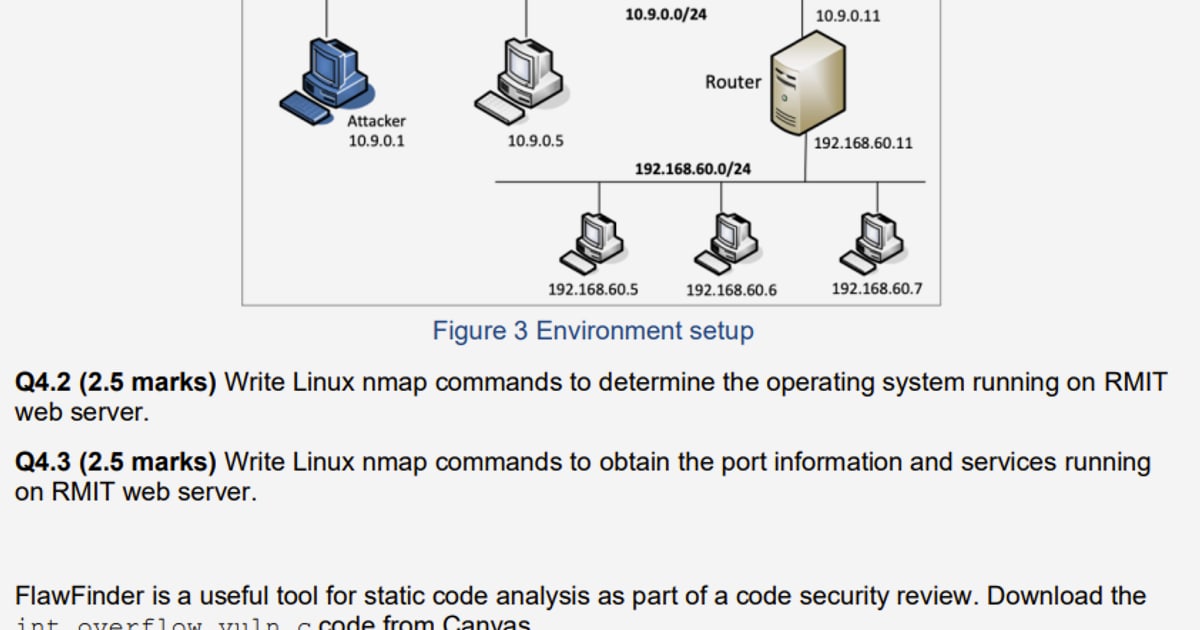
Nmap, short for Network Mapper, is one of the most widely used free and open-source tools for network discovery and security auditing. Whether you are a system administrator mapping an internal network, a developer checking which services are exposed on a server, or a privacy-conscious user verifying what your router actually has open to the internet, Nmap gives you a precise, packet-level view of what is reachable and what is running.
This guide walks through what Nmap does, how to install it, the most useful scan commands, how to read the output, and how to stay on the right side of the law while scanning. It also covers when a browser-based alternative such as BrowserScan makes more sense for quick checks.
What Is Nmap and What Does It Do?
How to Use Nmap: The Network Mapper Free Security Scanner - What Is Nmap and What Does It Do?.
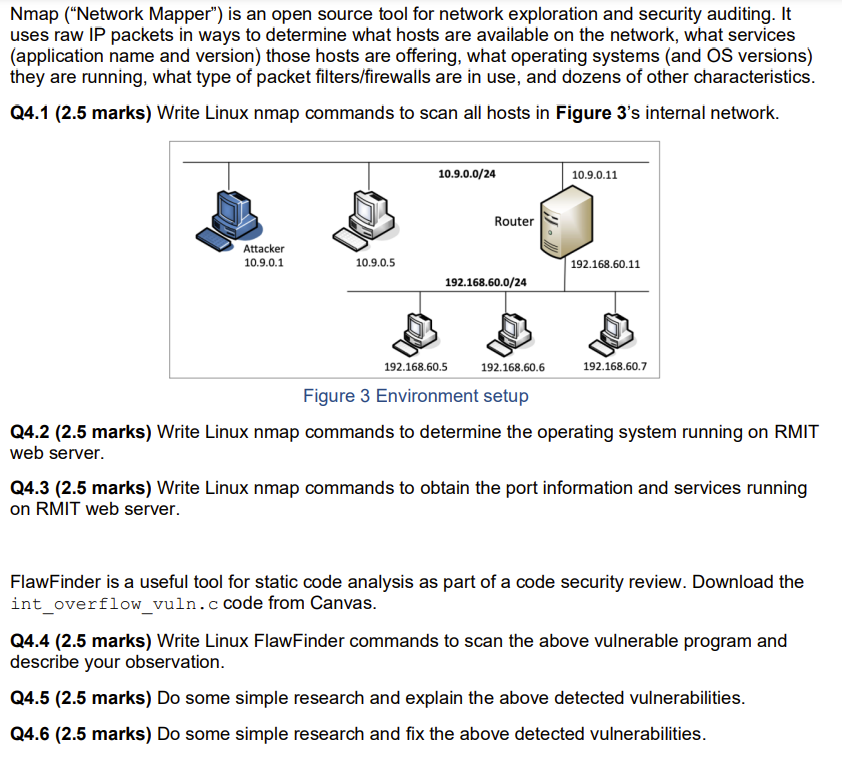
Nmap uses raw IP packets to determine which hosts are available on a network, which services those hosts are offering, which operating systems they are running, and what kind of packet filters or firewalls are in place. It was designed to scan large networks quickly, but it works just as well against a single host.
Common use cases include:
- Network inventory: discovering every device connected to a subnet
- Security auditing: identifying open ports and outdated services
- Service monitoring: checking whether a specific port or service is still up
- Firewall testing: verifying which ports are filtered or blocked
- OS fingerprinting: determining the operating system and version of a remote host
The official Nmap suite also includes Zenmap, a graphical interface and results viewer, plus Ncat for data transfer and debugging, Ndiff for comparing scan results, and Nping for packet generation and response analysis.
Is Nmap Free and Does It Require an Account?
How to Use Nmap: The Network Mapper Free Security Scanner - Is Nmap Free and Does It Require an Account?.
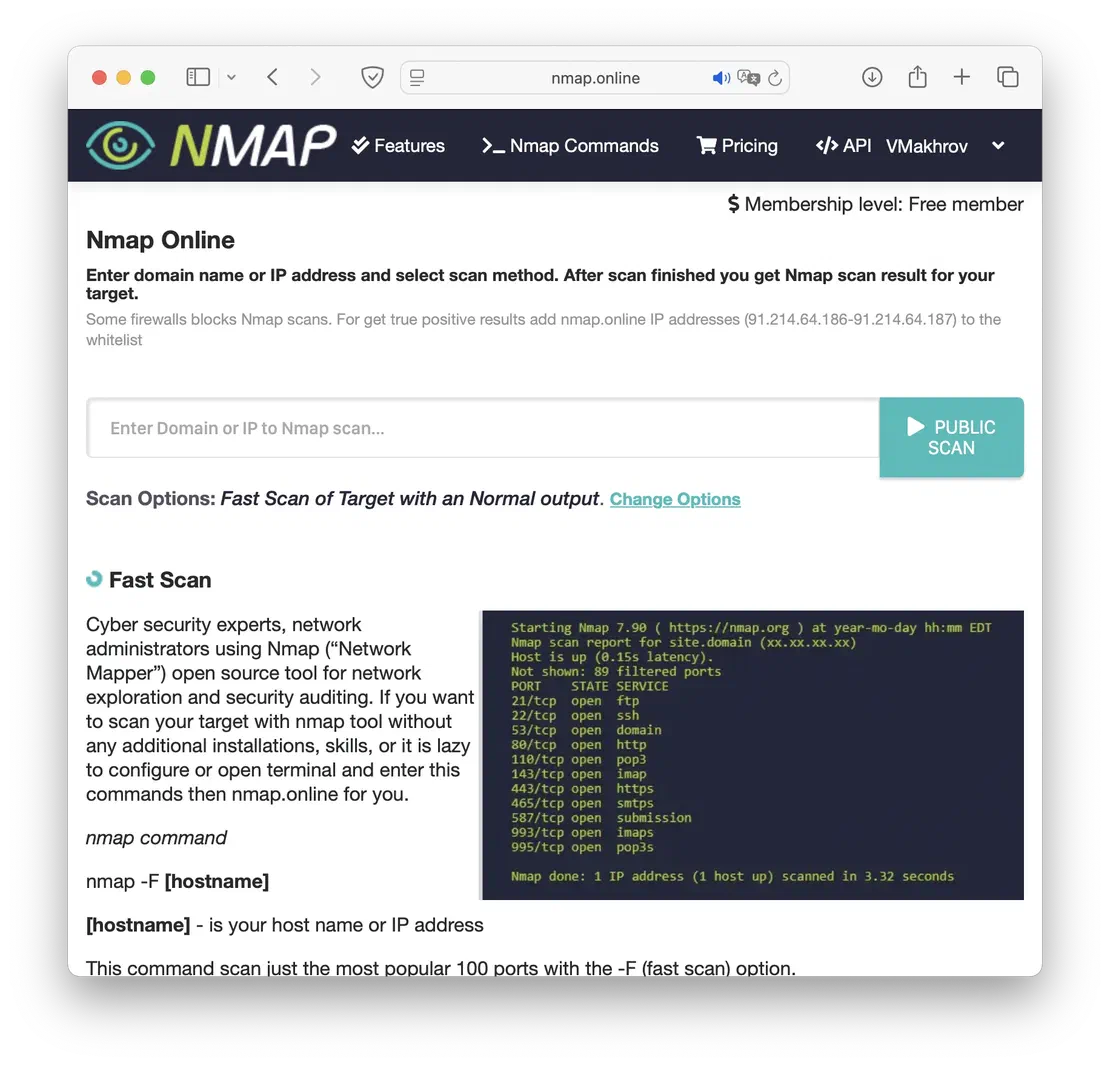
Nmap is completely free and open source. You do not need to create an account or log in to download or use it. The source code is available under a license based on the GNU GPL, which means you can modify and redistribute it. Official binary packages are available for Linux, Windows, and macOS, and the tool ships with many Linux distributions by default.
If you are just getting started, the Nmap login and setup guide covers installation steps for Windows, macOS, and Linux in more detail.
How to Install Nmap

How to Use Nmap: The Network Mapper Free Security Scanner - How to Install Nmap.
Windows
- Download the official Nmap installer from nmap.org.
- Run the installer and accept the default options, including the optional Npcap driver for raw packet support.
- Open a Command Prompt or PowerShell window and type
nmap --versionto verify the installation.
macOS
Install via Homebrew:
brew install nmap
Alternatively, download the macOS installer from the official download page.
Linux
On Debian or Ubuntu:
sudo apt update
sudo apt install nmap
On Fedora or RHEL:
sudo dnf install nmap
Running Your First Nmap Scan
How to Use Nmap: The Network Mapper Free Security Scanner - Running Your First Nmap Scan.
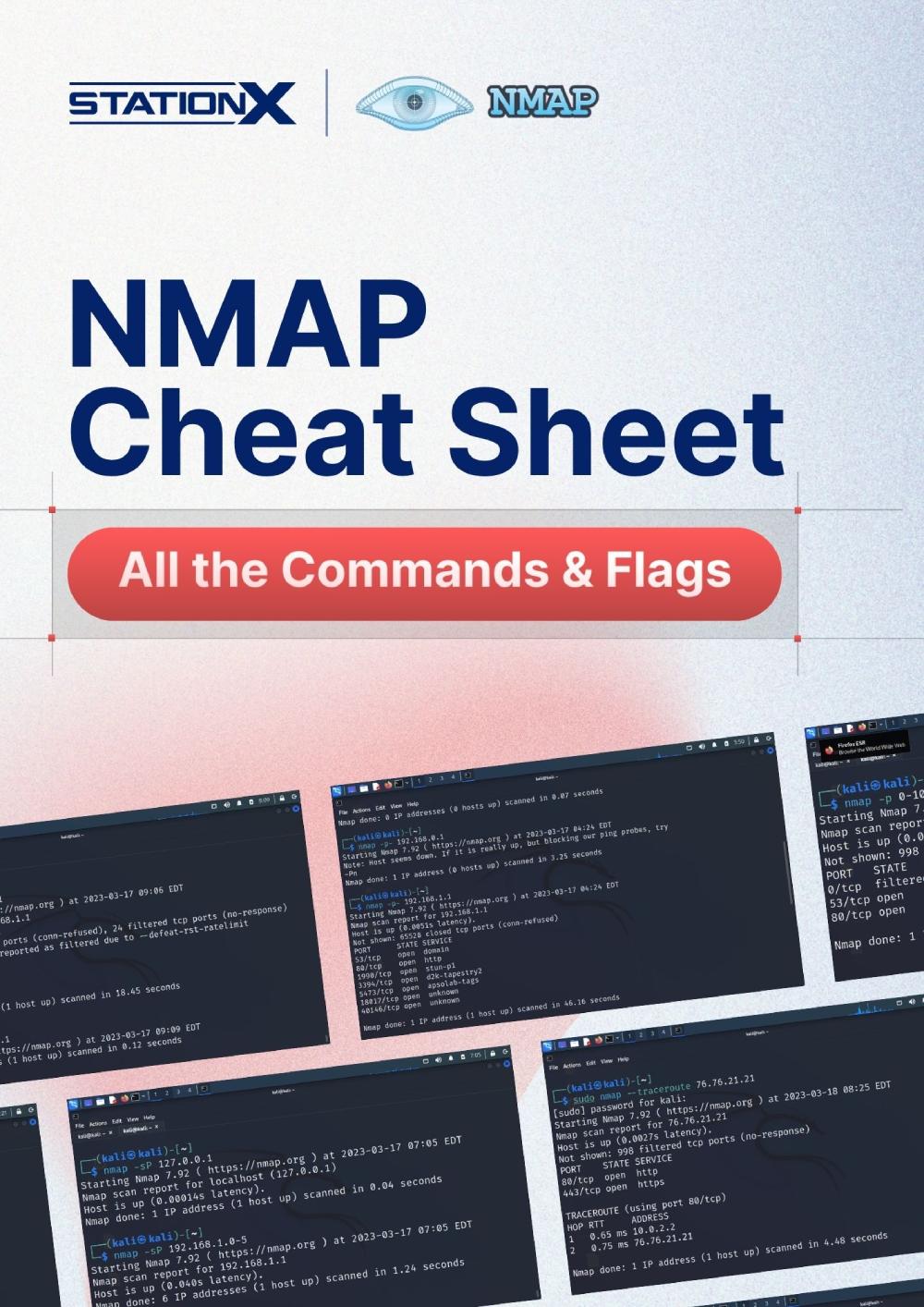
The simplest scan targets a single host:
nmap scanme.nmap.org
This performs a default TCP SYN scan of the 1,000 most common ports. The output shows each open port, the service name, and the state of the port:
PORT     STATE SERVICE
22/tcp   open  ssh
80/tcp   open  http
443/tcp  open  https
A port can be reported as open, closed, filtered, unfiltered, open|filtered, or closed|filtered. filtered usually means a firewall or packet filter is interfering with the scan.
Essential Nmap Commands and Scan Types
Host Discovery: Find Live Devices on a Network
Before scanning ports, you often want to know which hosts are up. A ping sweep sends ICMP echo requests, TCP SYN packets, and other probes to a range:
nmap -sn 192.168.1.0/24
This lists every device that responds on the local subnet without performing a port scan.
TCP SYN Scan: The Default Stealth Scan
nmap -sS 192.168.1.1
A SYN scan sends a TCP SYN packet and waits for a SYN/ACK response. It is faster and less likely to be logged than a full TCP connect scan because it never completes the three-way handshake.
TCP Connect Scan: When You Lack Raw Packet Privileges
nmap -sT 192.168.1.1
This uses the operating system's normal connect system call. It is more reliable when you do not have root or administrator privileges, but it is easier for target systems to detect.
UDP Scan: Find Open UDP Services
nmap -sU -p 53,67,68,123,161 192.168.1.1
UDP scanning is slower and less reliable than TCP scanning, but many important services such as DNS, DHCP, NTP, and SNMP run over UDP.
Version Detection: Identify Running Software
nmap -sV scanme.nmap.org
Version detection probes open ports to determine the application name and version. This is essential for identifying outdated or vulnerable software.
OS Detection: Fingerprint the Remote System
nmap -O scanme.nmap.org
OS detection analyzes subtle differences in TCP/IP stack behavior to guess the remote operating system and version. It requires root or administrator privileges.
Aggressive Scan: Combine Multiple Techniques
nmap -A scanme.nmap.org
The -A flag enables OS detection, version detection, script scanning, and traceroute in a single command. It produces a lot of output but gives a comprehensive picture of the target.
Scan Specific Ports or Port Ranges
nmap -p 22,80,443 scanme.nmap.org
nmap -p 1-1024 scanme.nmap.org
nmap -p- scanme.nmap.org
The first command scans three specific ports. The second scans the first 1,024 ports. The third scans all 65,535 TCP ports, which is slower but thorough.
Using the Nmap Scripting Engine
The Nmap Scripting Engine (NSE) extends Nmap with hundreds of scripts for vulnerability detection, brute-force testing, service enumeration, and more. Scripts are organized into categories such as safe, default, vuln, auth, and discovery.
Run all default scripts:
nmap -sC scanme.nmap.org
Run vulnerability-related scripts:
nmap --script vuln scanme.nmap.org
Run a specific script:
nmap --script http-title scanme.nmap.org
List all available scripts:
ls /usr/share/nmap/scripts/
Reading and Saving Nmap Output
Nmap supports several output formats that can be combined:
nmap -oN normal.txt -oX xml.xml -oG grepable.txt scanme.nmap.org
-oNsaves normal human-readable output-oXsaves XML output for parsing by other tools-oGsaves grepable output for quick command-line filtering-oAsaves all three formats with a common base name
For repeated scans, compare results with Ndiff:
ndiff scan1.xml scan2.xml
Legal and Ethical Considerations
Nmap is a powerful tool, and with that power comes responsibility. Scanning networks or hosts you do not own or have explicit permission to test can violate laws, terms of service, or acceptable use policies. In some jurisdictions, unauthorized port scanning has led to civil lawsuits and even criminal charges.
Best practices:
- Only scan systems you own or have written authorization to test
- Use the official test host
scanme.nmap.orgfor practice - Be aware that aggressive scans can trigger intrusion detection systems
- Avoid scanning third-party infrastructure during business hours or at high rates
- Check your ISP's acceptable use policy before scanning external targets
The official Nmap Network Scanning book includes a detailed legal section that every new user should read before running scans against anything other than their own equipment.
Nmap vs. Browser-Based Port Scanners
Nmap is the gold standard for deep, packet-level network reconnaissance, but it is not always the most convenient option. A browser-based port scanner such as the one included in BrowserScan can check common open ports on your public IP address without installing any software.
When to choose Nmap:
- You need OS detection, version detection, or NSE scripts
- You are scanning an internal network or a range of hosts
- You need raw packet control and advanced scan types
- You are comfortable with the command line
When a browser-based scanner is more practical:
- You want a quick check of your public-facing ports from any device
- You are behind a corporate network and cannot install software
- You only need to verify whether a handful of common ports are open
- You are testing your VPN or firewall from an external perspective
For a broader look at what your browser and network are exposing, the BrowserScan tutorial shows how to check your browser fingerprint, detect DNS and WebRTC leaks, and scan ports in one place. If you are specifically worried about whether your VPN is leaking your real IP address, the online anonymity guide explains how to test what outside observers can actually see.
Related reading
- Online Anonymity: What It Really Means and How to Test Yours - Learn what online anonymity really means, why it matters, the tools people use to achieve it, and how to test whether your identity is actually protected.
- IPWHOIS.io Tutorial: IP Geolocation API Guide - Learn how to use the IPWHOIS.io API for IP geolocation, ISP data, and security flags. Includes setup, code examples, limits, and verification tips.
- HackerTarget: Security Scanners, IP Tools & API Guide - Explore HackerTarget's online vulnerability scanners, reverse IP lookup, IP tools, and API limits. Learn how to use them for security testing and reconnaissance.
Sources and further reading
- Chapter 1. Getting Started with Nmap - Table of Contents
Frequently Asked Questions
Is Nmap really free?
Yes. Nmap is free and open source, released under a license based on the GNU GPL. There are no paid tiers, accounts, or premium features. The project is supported by the community and by sponsors of the related Npcap project.
Can Nmap crash the target computer?
Nmap is designed to be non-destructive, but aggressive scans, especially UDP scans or certain NSE scripts, can overwhelm fragile devices such as old printers, IoT hardware, or misconfigured servers. The official documentation warns that scanning production systems can occasionally cause instability, which is another reason to scan only systems you are authorized to test.
What is the difference between Nmap and Zenmap?
Nmap is the command-line scanner. Zenmap is the official graphical front end that provides a visual interface for building commands, running scans, and comparing results. Zenmap is no longer actively developed, but it still works for many users who prefer a GUI.
How long does an Nmap scan take?
A default scan of a single host usually takes a few seconds to a minute. Scanning all 65,535 ports with -p-, running version detection, or scanning large subnets can take much longer. The -T timing template flag, from -T0 (paranoid) to -T5 (insane), adjusts scan speed and stealth.
Can I scan my own public IP address with Nmap?
Yes, but the results may differ from what an external observer sees. Scanning your public IP from inside your own network often tests your router rather than your actual machine. For a true external view, use a browser-based port scanner or run Nmap from a system outside your network.
What is the official Nmap test target?
The Nmap project provides scanme.nmap.org as a public host for practicing scans. Keep scans against this host reasonable and avoid flooding it with aggressive traffic.
Conclusion
Nmap remains the most flexible and powerful free tool for understanding what is actually reachable on a network. Learning the core commands — host discovery, SYN scanning, version detection, OS fingerprinting, and the Nmap Scripting Engine — gives you a practical skill set for security auditing, network administration, and troubleshooting.
Start with simple scans against hosts you own, read the official Nmap documentation, and expand into NSE scripts as you grow comfortable. When you need a quick, no-install check of your public-facing ports or browser privacy settings, a browser-based tool like BrowserScan complements Nmap nicely by showing what your network looks like from the outside without touching the command line.