
IP-Lookup.net Setup: How to Use IP Lookup Tools Effectively
IP-Lookup.net Setup: A Practical Guide to IP Lookup Tools and Privacy Checks
IP lookup tools answer a simple question: what does the internet see when your device connects? Whether you are troubleshooting a network, verifying a VPN, investigating suspicious traffic, or checking whether a proxy is actually hiding your location, an IP lookup is often the first step. This guide walks through what IP-Lookup.net and similar tools can tell you, how to set up your own lookup workflow, and how to pair lookup results with privacy diagnostics so you are not relying on a single data point.
What an IP Lookup Actually Tells You
IP-Lookup.net Setup: How to Use IP Lookup Tools Effectively - What an IP Lookup Actually Tells You.
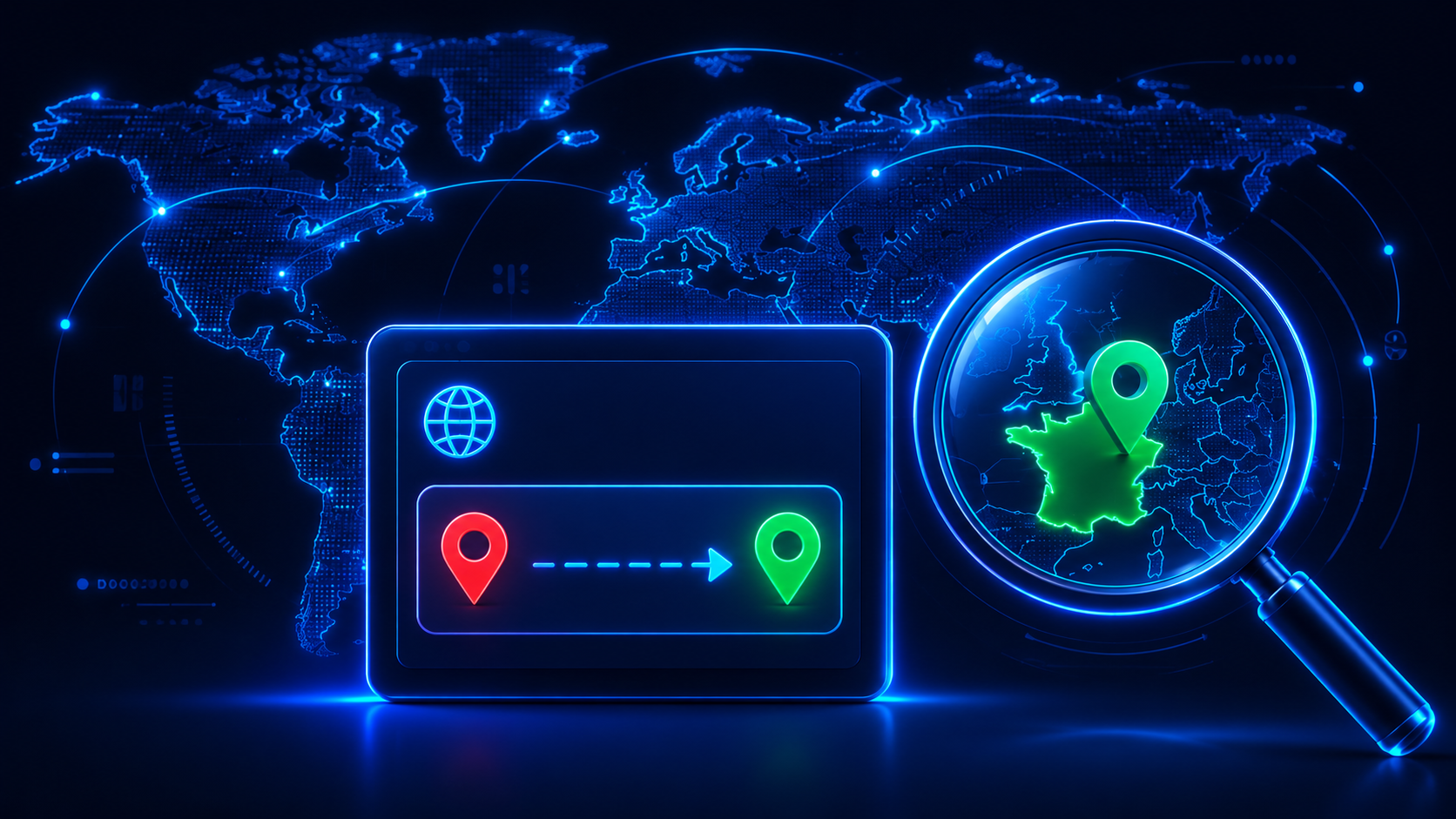
Every device connected to the internet uses an IP address as its network identifier. When you enter an IP into a lookup tool, the service queries public registration and geolocation databases and returns a profile of that address. The most useful fields include:
- ISP and organization: The internet service provider or hosting company that owns the address block.
- Approximate location: City, region, country, and sometimes latitude and longitude. This is a proximity, not a precise street address.
- ASN: The Autonomous System Number, which identifies the network operator.
- Hostname: The reverse DNS name, if one is configured.
- Proxy or VPN flags: Indicators that the address belongs to a data center, hosting provider, or known anonymization service.
- Blacklist status: Whether the IP appears on spam or abuse blocklists.
None of this data reveals a person's name, home address, or identity. IP geolocation is approximate by design. A lookup might place a mobile user in a nearby city or show a corporate IP at a regional office rather than the exact building.
How to Set Up an IP Lookup Workflow

IP-Lookup.net Setup: How to Use IP Lookup Tools Effectively - How to Set Up an IP Lookup Workflow.
You do not need to install anything to run a basic IP lookup. The setup is really about knowing which tool to use for which question and how to read the results.
Step 1: Choose a Lookup Tool for the Job
Different tools optimize for different use cases. A general-purpose lookup service like WhatIsMyIPAddress.com gives you a quick overview of ISP, city, region, and country, with a link to complete details such as decimal format, ASN, hostname, and services. LookIP.net bundles IP lookup, WHOIS, and website lookup into one interface, which is useful when you are investigating a domain and its hosting infrastructure together.
For a deeper technical view, command-line tools give you more control. Nmap, for example, can scan entire subnets and identify active hosts, open ports, and operating systems. If you are new to Nmap, this Nmap overview and setup guide explains the core commands and use cases.
Step 2: Start with Your Own IP
Before looking up other addresses, check what your own connection exposes. Open any lookup tool and note the IP address, ISP, and location shown. Then compare that against what you expect:
- If you are on a home connection, the ISP should match your internet provider.
- If you are using a VPN, the displayed IP should belong to the VPN provider, not your home ISP.
- If the location is in a different country than your VPN server selection, something is misconfigured.
This baseline is essential. You cannot evaluate other IPs meaningfully until you know what a correct result looks like for your own setup.
Step 3: Look Up a Target IP
Copy any IP address you want to investigate into the lookup field. Common scenarios include:
- Verifying a contact's claimed location: If someone says they are in one country but their IP geolocates to another, that is a red flag.
- Checking email headers: The originating IP in an email header can reveal whether a message actually came from the claimed sender's region.
- Investigating suspicious login attempts: Account security alerts often include the IP address used. A lookup can show whether the login came from an unexpected country or a known hosting provider.
- Auditing your own network: Look up your public IP periodically to confirm your VPN or proxy is still working.
Step 4: Interpret the Results Carefully
IP lookup data has limits. Mobile connections frequently route through carrier gateways in a different city. Corporate networks may egress through a central office. VPNs and proxies intentionally change the visible IP. A data center IP does not automatically mean fraud, but it does mean the connection is not coming from a typical residential line.
When a lookup flags an IP as a proxy or VPN, treat that as one signal among many. Combine it with other evidence before drawing conclusions.
IP Lookup vs. Network Scanning: Different Tools for Different Questions
IP-Lookup.net Setup: How to Use IP Lookup Tools Effectively - IP Lookup vs. Network Scanning: Different Tools for Different Questions.
A public IP lookup answers questions about a single address on the public internet. But if you need to see every device on your local network, you need a different approach. Network scanning tools enumerate all active IPs on a subnet, along with MAC addresses, hostnames, and open ports.
On Windows, the built-in arp -a command shows the ARP table of devices your computer has recently communicated with. A ping sweep across your subnet, followed by another arp -a, reveals more devices. On macOS and Linux, ip neigh or arp -a does the same job. For a complete picture, a tool like Nmap with nmap -sn 192.168.1.0/24 performs host discovery across the entire subnet.
The Paessler guide to seeing all IP addresses on a network covers these command-line methods and GUI alternatives in detail. Use an IP lookup for public addresses and a network scanner for local infrastructure.
Pairing IP Lookup with Privacy Diagnostics

IP-Lookup.net Setup: How to Use IP Lookup Tools Effectively - Pairing IP Lookup with Privacy Diagnostics.
An IP lookup shows what the network sees. But your browser leaks far more than an IP address. Websites can identify you through browser fingerprints, DNS requests, WebRTC connections, and other signals. If your goal is privacy, a single IP lookup is not enough.
A practical privacy check combines several tests:
- IP lookup: Confirm your VPN or proxy is masking your real IP.
- DNS leak test: Verify that DNS queries go through the VPN tunnel rather than your ISP's resolver. A leak exposes the sites you visit even when your IP is hidden.
- WebRTC leak test: Check whether your browser reveals your real IP through WebRTC, which can bypass a VPN entirely.
- Browser fingerprint analysis: See how unique your browser configuration is. Even with a hidden IP, a distinctive fingerprint can track you across sites.
BrowserScan offers these checks in one browser-based workflow. Its IP address lookup shows geolocation, ISP, and proxy detection, while its DNS leak test and WebRTC tests verify that your VPN is not exposing your real connection. The platform also includes a browser fingerprint analyzer that checks whether your setup looks like a real user or an automated or anti-detect configuration.
Example: Verifying a VPN Setup
Suppose you have just configured a VPN and want to confirm it works. Here is a complete verification sequence:
- Note your real IP address by disconnecting the VPN and running a lookup.
- Connect to a VPN server in a chosen country.
- Run an IP lookup again. The IP, ISP, and country should now reflect the VPN provider and server location.
- Run a DNS leak test. The DNS resolver should belong to the VPN provider, not your home ISP.
- Run a WebRTC leak test. Your browser should not expose your real IP through WebRTC.
- Check your browser fingerprint. If you are using a privacy-focused browser or anti-detect profile, the fingerprint should not contain obvious red flags.
If any step fails, fix that specific issue before trusting the setup. For example, a DNS leak often requires changing your router or operating system DNS settings, while a WebRTC leak may require a browser extension or configuration change.
Common IP Lookup Mistakes to Avoid
- Expecting street-level accuracy: IP geolocation is approximate. Do not treat the displayed city as a precise location.
- Ignoring mobile routing: Mobile IPs often geolocate to a carrier's data center, not the user's physical position.
- Assuming data center IP equals fraud: Many legitimate services run on cloud infrastructure. Combine proxy flags with other evidence.
- Relying on one database: Different geolocation providers can disagree. If a result seems wrong, cross-check with another lookup service.
- Forgetting your own exposure: Before investigating others, know what your own IP reveals. Run a lookup on yourself first.
Choosing the Right IP Lookup Tool
| Tool | Best For | Key Features |
|---|---|---|
| WhatIsMyIPAddress.com | Quick public IP checks | ISP, city, region, country, complete details, map |
| LookIP.net | Combined IP, WHOIS, and website lookups | Correlated database, forensic research, no technical knowledge needed |
| Nmap | Local network scanning and security auditing | Host discovery, port scanning, OS detection, scriptable |
| BrowserScan | Privacy diagnostics alongside IP lookup | IP geolocation, proxy detection, DNS/WebRTC leak tests, fingerprint analysis |
For a one-off IP check, any general lookup tool works. For ongoing privacy verification, choose a tool that combines IP lookup with leak tests and fingerprint analysis so you can see the full picture in one place.
Related reading
- What Is a Vulnerability Scanner? Types, Tools & How to Choose - Learn how vulnerability scanners work, compare network, web app, cloud, and container scanners, and find the right tool for your security needs.
- Bot Detection: How to Identify and Block Bad Bots in 2026 - Learn how bot detection works, the key techniques for identifying automated traffic, and practical steps to block bad bots without hurting real users.
Frequently Asked Questions
Is IP-Lookup.net free to use?
Most public IP lookup tools, including IP-Lookup.net and the alternatives discussed here, offer free basic lookups. Some services limit the number of queries or charge for API access and bulk lookups.
Can an IP lookup reveal my exact address?
No. IP geolocation provides an approximate location, typically at the city or regional level. It does not reveal your name, street address, or precise coordinates.
How accurate is IP geolocation?
Accuracy varies by database and connection type. Residential connections often geolocate to the correct city or nearby area. Mobile connections may resolve to a carrier gateway in a different city. VPNs and proxies intentionally show the location of the exit server, not the user.
What does it mean if an IP is flagged as a proxy?
It means the address belongs to a known data center, hosting provider, or anonymization service. This is common for VPN users and cloud services. It does not prove malicious activity, but it does indicate the connection is not a typical residential line.
How do I check if my VPN is leaking my real IP?
Run an IP lookup while connected to the VPN, then run DNS and WebRTC leak tests. If the IP, DNS resolver, or WebRTC candidate shows your real ISP or location, your VPN is leaking and needs reconfiguration.
Can I look up an IP from an email header?
Yes. Email headers contain the originating IP addresses of the mail servers involved. Copy the relevant IP into a lookup tool to see the ISP and approximate location. Be aware that webmail services often strip or replace originating IPs.
Conclusion
Setting up IP-Lookup.net or any IP lookup tool is straightforward: choose a service, check your own IP first, then look up target addresses and interpret the results with realistic expectations. The real value comes from combining IP lookups with other diagnostics. A VPN that hides your IP but leaks DNS queries is not private. A browser that hides your IP but presents a unique fingerprint is still trackable.
For a complete privacy check, pair an IP lookup with a DNS leak test, WebRTC verification, and browser fingerprint analysis. BrowserScan brings these tests together in a browser-based workflow, so you can verify your IP, detect leaks, and assess your fingerprint without installing software. Use IP lookup as the starting point, not the finish line, of your network and privacy assessment.