
Network Tools Guide: Online Diagnostics & Privacy Testing
Network Tools Guide: Online Diagnostics, Management & Privacy Testing
Whether you're a network engineer troubleshooting a connectivity issue, a developer debugging DNS records, or a privacy‑conscious user checking for VPN leaks, the right network tools are essential. This guide breaks down the most useful categories—from classic command‑line utilities to modern browser‑based security scanners—so you can find the right instruments for any task. We'll also show how platforms like BrowserScan fit into the ecosystem by adding a privacy‑first dimension to traditional diagnostics.
Modern network tools bring DNS, IP, and security checks into a single interface.
Types of Network Tools at a Glance
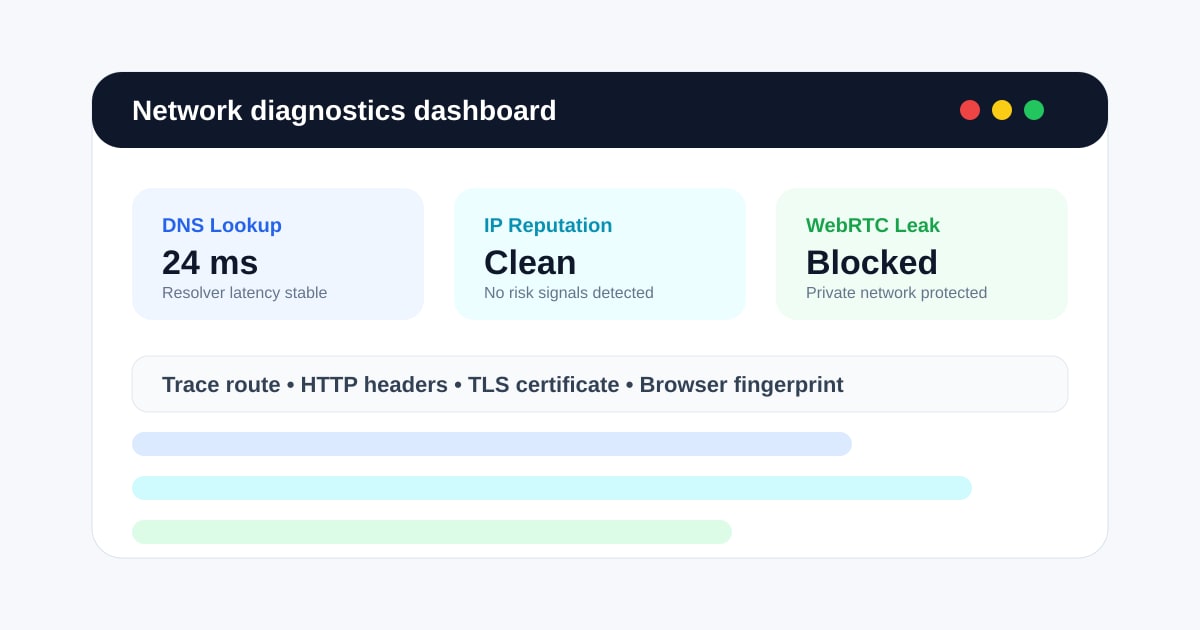
Network Tools Guide: Online Diagnostics & Privacy Testing product interface and feature overview.
Network tools fall into several practical groups. Understanding each helps you pick the right one for the job.
Online Diagnostic Tools: Ping, Traceroute & NSLookup
These are the bedrock of network troubleshooting. They run directly in your browser or terminal and give immediate feedback.
- Ping tests if a host is reachable and measures round‑trip time.
- Traceroute maps the path packets take across the internet, showing each hop.
- NSLookup and Dig query DNS servers to retrieve IP addresses, MX records, and other domain info.
Web‑based suites like CentralOps and MxToolBox bring these commands into a friendly GUI, allowing you to run pings, traceroutes, and DNS lookups from any device without installing anything.
DNS & Email Tools: MX, SPF, DMARC, and Blacklists
For anyone managing domains or email delivery, specialized DNS tools are vital.
- MX Lookup reveals mail servers, helping diagnose delivery problems.
- SPF & DKIM & DMARC checkers validate email authentication, reducing spam and phishing.
- Blacklist monitors scan whether your IP or domain has landed on spam lists.
These are the backbone of email health checks. MxToolBox’s SuperTool is a prime example, packaging all these checks behind a single search bar.
IP Address and Geolocation Tools
An IP lookup tool reveals the location, ISP, and sometimes proxy/VPN status of an IP address. This is handy for:
- Verifying that a VPN is actually hiding your real location.
- Troubleshooting region‑specific access issues.
- Identifying suspicious IPs in security logs.
BrowserScan includes an IP address lookup that adds proxy detection and geolocation, letting you instantly see if your connection is being routed through a known anonymizer.
Port Scanning and Vulnerability Assessment
A port scanner checks which ports on a device are open, a fundamental step for hardening servers and personal firewalls. Open ports can be entry points for attacks, so regular scanning is recommended.
- Server administrators use it to audit firewall rules.
- VPN users can verify that no services are unintentionally exposed.
- Developers test whether applications are listening correctly.
BrowserScan’s Nmap‑powered port scanner runs entirely in the browser, identifying open ports without any installation—perfect for a quick personal security review. For a deeper look at how security scanners work across different layers, read our Security Scanner Guide.
Network Privacy and Security Testing
Traditional network tools focus on connectivity. But modern privacy threats require a different lens: checking for data leaks, browser fingerprinting, and tracking. This is where browser‑based privacy suites come in.
BrowserScan stands out by bundling:
- DNS & WebRTC leak tests to ensure your VPN isn’t exposing your real IP address.
- Browser fingerprint analysis to verify how unique your browser configuration appears to trackers.
- A 2FA code generator, cookie converter, and client hints analyzer for front‑end debugging.
Because it runs entirely in the browser, there’s no software to install—handy when you’re on a managed workstation or simply want a fast, no‑setup privacy audit. Its IP lookup and port scanner further bridge classic network diagnostics with modern privacy concerns. We’ve compared BrowserScan with other leading privacy tools in our Top 10 Online Privacy & Security Testing Tools ranking.
Network Management Software (IPAM, NMS, Syslog, and More)
For IT professionals managing infrastructure at scale, web‑based one‑off tools aren’t enough. You need persistent systems:
- IPAM (IP Address Management) – such as Netbox or phpIPAM – serve as the single source of truth for all IP assignments and subnets.
- NMS (Network Monitoring System) – LibreNMS or Zabbix – watches device health, bandwidth, and uptime, sending alerts when something breaks.
- Syslog servers collect and analyze logs from routers, switches, and firewalls.
- RADIUS centralises authentication for network equipment.
These tools, often open‑source, form the operational backbone. The Reddit network‑engineering community frequently recommends starting with a solid IPAM and an NMS, then layering on automation with Ansible and Python scripts.
How to Choose the Right Network Tools
Not every job needs the same toolkit.
- Quick one‑off checks: Use a web‑based suite like MxToolBox, CentralOps, or BrowserScan for DNS, ping, port scans, and privacy leak tests.
- Domain/email health: Stick with MX, SPF, DKIM, and blacklist tools.
- Personal privacy audits: A browser‑based platform such as BrowserScan that combines IP lookup, leak testing, and fingerprint analysis gives you a complete picture in minutes.
- Ongoing infrastructure management: Deploy IPAM + NMS + syslog solutions. They’ll save hours of manual inspection.
- Security auditing: Pair a port scanner with a vulnerability assessment framework, then use privacy tools to check for data leakage.
Practical Examples: Using Network Tools to Solve Real Problems
Scenario 1: Diagnosing a Slow Website
- Ping the domain to see if latency is high.
- Run a traceroute to identify a bloated hop.
- Use a DNS lookup to make sure the correct A/AAAA records are configured.
- If behind a VPN, run a DNS leak test (BrowserScan’s tool) to confirm queries aren’t going through a third‑party resolver that adds delay.
Scenario 2: Checking Your VPN After Setup
- Visit BrowserScan and note the IP address and geolocation.
- Compare with your real location—mismatch confirms the VPN is working.
- Run the DNS and WebRTC leak tests to ensure no local IP escapes.
- Optionally, run a port scan to see if any services are exposed to the VPN interface.
Scenario 3: Auditing a New Server
- Use an Nmap‑based port scanner (like the one inside BrowserScan) to see open ports from an external perspective.
- Validate SPF/DKIM/DMARC records if the server sends email.
- Check if the IP appears on any blacklists.
- Add the server to your IPAM and configure NMS monitoring for ongoing health.
Related reading
- What Is IPhey? Browser Fingerprint Checker Explained - Discover what IPhey is, how its fingerprint and leak tests work, and how to use it to check your online privacy. See how it compares to BrowserScan and alternatives.
- BigDataCloud Tutorial: Get Started with IP Geolocation APIs - Learn BigDataCloud IP geolocation API from scratch. Step-by-step guide with code examples, GraphQL, hazard reports, and privacy leak testing with BrowserScan.
Sources and further reading
- Networking tools : r/networking - Sounds like you already have a nice set of tools. So the challenges are a) getting the business to express their exact requirements of the network b) translate their requirements to actions/routines/systems you must implement c) figure out if your current toolkit can do the job or if you need anything else. Item a) may be really hard.
Frequently Asked Questions
What are network tools?
Network tools are software or online services that help diagnose, manage, or secure computer networks. They range from simple ping and traceroute to advanced privacy scanners and full IP management suites.
Can I use network tools without installing anything?
Yes. Many essential diagnostics—DNS lookup, ping, WHOIS, port scanning, and even privacy leak tests—are available as free, web‑based tools. Platforms like BrowserScan, MxToolBox, and CentralOps let you run them directly in your browser.
How do privacy network tools differ from regular network tools?
Privacy network tools focus on what your connection leaks: real IP addresses, DNS queries, WebRTC data, and browser fingerprints. While classic tools check connectivity, privacy tools check for data exposure, especially when using VPNs or proxies.
Is BrowserScan suitable for professional network audits?
BrowserScan is excellent for quick privacy and basic network assessments. For enterprise‑wide, 24/7 monitoring, you’ll still need dedicated software like LibreNMS, Netbox, and a proper vulnerability scanner. However, its port scanner, IP lookup, and leak tests are reliable for ad‑hoc checks and personal use.
What’s the safest way to test open ports?
Use a trusted, browser‑based port scanner that never installs agents. BrowserScan’s scanner runs Nmap‑compatible checks without needing to download anything. Always scan only hosts you own or have permission to test.
Conclusion: Build Your Network Toolkit for Any Situation
From a one‑click DNS check to a full‑fledged network monitoring system, the tools you choose shape your ability to diagnose and protect digital environments. Start with free, web‑based utilities for daily puzzles—ping, traceroute, and DNS lookups are just a search away. Layer on privacy‑specific tools like BrowserScan when you need to verify that your VPN isn’t leaking data or your browser fingerprint isn’t giving you away. And if you manage infrastructure, invest in IPAM, NMS, and automation to keep everything running smoothly.
Whether you're a network administrator or a privacy‑conscious user, the right tools make all the difference—and at BrowserScan, we’re dedicated to helping you find them. For deeper dives, explore our guides on tracking prevention and test your own setup today.