
PrivacyTools.io Tutorial: Navigate & Harden Your Setup
PrivacyTools.io Tutorial: How to Navigate the Directory and Harden Your Setup
The PrivacyTools.io website has been a trusted community resource since 2015, helping people replace data-hungry mainstream apps with private, often open-source alternatives. But a directory of tools is only as useful as your ability to act on it. This tutorial walks through exactly how to use the site to audit your current stack, pick the right replacements, and then verify that those new tools are actually protecting you. You will learn a repeatable workflow: identify a weak spot, select a vetted alternative, configure it, and run privacy diagnostics to confirm nothing is leaking.
Understanding the PrivacyTools.io Philosophy
PrivacyTools.io Tutorial: Navigate & Harden Your Setup - Understanding the PrivacyTools.io Philosophy.
Before diving into the directory, it helps to understand the selection criteria. The platform favors software that is open-source, independently audited, and designed so your data stays yours even if the company is compromised. The team sorts every recommendation by what you want to protect—messaging, browsing, email, file storage—so you can swap one piece at a time instead of overhauling everything at once. This modular approach is the core of the tutorial: you do not need to disappear from the internet overnight; you just need a systematic method.
Threat Levels: Covered, Hardened, and Targeted
PrivacyTools.io organizes its guidance around three threat tiers that help you match your setup to your actual risk.
- Covered: Basic protections against bulk data collection and ad tracking. A good fit for most people.
- Hardened: Stronger measures for activists, journalists, or anyone facing elevated legal or corporate surveillance.
- Targeted: Extreme measures for those who face state-level adversaries or sophisticated, targeted attacks.
Identifying your tier early prevents you from over-engineering a solution you will not maintain or under-protecting a real vulnerability. The site’s guides section links to articles that expand on each level, helping you decide where you fit.
Step-by-Step Walkthrough of the Main Directory
PrivacyTools.io Tutorial: Navigate & Harden Your Setup - Step-by-Step Walkthrough of the Main Directory.
The homepage presents a “Pick the apps you use today, we’ll show you private alternatives” interface. Here is how to get the most out of it.
1. Choose a Category to Replace
Start with the application you use most frequently. Common entry points include:
- Browser: Chrome or Edge → LibreWolf, Brave, or Firefox with a hardened configuration.
- Messaging: WhatsApp or Facebook Messenger → Signal.
- Email: Gmail or Outlook → Proton Mail or Tuta.
- Password Manager: Built-in browser savers → KeePassXC or Bitwarden.
- VPN: A no-log provider audited by a reputable firm, such as Proton VPN or Surfshark.
The directory lists a top pick for each category, along with a short explanation of why it was chosen. For example, Signal is recommended for messaging because it requires only a phone number as an identifier and uses the battle-tested Signal Protocol for end-to-end encryption.
2. Evaluate the Alternative
Click through to the tool’s dedicated page. You will find details on:
- Jurisdiction: Where the company is based and which laws apply to it.
- Encryption model: End-to-end, zero-access, or client-side encryption.
- Audits: Whether an independent security firm has reviewed the code.
- Business model: How the service is funded, which reveals potential conflicts of interest.
For instance, Proton Mail’s entry highlights Swiss jurisdiction, zero-access encryption, and published audits. This transparency lets you make an informed decision beyond a simple star rating.
3. Install and Configure the Tool
After selecting a tool, follow the official setup documentation from the provider’s website. PrivacyTools.io links directly to it. Pay special attention to any privacy-hardening settings. For a browser like LibreWolf, the defaults are already strong, but you may want to adjust cookie behavior or add specific extensions. For a VPN, enable the kill switch and choose a protocol like WireGuard.
4. Verify Your Setup with Privacy Diagnostics
This is the step most tutorials skip. Installing a privacy tool is not the same as confirming it works. You need to test for leaks that could expose your real IP address, location, or browser fingerprint. A platform like BrowserScan offers a suite of free, web-based tests that run directly in your browser without any installation.
- DNS Leak Test: After connecting to a VPN, run a DNS leak check to ensure your queries are not falling back to your ISP’s default resolver. If you see servers you do not recognize, your VPN is leaking.
- WebRTC Leak Test: WebRTC can betray your local IP address even when a VPN is active. A dedicated WebRTC test will reveal any local or public IPs that are visible to websites.
- Browser Fingerprint Analysis: Even with a private browser, your combination of screen resolution, installed fonts, and hardware characteristics can create a unique fingerprint. A fingerprint test shows you how identifiable your browser really is and whether your anti-fingerprinting measures are working.
Running these checks after every major configuration change turns guesswork into a measurable process. If you switch VPN servers or adjust browser privacy settings, re-run the tests to confirm the results.
Beyond the Directory: Using the Guides Section
PrivacyTools.io Tutorial: Navigate & Harden Your Setup - Beyond the Directory: Using the Guides Section.
The /guides section of PrivacyTools.io contains evergreen articles that address specific scenarios. These are not just tool lists; they are practical walkthroughs.
Practical Guide Examples
- Phone and Laptop Seizures at Airports and Borders: A privacy travel guide that explains how to prepare devices before crossing international borders, including what to encrypt and how to handle duress passwords.
- How to Export Google Keep Notes and Import Them into PrivacyNotes: A step-by-step migration tutorial that covers exporting with Google Takeout and importing into a zero-knowledge notes app.
- Can Cloud Storage Be Encrypted?: A plain-language explainer on the difference between server-side encryption and zero-knowledge encryption, with three concrete methods to achieve the latter.
These guides complement the directory by addressing the workflow and behavioral changes that tools alone cannot solve. Bookmark the ones that match your threat model.
Common Pitfalls and How to Avoid Them
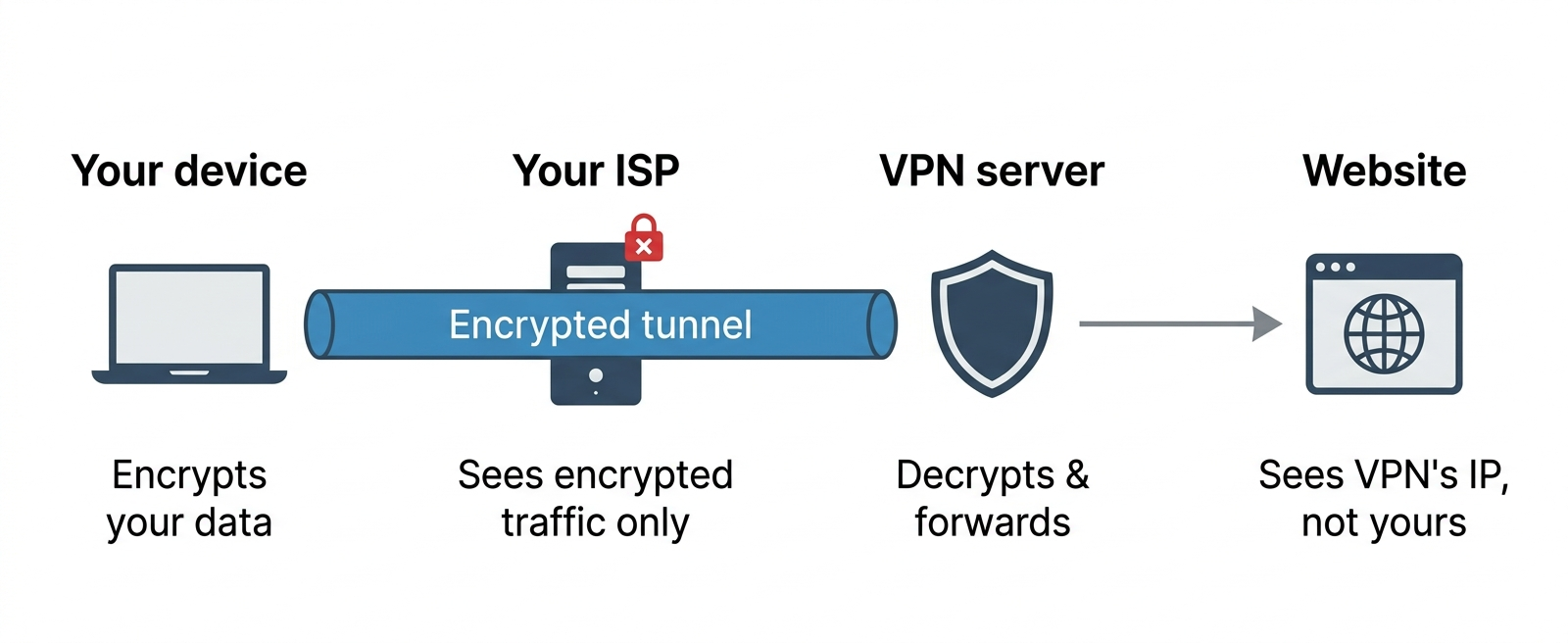
PrivacyTools.io Tutorial: Navigate & Harden Your Setup - Common Pitfalls and How to Avoid Them.
New users often trip over the same issues. Here is how to sidestep them.
Assuming a VPN Makes You Anonymous
A VPN hides your traffic from your internet provider and changes your apparent IP, but it does not make you anonymous on its own. You are shifting trust to the VPN company. Combine a VPN with a privacy-respecting browser and DNS leak tests to close common gaps.
Confusing Incognito Mode with Privacy
Incognito or private browsing windows only prevent your local browser from saving history. Websites, advertisers, and your ISP can still see what you do. Real privacy tools change what those parties can collect in the first place.
Ignoring Mobile Devices
The original PrivacyTools.io directory focused heavily on desktop, but the guides section and community have expanded to cover smartphones. Look for posts on open-source Android apps, tracker detection with Exodus, and hardened mobile browsers. Apply the same verification workflow: install, configure, and test for leaks on your phone as well.
Building a Repeatable Privacy Workflow
To make this tutorial stick, adopt a simple loop:
- Identify one app or service that collects more data than you are comfortable with.
- Research a vetted alternative on PrivacyTools.io, checking jurisdiction, encryption, and audit status.
- Replace the app and configure its strongest privacy settings.
- Verify your new setup with a browser fingerprint analysis, DNS leak test, and WebRTC leak test. Tools like BrowserScan let you run all three checks in minutes without creating an account.
- Repeat for the next category when you are ready.
This incremental approach prevents burnout and lets you learn each tool properly before adding another.
Related reading
- What Is ASN Data? Autonomous System Numbers Explained - Understand ASN data: what autonomous system numbers are, how they route internet traffic, and how to use ASN lookup tools for network diagnostics and privacy checks.
- How to Use NordVPN: A Complete Setup & Privacy Guide - Learn how to use NordVPN step by step: download, install, connect, and pick the best servers. Includes privacy testing tips to verify your VPN is working.
- HackerTarget Download: Tools, API Access & Privacy Checks - Understand what 'HackerTarget download' really means. Explore free web-based IP tools, API automation, Chrome extension access, and how to pair it with privacy diagnostics.
Sources and further reading
- Best Privacy Tools & Software Guide in 2026 - The most reliable website for privacy tools since 2015. Find private alternatives to the apps you use every day.
- How to Protect Your Privacy Online: Guides & Tutorials - Evergreen privacy guides, threat modeling, encryption, practical tutorials.
- Guide like privacytools.io but for smartphones? - I've read through privacytools.io and several of the guides linked there, but it was mainly for computers. Do you know of a similar guide that is specific ...
Frequently Asked Questions
Are all the tools on PrivacyTools.io free?
Many are free and open-source, including browsers, messengers, and password managers. Some services, like premium VPNs or encrypted email providers, charge a subscription to cover infrastructure and independent audits. The site flags which is which on every listing.
How often is the directory updated?
The team has maintained it since 2015 and updates recommendations as tools and threats change. The guides section is kept current with new articles on emerging topics like duress passwords and decentralized VPNs.
Can I trust open-source privacy tools more than closed-source ones?
Open-source code allows anyone to inspect it for flaws or hidden data collection. It is not a guarantee on its own, which is why PrivacyTools.io also weighs independent audits and the team’s track record. However, public code is a strong starting point that proprietary software cannot match.
Do I need to switch everything at once?
No. The site is built for incremental swaps. Start with your browser and search engine, then add a password manager. Those three cover the widest surface for the least effort and make every other step easier.
What if a recommended tool stops being private?
The community and maintainers track changes in ownership, policy updates, and security incidents. If a tool no longer meets the criteria, it is moved or removed. Following the site’s blog or RSS feed keeps you informed of any major shifts.
How do I know my new setup is actually working?
Run privacy diagnostics. A browser fingerprint test shows your uniqueness score, a DNS leak test confirms your VPN is not exposing your ISP’s servers, and a WebRTC leak test reveals any local IP leaks. Perform these checks after every configuration change.
Conclusion
PrivacyTools.io is more than a list of apps; it is a decision framework. By matching your threat level to vetted tools, configuring them carefully, and then verifying every change with concrete leak tests, you transform privacy from an abstract goal into a measurable, repeatable practice. Start with one category today—your browser, your messenger, or your VPN—and run the corresponding diagnostics. The directory will be there when you are ready for the next swap.