
Secure Browsing in 2026: How to Actually Protect Your Privacy
Secure Browsing in 2026: How to Actually Protect Your Privacy
Most people assume that opening a private or incognito window makes them anonymous. It does not. Incognito mode only stops your browser from saving local history and cookies after you close the window. Your IP address is still visible to every site you visit, your internet provider can still see which domains you connect to, and trackers can still build a profile of your device through browser fingerprinting.
Secure browsing is the practice of reducing what websites, advertisers, and network operators can learn about you while you are online. It combines three layers: the browser you choose, the network path your traffic takes, and the settings and tools you use to verify that both are actually working. This guide explains each layer, shows how to test your own setup, and helps you decide which combination fits your threat model.
What "secure browsing" actually means
The phrase gets used loosely, so it helps to separate the goals:
- Security — protecting your device from malware, phishing, and browser exploits. This is mostly about sandboxing, site isolation, and fast patching of known vulnerabilities.
- Privacy — limiting data collection and behavioral tracking. This is about tracker blocking, cookie isolation, anti-fingerprinting, and encrypted DNS.
- Identity protection — preventing your browser from being re-identified across sessions, IP changes, and even incognito windows. This is the hardest layer, because it depends on the uniqueness of your browser fingerprint.
A browser can be strong in one layer and weak in another. Chrome, for example, has excellent sandboxing and ships security patches quickly, but it sends telemetry by default and does little to resist fingerprinting. That is why "secure browsing" is a stack, not a single product.
How your browser leaks information
Secure Browsing in 2026: How to Actually Protect Your Privacy - How your browser leaks information.
Before choosing tools, it helps to know what is actually being exposed.
IP address and geolocation
Every request you make carries your IP address. Sites can resolve it to a country, often a city, and frequently an ISP. If you use a VPN, the VPN's IP replaces yours — but only if the VPN is configured correctly.
WebRTC leaks
WebRTC is the technology behind in-browser voice and video calls. It can request your local and public IP addresses directly from the browser, and in some configurations it bypasses the VPN tunnel entirely. This is one of the most common ways a VPN user's real IP is exposed without them noticing.
DNS leaks
When you type a domain name, your device asks a DNS resolver to translate it into an IP address. If those queries go to your ISP's resolver instead of your VPN's, your provider can log every domain you visit even though your traffic itself is encrypted.
Browser fingerprinting
Even without cookies, a site can combine hundreds of signals — canvas rendering, WebGL output, installed fonts, screen resolution, timezone, audio context behavior, hardware concurrency — into a fingerprint that is often unique enough to track you across sessions. Blocking some of these signals can paradoxically make you more identifiable, because a browser that blocks canvas reads looks different from the crowd. That is the core tension in anti-fingerprinting: uniformity beats randomness for most users, but active spoofing is needed for identity isolation.
Choosing a browser: what to look for
Secure Browsing in 2026: How to Actually Protect Your Privacy - Choosing a browser: what to look for.
When comparing secure browsers, evaluate them on these axes:
| Criterion | What to check |
|---|---|
| Sandboxing and site isolation | Does each site run in its own process? |
| Patch cadence | How quickly are CVEs fixed after disclosure? |
| Default tracker blocking | Is it on out of the box, or does it require configuration? |
| Anti-fingerprinting | Does it randomize, unify, or spoof fingerprint signals? |
| WebRTC handling | Does it prevent IP leaks by default? |
| DNS | Does it support DNS over HTTPS, and is it enabled? |
| Telemetry | Can you disable vendor data collection? |
| Open source | Can the code be independently audited? |
Browsers like Brave, Firefox (with hardening), Mullvad Browser, and Tor Browser all score well on privacy, but they make different trade-offs. Brave blocks aggressively by default and is fast enough for daily use. Firefox is highly customizable but needs configuration to reach its privacy potential. Mullvad Browser and Tor Browser prioritize uniformity — everyone looks the same — which is strong against fingerprinting but slower and less convenient. For a deeper look at how fingerprint spoofing works and where it fails, see our guide to antidetect browsers.
The network layer: VPNs, DNS, and what they do not fix
Secure Browsing in 2026: How to Actually Protect Your Privacy - The network layer: VPNs, DNS, and what they do not fix.
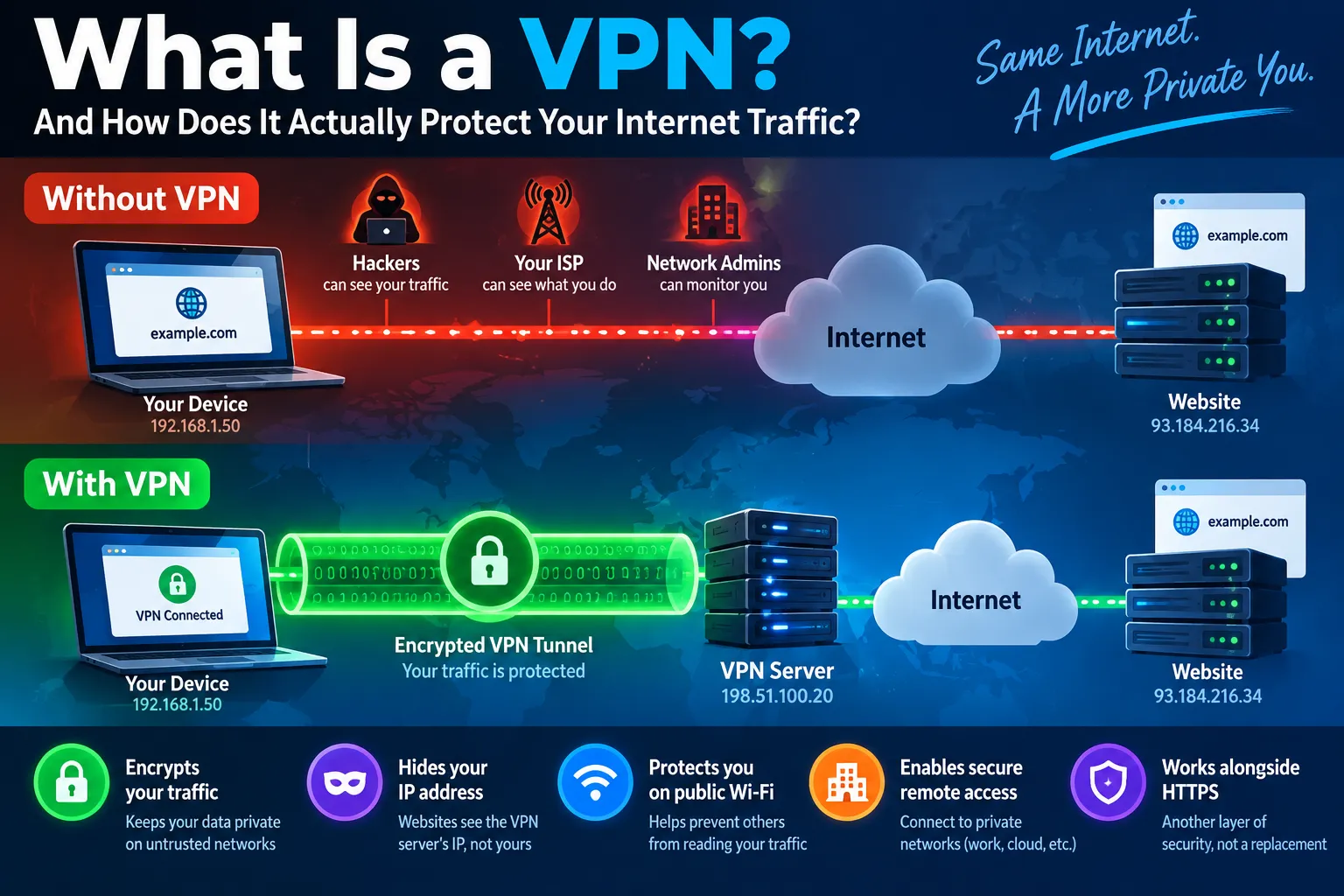
A VPN encrypts your traffic between your device and the VPN server, and replaces your IP with the server's IP. That is genuinely useful against ISP logging and local network snooping. It does not, by itself:
- Stop browser fingerprinting
- Prevent WebRTC from exposing your real IP if the browser is misconfigured
- Stop DNS queries from leaking to your ISP if the resolver is not routed through the tunnel
- Make you anonymous against a determined adversary with other data points
This is why "I use a VPN" is not the same as "I browse securely." The VPN handles the network path; the browser handles the identity layer. Both need to be verified.
If you self-host your VPN, the same logic applies. Tools like Algo VPN deploy a personal WireGuard or IPsec server on your own cloud account, which removes the third-party VPN provider from the trust equation — but you still need to confirm that DNS and WebRTC are not leaking. Our Algo VPN setup and privacy check guide walks through that verification step.
How to test your setup in under five minutes
You do not need to install anything to check whether your browser and VPN are actually protecting you. Browser-based tests can reveal most common leaks.
- Check your visible IP and geolocation. An IP lookup shows the address sites see, plus the associated ISP and whether a proxy or VPN is detected. If the location is wrong or the ISP is your home provider, your VPN is not active.
- Run a WebRTC leak test. This checks whether the browser is exposing your real IP through WebRTC APIs despite the VPN.
- Run a DNS leak test. This confirms which resolver is actually handling your queries.
- Check your browser fingerprint. A fingerprint analysis shows how unique your browser looks and which signals are contributing to that uniqueness.
- Verify your user agent. A user agent parser helps you confirm that the string your browser sends matches what you expect — useful when debugging odd site behavior or bot detection.
BrowserScan offers all of these as free, no-install web tools: fingerprint analysis, DNS and WebRTC leak tests, IP lookup with geolocation and proxy detection, an Nmap-powered port scanner, a speed test, and a user agent parser. Because everything runs in the browser, you can test a new VPN or browser configuration in minutes without changing your system. If you want a structured walkthrough, our privacy check guide covers what each result means and how to fix what you find.
A practical secure browsing checklist
Use this as a starting configuration, then adjust based on your threat model:
- Browser: Pick one with default tracker blocking and a fast patch cycle. Brave or a hardened Firefox are reasonable starting points for most people.
- Extensions: Keep them minimal. Every extension is a potential fingerprinting signal and a potential security risk. uBlock Origin is the highest-value addition for most users.
- VPN: Choose a provider with a clear no-logs policy, or self-host if you have the technical capacity. Verify the connection after every setup change.
- DNS: Enable DNS over HTTPS in your browser or operating system, and confirm with a leak test that queries are not going to your ISP.
- WebRTC: Test it. If it leaks, disable WebRTC in your browser settings or use an extension that blocks it.
- Fingerprint: Check how unique you look. If you are in a high-risk category, consider a browser designed for uniformity rather than one that randomizes signals.
- Habits: Log out of accounts you are not using, avoid signing into personal accounts while browsing sensitive topics, and remember that incognito mode only clears local data.
Decision guide: which approach fits you?
- Casual user who wants fewer ads and less tracking: A privacy-focused browser with default blocking, plus a reputable VPN. Verify once, then re-check after updates.
- Remote worker on untrusted Wi-Fi: VPN is essential. Add DNS over HTTPS and confirm no WebRTC leaks before joining calls.
- Journalist, researcher, or someone facing targeted surveillance: Uniformity-based browsers (Tor Browser, Mullvad Browser) plus a VPN, with strict separation between identities. Fingerprint testing is not optional here.
- Developer or IT professional: You need visibility into what your browser and network are exposing. Port scanning, user agent parsing, and fingerprint analysis become part of your regular debugging workflow.
Related reading
- How to Use IPhey: Browser Fingerprint Test Guide - Learn how to use IPhey to run a browser fingerprint test, read your results, spot leaks, and verify your privacy setup with free tools like BrowserScan.
Sources and further reading
- 11 Secure Browsers That Protect Your Privacy in 2026 - A secure browser that protects your privacy is essential for staying safe online and keeping your data secure from third parties.
- 10 Most Secure Browsers for 2026: Expert Review & Security Analysis - Expert review of the most secure web browsers. Compare Brave, Tor, and Gologin's advanced identity isolation. Learn how to stay 100% anonymous online in 2026.
Frequently asked questions
Is incognito mode secure browsing?
No. Incognito mode prevents your browser from saving local history, cookies, and form data after you close the window. It does not hide your IP address, does not stop your ISP from seeing your traffic, and does not prevent fingerprinting. It is a local privacy feature, not an anonymity tool.
Does a VPN make browsing secure?
A VPN hides your IP from sites and encrypts traffic to the VPN server, which protects you from ISP logging and local network snooping. It does not stop browser fingerprinting and does not automatically prevent WebRTC or DNS leaks. You should test after every VPN setup change.
What is a browser fingerprint?
A browser fingerprint is a combination of technical signals — canvas rendering, WebGL output, fonts, screen size, timezone, and many others — that can identify your device even without cookies. If your fingerprint is unique, sites can track you across sessions and IP changes.
Can I test all of this without installing software?
Yes. Browser-based tools can check your IP, DNS, WebRTC, fingerprint, and user agent in a few minutes. BrowserScan provides these as free web tools with no installation required.
Which is more important, the browser or the VPN?
They solve different problems. The browser controls what your device reveals about itself; the VPN controls the network path your traffic takes. For real privacy you need both, and you need to verify that they are working together.
Conclusion
Secure browsing is not a product you buy once — it is a configuration you verify. Start by understanding what your browser exposes: your IP, your DNS queries, your WebRTC connections, and your fingerprint. Then choose a browser and network setup that address the layers that matter for your situation, and test them regularly. A five-minute check after each change is the difference between believing you are protected and knowing it.
For a full set of free diagnostics, start with BrowserScan's privacy and security tools and run the leak and fingerprint tests before you trust any new setup.