
Browser Fingerprint Masking: How It Works and 8 Ways to Do It
Browser Fingerprint Masking: How It Works and How to Protect Yourself
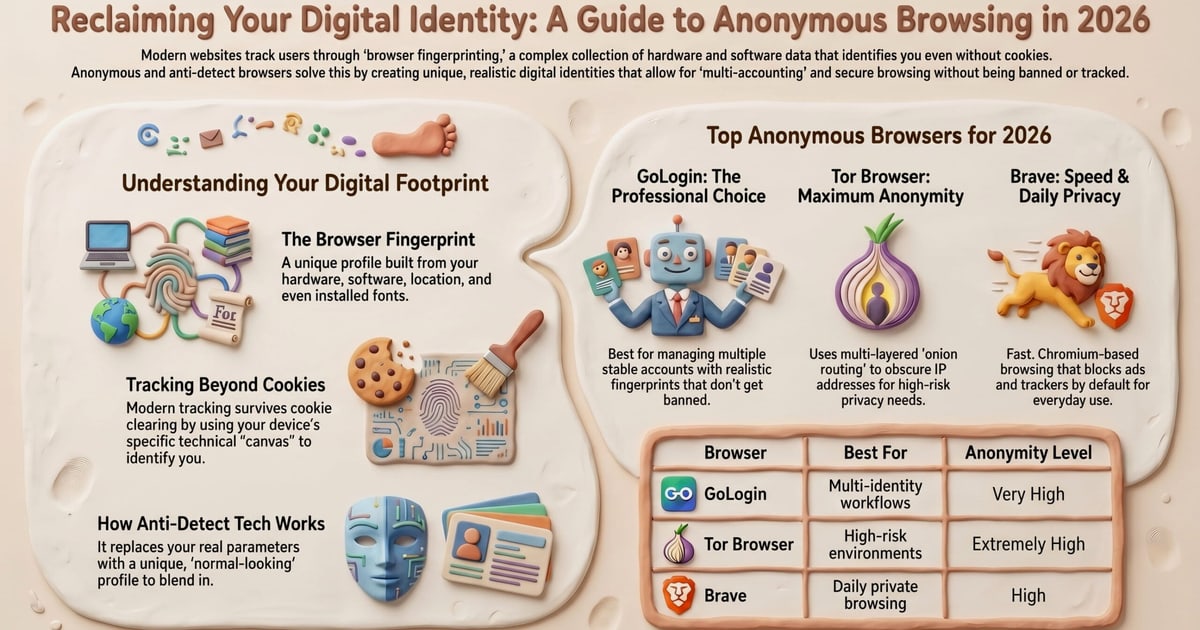
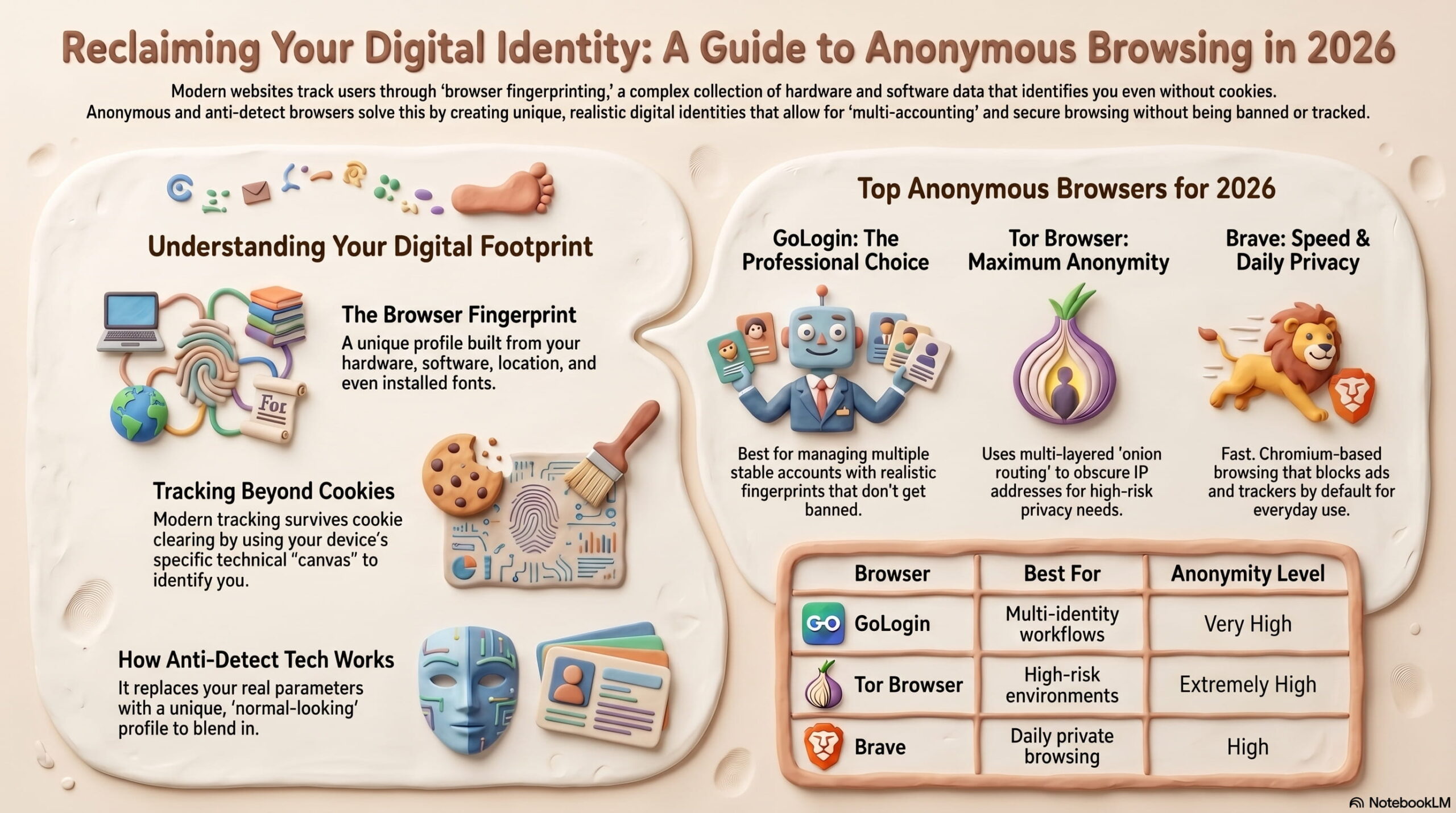
Browser fingerprint masking is the practice of disguising or altering the unique identifiers your browser and device expose to websites. Every time you load a page, your browser quietly shares dozens of details — screen resolution, installed fonts, time zone, graphics rendering quirks, and more. Combined, those signals can form a fingerprint stable enough to recognize you across sessions, even when you clear cookies or browse in incognito mode. Masking those signals makes tracking harder and gives you back a meaningful layer of privacy.
This guide explains what browser fingerprinting actually collects, which masking methods work, where they fall short, and how to test whether your setup is doing its job.
What Is Browser Fingerprinting?

Browser Fingerprint Masking: How It Works and 8 Ways to Do It - What Is Browser Fingerprinting?.
Browser fingerprinting is a tracking technique that builds a profile from the technical characteristics of your browser and device. Unlike cookies, it does not rely on files stored on your machine. Instead, websites and third-party scripts ask your browser to report information — or observe how it behaves — and then combine those data points into a single identifier.
Common signals include:
- Browser type, version, and user agent string
- Operating system and hardware platform
- Screen resolution, color depth, and device pixel ratio
- Installed fonts and language preferences
- Time zone and locale settings
- Canvas and WebGL rendering output
- Audio processing characteristics
- Installed plugins and extensions
- IP address and network details
Individually, most of these signals are not unique. But combined, they can be surprisingly distinctive. Research by the Electronic Frontier Foundation has shown that a large share of browsers produce a fingerprint that is unique or nearly unique among millions of tested visitors.
Why Browser Fingerprint Masking Matters

Browser Fingerprint Masking: How It Works and 8 Ways to Do It - Why Browser Fingerprint Masking Matters.
The core problem with fingerprinting is that it is silent and persistent. You can delete cookies, switch to private browsing, or use a different account, and your fingerprint may still connect those sessions back to the same browser profile. That allows advertisers, data brokers, and other trackers to:
- Follow your activity across unrelated websites
- Build long-term behavioral profiles
- Link supposedly anonymous sessions to a single identity
- Reduce the effectiveness of cookie clearing and private browsing
Masking your fingerprint does not make you invisible, but it raises the cost and complexity of tracking you. When enough users mask or randomize their signals, fingerprint-based identification becomes less reliable for everyone.
How Browser Fingerprint Masking Works

Browser Fingerprint Masking: How It Works and 8 Ways to Do It - How Browser Fingerprint Masking Works.
Masking generally follows one of three strategies:
- Reduction — limiting how much identifying data your browser exposes in the first place.
- Randomization — introducing noise so that each session produces a slightly different fingerprint.
- Spoofing — presenting a consistent but false set of values, such as a different user agent or screen resolution.
Most effective privacy setups combine these approaches. A privacy-focused browser might block known fingerprinting scripts, randomize canvas output, and restrict font enumeration — all at once.
8 Practical Ways to Mask Your Browser Fingerprint
Browser Fingerprint Masking: How It Works and 8 Ways to Do It - 8 Practical Ways to Mask Your Browser Fingerprint.
1. Use a Privacy-Focused Browser
The simplest high-impact step is switching to a browser that treats fingerprinting as a threat by default. Firefox, for example, blocks known fingerprinters through Enhanced Tracking Protection and can randomize canvas readback data to make rendering-based fingerprints less useful. In stricter modes, it also limits font visibility and reduces the precision of some hardware signals.
Other options include Brave, LibreWolf, Mullvad Browser, and Tor Browser. Each takes a different approach, but all reduce the data surface available to trackers compared with a stock browser.
2. Enable Resist Fingerprinting
Firefox offers a setting called Resist Fingerprinting that goes beyond default protections. It reports a more generic user agent, rounds screen dimensions, and normalizes several other signals. The trade-off is that some sites may render slightly differently or break in minor ways, because the browser is intentionally reporting less accurate information.
This setting is best for users who prioritize privacy over pixel-perfect site compatibility.
3. Install Privacy Extensions
Extensions can block tracking scripts, spoof user agents, or randomize canvas output. Popular categories include:
- Tracker blockers that prevent fingerprinting scripts from loading
- Canvas blockers that add noise to canvas readback
- User agent switchers that rotate browser identification strings
Extensions are convenient, but they can also make your fingerprint more distinctive if used carelessly. A rare extension combination can itself become an identifying signal.
4. Use an Antidetect Browser
Antidetect browsers are built specifically for fingerprint masking. They create isolated browser profiles, each with its own user agent, screen resolution, time zone, language settings, fonts, and other parameters. This is useful for multi-account management, web scraping, ad verification, and privacy-sensitive workflows where consistency across sessions matters.
Tools like Multilogin simulate multiple unique browser environments so that trackers see different, internally consistent identities rather than one real one. Antidetect browsers are more advanced than extensions, but they are also heavier and often subscription-based.
5. Combine a VPN with Other Methods
A VPN masks your IP address and encrypts traffic, but it does not mask your browser fingerprint. In fact, a VPN user with a rare browser configuration can still be tracked through fingerprinting alone. The right approach is to use a VPN alongside browser-level protections — never as a substitute.
6. Clear Cookies and Cache Regularly
Clearing cookies and cache does not reset your fingerprint, but it removes one layer of tracking data. Websites often combine cookies with fingerprint signals, so removing the cookie component forces trackers to rely on fingerprinting alone — which is harder when your fingerprint is also masked.
7. Limit Installed Fonts and Extensions
Your font list and extension set are surprisingly identifying. A system with hundreds of unique fonts or an unusual extension combination can stand out immediately. Reducing installed fonts and keeping extensions to a minimum shrinks your fingerprint surface.
8. Test Your Fingerprint Regularly
Masking is not a set-and-forget process. Browser updates, new extensions, and site changes can all alter your fingerprint. Regular testing helps you catch leaks before they become a problem.
BrowserScan offers a free browser fingerprint analysis tool that checks your fingerprint authenticity and shows how trackers may see your browser. It also includes DNS and WebRTC leak tests, so you can verify that your VPN is not exposing your real IP address while you focus on fingerprint masking. For a deeper look at how these tests work, see the BrowserScan guide.
Browser Fingerprint Masking vs. Other Privacy Tools
| Method | Masks IP? | Masks Fingerprint? | Ease of Use | Best For |
|---|---|---|---|---|
| VPN | Yes | No | Easy | Hiding location and encrypting traffic |
| Privacy browser | Sometimes | Partially | Easy | Everyday privacy improvement |
| Resist Fingerprinting | No | Yes | Moderate | Firefox users wanting stronger protection |
| Antidetect browser | Often | Yes | Moderate to advanced | Multi-account and professional workflows |
| Extensions | No | Partially | Easy to moderate | Targeted signal blocking |
No single tool covers everything. The strongest setups layer a privacy browser, fingerprint protections, and a VPN — then verify the result with a fingerprint test.
Limitations of Browser Fingerprint Masking
Masking is not a guarantee of anonymity. Some limitations to keep in mind:
- No method is 100% foolproof. Determined trackers can combine many signals and may still correlate sessions.
- Over-masking can backfire. If your fingerprint looks too generic or too unusual, it may stand out rather than blend in.
- Site compatibility can suffer. Aggressive spoofing sometimes breaks login flows, video playback, or payment pages.
- IP-based tracking still exists. If your IP address is stable and unique, fingerprint masking alone will not prevent identification.
How to Test Whether Your Masking Works
The best way to know if your masking setup is effective is to test it under realistic conditions. Run a fingerprint test before and after changing your browser settings, and compare the results.
BrowserScan's fingerprint checker reports whether your browser fingerprint appears authentic and identifies which signals are most exposed. Pair it with the platform's DNS leak test to confirm your VPN is not leaking your real IP, and use the WebRTC test to catch another common privacy hole. If you are also running network diagnostics, the Nmap port scanner guide explains how to check for open vulnerabilities from your own connection.
Related reading
- HackerTarget Setup: Configure Scanners, Tools & OSINT Workflows - Learn how to set up HackerTarget scanners, hosted tools, Nikto, and Recon-ng for security testing. Includes target selection, API keys, and privacy checks.
- Email Verification: How It Works, Why It Matters, and How to Verify Addresses - Learn what email verification is, how it protects sender reputation, the difference between validation and verification, and how to verify addresses for free.
Sources and further reading
- Browser Fingerprinting Protection | Firefox - Browser fingerprinting protection in Firefox
- What is Fingerprint Masking? - Multilogin - Fingerprint masking is used to disguise the unique identifiers that websites and online services use to track and identify users. Learn more.
- Think Incognito Mode Protects You? Here's the Terrifying Truth ... - Clearing cookies won't save you. Discover how data brokers track your every click with browser fingerprinting—and the simple steps you can take to shatter your digital footprint.
Frequently Asked Questions
Is browser fingerprint masking legal?
In most regions, masking your own browser fingerprint is legal. Fingerprinting itself sits in a gray area depending on jurisdiction and consent requirements, but using privacy tools to protect your own data is generally permitted. If you use masking for fraud or to evade security controls, different rules apply.
Does incognito mode mask my fingerprint?
No. Incognito or private browsing prevents local storage of history and cookies, but it does not change the technical signals that make up your fingerprint. Your fingerprint in incognito mode is usually the same as in a normal window.
Can I mask my fingerprint on mobile?
Yes, but options are more limited. Privacy-focused mobile browsers like Firefox Focus or Brave reduce some fingerprinting surface. Full antidetect functionality is less common on mobile, though some tools offer mobile browser profiles.
Will a VPN mask my browser fingerprint?
No. A VPN changes your IP address and encrypts traffic, but your browser still reports the same fonts, screen resolution, canvas behavior, and other fingerprint signals. Use a VPN with browser-level protections, not instead of them.
What is the difference between fingerprint masking and fingerprint blocking?
Blocking prevents fingerprinting scripts from running at all. Masking allows the scripts to run but alters or randomizes the data they receive. Both can reduce tracking, and many privacy tools combine the two.
How often should I test my fingerprint?
Test after any browser update, extension change, or privacy setting adjustment. A monthly check is a reasonable baseline for most users.
Conclusion
Browser fingerprint masking is one of the most effective ways to reduce hidden online tracking, but it requires more than a single toggle. The strongest approach combines a privacy-focused browser, fingerprint protections, a VPN for IP masking, and regular testing to confirm the setup is working.
Start by checking what your current fingerprint looks like with a free tool like BrowserScan. Then apply the masking methods that fit your threat model and comfort level. Even small changes — enabling Resist Fingerprinting, removing unnecessary extensions, or switching to a privacy browser — can make your fingerprint significantly harder to use for tracking.