
DNS Lookup: How It Works, Tools, and Troubleshooting
DNS Lookup: How It Works, Tools, and Troubleshooting
A DNS lookup is the process of translating a human-friendly domain name such as example.com into the machine-readable IP address that computers use to connect to each other. Every time you open a website, send an email, or connect to a VPN, a DNS lookup happens in the background. When something goes wrong with that lookup, websites stop loading, email stops flowing, and network services break.
This guide explains what happens during a DNS lookup, the record types you will encounter, how to run a lookup from any device, and how to interpret the results when troubleshooting.
What Is a DNS Lookup?
A DNS lookup queries the Domain Name System to find information associated with a domain name. The most common query asks: "What IP address does this domain point to?" But DNS stores much more than IP addresses. It also holds mail server records, name server records, text records for domain verification, and security records such as DNSSEC keys.
Think of DNS as the internet's phone book. You know the name; DNS returns the number. The system is distributed across millions of servers worldwide, so no single server holds every record. Instead, lookups follow a hierarchical path from root servers to top-level domain servers to the authoritative name server for the specific domain.
How a DNS Lookup Works
DNS Lookup: How It Works, Tools, and Troubleshooting - How a DNS Lookup Works.
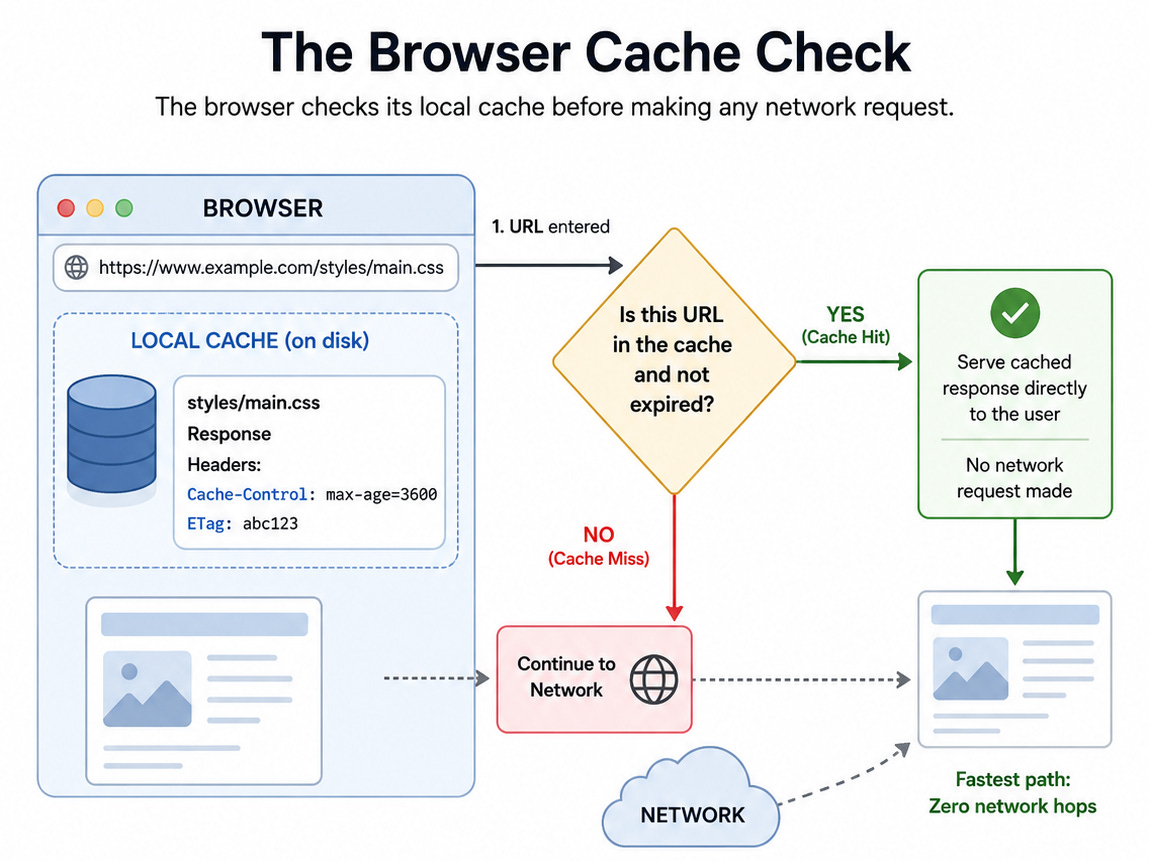
When you type a domain into your browser, the following sequence typically occurs:
- Resolver cache check. Your device or local router first checks its cache. If the answer is already stored and has not expired, the lookup ends immediately.
- Recursive resolver query. If the answer is not cached, your device asks a recursive DNS resolver, often operated by your ISP or a public service like Cloudflare or Google.
- Root server referral. The recursive resolver asks a root server where to find the top-level domain, such as
.comor.org. - TLD server referral. The TLD server points the resolver to the authoritative name server for the domain.
- Authoritative answer. The authoritative name server returns the requested record, such as the A record containing the IP address.
- Response caching. The resolver caches the answer for the record's time-to-live (TTL) value, so future lookups are faster.
This entire process usually completes in milliseconds, but each step can be a point of failure when troubleshooting.
Common DNS Record Types
DNS Lookup: How It Works, Tools, and Troubleshooting - Common DNS Record Types.
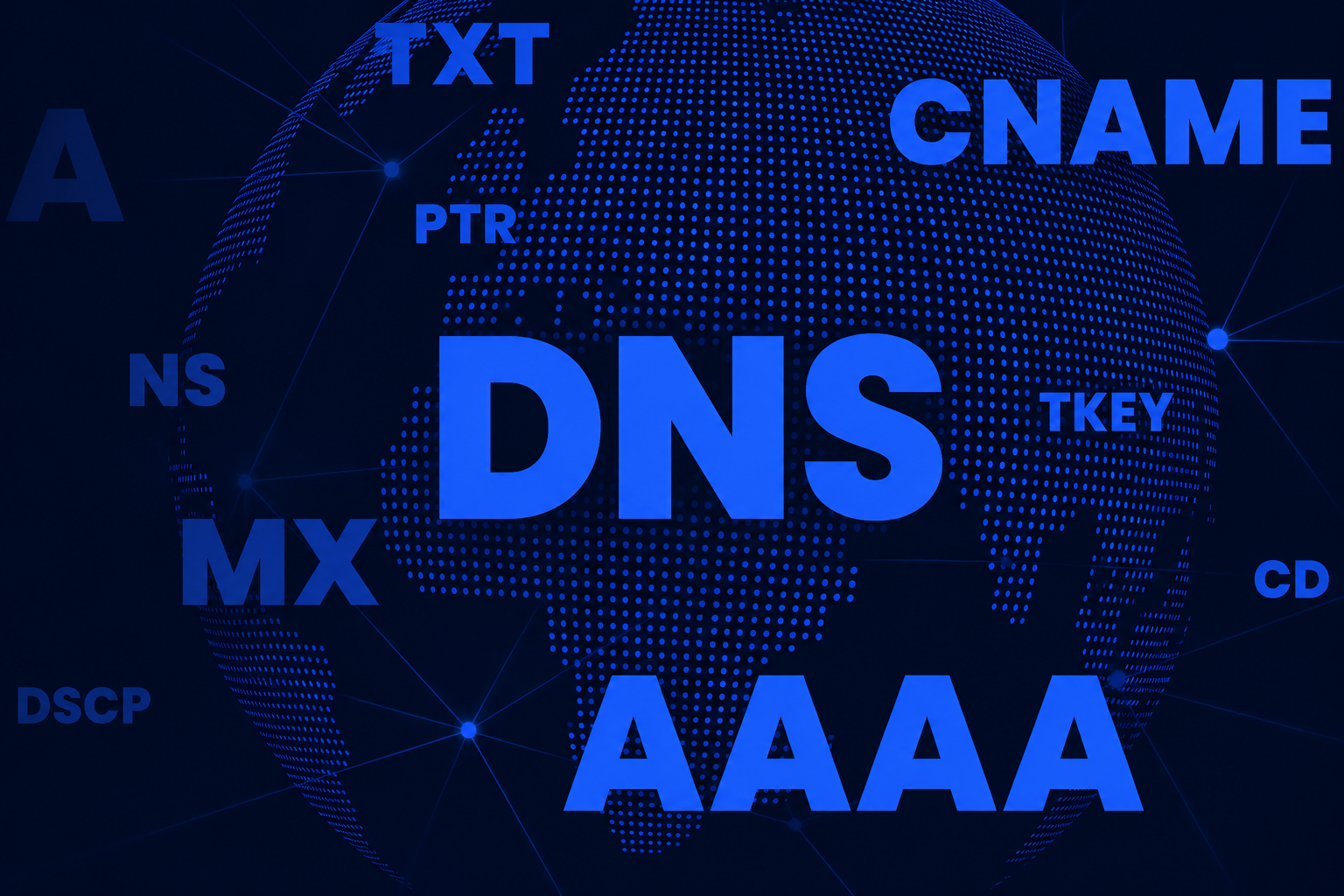
A DNS lookup can request many different record types. The most common ones you will encounter include:
| Record | Purpose | Example value |
|---|---|---|
| A | Maps a domain to an IPv4 address | 93.184.216.34 |
| AAAA | Maps a domain to an IPv6 address | 2606:2800:220:1:248:1893:25c8:1946 |
| CNAME | Points one domain to another domain | www.example.com -> example.com |
| MX | Specifies mail servers for a domain | 10 mail.example.com |
| NS | Lists authoritative name servers | ns1.example.com |
| TXT | Stores arbitrary text, often for verification | v=spf1 include:_spf.example.com ~all |
| SOA | Contains administrative metadata about the zone | Primary NS, admin email, serial |
| CAA | Restricts which certificate authorities can issue SSL certificates | 0 issue "letsencrypt.org" |
| SRV | Locates services such as SIP or LDAP | 10 60 5060 sip.example.com |
| PTR | Reverse lookup: maps an IP address to a domain | example.com |
When you run a lookup, you can request a specific record type or ask for all records. Most online tools show A, AAAA, CNAME, TXT, NS, MX, and SOA by default, with the option to query additional types.
How to Run a DNS Lookup
DNS Lookup: How It Works, Tools, and Troubleshooting - How to Run a DNS Lookup.
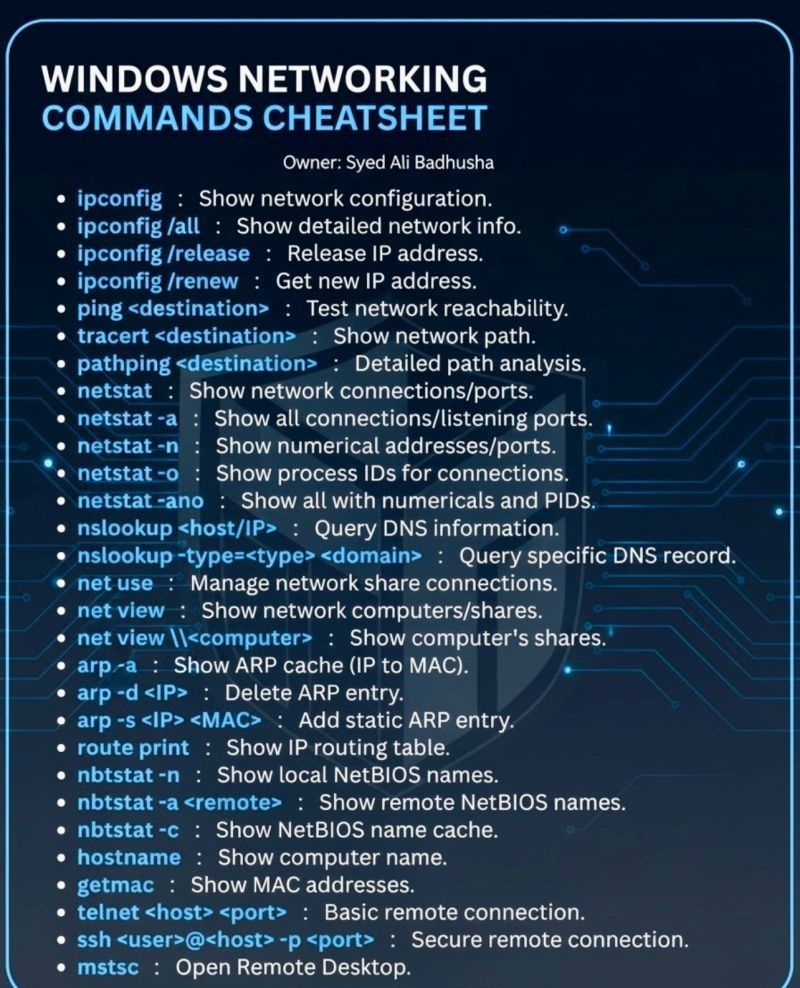
You can run a DNS lookup from the command line, from a web-based tool, or from a mobile app.
Windows Command Prompt
Open Command Prompt and use nslookup:
nslookup example.com
To query a specific record type:
nslookup -type=MX example.com
To query a specific DNS server, append the server address:
nslookup example.com 8.8.8.8
macOS and Linux Terminal
Use the dig command for detailed output:
dig example.com
For a specific record type:
dig example.com MX
For a short, clean answer:
dig example.com A +short
Web-Based DNS Lookup Tools
Online DNS lookup tools provide the same information as command-line utilities without requiring any installation. They are useful when you want to share results with a colleague, check records from a different network, or view multiple record types at once.
A reliable online tool queries the authoritative name server directly, which means changes to DNS records should appear immediately rather than waiting for cached values to expire. This is especially helpful after updating records, because you can confirm the authoritative server is serving the new values even while other resolvers still show old cached data.
Why DNS Lookup Results Differ Between Tools
If you run the same lookup from two different tools or networks, you may see different results. This is normal and usually caused by caching.
DNS servers cache records to speed up resolution and reduce load. When you change a record, the old value remains in caches around the world until the TTL expires. Authoritative name servers never serve cached records, so a lookup against the authoritative server shows the current value immediately. A lookup against a public resolver or your ISP's resolver may show the old value for minutes or hours.
This delay is called DNS propagation. It is not a single event but a gradual process as caches expire at different times. To check whether a change has propagated, query multiple resolvers in different locations and compare the results.
Troubleshooting Common DNS Issues
Website Not Loading
If a site is down, start with a DNS lookup. Query the domain's A record and check whether an IP address is returned. If the lookup fails entirely, the domain may have expired, the name servers may be misconfigured, or the authoritative server may be unreachable.
If the lookup succeeds but the site still does not load, test connectivity to the returned IP address. The problem may be at the web server rather than in DNS.
Email Delivery Problems
Email issues often point to MX records. Run an MX lookup and confirm that:
- At least one MX record exists.
- The priority values are correct. Lower numbers mean higher priority.
- The mail server hostnames resolve to valid A or AAAA records.
Also check the domain's TXT records for SPF, DKIM, and DMARC entries. Missing or incorrect records can cause legitimate email to be rejected as spam.
DNS Changes Not Taking Effect
If you updated a record but still see the old value, check the TTL. If the previous TTL was set to 86400 seconds (24 hours), resolvers may cache the old answer for a full day. You can reduce the TTL before making future changes to speed up propagation.
Query the authoritative name server directly to verify the change was actually saved. If the authoritative server shows the new value, the change is correct and you only need to wait for caches to expire.
VPN or Proxy Leaks
A DNS lookup can also reveal privacy problems. If you are connected to a VPN but your DNS queries are still going to your ISP's resolver, your browsing activity may be exposed even though your IP address is hidden. This is called a DNS leak.
To check for this, run a DNS leak test while connected to your VPN. The test should show DNS servers operated by the VPN provider, not your ISP. BrowserScan offers a free DNS and WebRTC leak test that shows which DNS servers your browser is actually using, helping you verify that your VPN is routing all traffic correctly. For a deeper walkthrough of interpreting leak test results, see the guide on how to run privacy leak tests correctly.
Choosing the Right DNS Lookup Tool
Different situations call for different tools:
- Command-line
digornslookupis best for scripting, automation, and detailed debugging. It gives you full control over query flags and output format. - Web-based lookup tools are best for quick checks, sharing results, and checking propagation from multiple locations without installing anything.
- Authoritative-only lookups are best immediately after making a DNS change, because they bypass caching entirely.
- Privacy-focused tools are best when you need to verify that your VPN or proxy is not leaking DNS queries. BrowserScan's DNS leak test complements traditional lookup tools by showing the resolver your browser actually uses, not just the one you configured.
For most day-to-day checks, a web-based tool that queries the authoritative name server is the fastest way to see current records. Keep a command-line tool available for advanced debugging.
Related reading
- HackerTarget Setup: Configure Scanners, Tools & OSINT Workflows - Learn how to set up HackerTarget scanners, hosted tools, Nikto, and Recon-ng for security testing. Includes target selection, API keys, and privacy checks.
- Email Verification: How It Works, Why It Matters, and How to Verify Addresses - Learn what email verification is, how it protects sender reputation, the difference between validation and verification, and how to verify addresses for free.
- What Is BrowserLeaks? Privacy Leak Testing Explained - Learn what BrowserLeaks is, how its fingerprint, WebRTC, DNS, and TLS tests work, what results mean, and how to use it to fix privacy leaks.
Sources and further reading
- DNS Lookup Tool - DNS Tools - Domain Name
- DNS Lookup - Check All DNS Records for Any Domain - For Windows: · Open Command Prompt · Enter nslookup domain.com to perform a DNS lookup for the domain. To specify a record type, use nslookup -type= ...
- DNS Lookup Tool – Check DNS Records and Nameservers - Explore fast and reliable DNS lookup tools, domain information, and essential network utilities all in one place on NSLookup.io.
Frequently Asked Questions
What is the difference between a forward and reverse DNS lookup?
A forward lookup converts a domain name to an IP address using A or AAAA records. A reverse lookup does the opposite: it converts an IP address to a domain name using PTR records. Reverse lookups are commonly used for email spam filtering and network diagnostics.
How long does DNS propagation take?
Propagation depends on the TTL value of the changed record. If the TTL is 300 seconds, most resolvers update within five minutes. If the TTL is 86400 seconds, it can take up to 24 hours. Some resolvers ignore TTL values and cache for longer, so full global propagation can occasionally take 48 hours or more.
Why does my DNS lookup return a different IP than expected?
You may be seeing a cached answer from a resolver that has not yet picked up your change. Query the authoritative name server directly to see the current value. If the authoritative server also returns the unexpected IP, check for a conflicting record, a CDN or load balancer in front of the domain, or an incorrect CNAME chain.
Can I run a DNS lookup on my phone?
Yes. Most web-based DNS lookup tools work in mobile browsers, and several network utility apps are available for iOS and Android. The process is the same: enter the domain, select the record type, and review the results.
What does "NXDOMAIN" mean in a DNS lookup?
NXDOMAIN means the domain does not exist. The authoritative name server for the parent zone has confirmed that no records exist for that name. This can happen if the domain expired, was never registered, or has a typo.
How can I check if my VPN is leaking DNS queries?
Connect to your VPN, then run a DNS leak test. The test should show DNS servers belonging to your VPN provider. If it shows your ISP's servers or your real location, your VPN is leaking DNS queries. You can run a free leak test through BrowserScan's privacy testing tools to check both DNS and WebRTC leaks in one place.
Conclusion
A DNS lookup is one of the most fundamental operations on the internet, yet it is easy to overlook until something breaks. Understanding how lookups work, which record types matter, and how to interpret results gives you a practical skill for troubleshooting websites, email, and network services.
Use command-line tools like dig and nslookup for deep debugging, and web-based tools for quick checks and propagation monitoring. When privacy matters, verify that your VPN is not leaking DNS queries with a dedicated leak test. With the right tool for the job, most DNS problems become straightforward to diagnose and fix.