
Browser Security: Threats, Tests & Best Practices (2025)
Browser Security: Threats, Tests, and Best Practices
Your browser is where you log in to email, banking, and work apps — and it is also the most targeted piece of software on your device. Browser security is the set of technologies, settings, and habits that protect the browser, its data, and the person using it from phishing, malicious extensions, session theft, and tracking. This guide explains how attacks actually reach you, what you can check yourself in minutes, and which habits reduce risk the most.
What Browser Security Actually Covers

Browser Security: Threats, Tests & Best Practices (2025) - What Browser Security Actually Covers.
Browser security is not a single product. It is a stack of layers that work together:
- The browser engine itself — memory protections, sandboxing, and site isolation that limit what a malicious page can do.
- Configuration and policy — update settings, extension permissions, cookie controls, and enterprise policies that shape how the browser behaves.
- Network-level protections — HTTPS, DNS security extensions, and encrypted DNS that stop attackers from silently redirecting traffic.
- User behavior — the choices that determine whether a convincing fake login page succeeds.
According to CrowdStrike's browser security overview, the browser has become the "cockpit of modern work," handling credentials, financial transactions, and SaaS access in a single session. That concentration of trust is exactly what attackers exploit: activity inside a browser session often looks legitimate because, technically, it is.
The Browser Attack Surface: Where Threats Enter

Browser Security: Threats, Tests & Best Practices (2025) - The Browser Attack Surface: Where Threats Enter.
Modern attacks rarely rely on noisy malware. They abuse normal browser features and trusted sessions.
Phishing and Credential Harvesting
Fake login pages now mirror real ones down to branding and URL structure. Attackers frequently host them on legitimate platforms such as Google Drive or Microsoft 365, which lets them slip past URL reputation filters. A single entered password can hand over an account before any security tool reacts.
Malicious and Compromised Extensions
Extensions request broad permissions — reading page content, watching input, modifying requests. An extension that was safe at install time can turn malicious after an update, which bypasses reputation scanners that only check the initial version. This is a supply chain risk hiding in plain sight in your toolbar.
Drive-By Downloads and Exploit Kits
Unpatched browser vulnerabilities can be triggered by simply visiting a compromised site. No clicks required. This is why running a browser several major versions behind is genuinely dangerous, not just untidy.
Session Hijacking and Cross-Site Scripting
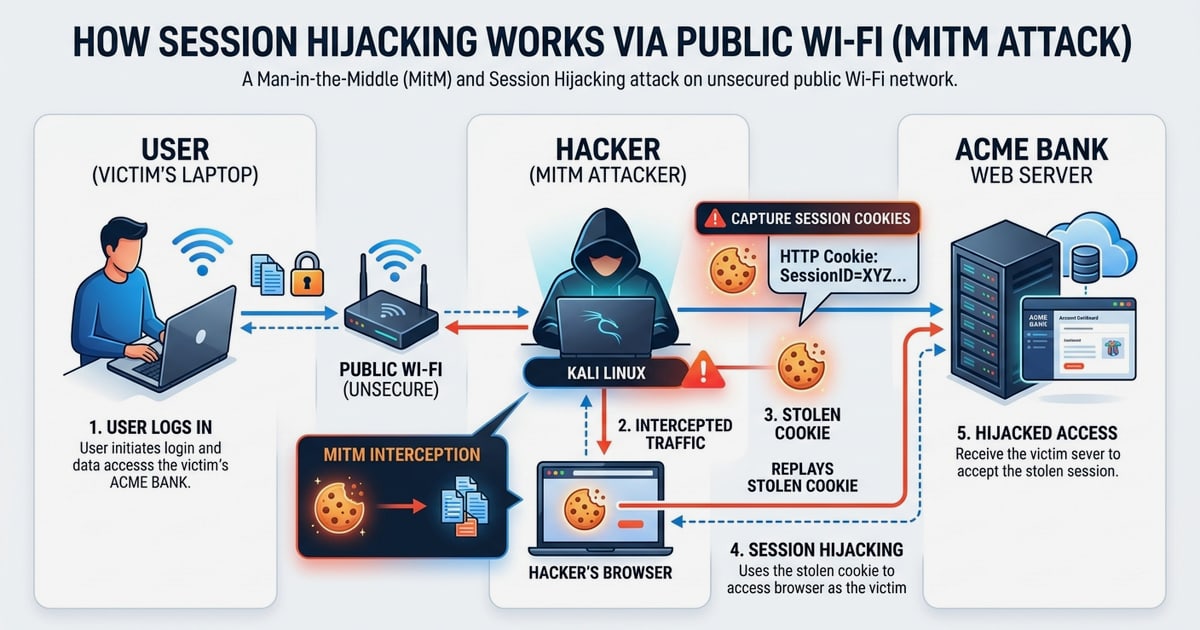
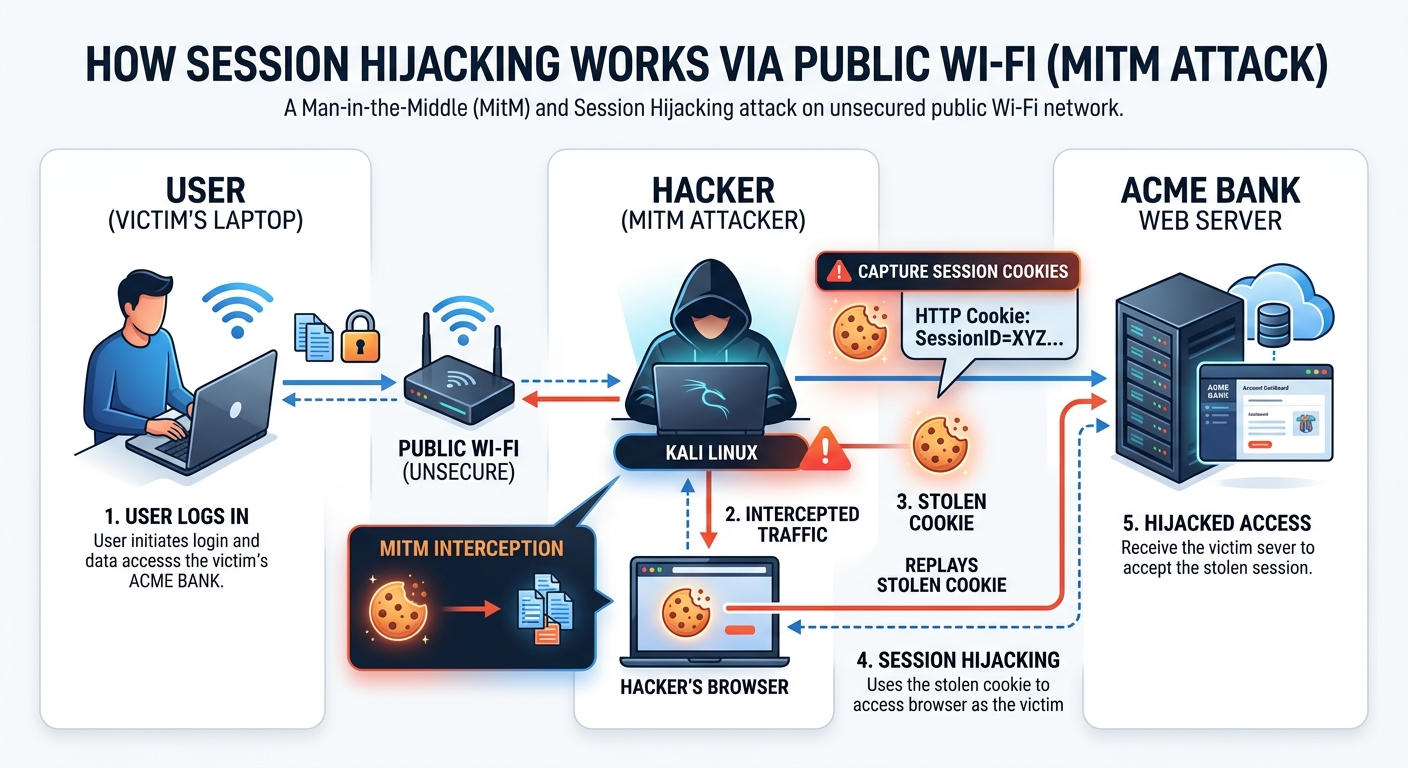
When an attacker steals an active session cookie, they can impersonate you without ever learning your password. Cross-site scripting is a common route in, and the result is account takeover that bypasses authentication entirely.
Browser Hijacking
Some attacks target control rather than stealth: changing your homepage, default search engine, or proxy settings to route traffic through attacker infrastructure. The goal is persistent tracking and data interception.
As Wikipedia's overview of browser security notes, breaches can also originate below the browser — a compromised operating system, a rootkit capturing keystrokes, or DNS spoofing that redirects you to the wrong server. A fully patched browser cannot compensate for a compromised foundation.
How to Test Your Own Browser Security
Browser Security: Threats, Tests & Best Practices (2025) - How to Test Your Own Browser Security.
You do not need enterprise tooling to find common weaknesses. A few browser-based checks cover the most frequent real-world exposures.
1. Check for DNS and WebRTC Leaks
If you use a VPN, the most common failure is a leak that exposes your real IP address even while the VPN claims to be connected. A DNS leak test shows which resolver is actually answering your queries, and a WebRTC leak test reveals whether your browser is broadcasting local or public IP addresses through real-time communication APIs. Running both takes under a minute and is the fastest way to confirm a VPN is doing its job.
2. Inspect Your Browser Fingerprint
Browsers expose a surprising amount of identifying detail: canvas rendering, fonts, screen dimensions, timezone, and client hints. Combined, these can identify you even without cookies. A fingerprint check shows what your browser reveals and whether your setup looks consistent — useful for privacy-conscious users and for anyone verifying that an anti-detect or multi-account setup behaves as intended.
3. Review Your IP and Proxy Status
An IP lookup with geolocation, ISP, and proxy detection tells you what the outside world sees when you connect. If the reported location or provider does not match your expectation, something in your chain — VPN, proxy, or extension — is misconfigured.
4. Audit Extensions and Permissions
Open your browser's extension manager and ask three questions for each item: Do I still use it? Does it need the permissions it has? Was it updated recently by a maintainer I trust? Removing unused extensions is one of the highest-value, lowest-effort security actions available.
5. Confirm Updates Are Actually Applying
Automatic updates only help if they run. Check your browser version against the current release, and do the same for any extension you keep.
BrowserScan bundles these checks — fingerprint analysis, DNS and WebRTC leak tests, IP lookup, and more — into free browser-based tools that require no installation. If you want a guided walkthrough, see BrowserScan Setup: Run a Free Privacy Check in Minutes.
Browser Security Best Practices That Matter Most

Browser Security: Threats, Tests & Best Practices (2025) - Browser Security Best Practices That Matter Most.
Not all advice is equally useful. These practices address the threats described above in order of impact.
- Keep the browser and extensions updated. Patches close the vulnerabilities that drive-by attacks rely on. Outdated extensions are just as risky as an outdated browser.
- Limit extensions to a trusted, minimal set. Every extension expands your attack surface. Treat new installs like installing software on your machine, because that is effectively what you are doing.
- Use a dedicated password manager. Browser-stored passwords are convenient but tied to the browser profile. A separate manager adds encryption, breach monitoring, and portability.
- Disable features you do not use. Unused plugins and capabilities still create opportunities for exploitation.
- Prefer encrypted DNS and HTTPS everywhere. These reduce the chance of silent redirection and in-transit tampering.
- Separate contexts when it matters. Work, personal, and testing profiles should not share cookies, sessions, or extensions. If you manage multiple accounts, Chameleon Mode: Real Browser Management for Multi-Accounts explains how isolated profiles using stock browsers compare to modified Chromium builds.
- Verify sessions after any suspicious event. If you suspect a session was exposed, understanding how tokens are issued and checked helps you respond correctly — see Session Validation Explained: Tokens, Checks & Security.
Consumer vs. Enterprise: Different Risk, Same Fundamentals
In a corporate setting, a single browser session often carries persistent access to SaaS platforms, internal systems, and sensitive data. That is why enterprise browser security emphasizes policy enforcement, visibility into browser activity, and containment — assuming some threats will get through and limiting the blast radius.
For individuals, the priorities are simpler but not trivial: avoid credential theft, prevent tracking, and make sure a VPN is not leaking. The fundamentals overlap almost completely — updates, minimal extensions, strong credentials, and periodic verification. The difference is scale and the consequences of a single compromised session.
Related reading
- Algo VPN Download: Install the Self-Hosted VPN (2025) - Algo VPN download guide: get the official Ansible scripts, deploy your own WireGuard or IPsec server, and verify no DNS or WebRTC leaks.
Sources and further reading
- What is Browser Security? | Menlo Security - The browser is your most critical enterprise asset. Learn how enterprises are leveraging browser security to eliminate the browser attack surface.
Frequently Asked Questions
What is browser security in simple terms?
It is everything that protects your browser and the data flowing through it — built-in protections, your settings, network encryption, and your own habits. The goal is to stop phishing, malicious code, and data theft before they reach your accounts.
Can a browser be secure without antivirus?
Built-in browser protections handle a lot, but they cannot see everything, especially activity that looks like normal user behavior. Layered defenses — including endpoint protection and network controls — remain valuable, particularly in organizations.
How do I know if my VPN is leaking?
Run a DNS leak test and a WebRTC leak test while connected. If the results show your real IP address or your ISP's resolver instead of the VPN's, you have a leak that needs fixing before you rely on that connection.
Are browser extensions really a security risk?
Yes. Extensions can read page content, capture input, and modify requests. A trusted extension can also become malicious after an update, so periodic review of what you have installed is worthwhile.
Does browser fingerprinting affect security or just privacy?
Both. Fingerprinting is primarily a privacy issue because it enables tracking without cookies. It also matters for security testing, since an inconsistent or unusual fingerprint can flag automated or multi-account activity.
How often should I check my browser security?
After any browser or extension update, whenever you change VPN or proxy settings, and periodically as routine hygiene. A quick leak and fingerprint check takes only a few minutes.
Conclusion
Browser security is less about blocking every threat and more about reducing what is exposed. Keep the browser and extensions current, install as little as possible, use strong credentials, and verify your network path instead of assuming it works. The checks that catch the most common failures — DNS leaks, WebRTC leaks, and revealing fingerprints — are free and take minutes. Run them, fix what you find, and repeat after any change to your setup.