
BrowserLeaks Tutorial: Test and Fix Browser Privacy Leaks
BrowserLeaks Tutorial: How to Test and Fix Browser Privacy Leaks
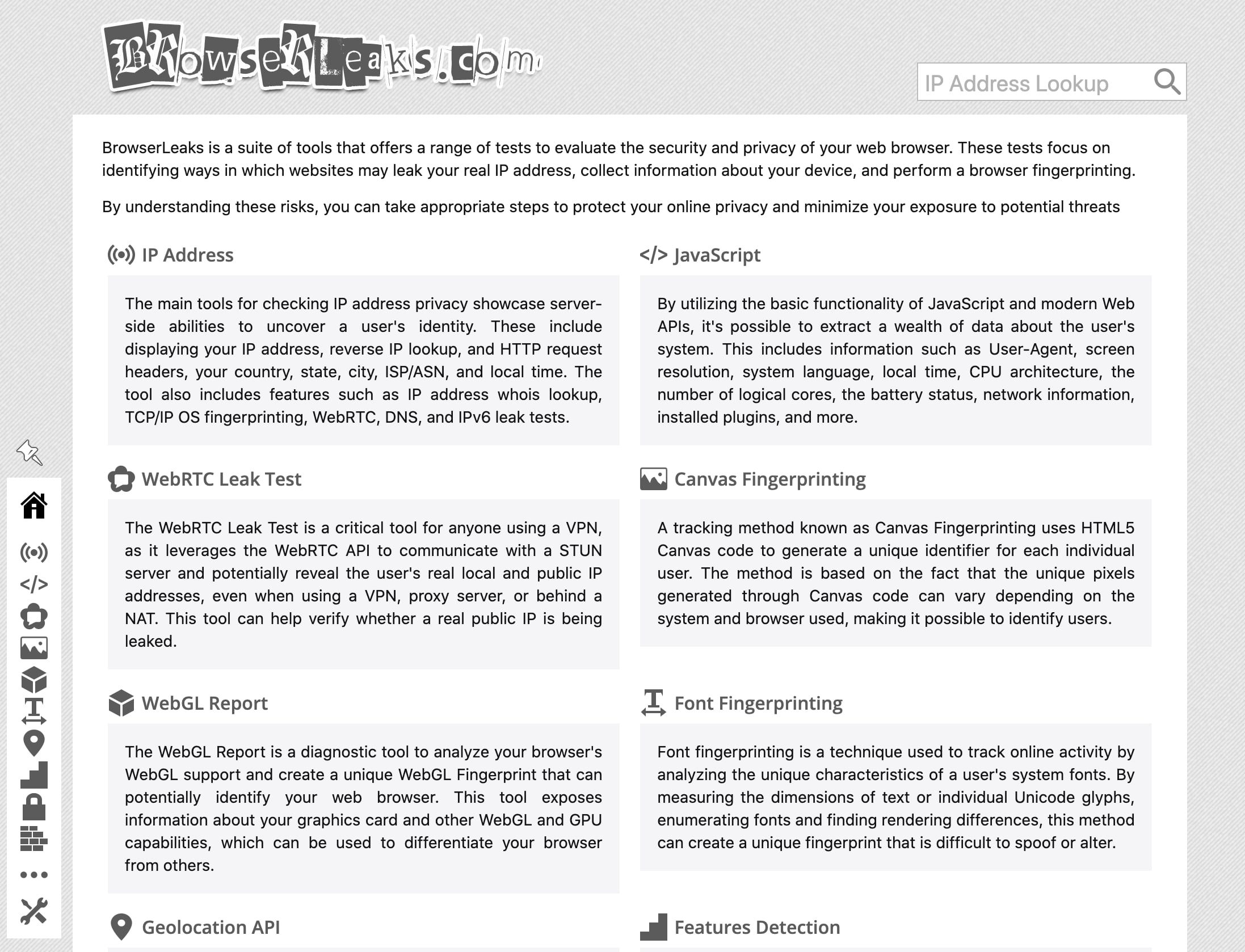
BrowserLeaks is one of the most thorough free diagnostic suites for uncovering what your browser silently reveals about you. A quick IP check might say you are protected, but BrowserLeaks goes much deeper: it probes WebRTC negotiation, DNS resolution, canvas and WebGL rendering, font enumeration, TLS handshakes, and dozens of other surfaces that tracking and anti-fraud systems use to identify you. This tutorial walks through the most important tests, explains what the results mean, and shows how to act on them.
What BrowserLeaks Actually Tests
BrowserLeaks Tutorial: Test and Fix Browser Privacy Leaks - What BrowserLeaks Actually Tests.
BrowserLeaks works by loading JavaScript in your browser and reading the data your environment exposes. It does not require installation or an account. The suite is organized into several categories:
- IP address tools: public IP, geolocation, ISP/ASN, reverse lookup, and HTTP request headers
- Leak tests: WebRTC, DNS, and IPv6 checks that reveal whether a VPN or proxy is hiding your real address
- Fingerprinting surfaces: canvas, WebGL, font, audio, and client hints
- Protocol tests: TLS/SSL client capabilities, JA3/JA4 fingerprints, HTTP/2 frame analysis, and QUIC
- Feature detection: HTML5 API support, content filters, and browser permissions
The key difference between BrowserLeaks and a basic IP checker is that it shows raw output rather than a simple pass/fail badge. That transparency is what makes it useful for diagnosing subtle leaks.
Step 1: Run the WebRTC Leak Test
BrowserLeaks Tutorial: Test and Fix Browser Privacy Leaks - Step 1: Run the WebRTC Leak Test.
WebRTC is the most common way a VPN user accidentally exposes their real IP address. The WebRTC API is designed for peer-to-peer audio, video, and data transfer. To establish a connection, it uses ICE (Interactive Connectivity Establishment) to gather every candidate address the machine can use: local LAN addresses, the public IP, and addresses visible to STUN servers.
The problem is that WebRTC can bypass the VPN routing table in many configurations. When JavaScript calls new RTCPeerConnection() and ICE starts gathering candidates, the operating system's network stack may answer before the VPN tunnel intercepts the request. The result is that your real residential or datacenter IP gets transmitted directly to the STUN server and returned to the page.
How to interpret the results
BrowserLeaks displays a table of IP candidates. Look for three categories:
- Public IP candidates: your real WAN address. If you see anything other than your VPN or proxy IP here, you have a leak.
- Local IP candidates: addresses like
192.168.x.xor10.x.x.x. These fingerprint your internal network and should not be visible through a properly configured VPN. - mDNS candidates: modern Chromium browsers sometimes obfuscate local IPs as
.localidentifiers, but this behavior is itself a detectable signal.
A clean result shows only your VPN server's IP in the public candidates and no local addresses. If you see your real IP, disable WebRTC in your browser settings, use a browser extension that blocks WebRTC, or switch to a VPN that intercepts WebRTC at the network driver level.
Step 2: Check DNS and IPv6 Leaks
BrowserLeaks Tutorial: Test and Fix Browser Privacy Leaks - Step 2: Check DNS and IPv6 Leaks.
A DNS leak happens when your browser sends domain resolution requests to your ISP's DNS server instead of your VPN's encrypted tunnel. This lets your ISP see every site you visit even though your traffic is otherwise hidden. BrowserLeaks has a dedicated DNS leak test that shows which DNS servers are answering your queries.
IPv6 leaks are equally common. Many VPNs only tunnel IPv4 traffic. If your network has IPv6 connectivity, your browser may send IPv6 requests directly to the destination, completely bypassing the VPN. The BrowserLeaks IPv6 test reveals whether your IPv6 address is exposed.
For a deeper walkthrough of how these leaks work and how to fix them, see this IP leak test guide.
Step 3: Analyze Canvas and WebGL Fingerprints
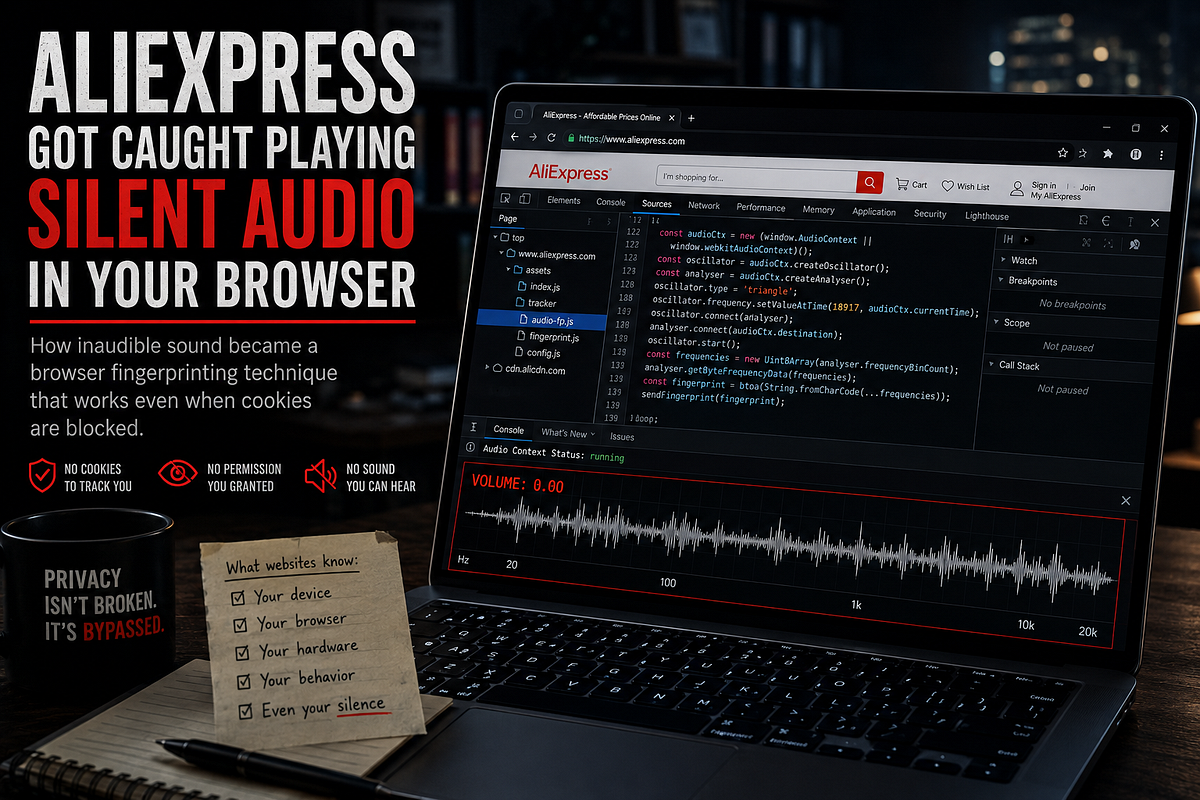
BrowserLeaks Tutorial: Test and Fix Browser Privacy Leaks - Step 3: Analyze Canvas and WebGL Fingerprints.
Canvas fingerprinting exploits the fact that rendering text and shapes through the HTML5 Canvas API produces slightly different pixel output depending on your GPU, graphics driver, operating system font renderer, and anti-aliasing engine. BrowserLeaks renders a standardized scene, reads the raw pixel data, and hashes it into a compact fingerprint.
WebGL goes further by probing the 3D rendering pipeline. The WEBGL_debug_renderer_info extension can expose strings like ANGLE (NVIDIA GeForce RTX 4090 Direct3D11 vs_5_0 ps_5_0), revealing your exact GPU model and driver interface. Even without that extension, shader execution produces hardware-specific floating-point artifacts that can be hashed.
What the hash means
A canvas or WebGL hash is:
- Deterministic: the same hardware and browser produce the same hash every time
- Persistent: it survives cookie clearing, IP changes, and session resets
- High-entropy: collision probability across different hardware combinations is extremely low
If your hash is unique among the samples BrowserLeaks has seen, your browser is highly identifiable. Reducing this fingerprint is difficult because the signal comes from physical hardware behavior. Options include using a browser with built-in fingerprinting resistance, running a virtual machine with standardized settings, or using an anti-detect browser that spoofs canvas and WebGL output.
Step 4: Review the TLS and HTTP/2 Fingerprints
Modern tracking systems increasingly identify clients at the protocol level. The TLS Client Test on BrowserLeaks inspects your ClientHello message, supported cipher suites, TLS extensions, and ECH support, then generates a JA3 or JA4 fingerprint. This fingerprint identifies which client library initiated the connection, independent of IP address or cookies.
The HTTP/2 test analyzes HEADERS frame ordering and SETTINGS frame values to identify the underlying browser engine. These protocol fingerprints are invisible to VPNs and proxies because they describe how your client software behaves, not where it connects from.
A protocol fingerprint that matches a known browser version is normal. An unusual combination of TLS extensions or cipher suite ordering can flag your session as automated or modified, which matters if you are managing multiple accounts or scraping data.
Step 5: Run a Full Privacy Audit
BrowserLeaks offers more than 20 additional tests. A complete audit should include:
- Font fingerprinting: enumerates system fonts and measures glyph rendering differences
- Geolocation API: checks how your browser handles location permission requests
- Content filter detection: identifies ad blockers, Tor settings, and other filters
- Features detection: lists supported HTML5 APIs, which varies by browser version
- Client hints: shows what HTTP and JavaScript client hints your browser sends
Run all of them once to establish a baseline, then repeat after changing browser settings, installing extensions, or switching VPN providers. Any new leak should be traceable to the change you made.
BrowserLeaks Alternatives Worth Cross-Checking
No single tool catches everything. Cross-checking results across multiple platforms gives you a more reliable picture. BrowserScan offers a comparable set of browser-based diagnostics, including browser fingerprint analysis, DNS and WebRTC leak tests, IP lookup with proxy detection, and a user agent parser. Because different tools use different data sources and detection logic, running the same test on BrowserLeaks and BrowserScan can confirm whether a leak is real or a false positive.
Other useful alternatives include IPQualityScore for proxy and fraud detection, AmIUnique for advanced fingerprinting research, and Whoer.net for a quick combined privacy score. If you are comparing free versus paid scanning options, this Pixelscan pricing breakdown explains what free checks cover and when a paid plan becomes necessary.
Common BrowserLeaks Results and What to Do
| Result | What it means | Fix |
|---|---|---|
| Real IP visible in WebRTC candidates | WebRTC bypasses your VPN | Disable WebRTC or switch to a VPN with driver-level interception |
| ISP DNS servers listed | DNS queries bypass the VPN tunnel | Configure DNS over HTTPS or force DNS through the VPN |
| IPv6 address exposed | VPN only tunnels IPv4 | Disable IPv6 on your network adapter or use an IPv6-capable VPN |
| Unique canvas or WebGL hash | Hardware fingerprint identifies your browser | Use fingerprint-resistant browser settings or anti-detect tools |
| JA3 fingerprint matches a bot library | Your HTTP client is identifiable as automated | Use a real browser engine or adjust your TLS configuration |
| mDNS candidates visible | Local network identifiers are exposed | Disable mDNS or use a browser that blocks it |
Related reading
- Algo VPN Pricing: Real Costs of Self-Hosting in 2025 - Algo VPN is free software, but hosting it costs money. See real cloud pricing for AWS, Vultr, DigitalOcean, and how to budget your self-hosted VPN.
- BigDataCloud: IP Geolocation & Reverse Geocoding APIs Explained - Learn what BigDataCloud offers for IP geolocation, reverse geocoding, and network intelligence, how its APIs work, and how to test your own IP data.
Sources and further reading
- Defeat BrowserLeaks: Step-by-step Guide - Is your browser leaking your secrets? Discover how to test for privacy risks with BrowserLeaks and mask your footprint using Kameleo!
- BrowserLeaks Review 2026: The Ultimate Guide to Fingerprint Testing - Is your digital identity leaking? Read our definitive BrowserLeaks review for 2026. Learn how to test WebRTC, Canvas, and JA3/JA4 fingerprints like a pro.
- Browserleaks - Check your browser for privacy leaks - BrowserLeaks is a suite of tools that offers a range of tests to evaluate the security and privacy of your web browser. These tests focus on identifying ways in which websites may leak your real IP address, collect information about your device, and perform a browser fingerprinting.
FAQ
Is BrowserLeaks safe to use?
Yes. BrowserLeaks does not require personal information, does not store user fingerprints, and does not set non-essential cookies. The tests run entirely in your browser. Some tests make minimal requests to third-party services such as STUN servers, but the site itself does not collect or retain your data.
Can a VPN protect me from BrowserLeaks tests?
A VPN protects your IP address and can hide DNS queries if configured correctly, but it does nothing to prevent canvas, WebGL, font, or TLS fingerprinting. Those signals come from your browser and hardware, not your network connection. A VPN is necessary but not sufficient for privacy.
How often should I run BrowserLeaks tests?
Run a full audit after any significant change: installing a new browser, updating your operating system, changing VPN providers, adding privacy extensions, or adjusting browser flags. For routine monitoring, a monthly WebRTC and DNS check is a reasonable baseline.
What is the difference between BrowserLeaks and BrowserScan?
Both are browser-based diagnostic suites that test for IP leaks, DNS leaks, WebRTC exposure, and fingerprinting. BrowserLeaks is known for its extensive protocol-level tests including TLS, HTTP/2, and QUIC. BrowserScan focuses on fingerprint authenticity verification, IP lookup with proxy detection, and a broader set of network tools including a port scanner and speed test. Running both gives you complementary coverage.
Can I fix all BrowserLeaks findings?
Not completely. Some signals, such as canvas and WebGL hashes, are tied to physical hardware and are extremely difficult to eliminate without spoofing. The goal is to reduce your uniqueness and eliminate active leaks such as WebRTC and DNS exposure, not to achieve a perfectly anonymous fingerprint.
Conclusion
BrowserLeaks is a powerful diagnostic suite that reveals what your browser broadcasts to every website you visit. The most important tests are WebRTC, DNS, and IPv6 leak checks, because those expose your real identity even when you use a VPN. Canvas, WebGL, font, and TLS fingerprints are harder to fix but equally important to understand, especially if you manage multiple accounts or work in environments where session linking is a risk.
Run the full suite, interpret the raw output carefully, and cross-check suspicious results with a second tool such as BrowserScan. Fix the leaks you can, minimize the fingerprints you cannot eliminate, and repeat the audit whenever your setup changes. Privacy is not a one-time setting; it is a continuous process of testing and adjustment.