
How to Use BrowserScan Fingerprint Detection with IP.me
How to Use BrowserScan Fingerprint Detection with IP.me
Your browser tells every website more than your IP address. It also exposes canvas rendering, WebGL output, fonts, timezone, language, screen size, and dozens of other signals that can be combined into a fingerprint. BrowserScan maps those signals in one scan. IP.me answers a narrower but essential question first: what public IP address is the internet actually seeing right now?
Used together, they cover both sides of a privacy check — the network route and the browser surface. This guide explains the workflow, setup, practical examples, and the specific problems the combination solves.
Why the two tools belong in one workflow
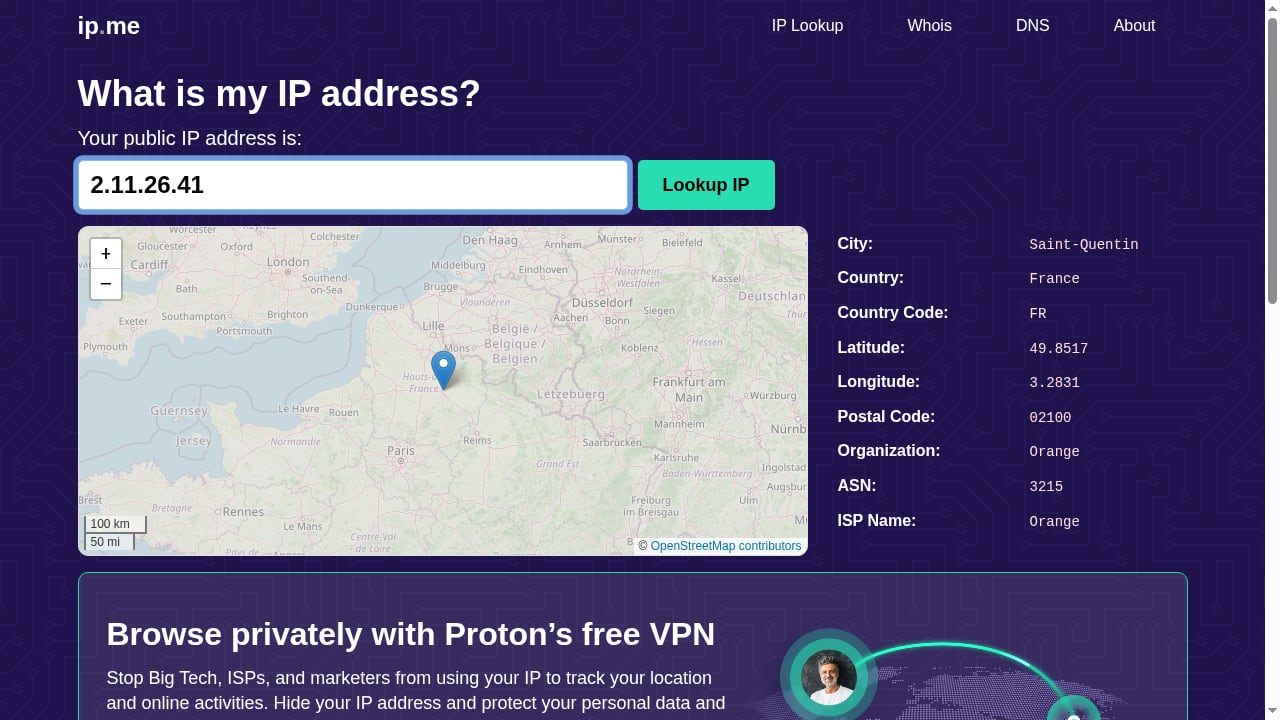
First viewport screenshot of What is my IP address? | Find my public IP address | IP.me.
A fingerprint test without an IP check leaves a blind spot. If your VPN or proxy is not routing the way you think, every fingerprint result is measured against the wrong baseline. Conversely, an IP lookup alone cannot tell you that your canvas hash, WebGL renderer, or timezone contradicts the location your IP claims.
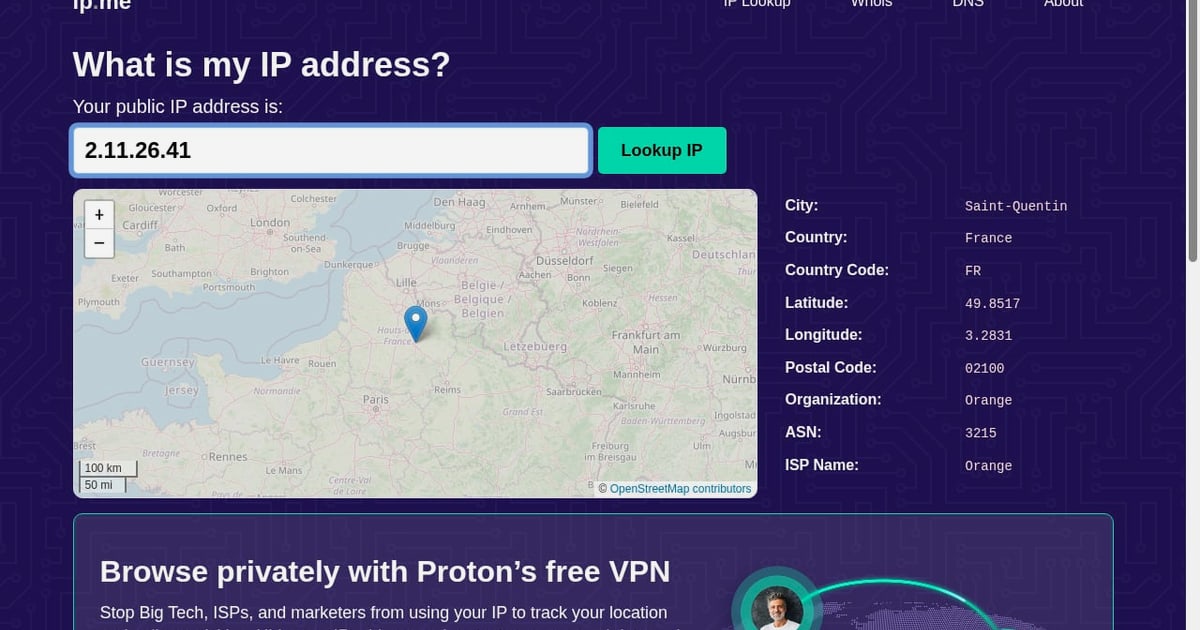
- IP.me confirms the visible public address, its version (IPv4 or IPv6), and the approximate geolocation tied to it. It is a one-click lookup with no installation.
- BrowserScan runs an automatic scan of network exposure, hardware, software, and automation signals. It includes DNS leak testing, WebRTC leak testing, proxy server detection, user agent parsing, a port scanner, a speed test, and a 2FA live check.
The pairing follows a simple logic: verify the route, then verify the surface, then compare the two for contradictions.
Step 1: Establish your network baseline with IP.me
Before opening any fingerprint tool, confirm what the outside world sees.
- Open IP.me in the exact browser profile you intend to test. Do not use a different profile or a private window unless that is the profile under test.
- Record the public IP address it returns, along with the address family. If your network supports both, you may see an IPv6 address by default while a different IPv4 address is also in use.
- Note the approximate location and provider label shown next to the address.
- Write these values down. They become your baseline for every comparison that follows.
If you are behind a VPN or proxy, the address shown should be the exit node, not your home connection. If it is not, stop and fix the route before continuing — fingerprint results collected over the wrong route are misleading.
Step 2: Run the BrowserScan fingerprint scan
First viewport screenshot of About - IP.ME.
Open BrowserScan in the same profile and let the automatic scan finish. Do not change settings, switch networks, or close tabs mid-scan.
Read the overview first
The overview groups the headline values: visible IP, estimated location, browser, operating system, proxy status, blacklist status, and bot result. Compare each one against your IP.me baseline.
- The visible IP should match what IP.me reported.
- The estimated location should be consistent with that address, not with your physical location.
- Proxy status should reflect whether you are intentionally routing through a proxy.
Then inspect the detailed groups
The detail view separates findings by likely source, which makes mismatches easier to trace:
- Network and location — IP, provider, proxy status, blacklist status, country, city.
- Leak checks — WebRTC addresses and DNS resolvers.
- Hardware — canvas, WebGL, audio, client rectangles, screen properties, touch support, media devices.
- Browser — request headers, JavaScript results, browser version, operating system, private mode.
- Software — timezone, local time, languages, cookie availability, fonts, automation findings.
Record the exact field behind each warning rather than only the summary percentage. A single number cannot tell you whether a problem sits in the network layer or the browser layer.
Step 3: Compare the two reports for contradictions
The real value appears when you line the reports up side by side. Look for agreement across these pairs:
| Check | IP.me provides | BrowserScan provides | What a mismatch means |
|---|---|---|---|
| Address | Public IPv4/IPv6 | Visible IP for the page request | A second address is in play, often WebRTC or a split route |
| Geography | Approximate location | Estimated location and timezone | Timezone not aligned with the IP suggests a configuration gap |
| Route | Provider label | Proxy and blacklist status | Proxy detected when none was intended, or missed when one was |
| Resolver | — | DNS resolver observations | DNS queries leaving through a different path than your traffic |
A useful rule: the IP address sets the expectation, and the fingerprint should be coherent with it. A profile that claims one region while rendering and locale signals point elsewhere is internally inconsistent, and that inconsistency is itself a distinguishing signal.
Step 4: Fix one thing at a time
When you find a mismatch, change a single variable and retest. Changing several settings at once makes it impossible to know which change produced the result.
- Route problems first. If the IP is wrong, correct the VPN, proxy, or network configuration and re-run IP.me. Do not proceed until the baseline is right.
- DNS leaks next. If DNS resolvers do not match your intended route, check your resolver settings and whether the browser or operating system is bypassing them.
- WebRTC exposure. If an alternate public address appears in the WebRTC results, review WebRTC handling in the browser and any extension that affects it.
- Browser-side consistency. Align timezone, language, and locale with the region your IP represents. These are software-layer settings and usually straightforward to adjust.
- Rendering and hardware signals. Canvas, WebGL, and audio values describe rendering behavior, not a hardware serial number. Graphics drivers, fonts, browser builds, and privacy extensions can all change the output. Change one and retest.
After each change, rerun both tools. The IP check confirms the route held; the fingerprint scan confirms the surface changed as intended.
Practical examples
Example 1: Verifying a VPN actually hides your address
You connect to a VPN server in another country. IP.me should now show an address in that country with the VPN provider's label. BrowserScan should show the same visible IP, a matching estimated location, and a timezone consistent with that region. If BrowserScan's timezone still reflects your home region, the browser is contradicting the network route — a classic mismatch that is easy to fix in browser settings.
Example 2: Checking a proxy setup before account work
You route a dedicated browser profile through a proxy. IP.me confirms the proxy exit address. BrowserScan's proxy detection and blacklist status confirm the traffic is recognized as proxied and whether the address carries a poor reputation. If the proxy is flagged, you learn that before it affects the task. For a deeper look at this specific pairing, see How to Use BrowserScan Fingerprint Tool with IP2Proxy.
Example 3: Comparing two browser profiles
Run IP.me and BrowserScan in each profile separately. If two profiles are meant to look unrelated, their fingerprints should not overlap in canvas, WebGL, fonts, or screen properties. Overlapping values suggest the profiles share more than intended. This is also the check that matters when evaluating antidetect setups, as covered in Web3 Antidetect Browser: Test Fingerprint Leaks First.
Example 4: Diagnosing a DNS leak
Your IP.me result shows the expected VPN address, but BrowserScan's DNS resolver observations point to your internet provider. That combination means your web traffic is tunneled while name resolution is not. Fixing the resolver configuration closes the gap.
What the combination solves
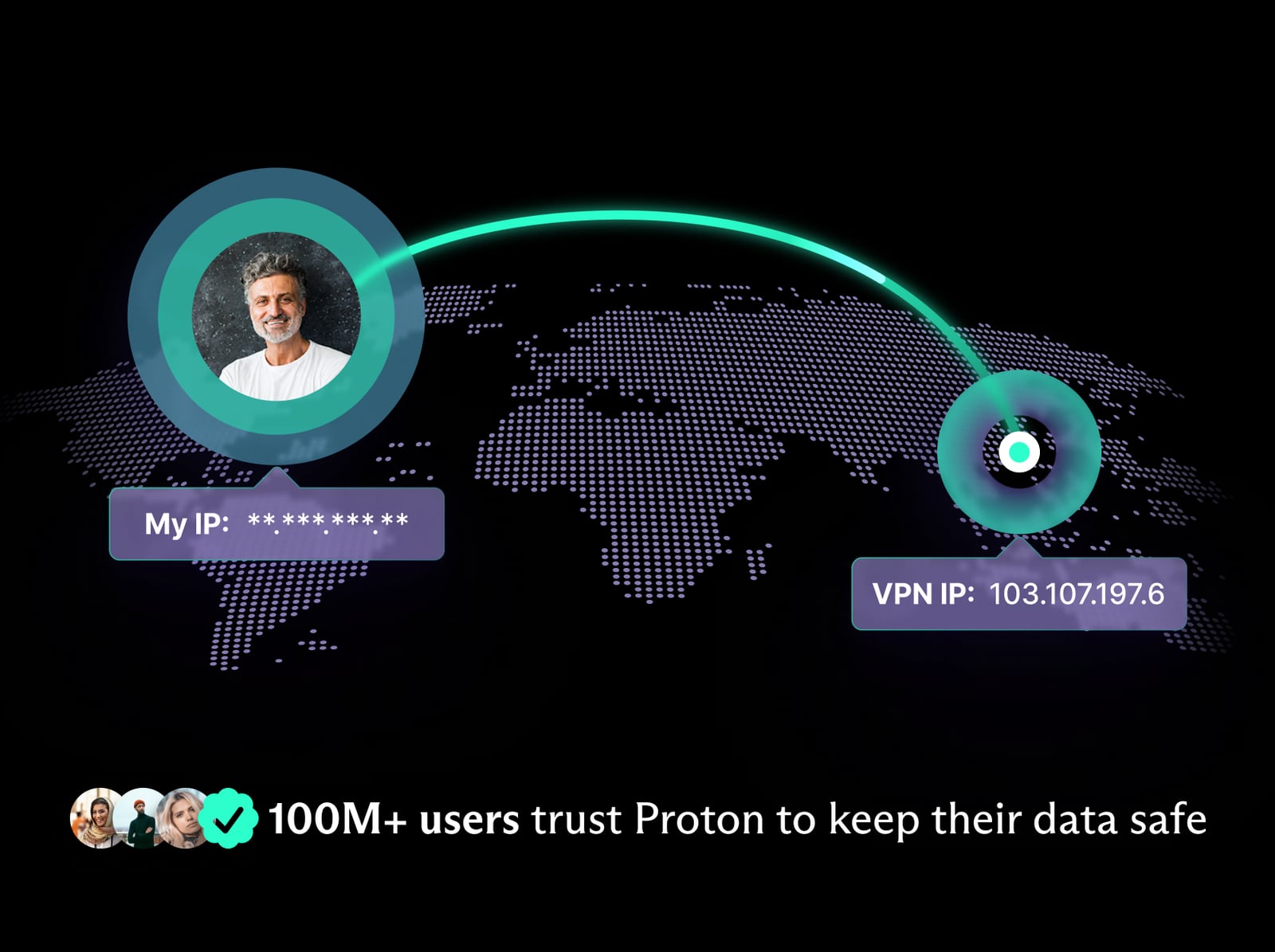
vpn-image.
- False confidence. A VPN icon in the toolbar is not proof of anything. IP.me verifies the address; BrowserScan verifies the rest.
- Split routes. Traffic and DNS can travel different paths. Only a leak test surfaces that.
- Internal inconsistency. A fingerprint that disagrees with its own IP is more distinctive than a consistent one, even if the consistent one is less private.
- Proxy reputation blind spots. An address can route correctly and still be flagged. Blacklist status catches that.
- Profile bleed. Multiple profiles that share rendering signals can be linked even when their IPs differ.
Understanding what the scores do and do not mean
BrowserScan's authenticity summary reflects consistency checks during that visit. It is not a measure of anonymity or fingerprint uniqueness. A coherent profile can still be highly recognizable, and aggressive privacy controls can lower consistency by changing exposed values.
Treat the percentage as triage. Open every warning and ask whether the observed value contradicts your intended baseline. Legitimate causes — travel, unusual hardware, accessibility settings, enterprise browser policies — can produce differences without indicating a broken setup.
Similarly, IP.me's location data is a database estimate tied to network infrastructure, not a precise position. Use it to verify routing, not to draw conclusions about a person.
Choosing the right tool for the job
First viewport screenshot of DNS Lookup tool - IP.ME.
Use IP.me when you need a fast, unambiguous answer about your public address and its version. Use BrowserScan when you need to know what else the browser reveals and whether anything leaks. If you are evaluating alternatives for the fingerprint side, BrowserScan vs WhatIsMyIP.com vs Pixelscan: Best Fingerprint Tool compares coverage and leak testing, and Top 10 Browser Fingerprinting & Privacy Diagnostics Tools 2026 ranks the wider field.
For background on how addresses work and why the distinction between public and private, dynamic and static matters, see What is My IP Address? How to Check IP Address?. Mozilla's explanation of fingerprinting is a useful reference for why these signals exist in the first place.
Related reading
- BrowserScan vs ToDetect: Best Fingerprint Detection Tool - Compare BrowserScan and ToDetect for browser fingerprint detection, leak testing, and privacy checks. See which tool fits your anonymity workflow.
- IPhey Review 2026: Real-Time Browser Fingerprint Test - Hands-on IPhey review: what its real-time browser fingerprint test reveals, who it fits, pricing signals, setup, and key limits to know before relying on it.
Sources and further reading
- How to use BrowserScan the right way - Learn a simple, practical way to use BrowserScan to check your browser’s privacy and security settings.
- How Do You Check Your Digital Fingerprint With BrowserScan? - Use BrowserScan to check your digital fingerprint and find browser or proxy mismatches. Learn how to interpret its score and limits.
FAQ
Do I need both tools, or is one enough?
They answer different questions. IP.me tells you what address the internet sees. BrowserScan tells you what your browser reveals beyond that address and whether anything leaks. For a complete check, use both.
How often should I run these checks?
After any change to your network, VPN, proxy, browser extensions, or browser version. Also run them periodically, since browser updates can alter exposed signals without warning.
Why does IP.me show an IPv6 address when I expected IPv4?
Many networks support both protocols, and lookup tools may display IPv6 by default when it is available. If you need to confirm the IPv4 address specifically, check a tool that reports both families explicitly.
Does a high authenticity score mean I am anonymous?
No. The score reflects internal consistency during that visit. It does not measure how unique or recognizable your fingerprint is.
Can a proxy change my browser fingerprint?
A proxy changes the network route and therefore the visible IP. It does not change canvas, WebGL, fonts, or automation indicators. Those come from the browser and device, which is why the fingerprint scan is still necessary.
What should I check first if something looks wrong?
Start with the visible IP. If the route is wrong, every downstream comparison is measured against the wrong baseline. Fix the network layer, then move to DNS, WebRTC, and browser-side settings in that order.
Conclusion
BrowserScan and IP.me solve complementary halves of the same problem. IP.me gives you a fast, reliable read on your public address and its version. BrowserScan shows you everything else the browser exposes and flags the leaks that undermine a carefully built setup.
The workflow is short: confirm the route, scan the surface, compare for contradictions, change one variable, and retest. Done consistently, it turns vague assumptions about privacy into observable, fixable facts.