
How to Use BrowserScan with BigDataCloud for Enhanced Privacy Checks
How to Use BrowserScan with BigDataCloud for Enhanced Privacy Checks
Your browser leaks more than you think. IP address, WebRTC data, DNS requests, and a unique fingerprint all leave traces that websites and platforms can use to track you or link multiple accounts. BrowserScan already gives you a deep look into those leaks, but adding BigDataCloud’s hyper‑accurate IP intelligence turns it into a complete privacy audit toolkit. This guide shows you exactly how to use BrowserScan with BigDataCloud, step by step, and explains why the combination is a game‑changer for VPN users, multi‑account operators, and anyone serious about anonymity.
What Is BrowserScan?
How to Use BrowserScan with BigDataCloud for Enhanced Privacy Checks product interface and feature overview.
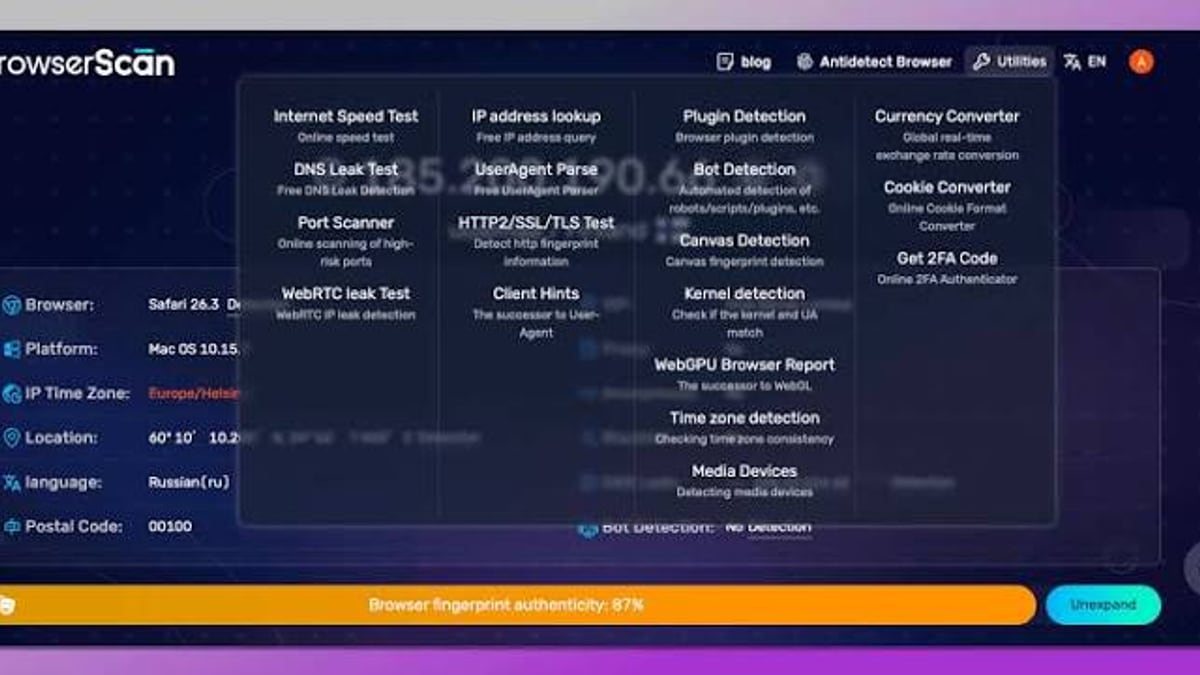
BrowserScan is a free, no‑plugin online tool that detects browser fingerprints, IP leaks, DNS leaks, WebRTC leaks, and more. As soon as you visit the site, it scores your fingerprint authenticity and flags red‑flag items like mismatched time zones, inconsistent GPU-User‑Agent combos, or a real IP exposed through WebRTC. It also includes a multi‑database IP lookup that pulls geolocation and network data from seven different providers, a port scanner, and a cookie converter — all designed to give you a 360‑degree view of your browser’s privacy posture.
What Is BigDataCloud?
BigDataCloud offers patented IP geolocation APIs with daily accuracy benchmarks, confidence area mapping, hazard detection (VPN, proxy, Tor, hosting), and ASN intelligence. It supports IPv4 and IPv6, REST and GraphQL endpoints, and a free client‑side API that requires no sign‑up and no API key for basic IP lookups. For advanced needs, a free account gives you a generous call volume and full access to all endpoints, making it a developer‑friendly layer of truth when you need to verify an IP’s real location and risk profile.
Why Combine BrowserScan and BigDataCloud?
How to Use BrowserScan with BigDataCloud for Enhanced Privacy Checks - supporting product research image 2.
BrowserScan shows you what your browser reveals. BigDataCloud tells you how trustworthy that revealed IP really is. Use them together when you:
- Run multiple e‑commerce or social media accounts and need every account to look like a genuine, separate user from a consistent location.
- Verify a VPN or proxy connection — BrowserScan can expose the IP visible to websites, but BigDataCloud’s confidence score and hazard report confirm whether that IP is flagged as a data center, VPN exit node, or known proxy.
- Compare geolocation across IP databases — BrowserScan’s multi‑DB lookup might show conflicting city/country results, while BigDataCloud’s daily‑updated, benchmarked data gives you a definitive answer you can rely on.
- Spot subtle IP‑time zone mismatches that fingerprint authentication often misses when you only look at the browser metadata.
By pairing the two, you move from a simple “I see this IP” to a confident “I know this IP is clean, consistent, and won’t trigger platform fraud checks.”
Step‑by‑Step: Using BrowserScan and BigDataCloud Together
How to Use BrowserScan with BigDataCloud for Enhanced Privacy Checks - supporting product research image 3.
Here’s a workflow that takes roughly two minutes once you’re familiar with both platforms.
1. Run a BrowserScan Privacy Scan
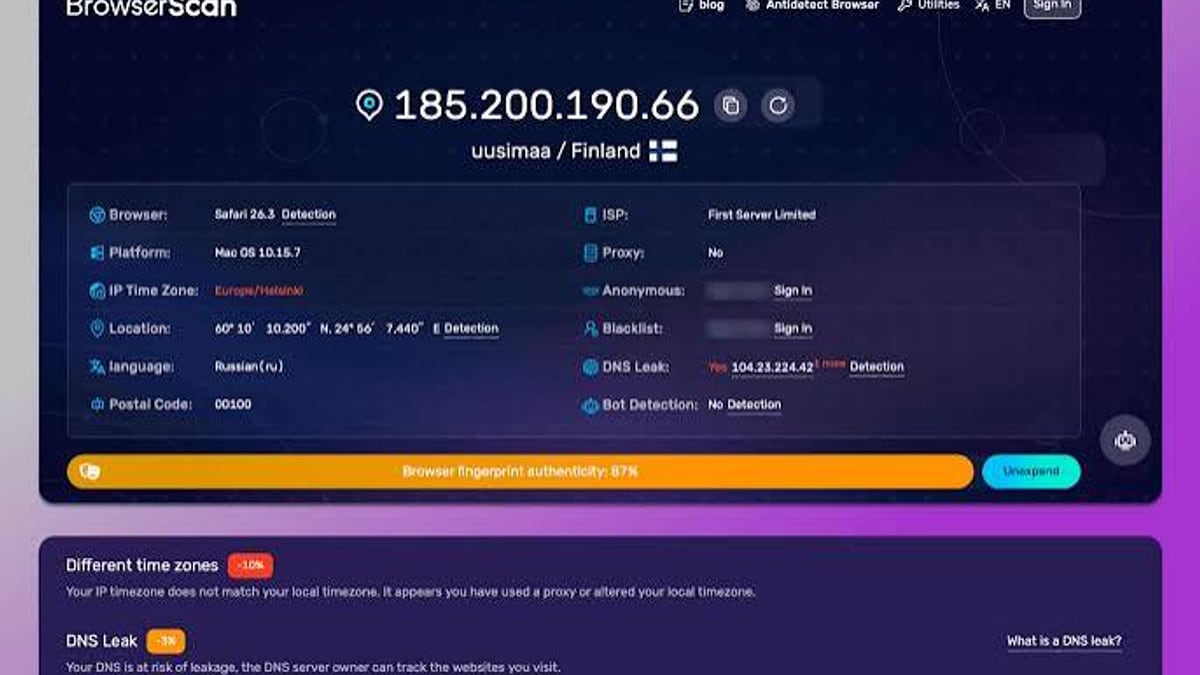
Open BrowserScan in the browser you want to test — an anti‑detect browser, a VPN‑protected session, or your everyday Chrome. Wait a few seconds for the dashboard to populate. Pay special attention to:
- The fingerprint authenticity percentage (anything below 90% deserves a closer look).
- The IP address shown and any WebRTC leak warning — if the WebRTC exposure differs from your expected IP, you have a real problem.
- The geolocation block (country, city, postal code) and the time zone reported.
2. Note the IP Address and Any Anomalies
Copy the public IP address BrowserScan displays. If you see a WebRTC leak alert, note both the proxy/VPN IP and the leaked real IP — we’ll check them separately with BigDataCloud.
3. Retrieve Deep IP Intelligence with BigDataCloud
Now head over to BigDataCloud’s free client‑side API or, if you already have an API key, use the REST endpoint. The free client‑side API instantly returns:
- Geolocation (city, country, latitude/longitude) with a confidence level.
- Network information (ISP, organization, ASN).
- Hazard report — a true/false flag for VPN, proxy, Tor, and hosting service.
To use the free client‑side API, simply call it from your browser’s console or integrate it into a quick HTML snippet. Here’s a minimal example you can paste into a browser tab:
fetch('https://api.bigdatacloud.net/data/client-ip')
  .then(response => response.json())
  .then(data => console.log(data));
If you need more detail — such as confidence area radius, ISP risk, or high‑precision location — sign up for a free API key (no credit card required) and use the full /data/ip-geolocation endpoint:
curl "https://api.bigdatacloud.net/data/ip-geolocation?ip=YOUR_IP&key=YOUR_KEY"
4. Cross‑Reference the Data
Compare BigDataCloud’s output against what BrowserScan reported:
- Geolocation — Does the country/city match? If BigDataCloud says “New York” but BrowserScan shows “Los Angeles” (even from a supposedly clean proxy), your proxy’s geolocation is likely inconsistent across databases, a red flag for multi‑accounting.
- Confidence — BigDataCloud provides a confidence score and a radius. A low confidence or large radius suggests the IP is behind a mobile carrier or VPN/cloud infrastructure, which might still appear normal in BrowserScan’s basic lookup.
- Hazard report — If BigDataCloud flags the IP as a proxy or hosting service, you know the IP won’t pass platform blacklist checks, even if BrowserScan’s own IP lookup didn’t classify it.
- Time zone consistency — Verify that BigDataCloud’s reported latitude/longitude aligns with the time zone captured by BrowserScan. A mismatch is a classic sign of a misconfigured anti‑detect browser.
5. Validate the Browser Fingerprint
With the IP verified, return to BrowserScan and inspect the fingerprint details — hardware, software, canvas, WebGL, fonts — to make sure they match the IP’s location profile. For example, if BigDataCloud confirms your IP is in Paris, check that BrowserScan shows a Paris time zone, French keyboard layout, and language settings consistent with a French user. If you spot a U.S. time zone on a French IP, adjust your anti‑detect browser profile accordingly.
For a closer comparison of how BrowserScan stacks up against other fingerprint testers, read our BrowserScan vs Pixelscan.dev: Fingerprint & Bot Detection Test.
Practical Examples of the Combination
Example 1: Verifying a Residential Proxy for Multi‑Accounting
You intend to manage multiple Amazon seller accounts from the UK. You load a fresh residential proxy into your anti‑detect browser and visit BrowserScan. The dashboard shows an IP in London and an authenticity score of 97%. Good. But platforms can be stricter — Amazon might blacklist IPs if they appear in multiple geolocation databases with conflicting city data.
You take the IP to BigDataCloud and get back: City: London, Country: GB, Confidence: high, hazardReport: { vpn: false, proxy: false, tor: false, hosting: false }. Better yet, the confidence area is just a few kilometers. You now have objective proof that the IP is residential, unmasked, and consistently geolocated, so you can operate the account with confidence.
Example 2: Catching a WebRTC Leak on a VPN
BrowserScan detects a WebRTC leak: your expected VPN IP is displayed as the public IP, but the WebRTC test reveals your real home IP in Singapore. You run BigDataCloud on both IPs. The VPN IP shows hazardReport.proxy: true and network.organization points to a well‑known VPN provider. The real IP returns a clean residential profile with your home city. This dual‑check confirms that your VPN is not fully blocking WebRTC — a critical finding that might have gone unnoticed with a simple IP lookup alone.
Example 3: Confirming Bot‑Like Behavior with Network Intelligence
BrowserScan’s bot detection flags your browser as potentially automated. You suspect the issue is the IP being a data center address. BigDataCloud confirms it: hazardReport.hosting: true, isp: "DigitalOcean". Knowing the source, you can switch to an ISP‑registered residential proxy and rerun BrowserScan to see the bot flag disappear, thus eliminating a major blocking risk.
If you’re evaluating other IP intelligence sources, our Top 10 IP Geolocation APIs in 2026 can help you compare BigDataCloud against alternatives like IPinfo, Ipregistry, and others.
Comparing BigDataCloud Data with BrowserScan’s Multi‑DB IP Lookup
How to Use BrowserScan with BigDataCloud for Enhanced Privacy Checks - supporting product research image 4.
BrowserScan’s IP lookup conveniently aggregates results from seven IP databases (ip‑api, IPinfo, IP2Location, db‑ip, IPQuery, and others). That’s excellent for spotting discrepancies, but it doesn’t give you a single authoritative answer. BigDataCloud fills this gap by publishing daily accuracy benchmarks and supporting its data with patented technology (US Patent 11,792,110).
When you see conflicting country reports in BrowserScan’s multi‑DB view, run the same IP through BigDataCloud. Its confidence score and evidence‑based dataset usually resolve the ambiguity. Use BrowserScan’s multi‑DB as a quick consistency check and BigDataCloud as your source of truth for geolocation accuracy.
For a similar integration that uses another IP lookup tool alongside BrowserScan, check out our guide on How to Combine BrowserScan & IP‑Lookup.net for Total Privacy.
Related reading
- BrowserScan vs BrowserLeaks vs Pixelscan.dev: Which Privacy Tester Wins? - Compare BrowserScan, BrowserLeaks, and Pixelscan.dev for browser fingerprinting, IP leak tests, and bot detection. See strengths, differences, and best use cases.
- BrowserScan vs BrowserLeaks: Which Privacy Tool Wins in 2026? - Compare BrowserScan and BrowserLeaks for browser fingerprinting, leak tests, and online privacy. Discover the all-in-one tool vs. the technical deep-dive suite.
- Pixelscan Review 2026: Fingerprint & Leak Test Analysis - Honest review of Pixelscan: see how it detects browser fingerprints, IP leaks, DNS & WebRTC issues. Learn setup, ideal users, limitations, and alternatives.
Sources and further reading
- How to Use BrowserScan to Detect Browser Fingerprints - This article will help you understand how to use BrowserScan to detect browser fingerprints, making you more aware of precautions in digital world, in order to more effectively protect your accounts.
- BrowserScan Proxy Integration - Free Trial - Learn how you can integrate Bright Data's proxies with BrowserScan, a tool for detecting browser fingerprints.
FAQ
Do I need a BigDataCloud API key to use it with BrowserScan? No. BigDataCloud’s client‑side IP detection API works without a key and delivers basic geolocation, network info, and hazard flags. For the full geolocation endpoint with confidence areas and advanced fields, sign up for a free account — you’ll get an API key instantly, and the free tier covers thousands of lookups per month.
Can BrowserScan detect IP leaks that BigDataCloud won’t see? Yes. BigDataCloud sees the IP making the request, but BrowserScan can spot WebRTC leaks where a different, real IP is exposed inside the browser’s media stack. That’s why you first use BrowserScan to identify what IPs are visible, then take those IPs to BigDataCloud for assessment.
What if BrowserScan and BigDataCloud report different cities for the same IP? Geolocation databases always have some drift. BigDataCloud’s confidence radius tells you how precise the location is; a small radius indicates high certainty. If BrowserScan’s multi‑DB shows a different city, trust the provider with the higher confidence — usually BigDataCloud. If you’re operating accounts sensitive to location shifts, always prefer the most consistent and well‑documented source.
Will using BigDataCloud slow down my privacy checks? Not at all. The client‑side API responds in milliseconds, and the REST API is just as fast. Adding the BigDataCloud step to your BrowserScan review adds only a few seconds and dramatically improves your insight.
Is this combination suitable for non‑technical users? Absolutely. BrowserScan is fully visual; you literally just visit a webpage. BigDataCloud’s free client‑side API can be opened as a simple bookmarklet, and the results are easy to read. You don’t need to write code — although if you want to automate the workflow, a short script does the job.
Conclusion
Using BrowserScan and BigDataCloud together gives you a privacy audit workflow that covers both the browser and the network layer. BrowserScan reveals what your browser silently shares, while BigDataCloud certifies the trustworthiness and location of every IP involved. The combination is invaluable for anyone managing multiple online identities, testing VPN setups, or verifying anti‑detect browser configurations before they go live. Start with a free BrowserScan scan, then enrich the results with BigDataCloud’s free client‑side API — you’ll spot problems you never knew existed and fix them before they cost you an account or your anonymity.