
How to Combine BrowserScan & IP-Lookup.net for Total Privacy
How to Combine BrowserScan & IP-Lookup.net for Total Privacy
Online privacy isn’t a single-check affair. A browser fingerprint score can look pristine while your real IP leaks through WebRTC, or a VPN may pass a quick location test yet still expose your ISP via an overlooked DNS request. That’s why security-conscious users pair BrowserScan—an all-in-one browser fingerprint and leak testing suite—with IP-Lookup.net, a deep IP intelligence platform. Together they let you inspect your connection from two angles: the browser’s identity layer and the network’s raw IP details.
In this guide you’ll learn when and why to use both tools, a repeatable 4-step workflow, a practical VPN verification example, and how this combination solves problems neither tool fully addresses alone.
Why Pair BrowserScan with IP-Lookup.net?
How to Combine BrowserScan & IP-Lookup.net for Total Privacy product interface and feature overview.
BrowserScan detects browser fingerprinting and leaks (WebRTC, DNS, geolocation mismatch) while diving into hardware, software, and bot signals. It aggregates IP data from multiple providers like ip-api, IPinfo, and IP2Location, giving you a broad overview. See our BrowserScan vs Pixelscan.dev comparison for how its fingerprint authenticity scoring stands out.
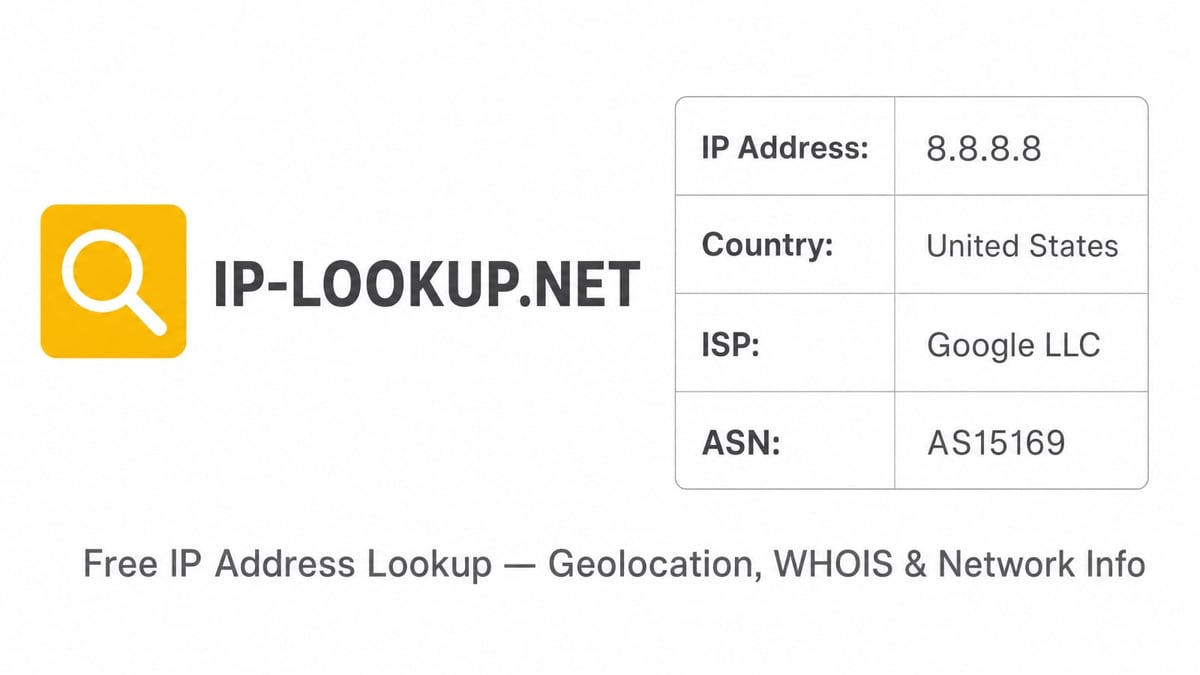
IP-Lookup.net complements this by offering granular IP intelligence: reverse DNS, ASN ownership, WHOIS/RDAP records, proxy/VPN detection flags, and a CIDR calculator. Where BrowserScan tells you if your IP location matches the fingerprint, IP-Lookup.net tells you whether that IP is flagged as a hosting provider or known anonymizer—critical for multi-accounting and bypassing platform restrictions.
Used together, they form a verification loop:
- BrowserScan reveals what your browser exposes.
- IP-Lookup.net confirms what the network says about that IP.
- You cross-check the two to spot inconsistencies invisible to either tool alone.
4-Step Workflow: From Fingerprint Scan to Deep IP Audit
How to Combine BrowserScan & IP-Lookup.net for Total Privacy - supporting product research image 3.
Follow these steps to methodically audit your privacy setup.
Step 1: Run a BrowserScan Fingerprinting & Leak Test
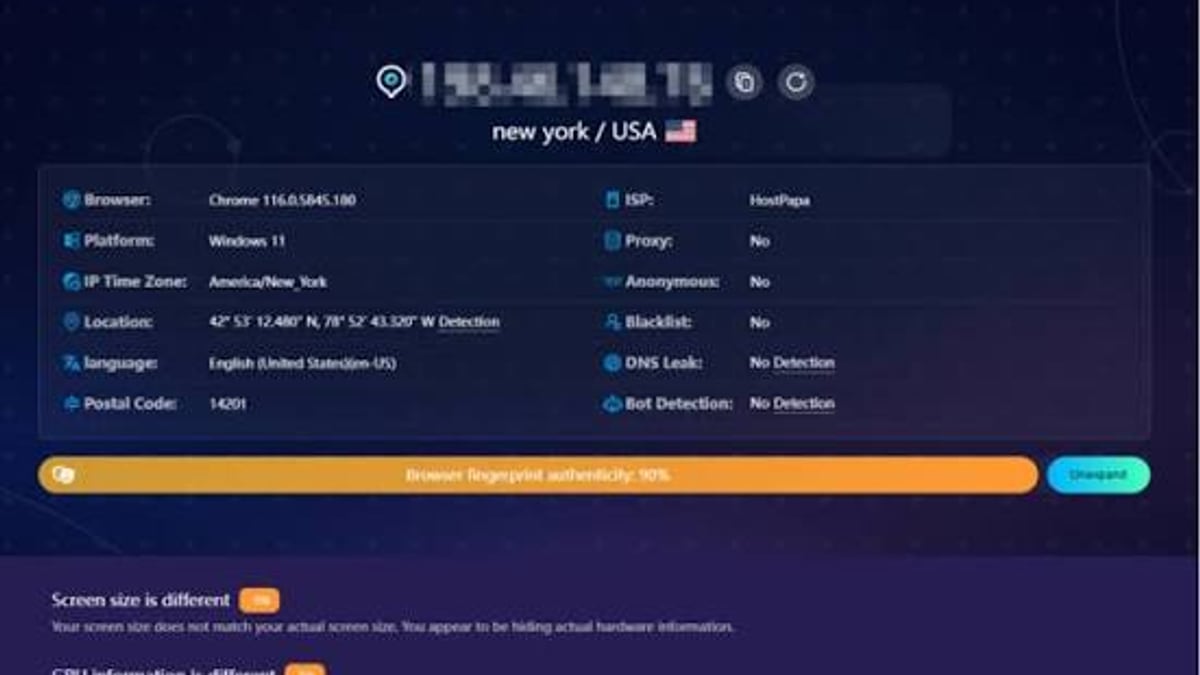
Visit BrowserScan’s tool directly—no plugins needed. In seconds you’ll see:
- Fingerprint authenticity percentage.
- Public IP address and geolocation.
- DNS and WebRTC leak status.
- Browser, OS, GPU, Canvas, WebGL, and timezone details.
- Bot detection score.
Take note of any red-highlighted mismatches, especially:
- WebRTC leaking a real IP while you’re using a proxy.
- Timezone or language conflicting with your IP’s declared location.
- Hardware profile (e.g., GPU) that doesn’t match the user agent.
If fingerprint authenticity falls below 90%, you’ll want to dig deeper. For a full explanation of each check, read the BrowserScan how‑to article.
Step 2: Extract Your Public IP & Key Fingerprint Metrics
From the BrowserScan results, copy:
- The public IPv4 or IPv6 shown at the top.
- Geolocation country, city, and ISP.
- Any WebRTC-leaked IP (if different).
- ASN (Autonomous System Number) if displayed by a provider like IPinfo.
These become the input for the next stage.
Step 3: Perform a Deep IP Lookup with IP-Lookup.net
Go to IP-Lookup.net and paste the IP address you just copied. The tool instantly returns:
- Confirmed geolocation (city, region, country, coordinates) from multiple databases.
- ISP, organization, and ASN.
- Reverse DNS hostname.
- Proxy/VPN/Tor detection flags.
- WHOIS/RDAP registration details.
If BrowserScan indicated a WebRTC leak, also look up the leaked IP to see if it belongs to your home ISP or a different provider.
Step 4: Cross-Reference Geolocation, ISP, and Risk Flags
Now compare the two data sets:
| Data Point | BrowserScan Should Show | IP-Lookup.net Should Confirm | Red Flag |
|---|---|---|---|
| Location (country/city) | Matches desired VPN exit node | Same country/city as BrowserScan’s IP data | Mismatch between fingerprint location and IP geolocation |
| ISP | VPN provider or proxy name | ISP matches VPN/proxy, not your home ISP | ISP field resolves to a residential ISP |
| Proxy/VPN detection | (Not directly tested by BrowserScan) | IP-Lookup.net returns “proxy” or “VPN” flag | No flag when you’re using a VPN (possible leak) |
| WebRTC leak IP | Leaked IP shown | Leaked IP’s ISP is your actual ISP | Leaked IP matches the VPN exit IP (unlikely) |
When both tools align, your setup is solid. A mismatch tells you exactly which layer needs fixing—your anti‑detect browser profile, VPN configuration, or network settings.
Real‑World Example: Verifying a VPN Connection
How to Combine BrowserScan & IP-Lookup.net for Total Privacy - supporting product research image 4.
Suppose you’re using a VPN to appear in Canada for accessing geo‑restricted content.
- BrowserScan test: Public IP shows Toronto (ISP: “ExampleVPN Ltd.”), no DNS leak, but WebRTC reveals a second IP from São Paulo (your actual home ISP). Fingerprint authenticity drops to 85% because the timezone is still America/Sao_Paulo.
- IP-Lookup.net on the public IP: Confirms Toronto, ASN belongs to a known VPN hosting provider, and proxy flag = true. That’s good.
- IP-Lookup.net on the WebRTC leaked IP: Geolocated to São Paulo, ISP is “Vivo”. The IP is not flagged as proxy—just a residential connection.
- Cross‑reference: The timezone mismatch and WebRTC leak indicate the VPN client isn’t blocking WebRTC properly. The fix: disable WebRTC in the browser or use an anti‑detect browser that spoofs timezone and suppresses WebRTC.
Without IP-Lookup.net’s proxy flag and ISP confirmation, you might have assumed the public IP was safe because BrowserScan showed Canada. The leaked IP’s residential nature would have gone unnoticed.
When to Use BrowserScan vs. IP-Lookup.net Alone
How to Combine BrowserScan & IP-Lookup.net for Total Privacy product interface and feature overview.
Not every check requires both tools. Here’s a quick decision guide:
- You need a full browser privacy health check: Start with BrowserScan. It’s your one‑stop dashboard for fingerprint authenticity, DNS/WebRTC leaks, and bot detection.
- You want to investigate a suspicious IP: Use IP-Lookup.net. Its proxy detection, ASN lookup, and reverse DNS are far more detailed than what BrowserScan’s multi‑source IP panel shows.
- You’re setting up multiple accounts: Run BrowserScan to ensure each profile’s fingerprint is unique and leak‑free; then validate each profile’s IP through IP-Lookup.net to guarantee no IP‑based association (e.g., identical ASN or hosting provider).
- You’re auditing a website visitor’s IP: IP-Lookup.net is the better fit; you don’t have the visitor’s browser to run BrowserScan.
For a similar tandem approach with vulnerability scanning, see our guide on how to use BrowserScan with HackerTarget. If you’re comparing dedicated IP lookup services, our IP.ME review weighs Proton’s tool against alternatives like IP-Lookup.net.
Common Pitfalls Solved by the Combo
1. False‑Positive Geolocation Errors
BrowserScan aggregates several IP databases, and one provider may show a wrong city. IP-Lookup.net often pulls from different sources, letting you confirm the true location. If three out of four databases agree on a city, you can trust that over a single outlier.
2. Undetected Proxy/VPN Usage
Some premium VPNs do not appear in real‑time blacklists. BrowserScan can’t tell you whether an IP is a known anonymizer beyond what the integrated data sources report. IP-Lookup.net’s dedicated proxy detection engine (which examines hosting ranges, open ports, and behavioral signals) catches many more.
3. DNS Leaks Disguised as Normal Traffic
If BrowserScan shows no DNS leak, but your ISP’s DNS server is still used, you might not notice. By querying the IP’s reverse DNS on IP-Lookup.net, you can spot whether the resolved hostname points to your ISP’s infrastructure (e.g., cpe‑XX‑XX‑XX‑XX.ISPname.net). That’s a hidden DNS leak.
4. ASN‑Based Account Association
Even if you rotate residential proxy IPs, if they all belong to the same ASN, platforms can still link your accounts. BrowserScan doesn’t surface ASN correlation risks. IP-Lookup.net shows the ASN and organization; map your proxy pool through it to ensure ASN diversity.
Related reading
- BrowserScan vs Pixelscan.dev vs Pixelscan: Top Privacy Tool? - Compare BrowserScan, Pixelscan.dev, and Pixelscan for browser fingerprinting, bot detection, and leak testing. Find the best privacy tool for your anonymity needs.
- Top 10 VPN and Cybersecurity Software Products for 2026 - We tested and ranked the 10 best VPN & cybersecurity suites of 2026. Compare NordVPN, Norton, Bitdefender, Surfshark, and more for speed, antivirus, and privacy.
Sources and further reading
- IP Address Lookup - Check Location of Your Public IP - IPLocation.io provides a free IP lookup tool to check the location of your IP Address. Data is gathered through several GEO IP data providers. Just enter an IP and check the location.
FAQ
Do I need both tools if I already use an anti‑detect browser?
Yes. An anti‑detect browser can mask your fingerprint, but it can’t control what the IP reveals. Run BrowserScan to verify the fingerprint, then IP-Lookup.net to confirm the IP’s proxy status, ASN, and reverse DNS. Together they validate the entire identity.
Can I use IP-Lookup.net for IPv6 addresses?
Absolutely. IP-Lookup.net fully supports IPv6 geolocation, reverse DNS, and WHOIS lookups. BrowserScan also handles IPv6, so the workflow works identically for both address families.
How accurate is the geolocation from these tools?
Both platforms acknowledge that IP geolocation is approximate—based on network allocation databases, not GPS. IP-Lookup.net explicitly notes that accuracy varies by region. Cross‑referencing multiple databases (like BrowserScan’s multi‑source panel plus IP-Lookup.net) gives you a confidence interval, not a guarantee.
What if BrowserScan reports a high fingerprint score but IP-Lookup.net flags the IP as a proxy?
A high fingerprint score means your browser profile appears genuine, but the IP proxy flag indicates the network layer may be suspicious. That combination can still trigger platform anti‑fraud systems. You’d need to switch to a cleaner IP (residential or mobile proxy) that passes IP-Lookup.net’s checks.
Is there an API integration between the two tools?
No direct integration, but you can manually or programmatically feed BrowserScan’s detected IPs into IP-Lookup.net’s public JSON API for automated auditing.
Conclusion
BrowserScan and IP-Lookup.net solve different halves of the same privacy puzzle: what your browser says and what the network reveals. By following the cross‑reference workflow, you turn potential blind spots into actionable insights—whether you’re testing a VPN, managing multiple e‑commerce accounts, or hardening your own device. At BrowserScan, we’ve found that such tool combinations consistently uncover leaks that slip past single‑tool scans, making them invaluable for anyone serious about online anonymity.
Take the next step: visit BrowserScan and IP-Lookup.net now, run your first combined audit, and close the gaps before they’re exploited.