
How to Use BrowserScan with IP.ME: Privacy & Leak Check Combo
How to Use BrowserScan with IP.ME: Privacy & Leak Check Combo
Online privacy isn’t a single check—it’s a layered process. BrowserScan gives you all-in-one fingerprint detection and leak testing, while IP.ME instantly reveals your public IP and DNS records. By using them side by side, you turn separate snapshots into a connected audit that catches what other tools miss. This guide walks you through the exact workflow, practical scenarios, and the answers you’ll get when you pair BrowserScan with IP.ME.
If you’re exploring other complementary setups, see how BrowserScan works with Best Online Privacy for a directory-driven approach. For a broader look at IP tools, check our top IP intelligence and network lookup tools for 2026.
Why Pair BrowserScan and IP.ME?
How to Use BrowserScan with IP.ME: Privacy & Leak Check Combo product interface and feature overview.
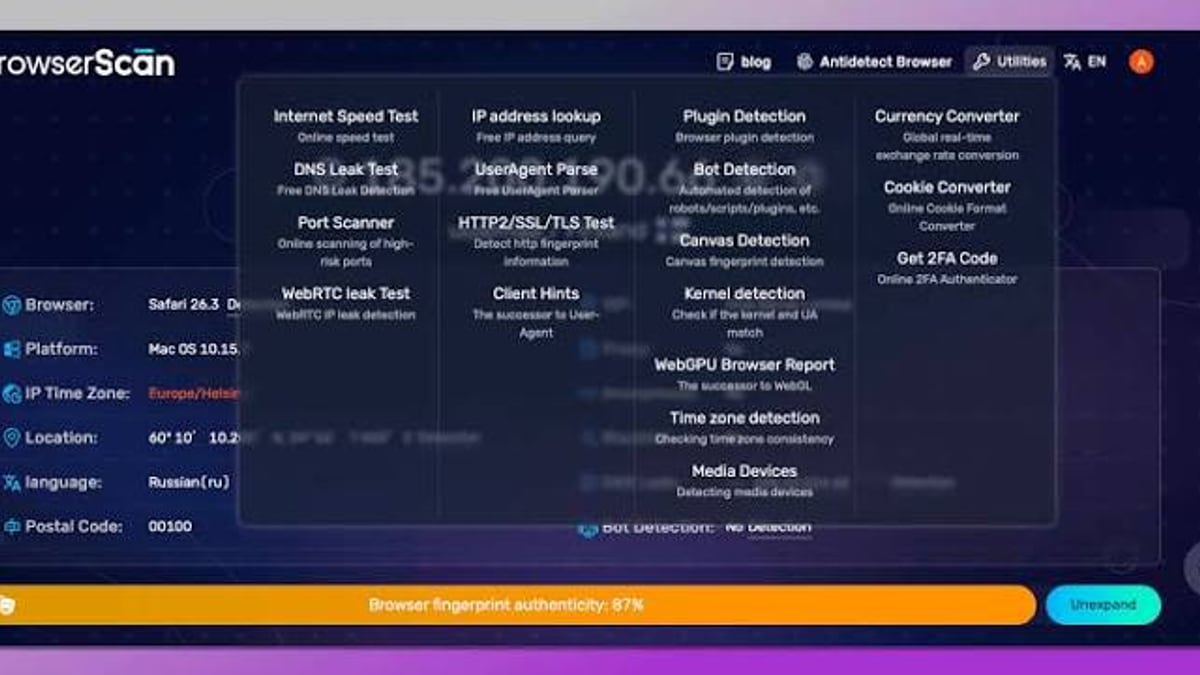
BrowserScan specializes in privacy leak detection. Its browser fingerprint test, DNS leak check, WebRTC leak test, and IP lookup panel expose weak spots that could identify or track you. But it shows your current IP as seen by its own detection stack. IP.ME, built by Proton, acts as a neutral external observer—a second opinion on your IP, geolocation, ISP, and ASN, plus it offers one-click DNS and WHOIS lookups.
Together they answer questions like:
- Is my VPN hiding my real IP across both tool perspectives?
- Does my DNS server leak my ISP details even when the IP looks good?
- Does my browser fingerprint correlate with the IP geolocation?
Used deliberately, this combo catches configuration mismatches and partial leaks that a single tool might overlook.
Step-by-Step Workflow
How to Use BrowserScan with IP.ME: Privacy & Leak Check Combo product interface and feature overview.
1. Start with a Quick IP Sanity Check on IP.ME
Open IP.ME first. It loads your public IPv4 (and IPv6 if available), city, country, postal code, ISP, and ASN without any configuration. This is your baseline “what the rest of the internet sees” snapshot. Write down the IP, ISP, and location.
2. Run BrowserScan’s Full Leak Test Suite
Head to BrowserScan’s IP check panel. Scroll past the initial IP card and trigger the full set of checks:
- IP Lookup: Compare with IP.ME. The IP should match if you aren’t using a proxy that splits traffic.
- DNS Leak Test: See which DNS servers your browser is actually contacting. If you’re connected to a VPN, those servers should belong to your VPN provider, not your ISP.
- WebRTC Leak Test: Reveals your real local IP even when a VPN masks the public one. BrowserScan integrates multiple STUN servers for a thorough probe.
- Browser Fingerprint: Note the authenticity score and the gathered attributes (user agent, screen resolution, time zone, language, fonts, canvas hash, etc.).
3. Cross-Reference Geolocation Data
Look at the geolocation details both tools report. Under “IP information under different IP Channel” on BrowserScan you get results from ip-api, IPinfo, IP2Location, db-ip, and IPQuery. Compare each with IP.ME’s single-source (dnspython/nslookup) view. Discrepancies—like a different city or ISP—could indicate proxy routing or IP geolocation inconsistencies that leaking tools wouldn’t notice alone.
4. Verify DNS and WHOIS Records with IP.ME
If the DNS leak test flags unexpected servers, use IP.ME’s DNS Lookup to query the DNS records of the domains you’re concerned about. Check A, CNAME, MX, and TXT records to see if they resolve through your VPN tunnel or directly through your ISP. Then run a WHOIS Lookup on the leaked IP address—IP.ME surfaces the owning organization, which often exposes the parent ISP.
5. Re-Test After Making Changes
Every time you adjust a VPN server, enable a kill switch, or tweak browser privacy settings, repeat steps 1–4. A single pass may look clean on BrowserScan but IP.ME might still show a stale ISP — that’s your signal to re-check DNS binding or IPv6 handling.
Real-World Scenarios
How to Use BrowserScan with IP.ME: Privacy & Leak Check Combo - supporting product research image 3.
Scenario A: Verifying Your VPN Is Working
Start with IP.ME. If you’re connected to a VPN in Zurich, the IP and city should reflect Switzerland. Then run BrowserScan’s DNS leak test. If any DNS server shows your home country’s ISP, your VPN is leaking DNS queries. The WebRTC test might also expose a local IP; if so, disable WebRTC in your browser or use an extension.
Scenario B: Debugging a Suspected DNS Leak
A user notices that their IP on BrowserScan changes, but targeted ads still point to their real city. IP.ME’s DNS lookup on a known ad domain might reveal that the lookup happens outside the VPN tunnel. BrowserScan’s multi-source IP comparison then confirms which channel still sees the real ISP. The fix typically involves forcing the browser to use the VPN’s DNS servers.
Scenario C: Preparing a Secure Environment for Sensitive Tasks
Before accessing sensitive work portals, run both tools. IP.ME confirms the external IP meets the required region; BrowserScan verifies that the browser fingerprint isn’t flagged as suspicious (e.g., mismatched time zone vs. IP location, uncommon canvas hash, proxy detection). If the fingerprint score is low, clear browser storage or switch to a vanilla profile.
When to Use Each Tool
How to Use BrowserScan with IP.ME: Privacy & Leak Check Combo - supporting product research image 4.
While the combo shines together, sometimes you’ll lean on one tool alone:
- Quick, one-off IP and DNS checks: IP.ME loads instantly and gives WHOIS data without extra steps.
- Deep privacy audit including fingerprint, WebRTC, port scan, bot detection: BrowserScan is your go-to suite.
- Active VPN testing: Use both—IP.ME for the external IP confirmation, BrowserScan for internal leak detection and fingerprint consistency.
Related reading
- BrowserScan vs DNSChecker vs Radware: Which Tool Is Right for You? - Compare BrowserScan, DNSChecker, and Radware side by side. See which tool suits privacy testing, DNS lookups, or enterprise DDoS protection.
- IPWHOIS.io Review: Fast, Reliable IP Geolocation API? - Read our IPWHOIS.io review covering API speed, accuracy, use cases, pricing, and setup. See if it's the right IP geolocation tool for content personalization, fraud detection, and more.
Sources and further reading
- What is browser fingerprinting? - Browser fingerprinting creates unique identifiers for web users based on browser characteristics. It helps detect fraud without impairing the user experience.
- How to scan network for IP addresses? - ManageEngine OpUtils - Looking to scan your network for IP addresses? Learn easy methods to discover devices, detect rogue IPs, and manage your network efficiently using ManageEngine OpUtils. Try it free!
FAQ
Do I need to install anything to use BrowserScan and IP.ME together?
No. Both are fully browser-based and require no plugins or downloads. BrowserScan does not need extensions; IP.ME is a simple webpage. Just open two tabs and follow the workflow.
Can IP.ME detect DNS or WebRTC leaks like BrowserScan?
IP.ME focuses on your visible public IP and DNS/WHOIS records, not on detecting leaks. BrowserScan actively probes for DNS and WebRTC leaks, making them complementary.
Does BrowserScan’s IP lookup use the same data as IP.ME?
BrowserScan aggregates multiple IP data providers (ip-api, IPinfo, IP2Location, etc.), while IP.ME uses its own infrastructure backed by dnspython. Comparing results gives a more robust consensus.
Will these tools reveal my real identity to others?
They operate locally in your browser and don’t share data publicly. However, be cautious about using IP.ME or BrowserScan on an untrusted network if you’re concerned about traffic monitoring. Always use a VPN before testing if your goal is privacy.
Conclusion
BrowserScan and IP.ME aren’t competitors—they’re perfect audit partners. Start with IP.ME’s fast public IP snapshot, then dive deep with BrowserScan’s leak tests and fingerprint analysis. Cross-checking geolocation, DNS, and ISP data between the two turns a simple “is my IP hidden?” into a verifiable privacy confirmation. At BrowserScan, we believe stacking the right tools gives you transparency most privacy dashboards fake. Repeat the workflow whenever your network changes, and you’ll catch leaks before they become tracking points.
For another layered approach, explore BrowserScan with Best Online Privacy. And if you’re evaluating alternative IP lookup services, see our top 10 IP intelligence tools for 2026.