
How to Use BrowserScan with IP.me: Complete Workflow
How to Use BrowserScan with IP.me: Complete Workflow
Your public IP address is the most visible part of your online identity, but it is only one signal among many. A quick lookup tells you what number the internet sees. It does not tell you whether that number matches your browser fingerprint, whether DNS or WebRTC requests are leaking your real location, or whether a site can link your sessions together. That is why pairing a fast IP lookup with a deeper fingerprint and leak audit makes sense.
This guide explains how BrowserScan and the complementary tool What is my IP address? | Find my public IP address | IP.me work together. You will get a repeatable workflow, setup steps, practical examples, and the specific problems this combination solves.
Why pair BrowserScan with IP.me?
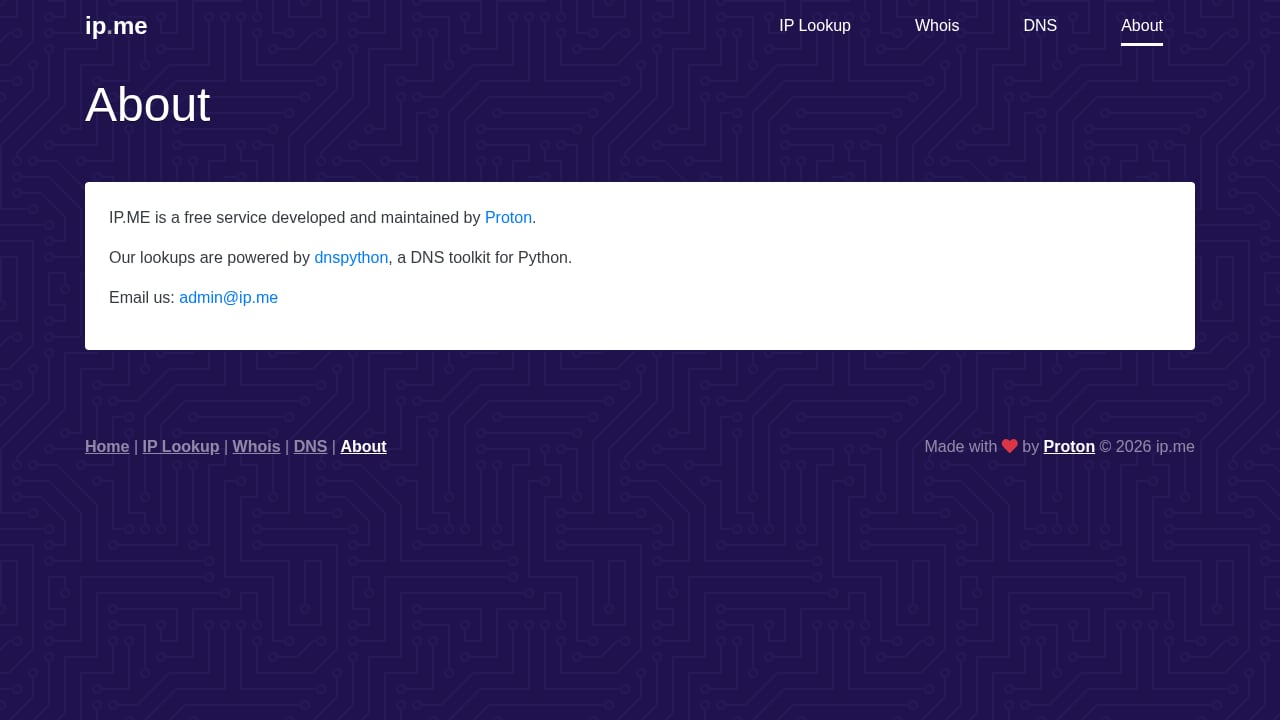
First viewport screenshot of About - IP.ME.
IP.me answers one question extremely well: what is my public IP address right now? It returns your IPv4 or IPv6 address in a single click, with no account and no clutter. That speed is useful when you need a baseline before and after a network change.
BrowserScan answers the harder questions that come next. It is a free online suite of browser fingerprint detection and privacy testing tools. It analyzes browser properties, hardware signals, network behavior, and other data points to show what websites can learn about you. Its toolkit includes DNS leak testing, WebRTC leak testing, bot detection, browser kernel detection, canvas fingerprint analysis, client hints inspection, IP and proxy detection, blacklist checking, and browser version vulnerability reports.
Used together, IP.me gives you the quick reading and BrowserScan gives you the diagnosis. IP.me is the thermometer; BrowserScan is the full checkup.
What each tool does best
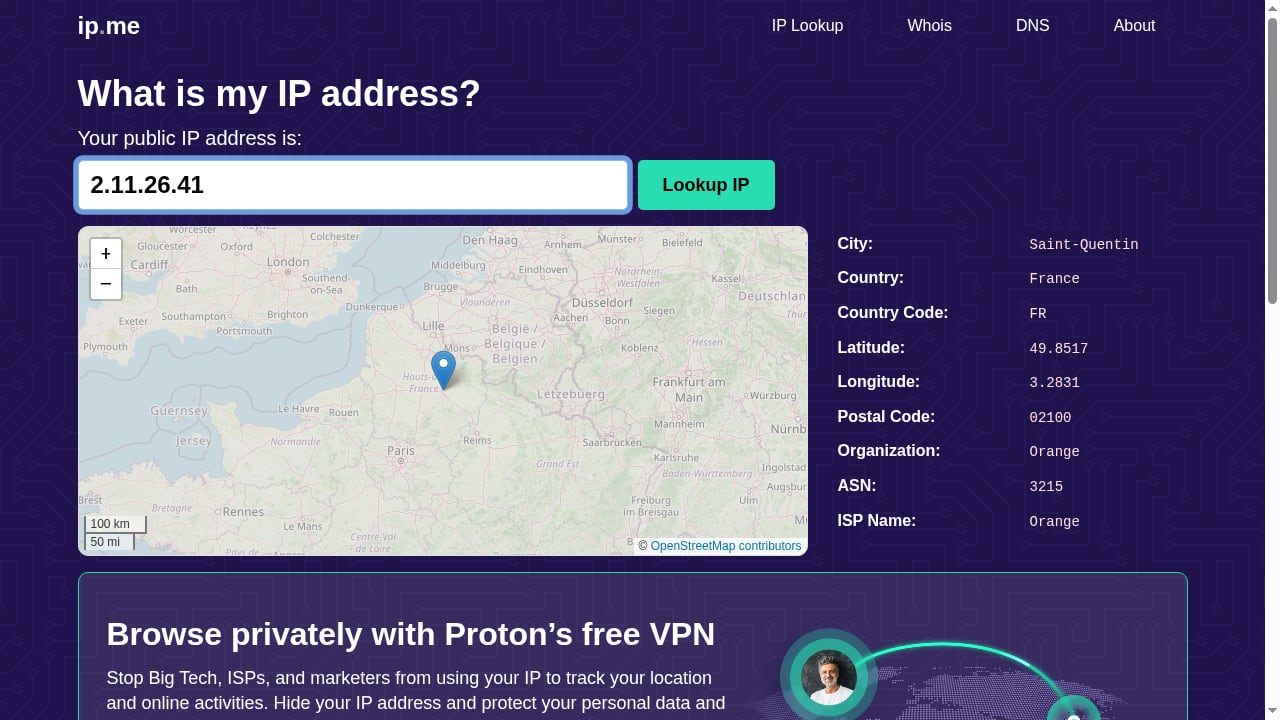
First viewport screenshot of What is my IP address? | Find my public IP address | IP.me.
IP.me: instant public IP lookup
IP.me is built for one-click public IP discovery. It displays your IPv4 or IPv6 address immediately, which makes it ideal for:
- Confirming your IP changed after connecting to a VPN or proxy.
- Checking whether your ISP rotated your dynamic address.
- Getting a fast number to compare against a second source.
- Sharing your public IP with support staff during troubleshooting.
Because it is lightweight, IP.me is the fastest way to answer "what is my IP address?" without loading a larger dashboard.
BrowserScan: fingerprint and leak detection
BrowserScan goes beyond the address itself. Its IP and proxy detection module shows whether your connection is routed through a proxy, Tor, a data center, or a cloud relay. It also flags blacklist status, including known abuser, attacker, and hosting categories. From there, the platform layers on fingerprint authenticity scoring, canvas fingerprint analysis, client hints inspection, and browser version vulnerability reporting.
The leak tests are the most important part of the pairing. A VPN can hide your IP while DNS queries or WebRTC requests still expose your real network. BrowserScan's DNS leak test and WebRTC leak test are designed to catch exactly those gaps.
The combined workflow: step by step
Follow this sequence whenever you change networks, install a VPN, or audit your privacy setup.
Step 1: Capture a baseline with IP.me
Before you change anything, open IP.me and note your current public IP address, including whether it is IPv4 or IPv6. Write it down. This is your control value.
If you are on a dual-stack network, IP.me may show an IPv6 address while some sites still see IPv4. Note both if your connection supports them, because mismatches between the two are a common source of confusion.
Step 2: Run the BrowserScan IP and proxy check
Open BrowserScan's IP lookup tool and review the detailed report. Compare the address shown here with the one IP.me returned. They should match. If they do not, you may be looking at different IP channels, a split-tunnel VPN, or a browser extension that routes traffic differently.
Pay attention to the connection type labels. If BrowserScan flags your IP as a data center, cloud relay, or hosting address, websites may treat you differently than a residential connection would.
Step 3: Test for DNS and WebRTC leaks
Run BrowserScan's DNS leak test. It shows which DNS servers are resolving your queries and whether they belong to your ISP or your VPN provider. A leak here means your browsing destinations can still be inferred even though your IP looks masked.
Next, run the WebRTC leak test. WebRTC is used for video calls and real-time communication, and it can expose local and public IP addresses if it is not handled correctly. If BrowserScan surfaces an address that is not your VPN's, you have found a real exposure.
Step 4: Review your fingerprint signals
With the network layer verified, look at the browser layer. BrowserScan's fingerprint report covers canvas fingerprints, client hints, browser kernel details, and hardware signals. The goal is not to be invisible, which is unrealistic. The goal is to understand which signals make your browser stand out and whether they are consistent with the story your IP address tells.
A common problem: your IP says one country, but your browser's time zone, language, and client hints say another. That mismatch is a fingerprinting red flag. BrowserScan helps you see it.
Step 5: Re-check with IP.me after changes
After you enable a VPN, switch servers, or adjust browser settings, return to IP.me for a fast confirmation. If the address changed as expected, run BrowserScan again to confirm no leaks appeared during the transition. This two-tool loop is the core of the workflow.
Practical examples
Example 1: Verifying a new VPN connection
You install a VPN and connect to a server in another region. IP.me shows a new public IP in that region, which looks correct. But when you run BrowserScan's DNS leak test, the DNS servers still belong to your local ISP. This means your traffic exits through the VPN while your name resolution stays local, which can reveal your real region to sites and DNS operators. The fix is usually to enable the VPN's DNS leak protection or switch to a provider that routes DNS through its own resolvers.
Example 2: Debugging a split-tunnel setup
You configure split tunneling so only your browser uses the VPN. IP.me in that browser shows the VPN address, but BrowserScan's WebRTC test reveals a local IP address. This happens because WebRTC can bypass proxy and split-tunnel configurations. The combination of tools makes the discrepancy visible, which a single IP lookup would never show.
Example 3: Checking a residential proxy
You use a residential proxy for research. IP.me confirms the public IP. BrowserScan's IP and proxy detection then shows whether the address is classified as residential, hosting, or a known proxy range. If it is flagged as a data center, some target sites may block it even though the IP itself looks legitimate. Knowing this before you start saves time.
Example 4: Auditing a shared or public network
On a hotel or cafe network, IP.me shows a shared public address. BrowserScan's fingerprint report shows how much of your browser profile is unique. On shared networks, a distinctive fingerprint combined with a shared IP can still make you trackable. The audit tells you whether to tighten your browser settings before doing sensitive work.
What problems does this combination solve?
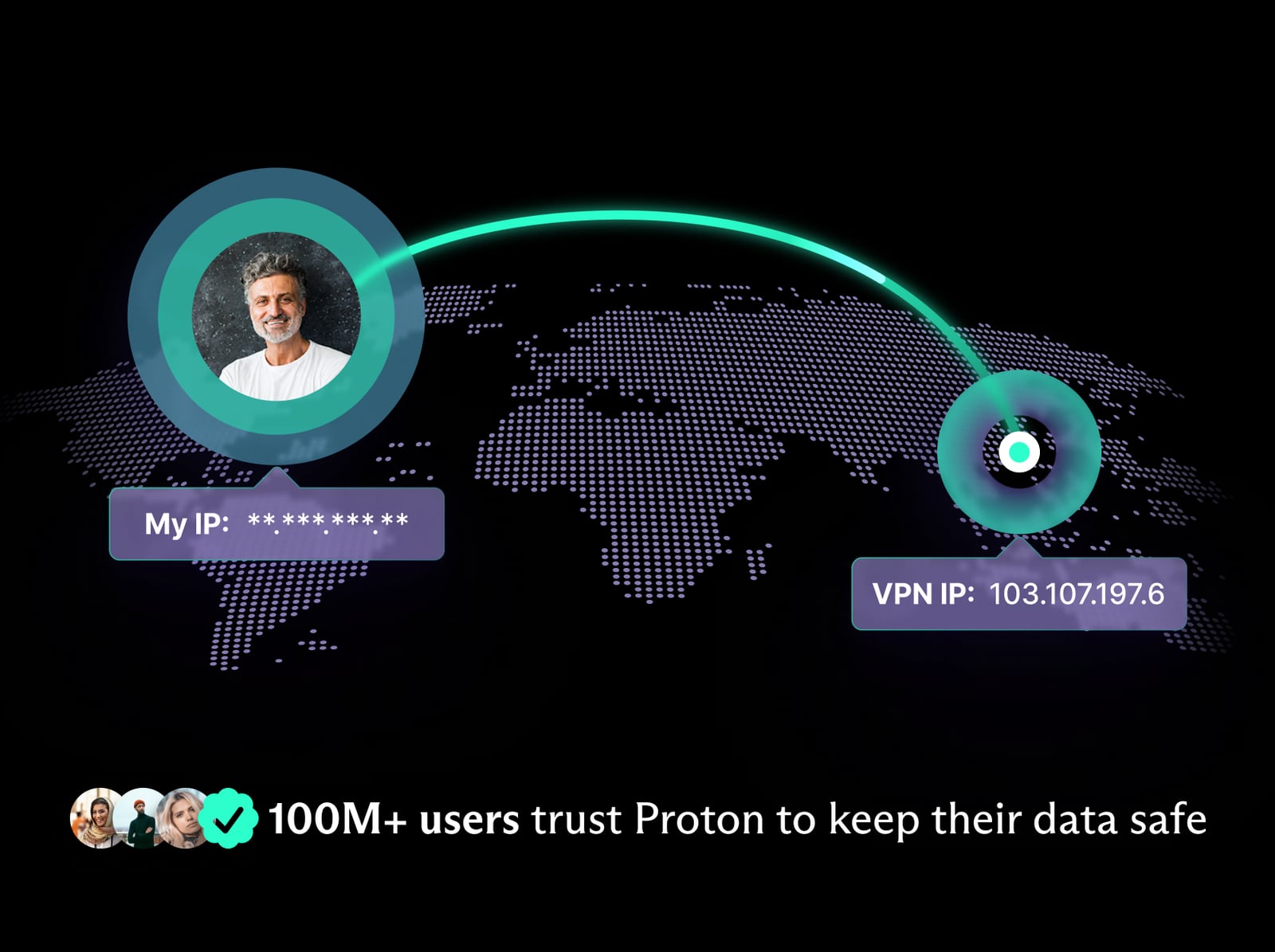
vpn-image.
- IP mismatch confusion: Two independent lookups confirm whether your public IP is stable and consistent across channels.
- Hidden DNS leaks: A masked IP can coexist with exposed DNS queries. BrowserScan catches what IP.me cannot.
- WebRTC exposure: Real-time communication features can reveal addresses that standard lookups miss.
- Proxy and VPN classification: BrowserScan labels connection types so you know how sites may treat your address.
- Fingerprint inconsistency: Comparing network data with browser signals reveals mismatches that increase tracking risk.
- Blacklist surprises: BrowserScan's blacklist check warns you when an address has a poor reputation before it causes access problems.
Decision guidance: when to use which tool
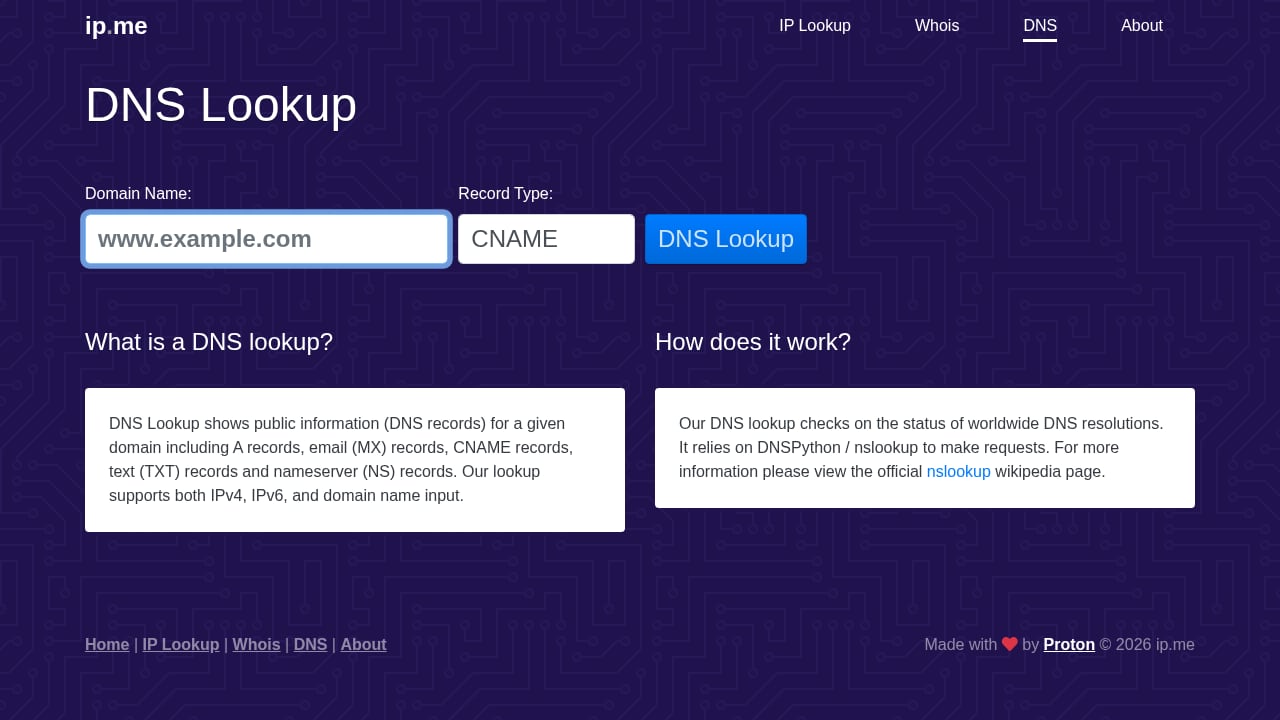
First viewport screenshot of DNS Lookup tool - IP.ME.
Use IP.me when you need a fast, single answer. It is the right choice for quick checks, support calls, and confirming that a connection change took effect.
Use BrowserScan when you need a full picture. It is the right choice for privacy audits, VPN verification, proxy testing, automation detection, and troubleshooting compatibility issues.
Use both when the stakes are higher: before sensitive work on an untrusted network, after configuring a new VPN, or whenever you want to confirm that your visible IP and your hidden signals tell the same story.
If you want a broader comparison of how these tools stack up against alternatives, see BrowserScan vs What Is My IP Address: Which IP Tool Wins? and the three-way breakdown in BrowserScan vs BrowserLeaks vs What Is My IP Address?. For a wider view of the category, the Top 10 Browser Fingerprint Testing & Privacy Audit Tools 2026 roundup covers the field.
Common mistakes to avoid
- Trusting one lookup: A single IP reading can be cached or channel-specific. Cross-check with a second source.
- Assuming a VPN hides everything: DNS and WebRTC leaks survive many VPN configurations.
- Ignoring IPv6: If your network supports IPv6, sites may see that address even when you focus on IPv4.
- Forgetting browser consistency: Time zone, language, and client hints should align with your apparent location.
- Skipping the re-check: Always verify after changes, not just before.
Related reading
- Cover Your Tracks Review: What It Really Reveals - Hands-on Cover Your Tracks review: what the EFF browser privacy test reveals about trackers, fingerprinting, limits, and who should use it.
- Why Use a VPN on a Router? Privacy, Leaks & Browser Tests - Learn why a router-level VPN protects every device at once, where leaks still happen, and how BrowserScan tests verify your IP, DNS, and WebRTC privacy.
Sources and further reading
- My IP, public IP, IPv4 lookup, IPv6 lookup, geographic location, ping test, ip lookup, ip location lookup - BrowserScan - My IP, public IP, IPv4 lookup, IPv6 lookup, geographic location, ping test, ip lookup, ip location lookup, obtain country, region, city, weather forecast and other information
- What is My IP? How to Check My IP Address? - Learn how to check your IP address easily on any device. Discover quick methods, understand why IP matters, and use BrowserScan’s IP detection tool to get accurate details and spot leaks.
- What is My IP Address? How to Check IP Address? - Explore the basics of IP addresses, including IPv4 vs. IPv6, public vs. private, and dynamic vs. static. Find out how to check and protect your IP for enhanced online privacy.
FAQ
What is the difference between a public IP and a private IP?
A public IP is assigned by your ISP and is visible to websites and services on the internet. A private IP is used inside your local network, such as your home Wi-Fi, and is not routable on the public internet.
Can IP.me show both IPv4 and IPv6?
IP.me displays your public IP address, including IPv4 and IPv6 formats. On dual-stack networks, the address shown depends on which protocol your connection prefers for that request.
Does BrowserScan replace an IP lookup tool?
No. BrowserScan includes IP and proxy detection, but its broader value is fingerprint analysis and leak testing. IP.me remains the faster option for a pure address lookup.
How often should I run these tests?
Run a quick IP.me check whenever your network changes. Run the full BrowserScan audit after installing or reconfiguring a VPN, before sensitive work on an untrusted network, and periodically as part of a privacy routine.
Can BrowserScan detect if my VPN is leaking?
Yes. Its DNS leak test and WebRTC leak test are designed to reveal whether your real network details are exposed despite an active VPN connection.
Why does my IP location not match my actual city?
IP geolocation is based on ISP infrastructure and registration data, not your physical address. It often points to a regional hub rather than your exact location.
Is it safe to check my IP address online?
Yes. A lookup tool sees the same public IP that any website you visit can see. The check itself does not expose additional private information.
Conclusion
Finding your public IP address is a one-click task with IP.me, and that speed is genuinely useful. But a number alone does not tell you whether your DNS queries are leaking, whether WebRTC is exposing a local address, or whether your browser fingerprint contradicts your apparent location.
BrowserScan fills those gaps with fingerprint detection, leak testing, proxy classification, and blacklist checking. Together, the two tools form a simple loop: check the address, audit the signals, make changes, and verify again. Start with IP.me for the quick reading, then let BrowserScan show you everything that number does not reveal.
For deeper reading on the concepts involved, see the Wikipedia entries on IP addresses and TCP/IP stack fingerprinting.