
Mozilla VPN Setup: Install, Connect & Verify (2025 Guide)
Mozilla VPN Setup: Install, Connect, and Verify Your Connection
Mozilla VPN is a WireGuard-based VPN from the makers of Firefox. Setup itself is short — download the app, sign in, pick a server, connect — but the part most guides skip is verification. A VPN that is installed is not automatically a VPN that is protecting you. This walkthrough covers the full Mozilla VPN setup on every supported platform, then shows you how to confirm your real IP, DNS requests, and WebRTC traffic are actually hidden.
What You Need Before You Start
Mozilla VPN Setup: Install, Connect & Verify (2025 Guide) - What You Need Before You Start.
Mozilla VPN is a paid subscription service, not a free add-on. Before installing, confirm you have:
- An active subscription. Mozilla VPN is sold as a monthly or yearly plan, and it is separate from a Firefox account. You can sign in with the same Firefox account, but the subscription must exist first.
- A supported operating system. Mozilla VPN ships apps for Windows, macOS, Linux, Android, and iOS/iPadOS. There is no browser-only version that tunnels your whole device.
- Enough device slots. A single subscription covers up to five devices at the same time, so plan which phone, laptop, and tablet get a slot.
- Admin rights on desktop. Installing on Windows or macOS requires permission to install software and, on Windows, to add a network adapter.
If you only want to hide your location inside Firefox rather than tunnel your entire system, a full-device VPN may be more than you need. It is worth understanding what a VPN does and does not fix before you pay — see our breakdown of what antivirus and security tools can and cannot cover for the limits of any single layer of protection.
How to Install Mozilla VPN on Windows
Mozilla VPN Setup: Install, Connect & Verify (2025 Guide) - How to Install Mozilla VPN on Windows.
- Sign in to your Mozilla account and download the Windows installer from the official Mozilla VPN page.
- Run the
.exefile. Windows will ask for permission to install a network driver — this is the WireGuard tunnel, and it is required. - Launch Mozilla VPN and sign in with your Firefox/Mozilla account.
- If your subscription is active, the app unlocks and shows a server list. If it does not, check that you are signed in with the same account that purchased the plan.
- Choose a server location and toggle the connection switch on.
Once connected, the app shows your assigned IP address and the server you are routed through. That display is a good start, but it is the app reporting on itself. Verify independently in the next section.
How to Install Mozilla VPN on macOS, Linux, Android, and iOS
Mozilla VPN Setup: Install, Connect & Verify (2025 Guide) - How to Install Mozilla VPN on macOS, Linux, Android, and iOS.
The steps are nearly identical across platforms, with small differences:
- macOS: Download the
.dmg, drag the app to Applications, then approve the system extension when macOS prompts you. Without that approval, the tunnel will not start. - Linux: Mozilla publishes packages for major distributions. Install via your package manager or the provided package file, then launch and sign in. On Linux you may need to confirm the WireGuard kernel module or userspace fallback is available.
- Android: Install from Google Play, open the app, sign in, and accept the VPN connection request. Android will show a persistent key icon in the status bar while the tunnel is active.
- iOS/iPadOS: Install from the App Store, sign in, and allow the app to add a VPN configuration when iOS asks. You can confirm it later under Settings → General → VPN & Device Management.
A Note on the Firefox Extension
Mozilla offers a Firefox extension that works alongside the desktop app. It is not a standalone VPN — it is a control surface. It lets you turn the connection on or off and switch locations from the toolbar without opening the full app. The actual encryption still happens in the desktop client, so the extension is useless if the main app is not installed and running.
Choosing a Server Location
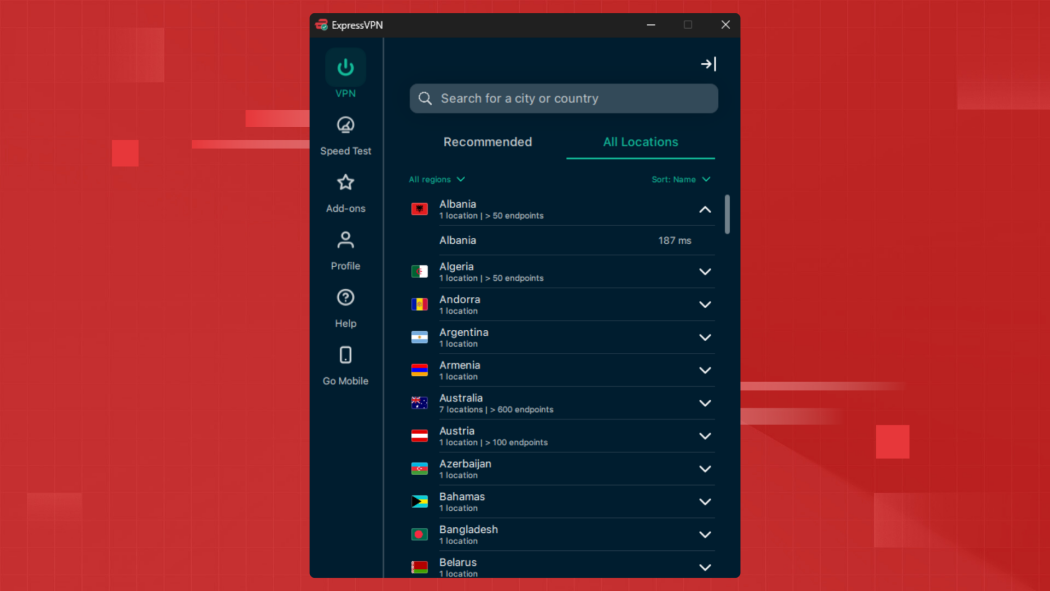
Mozilla VPN Setup: Install, Connect & Verify (2025 Guide) - Choosing a Server Location.
Mozilla VPN routes through servers in a set of countries rather than hundreds of cities. When picking a location, think about what you are optimizing for:
| Goal | What to pick |
|---|---|
| Lowest latency for gaming or calls | The server closest to your real location |
| Accessing content from another country | A server in that country |
| General privacy on public Wi-Fi | Any nearby server — distance matters more than country |
| Avoiding a specific ISP's throttling | A server outside your ISP's home region |
A common mistake is assuming that a farther server equals more privacy. It does not. All Mozilla VPN servers use the same encryption; distance only changes speed and which country your traffic appears to come from.
Verify Your Setup: The Step Most Guides Skip
After you connect, do not trust the app's own status light. Run independent checks from your browser.
1. Confirm your public IP changed
Open an IP lookup tool and note the address, ISP, and country it reports. Then disconnect the VPN, reload, and compare. If the IP is identical in both states, your traffic is not being tunneled. BrowserScan's IP address lookup shows geolocation, ISP, and proxy detection in one view, which makes the before/after comparison fast.
2. Run a DNS leak test
A VPN can tunnel your traffic while still letting DNS queries escape to your ISP. A DNS leak test resolves a set of unique hostnames and shows which servers answered. If the answering servers belong to your ISP rather than the VPN, you have a leak. BrowserScan's DNS leak test is part of its privacy testing toolset, and it requires no installation.
3. Run a WebRTC leak test
WebRTC is used by video calls and some web apps, and in some configurations it can reveal your real IP even while a VPN is active. A WebRTC leak test forces the browser to attempt a peer connection and reports the addresses it exposes. If a local or ISP-assigned address appears, disable WebRTC in your browser or use an extension that blocks it.
4. Check your browser fingerprint
Your IP is only one identifier. Canvas rendering, fonts, screen size, and user-agent strings combine into a fingerprint that can follow you across sessions even when your IP changes. A browser fingerprint check shows how unique your setup looks. Mozilla VPN does not change your fingerprint — that is a browser-level concern, and it is worth knowing about if privacy is your reason for using a VPN.
5. Scan for exposed ports (optional, advanced)
If you are running Mozilla VPN on a machine that also hosts services, an Nmap-powered port scan can show what is reachable from outside. A VPN hides your IP, but it does not close ports that were already open on your network.
Common Mozilla VPN Setup Problems
The app installs but will not connect. Usually a subscription or sign-in mismatch. Confirm the account you signed into the app is the one with the active plan.
Connection drops repeatedly. Try a different server location, and check whether another VPN or firewall is running. Two VPN clients on one machine frequently conflict.
Sites still show your real location. Clear cookies and site data for that site, then reload. Many sites store your location from an earlier visit and will keep showing it even after your IP changes.
The Firefox extension shows "disconnected" while the app is connected. The extension and the desktop app sync periodically; reload the extension or restart Firefox.
Streaming services block the connection. This is expected behavior on many platforms. VPN detection is common, and no VPN guarantees access to every service.
Mozilla VPN Setup vs. Other VPN Setups
If you are comparing options, the practical differences come down to three things:
- Protocol: Mozilla VPN uses WireGuard, which is fast and modern. Older VPNs may default to OpenVPN or proprietary protocols.
- Client model: Mozilla VPN is a first-party app with a Firefox extension as a companion. Many competitors rely on browser extensions alone, which only protect browser traffic.
- Verification: Regardless of which VPN you choose, the verification steps above are identical. IP, DNS, WebRTC, and fingerprint checks apply to every provider. A VPN is only as good as your ability to confirm it is working.
For a deeper look at how tunneled connections differ from browser-level ones, see our explanation of how a cloud VPN works and how to verify it.
Related reading
- PrivacyTools.io Login: What It Is and How to Verify Privacy - PrivacyTools.io has no login. Learn what the site actually offers, why no account is needed, and how to verify your browser and network privacy for free.
Sources and further reading
- Client Challenge - A required part of this site couldn’t load. This may be due to a browser extension, network issues, or browser settings. Please check your connection, disable any ad blockers, or try using a different browser.
- Client Challenge - A required part of this site couldn’t load. This may be due to a browser extension, network issues, or browser settings. Please check your connection, disable any ad blockers, or try using a different browser.
- How to Use a Free VPN in Firefox (Beginner Walkthrough) - Enjoy the videos and music you love, upload original content, and share it all with friends, family, and the world on YouTube.
FAQ
Is Mozilla VPN free? No. It requires a paid subscription. Mozilla occasionally offers trials, but there is no permanent free tier.
How many devices can I use with one Mozilla VPN subscription? Up to five devices simultaneously on a single subscription.
Does Mozilla VPN work without Firefox? Yes. It is a standalone app that tunnels your whole device. Firefox is not required, though the optional extension only works in Firefox.
Will Mozilla VPN hide my browser fingerprint? No. A VPN changes your IP address, not your browser fingerprint. Canvas, fonts, and user-agent data remain visible. Use a fingerprint test to see what your browser exposes.
Why does my IP still show my real location after connecting? Either the tunnel is not active, DNS is leaking, or the site is reading a cached location. Run an IP lookup and a DNS leak test to isolate which one it is.
Can I use Mozilla VPN on a router? Mozilla does not publish a router client. You can install it on individual devices, or set up a separate router-level VPN if you need network-wide coverage.
Does Mozilla VPN keep logs? Mozilla states that it does not log the websites you visit or your browsing activity. As with any provider, the only way to be confident in your setup is to test what your connection actually reveals.
Conclusion
Mozilla VPN setup takes a few minutes: install the app, sign in, choose a server, connect. The value comes from what you do next. Run an IP lookup, a DNS leak test, and a WebRTC leak test after every connection change, and check your browser fingerprint if privacy is the goal. A VPN is one layer — confirming it works is what turns it into real protection.