
Pixelscan.dev: Browser Fingerprint & Bot Detection Explained
Pixelscan.dev: Browser Fingerprint & Bot Detection Explained
Pixelscan.dev is a free, no-installation web tool that scans your browser and network in real time to answer one uncomfortable question: how identifiable are you right now? It combines browser fingerprint analysis, VPN and proxy detection, bot automation signals, and leak tests into a single report. This article explains what each detection category actually measures, how the underlying techniques work, where results get misread, and how to cross-check your setup with independent tools such as BrowserScan.
What Pixelscan.dev Does in One Scan
Pixelscan.dev: Browser Fingerprint & Bot Detection Explained - What Pixelscan.dev Does in One Scan.
When you open the page, the tool runs a short pipeline rather than a single check. Based on the tool's own description, the scan covers four areas:
- Network intelligence — your public IP, autonomous system number (ASN), TLS fingerprint, and approximate geolocation, captured at the edge before your browser does much of anything.
- Browser fingerprint — client-side signals such as canvas rendering, WebGL output, audio context, screen metrics, fonts, and hardware characteristics.
- Leak tests — WebRTC and DNS checks that reveal whether your real IP or ISP resolver is exposed behind a VPN.
- Consistency analysis — cross-validation between network and browser signals to flag mismatches, spoofing, and anomalies.
The headline promise is speed and zero registration. The more interesting part is the consistency layer, because that is where most "why am I getting CAPTCHAs?" problems actually live.
How Browser Fingerprinting Works Under the Hood
Pixelscan.dev: Browser Fingerprint & Bot Detection Explained - How Browser Fingerprinting Works Under the Hood.
A browser fingerprint is a set of attributes that, combined, tend to be unique. Research cited by the tool itself notes that a large majority of browsers produce a unique fingerprint, which is why fingerprinting survives cookie deletion and private browsing.
The signals that matter most
- Canvas and WebGL rendering. Your browser draws a hidden image or 3D scene. GPU, driver, and font differences make the output slightly different on every machine, producing a stable hash.
- Audio context. Subtle differences in audio processing produce another stable identifier.
- Fonts and screen metrics. Installed font lists, screen resolution, device pixel ratio, and color depth narrow you down quickly.
- HTTP headers and client hints. User-Agent, Accept-Language, and modern client hint headers describe your browser and platform to every server you touch.
- Timezone and language. These are cheap to read and extremely useful for detecting mismatches.
Individually, none of these is alarming. Together, they form an identifier that persists across sessions. If you want to see the same class of data on your own browser, a fingerprint test shows what your setup exposes and how unique it looks.
Why canvas fingerprinting is hard to avoid
Canvas fingerprinting does not require cookies, storage, or permissions. The page asks your browser to render something, reads the pixels back, and hashes the result. Blocking it entirely usually means breaking legitimate graphics features, which is why most privacy strategies focus on making the fingerprint common rather than invisible.
Bot Detection: What Automation Signals Look Like
Pixelscan.dev: Browser Fingerprint & Bot Detection Explained - Bot Detection: What Automation Signals Look Like.
Pixelscan.dev advertises detection of automation frameworks such as Puppeteer and Selenium. That matters because automated traffic is a large share of the web, and sites increasingly respond to it with challenges rather than blocks.
Typical bot signals include:
- Headless browser artifacts. Missing plugins, unusual
navigatorproperties, or WebDriver flags left in the environment. - Behavioral timing. Perfectly uniform mouse movement, instant form fills, or request cadence that no human produces.
- Environment inconsistencies. A Linux user agent reporting macOS fonts, or a mobile user agent with desktop screen dimensions.
- TLS and HTTP anomalies. Handshake characteristics that do not match the claimed browser.
If you are debugging an automation setup, the goal is not to "beat" detection but to understand which signal is inconsistent. A mismatch report is a diagnostic, not a verdict.
VPN, Proxy, and Leak Detection
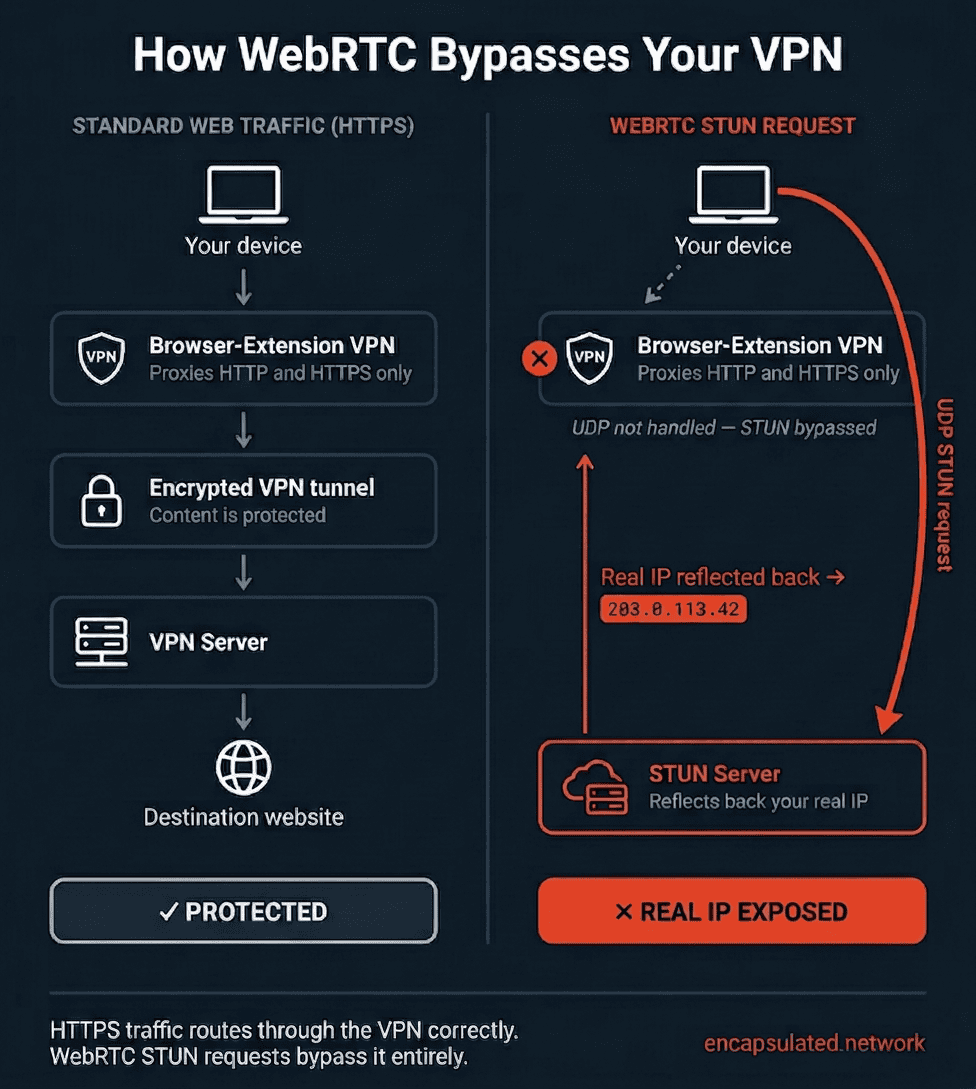
Pixelscan.dev: Browser Fingerprint & Bot Detection Explained - VPN, Proxy, and Leak Detection.
A VPN can hide your IP and still leak your identity through other channels. That is the gap leak tests are designed to close.
WebRTC leaks
WebRTC can expose local and public IP addresses through ICE candidates even when traffic is tunneled. If your VPN is not configured to route or disable WebRTC, a site can see an address that contradicts your apparent location.
DNS leaks
If DNS queries bypass the VPN tunnel, your ISP resolver sees every domain you request, and the resolver's location can contradict your exit IP. This is one of the most common causes of "my VPN is on but I still look local" reports.
IP reputation and blacklists
Datacenter IP ranges are frequently flagged. A technically perfect fingerprint on a blacklisted IP still triggers friction. Checking IP reputation alongside your fingerprint is essential when you are troubleshooting access problems.
BrowserScan approaches the same problem from a complementary angle: it offers DNS and WebRTC leak tests, IP lookup with geolocation and proxy detection, and fingerprint analysis in one place, so you can confirm whether a leak is real before changing your configuration. For a broader walkthrough of how exposure happens and how to test for it, see privacy protection explained.
Consistency Checks: The Most Useful Part of the Report
Consistency analysis compares what your network claims against what your browser reports. Common findings include:
| Mismatch | What it suggests |
|---|---|
| IP in Germany, timezone in Brazil | VPN exit and system timezone disagree |
| User-Agent says Windows, fonts say macOS | Spoofed or misconfigured user agent |
| Mobile user agent, desktop resolution | Emulation that is not fully configured |
| Language header contradicts IP region | Locale settings not aligned with the proxy |
These mismatches are exactly what anti-fraud systems look for, and they are also what cause inconsistent results when you re-run a fingerprint test. If key values such as canvas hash, WebGL output, and timezone change between sessions without you changing anything, that instability itself becomes a signal.
A practical verification routine
- Run a baseline scan with your normal setup and save the result.
- Enable your VPN or proxy and scan again.
- Compare IP, timezone, language, and canvas hash between the two runs.
- Run a leak test to confirm DNS and WebRTC are not exposing your real address.
- Repeat once more in a fresh session to confirm the fingerprint is stable.
If you manage multiple browser profiles, the same routine applies per profile. Tools that create isolated profiles, such as the ones covered in this Chameleon Mode download guide, are only as good as the consistency of each profile, so verification is not optional.
Pixelscan.dev vs. Other Fingerprint and Detection Tools
There is no single authoritative scanner, and results differ between tools because each weights signals differently. A sensible comparison:
- Pixelscan.dev — fast, edge-based network telemetry, strong on consistency findings and bot framework detection, minimal friction.
- BrowserScan — a broader free toolkit: fingerprint analysis, DNS and WebRTC leak tests, IP lookup with proxy detection, an Nmap-powered online port scanner, user agent parsing, and client hints analysis. Useful when you want to move from "am I exposed?" to "what exactly is exposed?"
- Specialized fingerprint checkers — deeper per-signal detail, often less readable for non-specialists.
A reasonable workflow is to start with a quick multi-check scan, then use a second tool to confirm anything that looks wrong. Disagreement between tools usually means a borderline signal, not a broken scanner.
Who Should Use These Tools
- Privacy-conscious individuals who want to know what sites can infer without cookies.
- VPN users verifying that DNS and WebRTC are not undermining the tunnel.
- Developers and QA engineers debugging user agent strings, client hints, and headless browser behavior.
- IT and security teams validating that automation and scraping infrastructure looks internally consistent before it hits production targets.
For teams, fingerprint and leak checks fit naturally into a broader IT security operations workflow, where environment validation is a routine step rather than an emergency response.
Related reading
- How to Use IPWHOIS.io: IP Geolocation API Guide - Learn how to use IPWHOIS.io: free and Pro endpoints, curl examples, JSON/XML/CSV formats, rate limits, security fields, and how to verify results.
- Secure Messaging in 2026: How to Choose and Verify Privacy - Compare secure messaging apps by encryption, metadata, and identity design, plus how to verify your browser, IP, and DNS aren't leaking your privacy.
Sources and further reading
- Pixelscan.dev | Browser Fingerprint & Bot Detection Tool - Free online tool to detect browser fingerprints, bot automation, VPN/proxy usage, and fingerprint spoofing. Test your digital footprint instantly.
- Pixelscan | Fast multi-check tool for detection analysis - Pixelscan is a complete multi-check tool for browser fingerprinting, proxy detection, IP analysis, DNS leaks, and more. See how detectable your setup really is.
- Check browser fingerprinting with Pixelscan Analyze your digital trail - Worried about tracking? Perform a browser fingerprinting check and see how your browser is recognized on the web.
FAQ
Is Pixelscan.dev free to use?
Yes. The tool describes itself as free, requiring no registration and no installation. It runs entirely in your browser.
Does Pixelscan.dev store my results?
According to the tool's own documentation, results are not stored or linked to an identity. As with any online scanner, treat the output as sensitive and avoid sharing full reports publicly, since they contain your IP and fingerprint details.
Can I stop browser fingerprinting completely?
Not realistically. You can reduce uniqueness by using a mainstream browser with default settings, limiting extensions, and avoiding exotic configurations, but the goal is usually to blend in rather than to disappear.
Why do I get different results each time I scan?
Small changes in IP, window size, extensions, or timezone between sessions change the fingerprint. Genuine randomness in a supposedly stable profile is itself a red flag for anti-fraud systems.
Does a VPN make me invisible to fingerprinting?
No. A VPN changes your IP, not your browser. Fingerprint signals such as canvas, WebGL, fonts, and screen metrics remain, and mismatches between your IP location and browser locale are easy to detect.
What is the difference between a fingerprint test and a bot check?
A fingerprint test measures how identifiable your browser is. A bot check looks for automation artifacts and behavioral patterns that indicate software rather than a human. They overlap but answer different questions.
Conclusion
Pixelscan.dev is a useful first stop because it answers several questions at once: what your network reveals, what your browser reveals, whether anything is leaking, and whether those stories agree. The consistency layer is the part worth paying attention to, since mismatches — not raw uniqueness — are what trigger CAPTCHAs, blocks, and account flags.
Use it as a diagnostic, then verify with a second source. Running a fingerprint check alongside DNS, WebRTC, and IP reputation tests gives you a complete picture, and a complete picture is what turns a confusing scan result into a fix you can actually apply.