
What Is BrowserScan? Fingerprint, IP Leak & Privacy Testing
What Is BrowserScan?
BrowserScan is a free, web-based privacy and security testing platform that shows you exactly what websites, advertisers, and fraud-detection systems can see when you visit them. Instead of installing software, you open a browser, run a scan, and get a detailed report on your browser fingerprint, IP address, DNS configuration, WebRTC behavior, open ports, and more.
At its core, BrowserScan answers one practical question: How trackable and exposed am I right now? It does not anonymize you or hide your activity. It is a diagnostic tool. You use it to verify whether your VPN is leaking your real IP, whether your browser fingerprint looks authentic or suspicious, and whether your network has obvious vulnerabilities.
How BrowserScan Works
What Is BrowserScan? Fingerprint, IP Leak & Privacy Testing - How BrowserScan Works.
BrowserScan runs a series of tests directly inside your browser and network connection. Because the tests are browser-based, there is nothing to download or configure. When you open the platform, it collects and analyzes dozens of data points in real time.
The main areas it examines include:
- Browser fingerprint attributes such as user agent, installed fonts, screen resolution, timezone, language settings, and operating system.
- Rendering and hardware signals including canvas fingerprinting, WebGL, WebGPU, audio context, CPU cores, and touch support.
- Network identity such as your public IP address, ISP, ASN, geolocation, and whether you appear to be using a VPN or proxy.
- Leak indicators from WebRTC and DNS requests that may reveal your real IP even when a VPN is active.
- Security exposure through an Nmap-powered port scanner that checks for open, high-risk ports.
After the scan, BrowserScan presents a fingerprint authenticity score or trust score. A high score means your browser and network profile looks consistent and natural. A low score often indicates mismatched timezone, language, or hardware signals, a detected proxy, or a WebRTC leak.
What BrowserScan Can Detect
Browser Fingerprint Authenticity
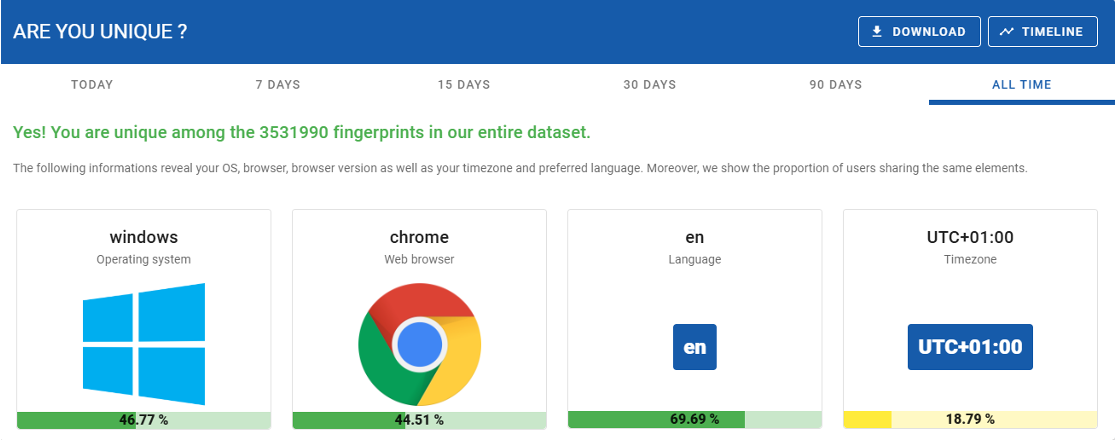
Every browser broadcasts a unique combination of hardware specs, software settings, and rendering behavior. Websites use this fingerprint to track you across sessions, detect fraud, and separate real users from bots. BrowserScan shows you the individual components of that fingerprint and evaluates whether they look consistent.
For example, if your browser reports a US English language setting but a timezone in Asia, that mismatch can lower your authenticity score. The same applies when your user agent says you are on Windows but your canvas rendering suggests a different platform.
IP Address and Proxy Detection
BrowserScan performs an IP address lookup that reveals your public IP, geolocation, ISP, and whether the address is associated with a known proxy, VPN, or hosting provider. This is useful for verifying that your VPN or proxy is actually masking your real location.
If you connect through a VPN but the IP lookup still shows your home ISP, something is wrong with your setup. BrowserScan makes that problem visible immediately.
DNS and WebRTC Leaks
VPN users often assume their real IP is hidden. However, WebRTC can bypass the VPN tunnel and expose your actual IP address to websites. DNS requests can also leak to your ISP's resolver instead of the VPN's DNS server.
BrowserScan includes dedicated DNS leak and WebRTC leak tests. You can run them independently to confirm whether your VPN is protecting you or silently leaking your identity.
Open Ports and Network Vulnerabilities
The platform includes an Nmap-powered port scanner that checks for open, high-risk ports on your connection. Open ports can indicate exposed services, misconfigured firewalls, or potential entry points for attackers. Running a port scan is a quick way to identify obvious network weaknesses.
Canvas Fingerprint and Client Hints
Canvas fingerprinting works by drawing a hidden image in your browser and measuring how your device renders it. Small differences in GPU, drivers, and fonts create a unique pattern. BrowserScan includes a canvas fingerprint checker so you can see how unique your rendering signature is.
It also analyzes client hints, the successor to the traditional user agent string. Client hints expose granular details about your device, browser version, and network conditions. A user agent parser is available for debugging browser or bot strings.
Who Should Use BrowserScan
What Is BrowserScan? Fingerprint, IP Leak & Privacy Testing - Who Should Use BrowserScan.
BrowserScan is not only for cybersecurity professionals. Several groups get practical value from it:
- Privacy-conscious individuals who want to see what personal data leaks during normal browsing.
- VPN and proxy users who need to verify that their real IP is not exposed through DNS or WebRTC.
- Affiliate marketers and media buyers who manage multiple accounts and need to confirm that each browser profile looks natural and consistent.
- Web developers and QA engineers who test anti-fraud systems, bot detection, or user verification flows.
- IT administrators and penetration testers who assess how detectable their tools and network configurations are.
- General users who want a quick internet speed test or a check for open ports.
If you value privacy, security, or account stability, BrowserScan gives you a clear, unfiltered snapshot of your current exposure.
How to Use BrowserScan Effectively
What Is BrowserScan? Fingerprint, IP Leak & Privacy Testing - How to Use BrowserScan Effectively.
A practical workflow looks like this:
- Open the BrowserScan website in the browser or profile you want to test.
- Run the full fingerprint scan. Review the overall authenticity percentage and trust score.
- Scroll through the detailed results. Look for mismatches in timezone, language, screen resolution, user agent, and hardware signals.
- Run targeted tests. If you use a VPN, run the WebRTC leak test and DNS leak test separately. If you are debugging a bot or scraper, use the user agent parser.
- Adjust your setup. Fix any leaks or inconsistencies you find. This may mean changing VPN settings, updating browser profiles, or adjusting fingerprint parameters.
- Re-test. Run BrowserScan again to confirm the issues are resolved.
For a deeper look at building a privacy-focused setup, see this PrivacyTools.io setup guide and the practical steps for verifying an Algo VPN deployment.
BrowserScan vs Other Fingerprinting Tools
BrowserScan is not the only fingerprint analysis tool, but it stands out for combining multiple tests in one place.
| Tool | Fingerprint Analysis | IP Leak Test | Port Scanner | Speed Test |
|---|---|---|---|---|
| BrowserScan | Yes, with authenticity score | Yes, DNS and WebRTC | Yes, Nmap-powered | Yes |
| AmIUnique | Yes, uniqueness focus | No | No | No |
| Pixelscan | Yes, detailed analysis | Limited | No | No |
| BrowserLeaks | Yes, technical detail | Yes | No | No |
BrowserScan's advantage is versatility. Instead of visiting five different sites, you can check fingerprints, IP leaks, open ports, and connection speed in a single session. The ability to run individual tests, such as only a WebRTC leak check or only a canvas fingerprint check, also makes it more flexible for targeted debugging.
Limitations to Keep in Mind
BrowserScan is a diagnostic tool, not a privacy solution. It shows you what is exposed, but it does not hide anything. You still need a VPN, proxy, or privacy-focused browser to actually reduce tracking.
Fingerprinting methods also evolve. A fingerprint that looks consistent today may become more unique tomorrow as browser updates change rendering behavior. Regular re-testing is the only way to stay aware of your current exposure.
Speed test results can vary based on server location and network traffic. Port scan results depend on your firewall and router configuration, so always confirm findings with your own security software or a professional Nmap setup.
Practical Examples
Example 1: Verifying a VPN for Leaks
You connect to a VPN and want to confirm your real IP is hidden. Open BrowserScan and check the IP address lookup. If the displayed IP matches your VPN provider and not your home ISP, the tunnel is working. Then run the WebRTC leak test. If the WebRTC section shows your real IP, your VPN is leaking and you need to disable WebRTC or switch providers.
Example 2: Checking a Multi-Account Browser Profile
You manage several e-commerce accounts and want to make sure each profile looks natural. Run BrowserScan in each profile. Compare the timezone, language, screen resolution, user agent, and canvas fingerprint. If the timezone says New York but the language is set to German, that inconsistency could trigger fraud detection. Adjust the profile and re-test until the authenticity score is high.
Example 3: Auditing Open Ports on a Home Network
You want to check whether your router is exposing any risky services. Run the BrowserScan port scanner. If it reports open ports that you did not intentionally forward, investigate your router settings and firewall rules. For a more thorough scan, you can run your own Nmap security scanner locally.
How BrowserScan Fits Into a Broader Privacy Stack
BrowserScan works best as one layer in a larger privacy and security workflow. A practical stack might include:
- A reputable VPN or proxy to mask your IP address.
- A privacy-focused browser or antidetect profile to manage fingerprint signals.
- Regular BrowserScan checks to verify that the VPN and browser settings are working correctly.
- A WHOIS lookup when you need to investigate domain or IP ownership.
- Dark web monitoring to detect leaked credentials and stolen data.
BrowserScan is the verification layer. It tells you whether the other tools in your stack are actually doing their job.
Related reading
- BigDataCloud Pricing Explained: Plans, Free Tiers & Costs - Compare BigDataCloud pricing across IP geolocation and reverse geocoding plans, free tiers, overage rates, and find the best value for your API volume.
Sources and further reading
- Best BrowserScan Fingerprint Detection Tool - Improve your online privacy security - Enhance your online security with the best BrowserScan fingerprint checking tool. Protect and prevent your privacy from leaking with our advanced technology.
- BrowserScan — Free Browser Fingerprint & Trust Score Analyzer - Analyze your browser fingerprint and get a trust score. Compare WebRTC evidence, DNS capability status, VPN/proxy signals, and bot indicators.
- What is BrowserScan? Check Fingerprints, IP Leaks & Stay Private - What is BrowserScan? Find out how it detects IP leaks & unique fingerprints, plus tips for privacy with AdsPower.
Frequently Asked Questions
Is BrowserScan free?
Yes. The core testing tools, including fingerprint analysis, IP lookup, DNS and WebRTC leak tests, port scanning, and speed testing, are available without payment or installation.
Does BrowserScan protect my privacy?
No. BrowserScan is a diagnostic platform. It reveals what your browser and network expose, but it does not anonymize you or block tracking. You still need a VPN, proxy, or privacy browser for actual protection.
What is a good BrowserScan authenticity score?
A score of 90 or above generally indicates a consistent, natural-looking browser profile. Scores between 75 and 89 are acceptable but may warrant review. Scores below 75 often signal mismatched settings, proxy detection, or leak issues that should be fixed.
Can BrowserScan detect VPN usage?
BrowserScan can identify IP addresses associated with known VPNs, proxies, and hosting providers. It can also detect WebRTC or DNS leaks that reveal your real IP even when a VPN is active.
How often should I run a BrowserScan test?
Run a test whenever you change your VPN, proxy, browser, or fingerprint settings. For users managing multiple accounts or working in fraud-sensitive environments, testing each profile before use is a good practice.
Does BrowserScan store my data?
BrowserScan runs tests in your browser and presents results in real time. For specific data retention questions, review the platform's privacy policy directly.
Conclusion
BrowserScan is a practical, no-installation tool for understanding your digital exposure. It shows you your browser fingerprint, IP address, DNS and WebRTC behavior, open ports, and connection speed in one place. It does not replace a VPN, proxy, or privacy browser, but it tells you whether those tools are working.
For anyone who takes online privacy seriously, manages multiple accounts, or needs to debug browser and network configurations, BrowserScan is a valuable addition to the toolkit. Run a scan, interpret the results, fix the issues, and re-test. That feedback loop is the most reliable way to stay aware of how trackable you really are.