
What Is Pixelscan.dev? Browser Fingerprint & Bot Detection Tool
What Is Pixelscan.dev? Browser Fingerprint & Bot Detection Tool Explained
Every time you open a website, your browser leaves behind a unique fingerprint—from your operating system and installed fonts to WebGL rendering and audio context. Pixelscan.net (often accessed via Pixelscan.dev) is a free, no‑install multi‑check tool that reveals exactly what your setup exposes. It combines browser fingerprint analysis, bot detection, IP and proxy checks, DNS leak testing, and blacklist scanning into one instant report.
Whether you’re tuning a VPN, testing an antidetect browser profile, or verifying that your automation script doesn’t look like a headless bot, Pixelscan gives you the visibility you need—without storing any of your data.
What Does Pixelscan.dev Actually Check?
What Is Pixelscan.dev? Browser Fingerprint & Bot Detection Tool - supporting product research image 2.
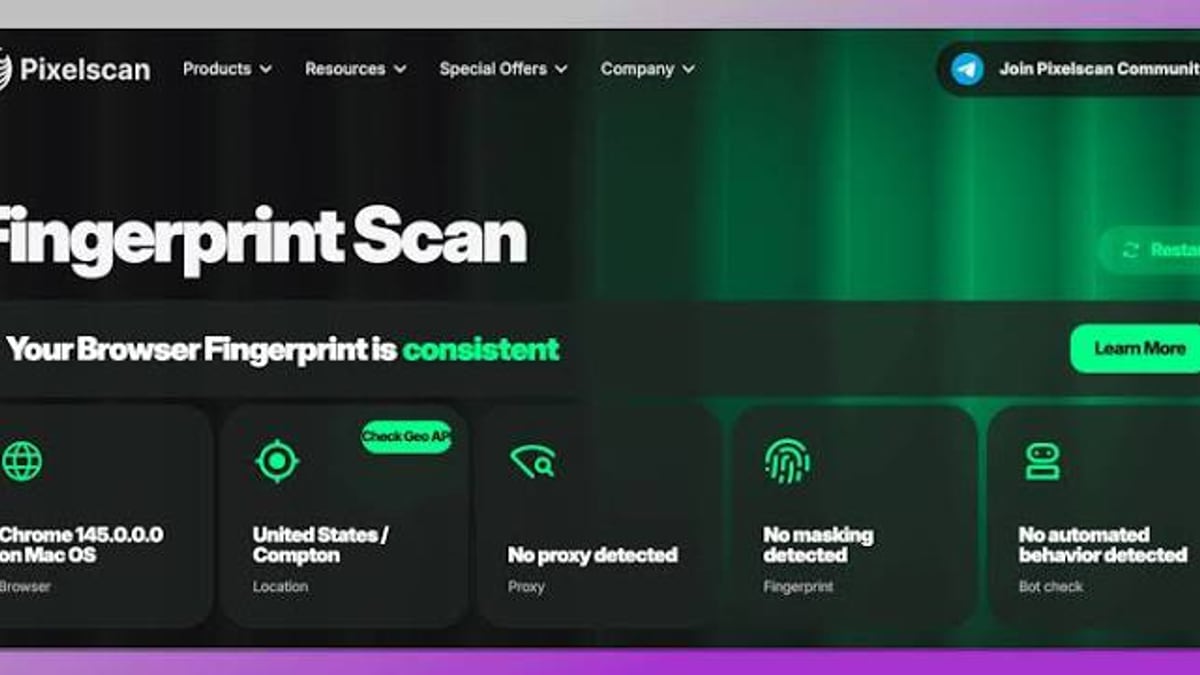
Instead of focusing on a single signal, Pixelscan runs a full diagnostic suite against your current browser environment. Here’s what each component uncovers:
🤖 Bot Detection
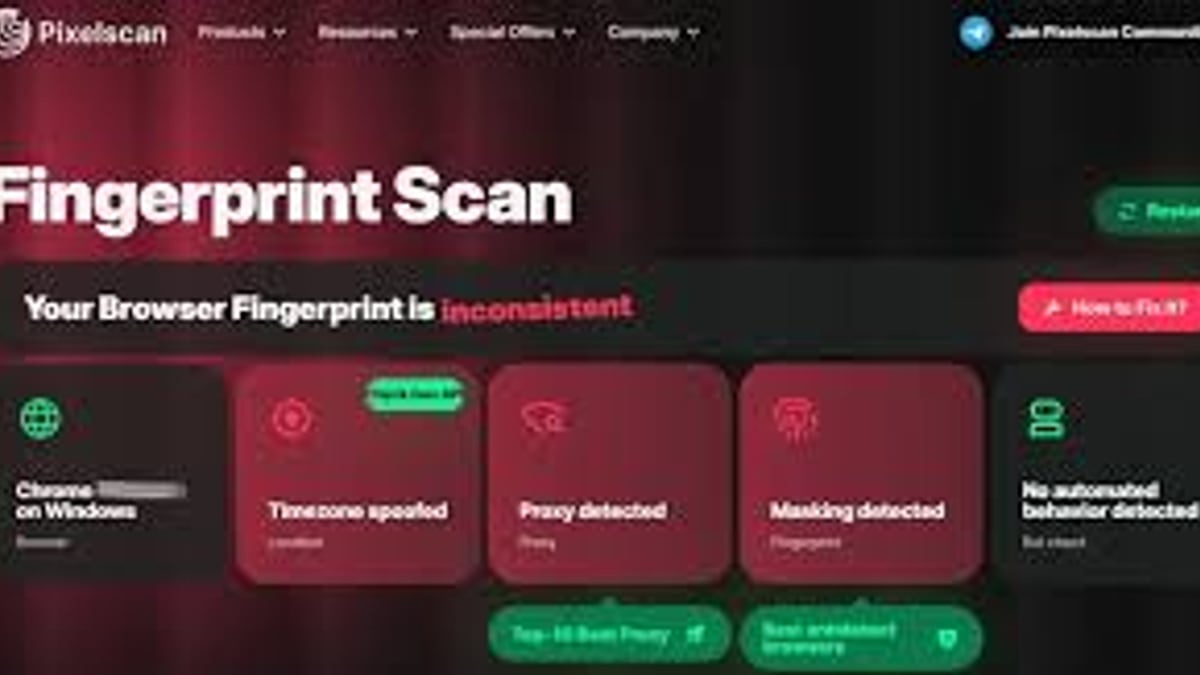
Pixelscan’s bot test checks if your browser behaves like a real user or exhibits signs of automation. It looks for fingerprints common in headless Chrome, Selenium, Puppeteer, and antidetect browsers, flagging issues such as navigator.webdriver presence, inconsistent WebGL renderer strings, or tampered‑with timezones. The result is either “Human Detected” or “Bot Detected,” giving you immediate feedback on how your setup appears to target websites’ anti‑bot systems.
🖐️ Browser Fingerprint Analysis
Your browser fingerprint is a composite of dozens of attributes—screen resolution, installed fonts, Canvas hash, AudioContext fingerprint, and more. Pixelscan collects these signals and shows you how unique (or consistent) your fingerprint is. If you’re using an antidetect browser, this check confirms whether your spoofed values are coherent and don’t leak real hardware details.
🌐 IP & Proxy Detection
The tool reveals your public IP address, ISP, geolocation, and whether the IP is known to be a proxy, VPN, or data‑center exit node. It also cross‑references public blacklists to see if your IP is flagged for spam or abuse. This is critical for anyone using residential proxies or VPNs to make sure the IP matches the intended location and is “clean.”
🔍 DNS & VPN Leak Test
A DNS leak happens when your browser sends DNS queries outside the encrypted VPN tunnel, exposing your real ISP. Pixelscan detects these leaks by comparing the DNS server with your IP address. If you’re connected to a VPN, it checks whether your traffic is truly routed through the VPN’s servers. For a more exhaustive leak workflow, tools like BrowserScan’s DNS and WebRTC leak tests can run additional checks with multiple STUN servers.
🔒 WebRTC Leak Detection
WebRTC can reveal your local IP address even behind a VPN. Pixelscan attempts to gather this information and alerts you if your real IP is exposed. Combined with the DNS test, it gives a strong indication of your VPN’s leak protection.
All results appear in seconds, and because the scan runs entirely in your browser, no data is ever uploaded or stored.
How Pixelscan’s Bot Detection Works Under the Hood
What Is Pixelscan.dev? Browser Fingerprint & Bot Detection Tool - supporting product research image 4.
Pixelscan uses detection methods similar to those employed by major anti‑bot platforms. It analyzes:
- Automation‑specific properties – Like
navigator.webdriver, Selenium artifacts, and Puppeteer--headlessflags. - Fingerprint consistency – Checks whether WebGL vendor, renderer, canvas, and audio fingerprints match the reported OS and browser.
- Real‑user behavior signals – Time zone, screen color depth, device memory, and hardware concurrency against typical non‑headless configurations.
- Proxy and geolocation mismatches – Flags when your IP doesn’t align with your browser’s language, timezone, or WebRTC IPs.
If a mismatch is found, Pixelscan labels the session as “Bot Detected” and highlights the suspicious signals. This helps you debug antidetect profiles, automation frameworks like Selenium or Playwright, and even simple fingerprint‑spoofing extensions before you encounter real‑world blocks.
Who Gets the Most Out of Pixelscan?
- Privacy‑conscious users – Verify that no JavaScript‑based sleuth is identifying you uniquely across the web.
- VPN and proxy users – Confirm that your IP matches your selected location and that no DNS/WebRTC leaks expose your real connection.
- Automation developers – Test Puppeteer, Playwright, or Selenium scripts to ensure they aren’t easily flagged as bots. Pixelscan lets you iterate on headless configurations until the setup passes as “human.”
- Affiliate marketers and multi‑account managers – Use antidetect browsers like Multilogin, GoLogin, or AdsPower (see our tested antidetect browser rankings) and then scan each profile with Pixelscan to catch fingerprint inconsistencies before logging in to sensitive platforms.
Pixelscan vs. BrowserScan and Other Privacy Tools
What Is Pixelscan.dev? Browser Fingerprint & Bot Detection Tool product interface and feature overview.
Pixelscan excels as a quick, one‑page diagnostic—ideal for a pre‑flight bot and leak check. But if you need a wider suite of privacy and security tests without switching services, BrowserScan offers a complete online privacy toolkit that includes all of Pixelscan’s core checks (browser fingerprint, bot detection, IP lookup, DNS/WebRTC leak tests) plus:
- A port scanner (powered by nmap)
- User‑agent parser
- Internet speed test
- Cookie converter, 2FA code generator, and other utilities
- Detailed fingerprint authenticity scoring using multiple IP databases (ip‑api, IPinfo, IP2Location, etc.)
Both tools are free and require no plugins. Pixelscan is fantastic for a focused scan, while BrowserScan is the go‑to when you need an all‑in‑one privacy dashboard. For a deep dive into another fingerprint‑centric tool, you can also read our IPhey review which includes bot detection and risk scores.
How to Test Your Setup with Pixelscan (Step‑by‑Step)
- Open Pixelscan’s bot check (or the main page at pixelscan.net) in the browser you want to test—this could be a regular Chrome window, an antidetect profile, or an automated browser instance.
- Click “Scan My Browser” (or let the auto‑scan run on the bot‑check page).
- Review the results: bot classification, fingerprint consistency checks, IP info, and leak tests.
- If you get a Bot Detected result, inspect the flagged signals. Adjust your browser configuration—disable webdriver flags, align timezone with IP, or tweak canvas/WebGL spoofing.
- Re‑run the test until you see Human Detected, then repeat with different proxy endpoints or profiles as needed.
Related reading
- Top 10 IP Address and DNS Lookup Tools in 2026 (Tested & Reviewed) - Discover the 10 best IP address and DNS lookup tools for 2026, tested for accuracy, privacy, and feature depth. Compare MXToolbox, ViewDNS, IP.ME, and more.
- Top 10 Personal VPN Software Products in 2026 (Tested & Ranked) - Our experts tested and ranked the 10 best personal VPN software solutions for 2026, from ExpressVPN to self-hosted Algo VPN. Compare speeds, privacy, and value.
- How to Use BrowserScan with PrivacyTools.io: Complete Workflow - Combine BrowserScan’s leak tests with PrivacyTools.io’s curated tools to audit and fix your browser privacy. Step-by-step workflow.
Sources and further reading
- Browser Bot Detection Software | Fingerprint - Fingerprint's Bot Detection solution is the most advanced and accurate tool to detect good bots from bad bots on your website. Protect your online business from fraud and boost your performance with our machine-learning technology.
- Pixelscan | Fast multi-check tool for detection analysis - Pixelscan is a complete multi-check tool for browser fingerprinting, proxy detection, IP analysis, DNS leaks, and more. See how detectable your setup really is.
Frequently Asked Questions
Is Pixelscan.dev really free?
Yes. All scans are free, require no account, and work entirely client‑side. Pixelscan doesn’t store your fingerprint, IP, or test results.
What’s the difference between a human and bot detection result?
“Human Detected” means no obvious automation or fingerprint inconsistencies were found. “Bot Detected” indicates that one or more signals suggest headless mode, mismatched fingerprints, or known automation‑framework artifacts.
Can Pixelscan detect all bot setup weaknesses?
Pixelscan uses a broad set of heuristics, but no test is 100% foolproof. Sophisticated bots with perfect fingerprints may still pass. For production‑grade bot detection on your own site, commercial solutions like Fingerprint’s bot detection offer machine‑learning‑based signals and API integration.
Does Pixelscan work with residential proxies and antidetect browsers?
Absolutely. It’s designed to check exactly those configurations. Just load your antidetect profile and navigate to Pixelscan.net to verify that your IP, fingerprint, and WebRTC data are all consistent.
How is Pixelscan different from a regular IP leak test?
Standard IP leak tests only check whether your real IP is exposed. Pixelscan goes further by combining IP analysis with fingerprint integrity and bot‑like behavior detection, giving you a holistic view of how a target website’s anti‑fraud system might perceive you.
Keep Your Digital Fingerprint Under Control
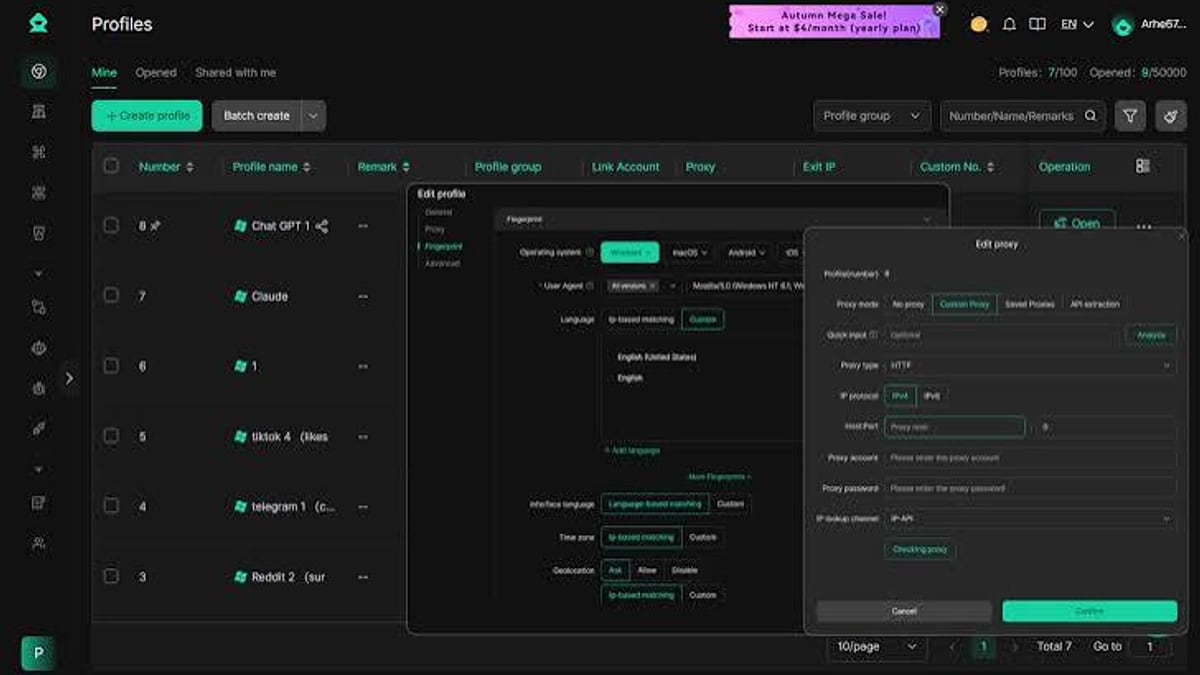
What Is Pixelscan.dev? Browser Fingerprint & Bot Detection Tool - supporting product research image 3.
Testing your browser environment with a tool like Pixelscan.dev is the first step toward staying invisible to trackers and bypassing anti‑bot systems. Whether you’re a casual VPN user, an automation engineer, or a multi‑account manager, running a quick scan can save you hours of troubleshooting down the line.
For a deeper privacy check that includes port scanning, user‑agent analysis, and real‑time IP blacklist monitoring, explore BrowserScan’s full suite of tools—and pair it with the step‑by‑step VPN leak‑proof workflows we’ve tested at BrowserScan. Your browser reveals more than you think—make sure you’re seeing the same picture the websites see.