
Algo VPN Login: Setup, Client Access & Privacy Checks
Algo VPN Login: Setup, Client Access & Privacy Checks
If you searched for "Algo VPN login," you may be expecting a username and password screen. Algo VPN does not work that way. It is a set of Ansible scripts that deploys a personal WireGuard and IPsec VPN server on a cloud provider you control. There is no central account, no web dashboard, and no shared login portal. Instead, "logging in" means connecting a device using a generated configuration file or certificate, and managing the server over SSH.
This guide explains how Algo VPN access actually works, how to connect each type of client, how to manage users, and how to confirm your traffic is really going through the VPN.
Why there is no traditional Algo VPN login
Algo VPN Login: Setup, Client Access & Privacy Checks - Why there is no traditional Algo VPN login.
Algo VPN is open source and self-hosted. When you deploy it, the scripts create a virtual machine on a cloud provider and install a VPN server on it. Authentication is handled by cryptographic keys and certificates, not by a central account system.
- WireGuard clients authenticate with a private key stored in a
.conffile. - IPsec clients authenticate with certificates and profiles generated during deployment.
- Server administration uses SSH key-based access, not a password.
Because of this design, there is no "forgot password" page for Algo VPN itself. If you lose access, you regenerate or re-import configuration files rather than resetting a password.
How to get access: deploying the Algo server

Algo VPN Login: Setup, Client Access & Privacy Checks - How to get access: deploying the Algo server.
Before any client can connect, the server must exist. The official Algo VPN GitHub repository walks through the full process. In short:
- Create an account with a supported cloud provider such as DigitalOcean, Amazon Lightsail, Amazon EC2, Vultr, Microsoft Azure, Google Compute Engine, Scaleway, Hetzner Cloud, Linode, or your own Ubuntu server.
- Download or clone the Algo scripts to your local machine.
- Edit
config.cfgto define the users you want to create. Use a unique user for each device. - Run the deployment script for your platform (
./algoon macOS and Linux,\algo.ps1on Windows). - When deployment finishes, configuration files and certificates appear in the
configs/directory.
After this step, your server is running and ready for clients. The success message includes the SSH command for administrative access.
Connecting clients: your actual "login" step
Algo VPN Login: Setup, Client Access & Privacy Checks - Connecting clients: your actual "login" step.
Each device type has its own way of importing credentials. This is the closest thing to an Algo VPN login.
WireGuard clients (iOS, macOS, Android, Windows, Linux)
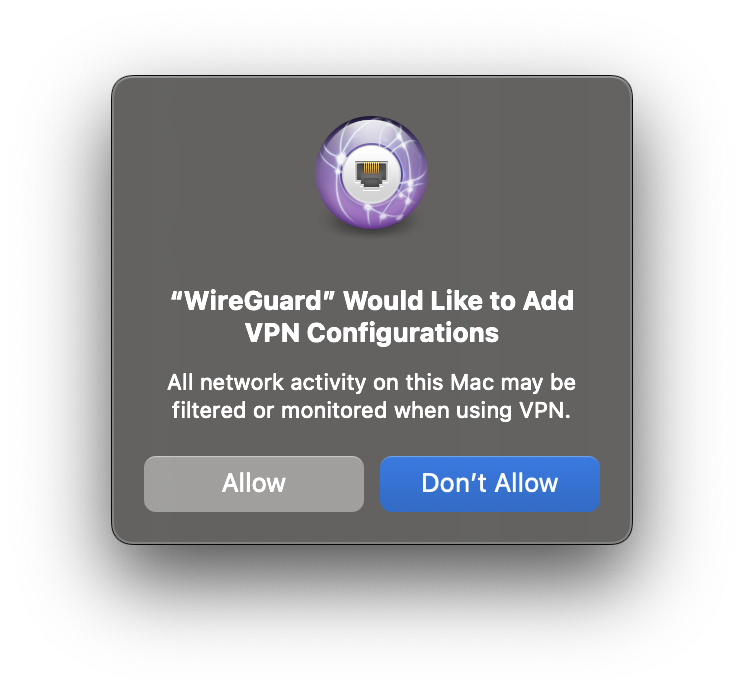
Algo generates a WireGuard configuration file and QR code for each user. Install the official WireGuard app on your device, then import the .conf file or scan the QR code. Once the tunnel is active, the client is authenticated.
- iOS and macOS: Install WireGuard from the App Store, then scan the QR code or import the file. You can enable "Connect on Demand" and exclude trusted Wi-Fi networks in the app.
- Android: Install the WireGuard client, import the
.conffile, and activate the connection. - Windows: Install the WireGuard client, import the generated
.conffile, and connect. - Linux: WireGuard works well on Linux; follow the distribution-specific instructions in the Algo documentation.
IPsec clients (Apple devices and strongSwan)
Algo supports IKEv2 with strong cryptography for iOS, macOS, and Linux. Apple devices can use a generated .mobileconfig profile that auto-configures the VPN without third-party software. Linux clients using strongSwan can use the provided certificate and configuration files.
Manual and other devices
For devices not covered by the standard guides, you will need specific files from the configs/ directory:
ipsec/manual/cacert.pem– CA certificateipsec/manual/<user>.p12– user certificate and private keyipsec/manual/<user>.conf– strongSwan client configurationwireguard/<user>.conf– WireGuard configuration profile
Import these into your VPN client according to its documentation.
Managing users and server access
Algo VPN Login: Setup, Client Access & Privacy Checks - Managing users and server access.
Algo includes helper scripts to add and remove users. If you plan to change users later, you must retain the certificate authority (PKI) during deployment when prompted. Otherwise, you will need to redeploy the server.
Administrative access to the server is done over SSH using the key generated during deployment. The command looks like:
ssh -F configs/<ip>/ssh_config <hostname>
There is no password-based login for the server. If you enabled the optional SSH tunneling role, limited user accounts are created for tunneling traffic only; they cannot run shell commands.
Verifying your Algo VPN connection
Once connected, you should confirm that your real IP address is not leaking. The Algo documentation itself suggests checking your traffic after connecting. You can use free browser-based tools to do this without installing anything.
- BrowserScan IP Lookup shows your public IP, geolocation, ISP, and proxy detection. If it shows your ISP's real location instead of the VPN server's location, your traffic is not fully routed through the tunnel.
- BrowserScan WebRTC Leak Test checks whether WebRTC is exposing your local or public IP outside the VPN. This is a common leak vector even when a VPN is active.
- BrowserScan DNS Leak Test verifies that DNS queries are going through the VPN's resolver, not your ISP's.
For a broader check of how identifiable your browser is, BrowserScan's fingerprint analysis can show whether your browser profile is consistent with a VPN user or still reveals details about your real setup. These tests are useful for any VPN, including Algo, because they confirm that the tunnel is doing what you expect.
If you use other privacy tools, similar verification steps apply. For example, after a Mozilla VPN login, you can run the same leak tests to confirm your IP is hidden. The principle is the same: connect, then verify.
Common access problems and fixes
- WireGuard client won't connect: Check that the
.conffile matches the server's current keys. If you redeployed the server, old configs will not work. - IPsec certificate errors: Ensure you imported the correct CA certificate and user certificate. On Apple devices, reinstall the
.mobileconfigprofile. - SSH access denied: Confirm you are using the correct SSH key and the
ssh_configfile from theconfigs/directory. Password authentication is disabled by design. - Lost configuration files: If you did not retain the PKI, you may need to redeploy the server and generate new client configs.
Algo VPN vs. commercial VPN logins
Commercial VPNs typically provide an account dashboard where you log in with an email and password. Algo VPN replaces that with self-managed keys and certificates. This gives you more control and avoids a central service that logs your activity, but it also means you are responsible for managing access.
If you prefer a managed service with a traditional login, options like Mozilla VPN offer a simpler sign-in flow. If you want to understand how browser-based privacy checks work across different tools, resources like BrowserLeaks login detection explain what some tests can reveal about your sessions.
Related reading
- IP-Lookup.net Download: What It Really Offers - Searching for an IP-Lookup.net download? The site is browser-based and needs no install. See what it does, plus free no-download alternatives.
- Geolocation API: How It Works, Privacy Risks & Testing - Learn how the browser Geolocation API works, its accuracy limits, privacy risks, and how to test location leaks with free tools like BrowserScan.
Sources and further reading
- vpn.algo.com - We would like to show you a description here but the site won't allow us.
- ALGO Authentication | Login - Forgot password?
FAQ
Is there an Algo VPN login page?
No. Algo VPN does not have a central login page. Access is granted through WireGuard configuration files, IPsec certificates, and SSH keys generated during deployment.
How do I log in to my Algo VPN server?
You connect a client by importing its configuration file or certificate. For server administration, you use SSH with the key created during deployment.
Can I reset my Algo VPN password?
There is no password to reset for the VPN itself. If you lose access, you regenerate client configurations or redeploy the server.
How do I add or remove users?
Algo includes helper scripts to manage users. You must retain the PKI during deployment if you want to add or remove users later without redeploying.
How can I check if my Algo VPN is working?
Run a free leak test with BrowserScan to confirm your public IP, DNS, and WebRTC are not exposing your real address.
Conclusion
Algo VPN login is really about connecting clients with the right keys and certificates, not signing into a website. Once your server is deployed and your device is configured, verify the connection with independent leak tests. That final step confirms your privacy setup is working as intended and helps you catch misconfigurations before they expose your real IP.