
BrowserScan Tutorial: Check Your Browser Fingerprint & Leaks
BrowserScan Tutorial: How to Check Your Browser Fingerprint, Leaks, and VPN Setup
BrowserScan is a free, web-based privacy and security testing platform that shows you exactly what websites can see about your device. Instead of installing software, you open a browser, run a scan, and get an immediate readout of your browser fingerprint, IP address, DNS configuration, WebRTC exposure, open ports, and more.
This tutorial walks through the core tools, explains what each result means, and shows you how to use BrowserScan to verify that a VPN, proxy, or antidetect browser is actually working.
What Is BrowserScan?
BrowserScan Tutorial: Check Your Browser Fingerprint & Leaks - What Is BrowserScan?.
BrowserScan is an online privacy diagnostics suite. It runs entirely in your browser and combines several tests that are usually scattered across separate tools:
- Browser fingerprint analysis with an authenticity score
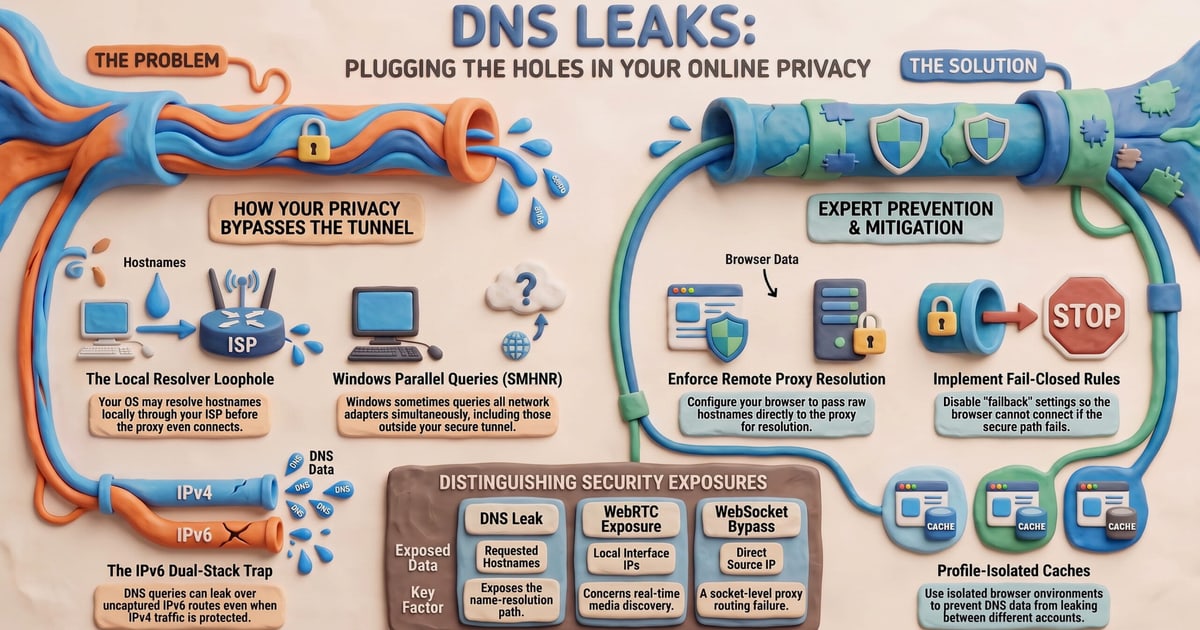
- DNS leak detection
- WebRTC leak detection
- IP address lookup with geolocation, ISP, and proxy detection
- An Nmap-powered port scanner
- Internet speed testing
- User agent parsing
- Canvas and WebGL fingerprint checks
- Client hints analysis
- A 2FA code generator and cookie converter
The platform is aimed at privacy-conscious users, VPN subscribers, IT professionals, developers, and anyone managing multiple online profiles who needs to confirm that their masking setup is consistent.
Why Browser Fingerprint Checks Matter
BrowserScan Tutorial: Check Your Browser Fingerprint & Leaks - Why Browser Fingerprint Checks Matter.
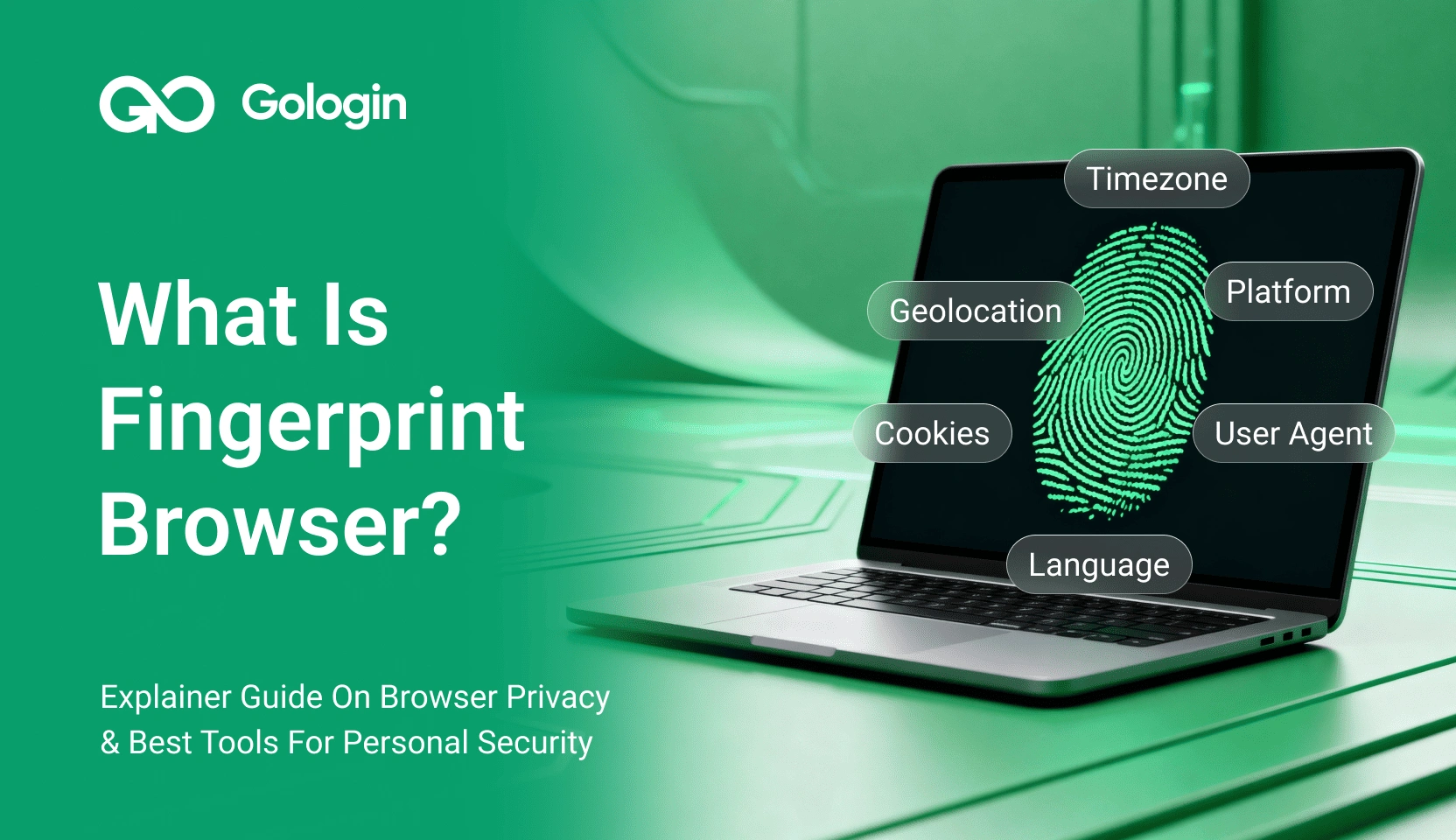
Websites identify visitors through far more than cookies. Your browser silently exposes dozens of attributes: operating system, browser version, language, timezone, screen resolution, installed fonts, canvas rendering output, WebGL data, audio stack details, and hardware information such as CPU cores and GPU model.
When combined, these signals form a browser fingerprint that can identify you with accuracy rates above 90 percent in many cases — sometimes higher. Unlike cookies, fingerprints are hard to delete and do not require consent banners.
Common uses of browser fingerprinting include:
- Account security: Financial platforms flag logins from unfamiliar device profiles.
- Bot detection: Sites separate real users from automated scrapers.
- Account linking: E-commerce and social platforms detect multiple accounts run from the same device profile.
- Price and content personalization: Travel and ticketing sites adjust offers based on location and browsing history.
For anyone using a VPN, proxy, or antidetect browser, a fingerprint check is the fastest way to confirm that the setup presents a coherent, believable profile rather than a mismatched one that triggers suspicion.
Getting Started with BrowserScan
BrowserScan Tutorial: Check Your Browser Fingerprint & Leaks - Getting Started with BrowserScan.
No account or installation is required. Open the BrowserScan website in the browser you want to test and the main fingerprint scan begins automatically.
The results page is organized into clear sections:
- Overview: Browser type and version, operating system, language, IP address, timezone, geolocation, ISP, and blacklist status.
- IP and WebRTC: Your visible IP address, WebRTC STUN results, and IP count over the last seven days.
- Hardware: Canvas hash, WebGL vendor and renderer, audio fingerprint, screen resolution, color depth, touch support, and media devices.
- Software: Timezone consistency, JavaScript time, Do Not Track status, and cookie settings.
Interpreting the Fingerprint Authenticity Score
BrowserScan assigns a fingerprint authenticity score, typically expressed as a percentage. A score near 100 percent means the browser profile looks internally consistent — the timezone matches the IP geolocation, the user agent matches the actual browser, and the hardware signals align with the reported operating system.
A score below roughly 90 percent is a warning sign. It often indicates:
- A VPN or proxy whose exit IP does not match the browser timezone
- An antidetect browser profile with mismatched user agent and platform data
- Spoofed canvas or WebGL values that do not match the underlying device
- Browser extensions or privacy settings that alter fingerprint signals inconsistently
If you manage multiple accounts on platforms like Instagram, TikTok, or e-commerce marketplaces, checking this score before logging in can help you avoid account linking and bans.
How to Test for DNS Leaks
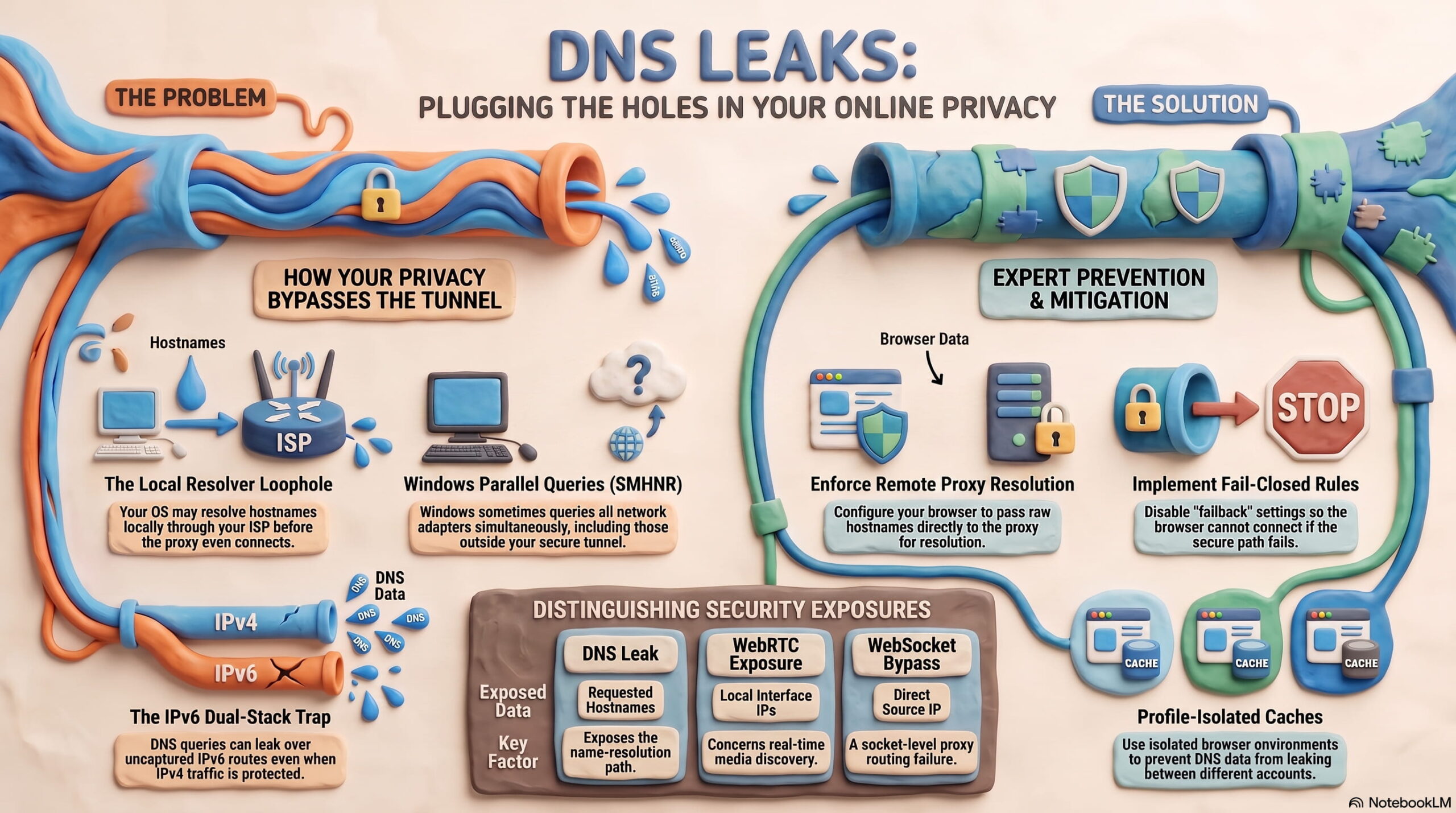
BrowserScan Tutorial: Check Your Browser Fingerprint & Leaks - How to Test for DNS Leaks.
A DNS leak occurs when your device sends domain name resolution requests to your real ISP's DNS server instead of the DNS server provided by your VPN or proxy. This exposes your approximate location and browsing domains even when your IP address appears masked.
To run the DNS leak test:
- Connect to your VPN or proxy.
- Open the BrowserScan DNS leak test tool.
- Review the list of DNS servers responding to your queries.
- Confirm that every server belongs to your VPN provider, not your home ISP.
If you see your ISP's name in the results, your VPN is leaking DNS requests. Fixes include enabling the VPN's built-in DNS leak protection, switching to a provider that owns its DNS infrastructure, or manually configuring a private DNS resolver.
For a deeper look at how DNS resolution works and how to troubleshoot issues, see this DNS lookup guide.
How to Test for WebRTC Leaks
WebRTC enables real-time audio and video in the browser, but it can also reveal your true IP address even when a VPN is active. This happens because WebRTC uses STUN servers to discover the best network path, and those requests can bypass the VPN tunnel.
To check for WebRTC leaks:
- Keep your VPN or proxy connected.
- Open the BrowserScan WebRTC leak test.
- Compare the IP addresses shown under WebRTC STUN with your masked IP address.
- If any WebRTC result shows your real ISP-assigned IP, you have a leak.
Mitigations include disabling WebRTC in the browser, using a VPN with WebRTC leak protection, or installing a browser extension that blocks WebRTC IP disclosure. After making changes, rerun the test to confirm the leak is closed.
Using the IP Address Lookup
The IP lookup tool provides geolocation, ISP, ASN, and proxy or VPN detection for any IP address — not just your own. This is useful for:
- Verifying that your VPN exit node is in the country you selected
- Checking whether a suspicious login attempt came from a known proxy or hosting provider
- Investigating the origin of an email or server request
If the lookup flags your IP as a data center or proxy address, some websites may treat your traffic with extra scrutiny. Residential IPs generally look more natural for everyday browsing.
Running the Port Scanner
BrowserScan includes an Nmap-powered port scanner that checks your public IP for open, high-risk ports. Open ports are entry points that attackers can probe for vulnerable services.
The scan identifies common ports such as 21 (FTP), 22 (SSH), 23 (Telnet), 25 (SMTP), 80 (HTTP), 443 (HTTPS), 3389 (RDP), and others. If a port is open and you did not intentionally expose it, close it on your router or firewall and rerun the scan.
For more context on how Nmap works and how to run your own scans, see this Nmap setup guide.
Parsing Your User Agent
The user agent parser decodes the string your browser sends with every request. It breaks down the browser name, version, rendering engine, operating system, and device type.
This is especially useful when:
- Debugging why a website serves a mobile layout on a desktop browser
- Verifying that an antidetect browser profile is presenting the intended user agent
- Checking bot or scraper strings before deploying automated requests
A mismatched user agent — for example, a Chrome string on a Firefox engine — is a red flag that can trigger bot detection.
Verifying an Antidetect Browser Setup
Antidetect browsers create isolated profiles with unique fingerprints, proxies, and cookie storage. But a profile is only safe if its signals are internally consistent.
Use BrowserScan after creating or editing a profile to verify:
- The user agent matches the reported browser and operating system
- The timezone matches the proxy IP's geolocation
- The language settings match the target region
- Canvas, WebGL, and audio fingerprints are unique per profile
- No DNS or WebRTC leaks expose the real connection
A fingerprint authenticity score below 90 percent usually means something in the profile needs adjustment — the proxy location, timezone, language, or hardware spoofing settings.
If you want to reduce tracking on a regular browser rather than using an antidetect tool, this guide to browser fingerprint masking covers practical methods.
Building a Regular Privacy Check Routine
A one-time scan is useful, but privacy configurations drift. VPNs update, browser extensions change behavior, and operating system updates can alter fingerprint signals. A lightweight routine keeps your setup trustworthy:
- Before sensitive activity: Run the fingerprint scan and confirm the authenticity score.
- After changing VPN servers: Run DNS and WebRTC leak tests on the new server.
- After browser updates: Recheck the user agent and canvas fingerprint.
- Weekly: Run the port scanner to catch newly exposed services.
- When creating new profiles: Verify each antidetect profile before first login.
For teams and organizations, consider formalizing this into a broader continuous security monitoring program that includes browser-level checks alongside network and endpoint monitoring.
Related reading
- Mozilla VPN Review: Features, Privacy, and Setup Guide - Learn how Mozilla VPN works, its WireGuard-based privacy features, supported devices, pricing, and how to verify your connection with leak tests.
- HackerTarget Pricing: Plans, Limits & What You Get - Compare HackerTarget pricing plans from $10 to $100+ per month, including scan quotas, API limits, scheduling, and which tier fits your security workflow.
Sources and further reading
- Browser Fingerprinting Guide for Beginners - Browser Fingerprinting Guide for Beginners. What is browser fingerprinting? How does it work? Can I prevent browser fingerprinting?
- Best BrowserScan Fingerprint Detection Tool - Improve your online privacy security - Enhance your online security with the best BrowserScan fingerprint checking tool. Protect and prevent your privacy from leaking with our advanced technology.
- How to Use BrowserScan to Verify Your Browser Fingerprint - Manage multiple accounts with Incogniton and ensure privacy by using BrowserScan to verify your browser fingerprints. See how it works!
Frequently Asked Questions
Is BrowserScan free to use?
Yes. The core tools — fingerprint analysis, DNS and WebRTC leak tests, IP lookup, port scanning, speed testing, and user agent parsing — are available without payment or registration.
Does BrowserScan store my fingerprint data?
BrowserScan performs scans in your browser and presents the results immediately. For specific data retention details, review the platform's privacy policy before running sensitive scans.
What is a good fingerprint authenticity score?
A score of 90 percent or higher generally indicates a consistent, believable browser profile. Scores below that threshold suggest mismatches that could trigger tracking or account security systems.
Can BrowserScan detect my real IP if I use a VPN?
BrowserScan itself does not bypass your VPN. However, its DNS and WebRTC leak tests can reveal whether your browser is independently exposing your real IP through those channels.
How often should I check my browser fingerprint?
Check before high-stakes activity such as logging into managed accounts, after any VPN, proxy, or browser configuration change, and periodically as part of a routine privacy audit.
Does BrowserScan work on mobile browsers?
Yes. Open the site from any modern mobile browser to see the fingerprint and network details that mobile sites can observe.
Conclusion
BrowserScan turns an abstract privacy concern into a concrete, actionable checklist. In a few minutes, you can see your browser fingerprint, confirm whether your VPN is leaking DNS or WebRTC data, inspect your public IP, scan for open ports, and validate that an antidetect profile is internally consistent.
The key habit is not running the scan once, but making it part of your workflow: before logging into managed accounts, after changing network configurations, and whenever a fingerprint authenticity score drops unexpectedly. When the score is high and the leak tests come back clean, you can browse with far more confidence about what websites actually see.