
Chameleon Mode Tutorial: AKVIS, ArtWorkout & Meccha Chameleon
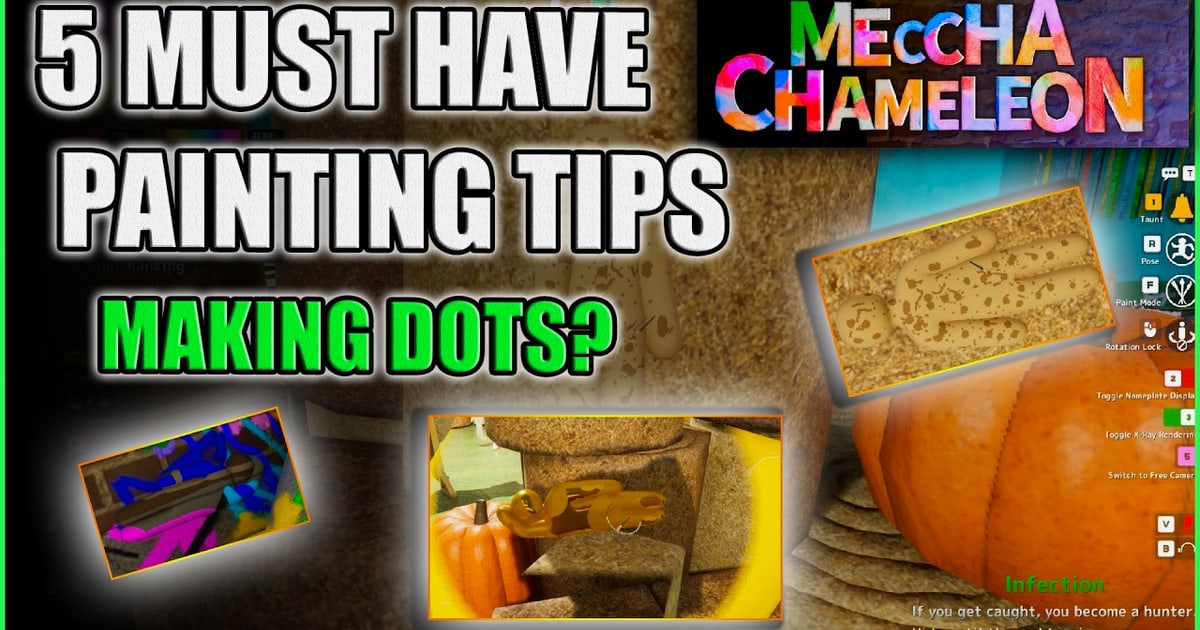
Chameleon Mode Tutorial: A Complete Guide for AKVIS, ArtWorkout, and Meccha Chameleon
"Chameleon Mode" can mean very different things depending on the software you are using. In AKVIS Chameleon, it is a photo-editing mode that blends a pasted object into a background. In ArtWorkout, it is a multiplayer hide-and-seek drawing challenge. In Meccha Chameleon, it is a game mechanic where you paint your character to match the stage. This tutorial covers all three, with step-by-step instructions, practical tips, and a short privacy note for anyone who plays or edits online.
What Is Chameleon Mode?
Chameleon Mode is a feature or game mode that helps something blend into its surroundings. The exact behavior depends on the platform:
- AKVIS Chameleon — an image-editing mode that adjusts the color range of an inserted object and smooths its borders so it matches the target image.
- ArtWorkout — a multiplayer drawing game where players hide a small character by painting it in the exact background color, while hunters search the canvas.
- Meccha Chameleon — a hide-and-seek game where you paint your white body to mimic the stage, then pose to avoid detection.
If you searched for a "Chameleon Mode tutorial," identify which of these three you mean before following the steps below.
AKVIS Chameleon Mode Tutorial: Create a Blended Photo Collage
AKVIS Chameleon works in five modes: Montage, Chameleon, Blend, Emersion, and Double Exposure. Chameleon mode is the one that adapts an inserted fragment to the target image's color range and softens its edges.
Step 1: Open Your Images
Open the background image first, then open the image that contains the fragment you want to insert. If you are working with the plug-in version, the workflow is slightly different, so check the AKVIS documentation for plug-in-specific steps.
Step 2: Select Chameleon Mode
Choose Chameleon from the drop-down menu in the Settings Panel. This switches the tool from standard montage behavior to color-adaptive blending.
Step 3: Position and Transform the Fragment
Use the Transform tool to resize, move, and rotate the pasted fragment. Adjust the Opacity parameter to place the fragment more accurately before you commit to a selection.
Step 4: Select the Fragment and Mark Unwanted Areas
Use the selection tools to define the fragment you want to keep. Mark unwanted areas so the software knows what to exclude from the final collage.
Step 5: Enable Smooth Transition (Optional)
If your selection is inexact, turn on Smooth Transition. This option only works when the image has strokes. When it is off, anti-aliasing happens only along the borders of the red strokes. When it is on, anti-aliasing spreads across the area between the red and blue strokes. The farther apart the strokes are, the smoother the transition.
Be careful: Smooth Transition can blur small details along the edges of the inserted fragment. Use it when the selection is rough, not when you need crisp edges.
Step 6: Run the Process and Review
Click the process button to generate the collage. The result appears in the After tab, where you can see how the fragment's colors were adjusted to match the background. You can then use post-processing tools such as Smudge, Blur, and History Brush to refine the result.
AKVIS Chameleon Mode Tips
- Use Chameleon mode when the fragment and background have different color temperatures.
- Keep Smooth Transition off for sharp objects like text or geometric shapes.
- Combine Chameleon mode with Blend mode if you need a softer, more artistic result.
- Always compare the Before and After tabs before exporting.
ArtWorkout Chameleon Mode Tutorial: Hide and Seek on the Canvas
ArtWorkout's Chameleon mode is a multiplayer drawing game. Players pick a spot on any picture, paint a small character in the exact background color, and try to stay hidden. Hunters then search the entire canvas. If even one chameleon survives, the chameleons win. If the hunters find them all, the hunters win.
How to Play as a Chameleon
- Choose a canvas. Anime, cartoon, and game-art backgrounds all work. Busy backgrounds with many colors give you more hiding options.
- Pick your spot. Look for areas with flat color, repeated patterns, or shadows where a small character can disappear.
- Sample the background color. Match the exact shade, not an approximate one. Even a slight difference can give you away.
- Paint your character. Cover the whole body. Leave no white or default-colored pixels visible.
- Pose and stay still. In games with posing mechanics, match the angle of nearby objects. A character that looks like part of the scenery is harder to spot.
- Avoid outlines. Outlines and highlights are the most common reasons chameleons get found.
How to Play as a Hunter
- Scan in a grid. Move across the canvas systematically instead of jumping around.
- Look for color mismatches. A patch of color that is slightly off from its surroundings is a strong clue.
- Check edges and corners. Players often hide near borders where the eye expects less detail.
- Zoom in on busy areas. Dense patterns hide chameleons well, but they also hide the small mistakes that reveal them.
- Compare repeated patterns. If a pattern repeats, one broken repetition may be a hidden character.
ArtWorkout Chameleon Mode Tips
- Practice color matching outside the game so you can judge shades quickly.
- In multiplayer, watch where other players hide and learn from their mistakes.
- If you are hunting, take your time. Rushing leads to missed chameleons.
- Try different canvases. Some backgrounds are much harder to hide in than others.
Meccha Chameleon Beginner Tutorial: Painting, Posing, and Winning
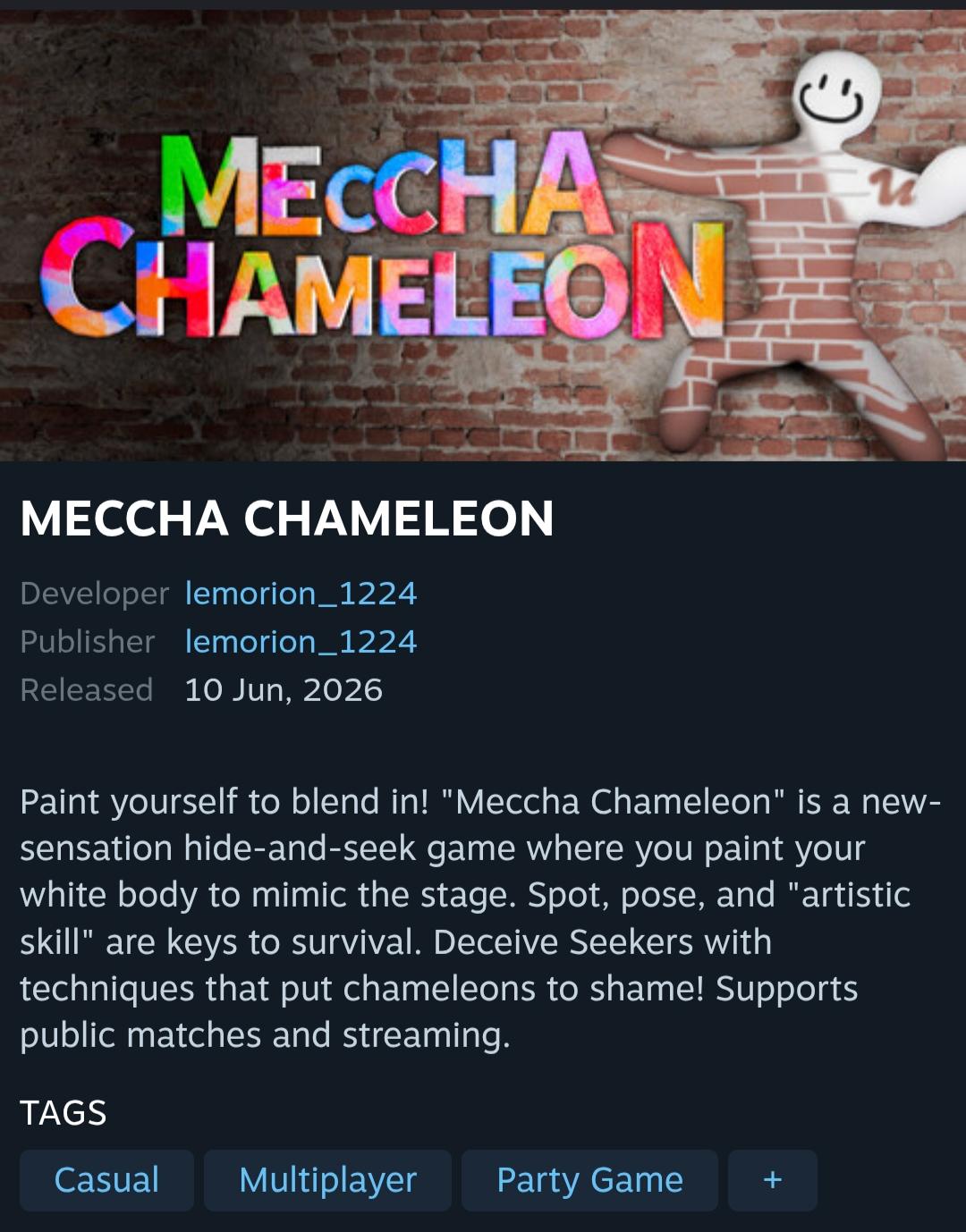
Chameleon Mode Tutorial: AKVIS, ArtWorkout & Meccha Chameleon - Meccha Chameleon Beginner Tutorial: Painting, Posing, and Winning.
Meccha Chameleon is a hide-and-seek game where you paint your white body to mimic the stage. Spot, pose, and artistic skill are the keys to survival. The game supports public matches and streaming.
Basic Painting Mechanics
Start by observing the stage. Identify the dominant colors, the light direction, and the textures around you. Then paint your body to match. Basic painting is about covering your white body with the colors of your surroundings. Advanced painting is about matching gradients, shadows, and small details.
How to Pose
Posing is not just about standing still. Match the shape of nearby objects. If you are near a wall, flatten yourself against it. If you are near a prop, mimic its angle. A good pose makes your silhouette look like part of the environment.
How to Play as a Hunter
As a hunter, you are looking for anything that does not belong. Scan the stage slowly. Pay attention to color mismatches, unusual shapes, and objects that seem slightly out of place. Chameleons often hide in plain sight, so the smallest detail matters.
How to Win in Meccha Chameleon
- As a chameleon: blend your colors, match your pose, and avoid moving when a hunter is nearby.
- As a hunter: be patient, check every corner, and compare similar objects for inconsistencies.
- Use private servers to practice with friends before joining public matches.
- Watch the ceiling. Some players use advanced techniques to stick to the ceiling, which can be hard to spot.
Chameleon Mode and Online Privacy: A Quick Check
Whether you are editing photos, drawing in ArtWorkout, or playing Meccha Chameleon, you are probably online. That means your browser is sharing information about you, sometimes more than you expect. A browser fingerprint can include your user agent, screen resolution, timezone, installed fonts, and other details that websites can use to identify you.
If you want to see what your browser reveals, you can run a free privacy check to test your fingerprint, IP address, DNS, and WebRTC exposure. This is useful if you use a VPN and want to confirm it is not leaking your real IP address. BrowserScan offers a suite of web-based tools for this, including a browser fingerprint test, DNS leak test, WebRTC leak test, IP lookup, and port scanner. No installation is required.
For players and creators who use antidetect browsers or multiple profiles, verifying that each profile looks unique is important. You can learn more about how these tools work in this guide to antidetect browsers. If you are comparing fingerprint checkers, this IPhey browser fingerprint test breakdown explains what one popular tool covers and where its limits are.
Related reading
- Pixelscan Download: What You Get and BrowserScan Alternative - Looking for a Pixelscan download? Learn what the tool offers, how the browser scan works, and how BrowserScan compares for privacy testing.
- Secure Browsing in 2026: How to Actually Protect Your Privacy - Secure browsing goes beyond incognito mode. Learn how browsers leak your IP and fingerprint, how to test for leaks, and which tools actually protect you.
- BrowserScan Pricing: Free Tools, Costs & What You Get - Is BrowserScan free? See what BrowserScan pricing covers, which privacy and fingerprint tools cost nothing, and how it compares to paid anti-detect browsers.
Sources and further reading
- Meccha Chameleon Game Complete Beginner Guide (Painting Mechanics and Gameplay) - If you have 50+ hours this video not for you. For new players only.Paint yourself to blend in! "Meccha Chameleon" is a new-sensation hide-and-seek game where...
- How to Create a Photo Collage with AKVIS Chameleon in Chameleon Mode - AKVIS Chameleon Tutorial: In the Chameleon Mode the plugin adjusts the inserted object to the target image color range and smoothes the object's borders. It looks similar to the way a chameleon adapts to the environment.
- How to Do The Chameleon Mode in Artworkout | TikTok - 108.7K posts. Discover videos related to How to Do The Chameleon Mode in Artworkout on TikTok. See more videos about Artworkout Chameleon Game How to Do It, How to Make Chameleon Mode in The Game Artworkout, How to Do Chameleon Game on Art Workout, How to Do The Arcane Artstyleon Traditional, How to Do A Bioactive Chameleon Enclosure, How to Do The Glitter Mode in Artworkout.
Frequently Asked Questions
What is Chameleon Mode in AKVIS Chameleon?
Chameleon Mode is one of five AKVIS Chameleon modes. It adjusts an inserted object to the target image's color range and smooths the object's borders, similar to how a chameleon adapts to its environment.
How do you win Chameleon Mode in ArtWorkout?
As a chameleon, paint your character in the exact background color and hide in a busy or low-detail area. As a hunter, scan the canvas systematically and look for color mismatches. Chameleons win if at least one survives; hunters win if they find all of them.
How do you play Meccha Chameleon as a beginner?
Start by observing the stage, then paint your white body to match the dominant colors and textures. Pose to match nearby objects and avoid moving when hunters are close. Practice on a private server before joining public matches.
Is Chameleon Mode the same in every app?
No. AKVIS Chameleon, ArtWorkout, and Meccha Chameleon each use the term differently. AKVIS Chameleon is a photo-editing mode, ArtWorkout is a multiplayer drawing game, and Meccha Chameleon is a hide-and-seek game with painting and posing mechanics.
Can I check if my browser is leaking information while playing?
Yes. Free web-based tools can test your browser fingerprint, DNS, WebRTC, and IP address. BrowserScan provides these tests without installation, so you can verify your setup before or after playing.
Conclusion
Chameleon Mode is not one single feature. In AKVIS Chameleon, it is a color-adaptive blending mode for photo collages. In ArtWorkout, it is a hide-and-seek drawing challenge. In Meccha Chameleon, it is a painting and posing game mechanic. The common thread is blending in, whether you are matching pixels, colors, or a stage environment. Use the steps above for whichever tool you are using, practice the specific mechanics, and if you want to see how well your browser blends in online, run a free privacy check to find out what it reveals.