
How to Use BrowserScan with Accovod for Fingerprint Privacy
How to Use BrowserScan with Accovod for Fingerprint Privacy
Your browser leaks more than you think. Every visit exposes a fingerprint—canvas hashes, WebGL data, timezone, fonts, and more—that sites use to recognize you. For anyone managing multiple accounts, a single inconsistency can link profiles and trigger bans. This article shows how to pair BrowserScan (a fingerprint detection and privacy testing tool) with Accovod (an antidetect browser) to audit, fix, and protect each profile before it goes live.
Why BrowserScan and Accovod Belong Together
First viewport screenshot of Connecting an AI agent.
BrowserScan is a diagnostic tool. It checks your IP, DNS leaks, WebRTC leaks, user agent, proxy server, port status, and overall fingerprint. Accovod is a containment tool. It creates isolated browser profiles, each with its own cookies, proxy, language, timezone, and fingerprint, so websites see separate people on separate machines.
Used alone, each has a blind spot:
- BrowserScan alone tells you what is leaking but cannot fix it.
- Accovod alone isolates profiles but cannot prove the spoofing holds up against real detection scripts.
The combination closes the loop: Accovod builds the disguise, BrowserScan verifies it.
What Each Tool Does
First viewport screenshot of Accovod Documentation.
BrowserScan: The Privacy Checkup
BrowserScan runs a battery of tests in one place:
- Fingerprint detection – canvas, WebGL, audio, fonts, screen, and hardware signals.
- IP and proxy checks – shows your visible IP and whether a proxy is detected.
- DNS leak test – reveals if DNS requests escape outside your proxy tunnel.
- WebRTC leak test – catches real IP exposure through WebRTC.
- User agent parsing – flags mismatches between claimed and actual browser data.
- Port scanner and speed test – useful for proxy health and latency.
- 2FA live check – confirms whether two-factor authentication is active on accounts you test.
Accovod: The Isolated Workspace
Accovod is an antidetect browser for macOS, Windows, and iPhone/iPad. Each profile gets its own cookies, proxy (HTTP or SOCKS5), language, timezone, and fingerprint. Key capabilities:
- One-click profile switching and bulk profile creation.
- Built-in IP check and Fraud Score when adding proxies.
- Cookie management and group organization.
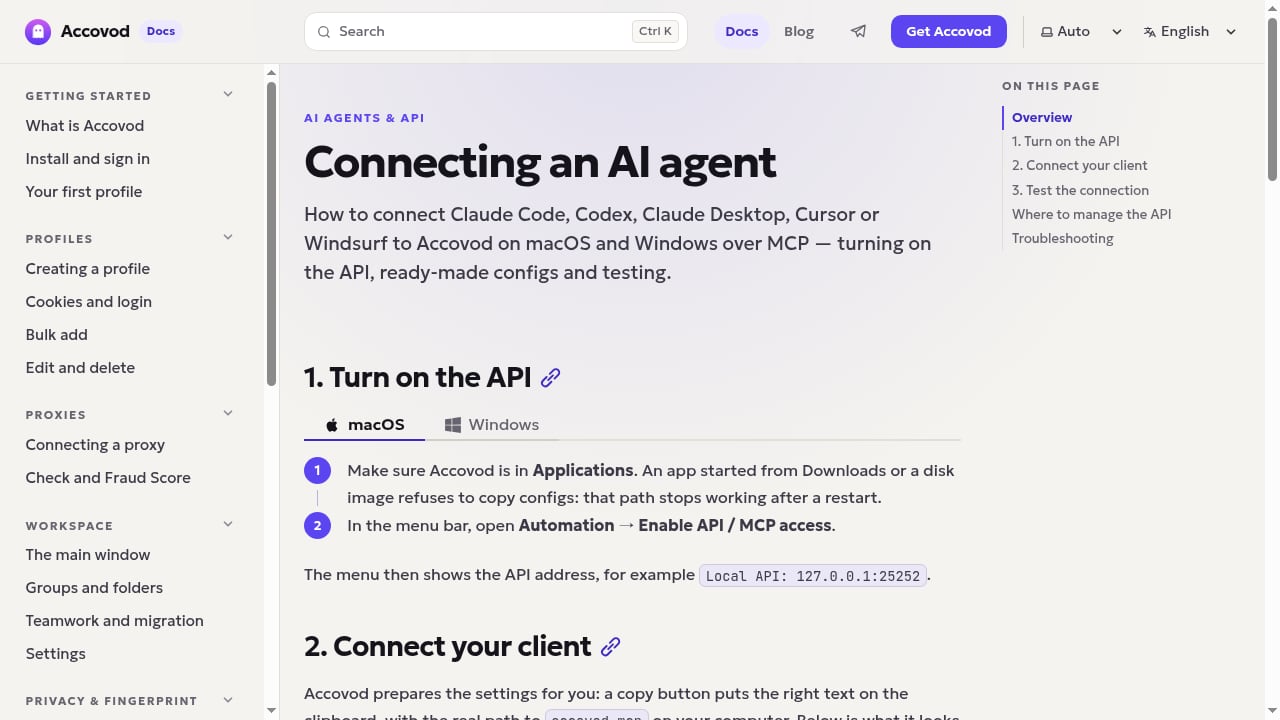
- A local HTTP API and MCP integration so AI agents like Claude Code, Codex, Claude Desktop, Cursor, and Windsurf can open profiles, read pages, click, and fill forms—with a one-button stop and visible actions.
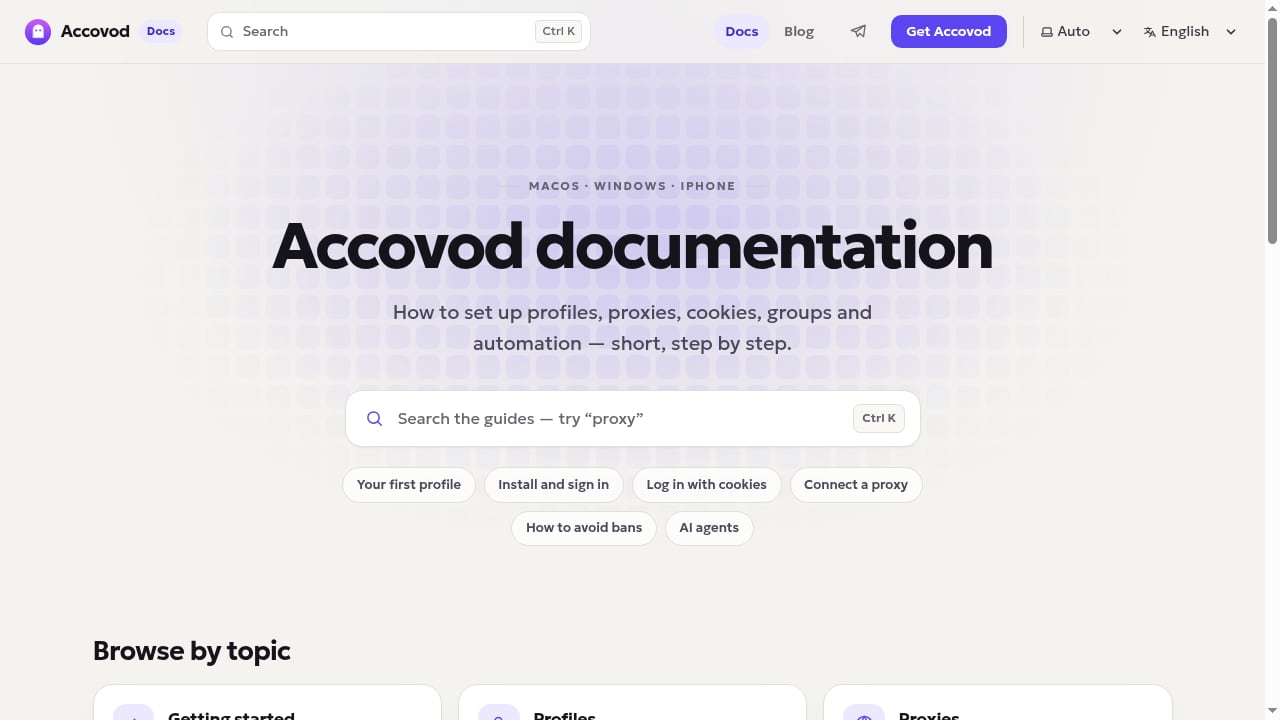
Accovod's documentation promises a first profile in about five minutes, which makes the audit workflow below practical even for beginners.
The Combined Workflow: Build, Test, Fix, Repeat
First viewport screenshot of What's new.
Step 1: Create a Profile in Accovod
Install Accovod, sign in, and create a new profile. Assign a proxy (HTTP or SOCKS5) and set language and timezone to match the proxy's location. Accovod's built-in IP check and Fraud Score give you a first sanity check before you open any website.
Step 2: Run BrowserScan Inside That Profile
Open the BrowserScan fingerprint detection page inside the Accovod profile, not in your regular browser. This is critical: the test must see the same environment a target site will see.
Run the full check and note:
- The reported IP and whether a proxy is flagged.
- DNS and WebRTC leak results.
- User agent string and platform consistency.
- Fingerprint hash and any unusual signals.
Step 3: Compare Against the Profile's Intended Identity
Ask: does the fingerprint match the story? A profile claiming to be a US Windows user on a residential proxy should not report a European timezone, a mobile user agent, or a WebRTC leak exposing a local IP. Mismatches are what fraud systems catch first.
Step 4: Fix and Re-Test
Adjust the Accovod profile settings—proxy, timezone, language, user agent—and rerun BrowserScan. Repeat until the fingerprint is clean and internally consistent. Save the profile as a template for similar accounts.
Step 5: Monitor Periodically
Fingerprints drift as browsers update and proxies rotate. Re-run BrowserScan on active profiles weekly or after any proxy change. For a broader comparison of detection tools, see our BrowserScan vs Pixelscan.dev comparison.
Practical Examples
Example 1: E-commerce Seller with 20 Store Accounts
A seller runs 20 accounts on one marketplace. Each Accovod profile uses a distinct residential proxy and matching timezone. Before logging in, the seller runs BrowserScan in each profile. Two profiles show DNS leaks because the proxy client was configured to use system DNS. Fixing the proxy settings and re-testing removes the leak, preventing a link between the accounts.
Example 2: Social Media Manager Auditing Client Profiles
A manager handles five client brands. Each brand has its own Accovod group with multiple profiles. BrowserScan's user agent and WebRTC checks reveal that one profile inherited the host machine's real IP through WebRTC. The manager disables WebRTC leakage in Accovod and re-tests, keeping client accounts isolated.
Example 3: Affiliate Marketer Scaling with AI Agents
An affiliate marketer uses Accovod's MCP integration to let an AI agent open profiles, check landing pages, and fill forms. Before each automated session, the agent (or a scheduled script) runs BrowserScan to confirm the profile's fingerprint is still valid. If a proxy fails the Fraud Score check, the profile is paused automatically.
Common Problems and How the Pair Solves Them
| Problem | What BrowserScan Reveals | How Accovod Fixes It |
|---|---|---|
| Accounts getting linked | Shared fingerprint signals across profiles | Isolated profiles with unique fingerprints |
| Real IP exposed | WebRTC or DNS leak | Proxy configuration and WebRTC handling per profile |
| Proxy flagged as datacenter | Proxy detection and Fraud Score | Swap to residential proxy; re-test |
| Timezone/language mismatch | User agent and locale inconsistencies | Set timezone and language per profile |
| Cookie cross-contamination | Not directly visible, but behavior anomalies appear | Separate cookie stores per profile |
For a deeper look at leak tests and scoring, read our full BrowserScan review.
Decision Guide: When to Use This Combination
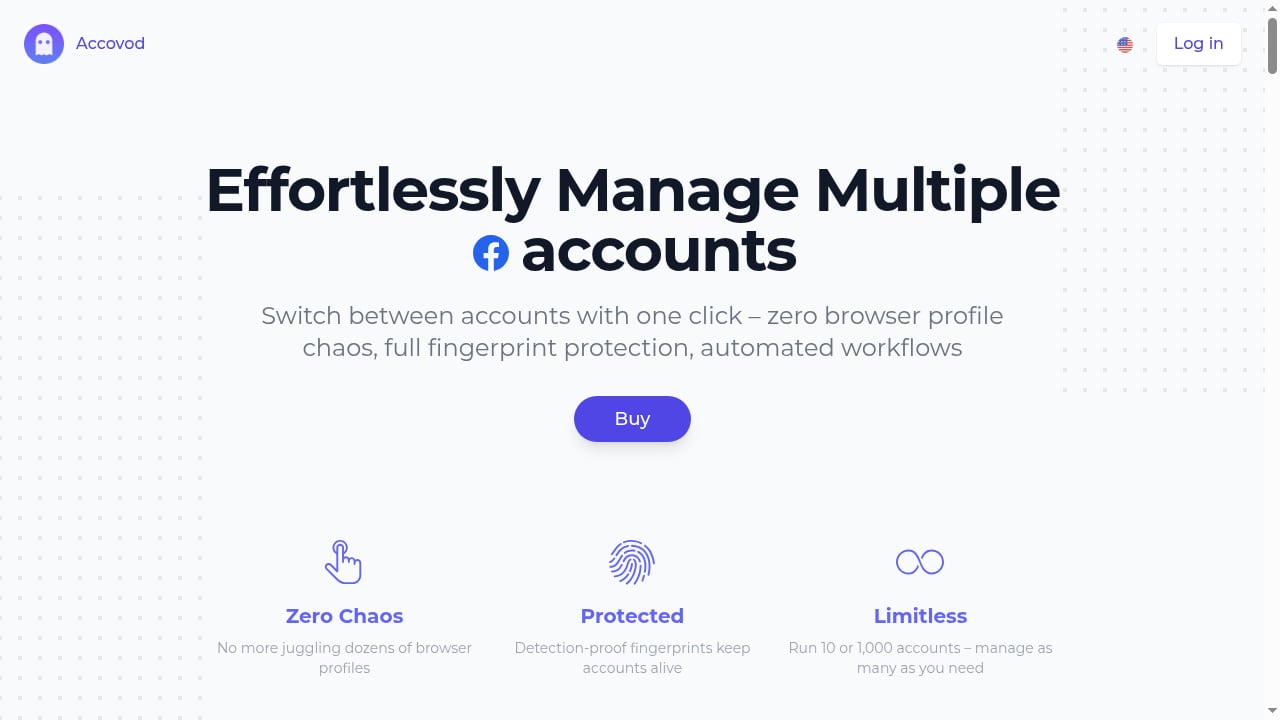
First viewport screenshot of Accovod – Multiple Accounts in One Antidetect Browser.
Use BrowserScan + Accovod if you:
- Manage multiple accounts on social networks, marketplaces, or ad platforms.
- Need proof that each profile's fingerprint is consistent before scaling.
- Want to automate profile workflows with AI agents while keeping safety controls.
You may not need the full combination if you:
- Only browse casually and want a one-time privacy check—BrowserScan alone suffices.
- Need only mobile profiles—Accovod supports iPhone/iPad, but verify native fingerprint quality with BrowserScan on each device.
If you are comparing antidetect browsers more broadly, our top 10 fingerprint detection tools ranking and the BrowserScan vs Panopticlick comparison offer context.
Related reading
- BrowserScan vs VPN Master Pro IP Checker vs WhoerIP - Compare BrowserScan, VPN Master Pro IP Checker, and WhoerIP for fingerprint detection, leak tests, and IP diagnostics. Find the best privacy tool for your needs.
- Browser Check Review: Free Online Browser Privacy Test - Evidence-based review of Browser Check (Browser Test) - Online Browser Checker: fingerprint signals, WebRTC leaks, privacy controls, pricing, and ideal users.
Sources and further reading
- Live Proxies Partners: Boost Your Proxy Performance with Leading Applications and Softwares | Live Proxies - Discover our trusted partners and their powerful tools and software solutions designed to seamlessly integrate with Live Proxies. Enhance your proxy experience and maximize your capabilities by leveraging these collaborative resources.
FAQ
Do I need to run BrowserScan in every Accovod profile?
Yes, at least once per profile before first use, and again after any proxy or settings change. Fingerprints are profile-specific.
Can BrowserScan detect Accovod's spoofing?
BrowserScan reports what a website sees. If Accovod is configured correctly, the report should look like a normal, consistent device. Any anomaly BrowserScan flags is something a target site could also flag.
Does Accovod work on iPhone and iPad?
Yes, Accovod offers iOS support. Note that mobile fingerprints differ from desktop ones; test each mobile profile with BrowserScan separately.
Is the local HTTP API useful for automated testing?
Yes. You can script BrowserScan checks through the API or let an AI agent via MCP open profiles and run tests, with the one-button stop available if something goes wrong.
How often should I re-test?
Weekly for active profiles, and always after changing proxies, updating the browser, or noticing login challenges.
Conclusion
BrowserScan and Accovod solve different halves of the same problem. BrowserScan tells you what your browser reveals; Accovod controls what it reveals. Together, they turn multi-account management from guesswork into a repeatable audit loop: build a profile, test it, fix inconsistencies, and monitor. Start with one profile, run BrowserScan, and see what your browser is really saying about you.
For official details, visit BrowserScan and Accovod. For independent context on antidetect browser capabilities, see Coronium's antidetect browser comparison and Octo Browser's iOS antidetect review.