
How to Use BrowserScan Fingerprint Detection with Nstbrowser
How to Use BrowserScan Fingerprint Detection with Nstbrowser
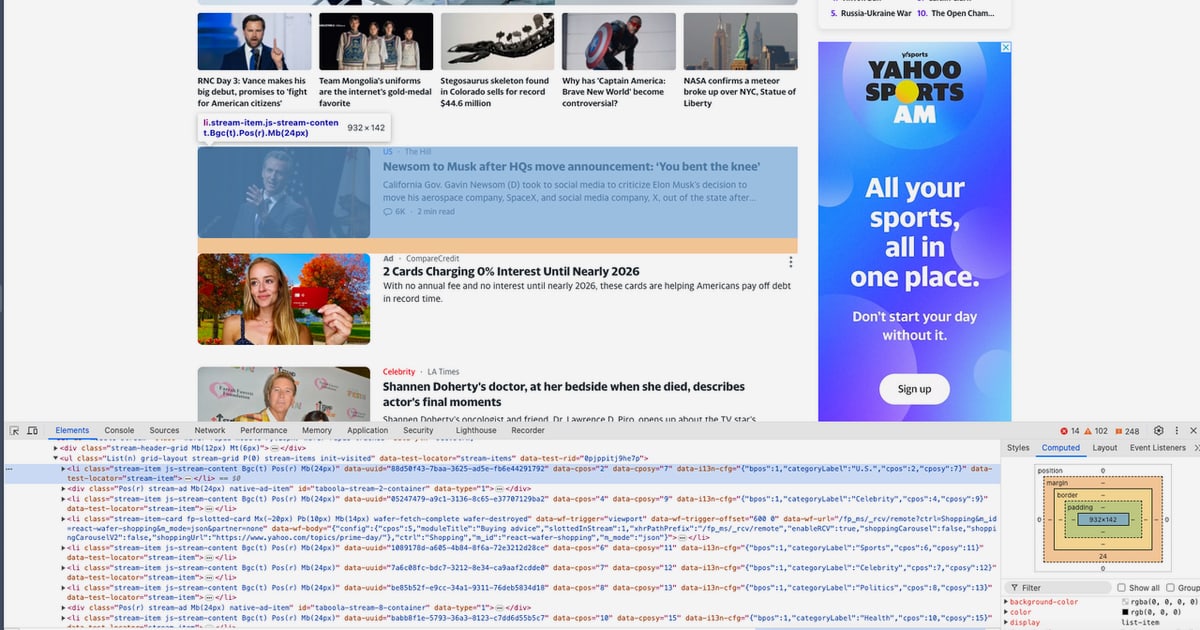
Browser fingerprinting can identify you even when you clear cookies or use incognito mode. BrowserScan shows what your browser leaks; Nstbrowser helps you control it. This guide explains how to use the BrowserScan fingerprint detection tool together with Nstbrowser, an advanced anti-detect browser for web scraping and multiple account management, so you can test, fix, and verify your online privacy setup.
Why Browser Fingerprinting Matters
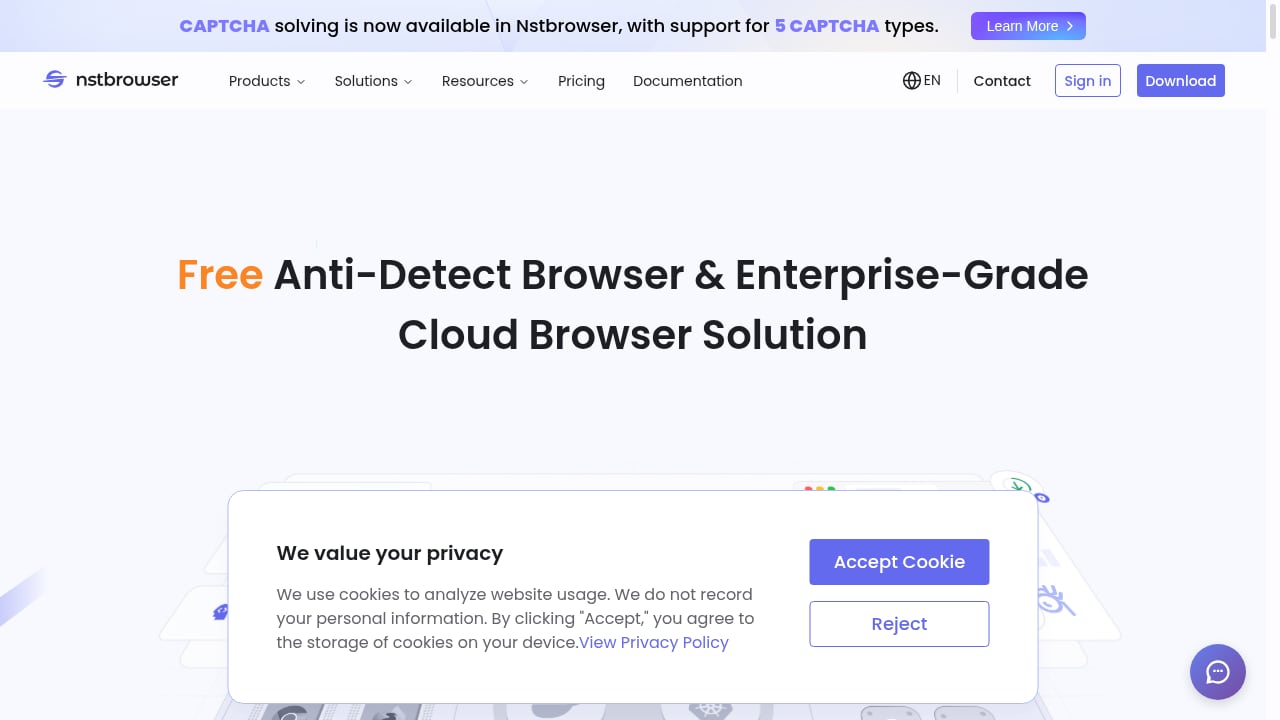
First viewport screenshot of Nstbrowser - Advanced Anti-Detect Browser for Web Scraping and Multiple Accounts Managing.
Websites collect dozens of signals — user agent, screen resolution, time zone, fonts, WebGL renderer, and more — to build a unique profile of your device. This profile can follow you across sessions and even across different browsers. For anyone managing multiple accounts, scraping data, or simply protecting their identity, an uncontrolled fingerprint is a liability.
Standard private modes do not stop fingerprinting. They only prevent local storage of history and cookies. To see what your browser actually exposes, you need a dedicated detection tool.
What BrowserScan Detects
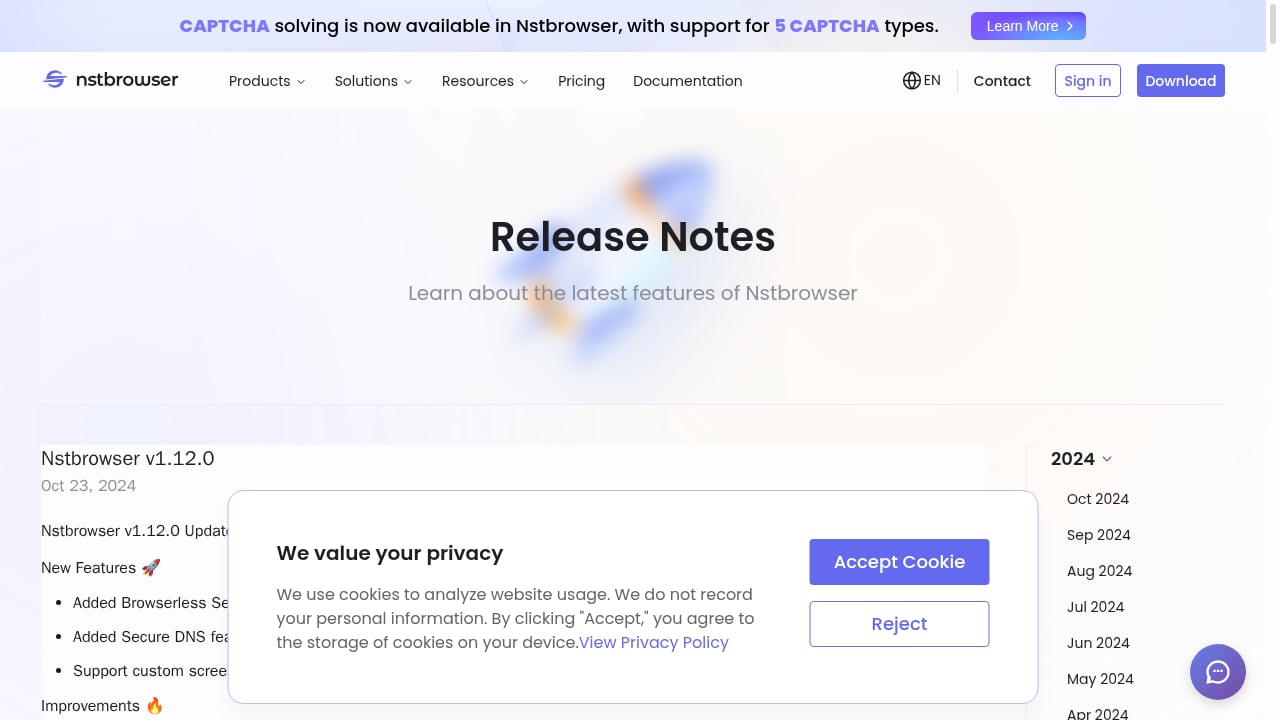
First viewport screenshot of Nstbrowser - Advanced Anti-Detect Browser for Web Scraping and Multiple Accounts Managing.
BrowserScan is a browser-based privacy and security testing suite. It runs entirely in your browser and checks:
- Browser fingerprint — canvas, WebGL, audio, fonts, and other hardware/software signals.
- IP address and proxy detection — whether your IP is flagged as a proxy, VPN, or datacenter.
- DNS leak test — whether DNS requests are escaping outside your proxy or VPN tunnel.
- WebRTC leak test — whether WebRTC is revealing your real IP address.
- User agent parsing — what your user agent string says about your browser and OS.
- Port scanner — open ports on your connection that could expose services.
- Speed test — connection quality, useful when testing proxies.
- 2FA live — checks for two-factor authentication implementation on sites.
These checks give you a baseline. Without them, you are guessing whether your anti-detect setup is actually working.
What Nstbrowser Does
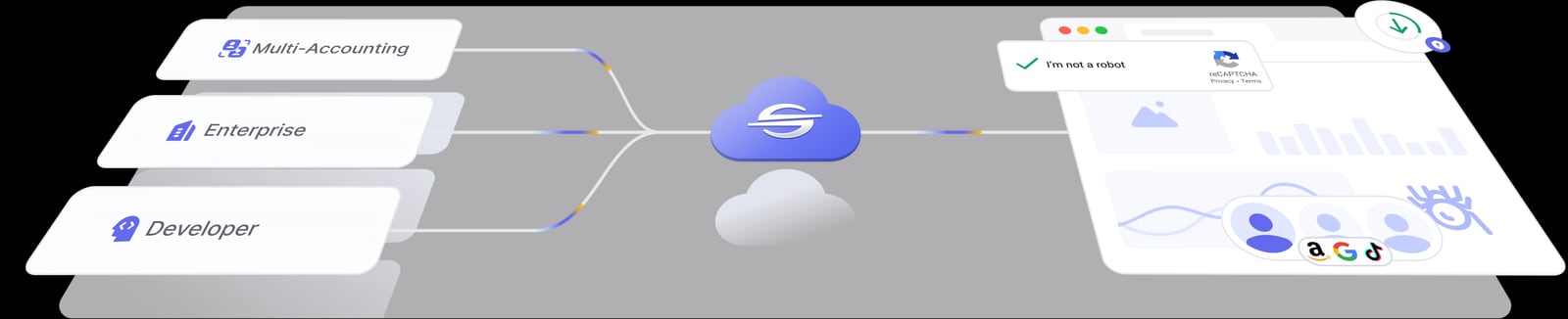
Nstbrowser - Advanced Anti-Detect Browser for Web Scraping and Multiple Accounts Managing product interface.
Nstbrowser is an anti-detect browser built for multi-accounting professionals, web scrapers, and privacy-focused users. It creates isolated browser profiles, each with its own fingerprint, cookies, cache, and proxy settings. Key capabilities include:
- Unlimited fingerprint randomization — each profile gets a unique, consistent fingerprint.
- Proxy integration — supports HTTP/HTTPS and SOCKS5 proxies, with per-profile configuration.
- Automation support — Puppeteer, Playwright, and Selenium for scraping and task automation.
- Team collaboration — share profiles securely with encrypted transfer.
- AI-based CAPTCHA solving — reduces manual intervention during automated workflows.
Nstbrowser handles the creation and isolation of identities. BrowserScan verifies that those identities hold up under inspection.
How BrowserScan and Nstbrowser Work Together
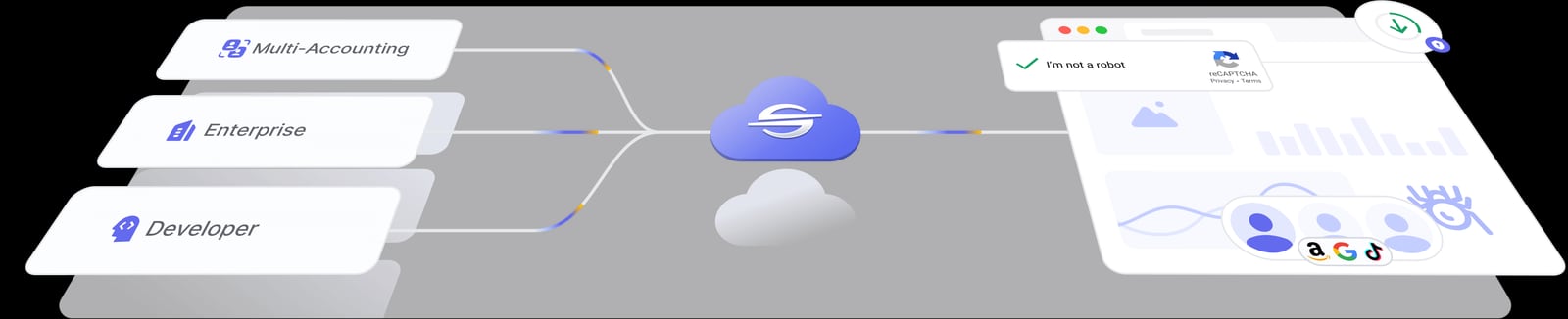
Nstbrowser - Advanced Anti-Detect Browser for Web Scraping and Multiple Accounts Managing product interface.
The combination follows a simple loop: configure → test → fix → retest.
- Create a profile in Nstbrowser with a proxy and fingerprint settings.
- Open BrowserScan inside that profile to run fingerprint, DNS, WebRTC, and proxy checks.
- Review the results — look for mismatches, leaks, or flags.
- Adjust Nstbrowser settings — change proxy, time zone, language, or fingerprint parameters.
- Retest until BrowserScan shows a clean, consistent profile.
This workflow turns guesswork into evidence. You are not just hoping your setup is private; you are proving it.
Step-by-Step Setup
Step 1: Prepare Nstbrowser
Install Nstbrowser and log in. The free Professional plan lets you test with a limited number of profiles, which is enough to validate the workflow.
Step 2: Create a Profile with a Proxy
In Nstbrowser, go to Profiles and click Create Profile. Under the Proxy tab, select Custom and enter your proxy details (host, port, username, password). Use residential proxies for the most realistic results. Click Check Proxy to confirm the proxy is reachable and shows the expected location.
Step 3: Configure Fingerprint Settings
Set the time zone, language, and geolocation to match your proxy's location. Nstbrowser can randomize or customize fingerprint parameters. Consistency is key: a German IP with a US time zone is a red flag.
Step 4: Launch the Profile and Open BrowserScan
Click Play to launch the profile. In the new browser window, navigate to BrowserScan. Run the full fingerprint test, then the DNS leak test and WebRTC leak test.
Step 5: Interpret the Results
- Fingerprint uniqueness — BrowserScan should show a fingerprint that is not identical to other profiles. If two profiles share the same canvas or WebGL hash, they are linked.
- Proxy detection — BrowserScan should not flag your IP as a proxy. If it does, your proxy may be low-quality or misconfigured.
- DNS leaks — DNS requests should resolve through your proxy, not your local ISP.
- WebRTC leaks — WebRTC should not expose your real IP. If it does, disable WebRTC in Nstbrowser or use a proxy that supports it.
Step 6: Fix and Retest
If BrowserScan finds issues, adjust Nstbrowser settings and retest. For example, if WebRTC leaks, disable WebRTC in the profile. If DNS leaks, ensure your proxy handles DNS or use a VPN with DNS leak protection.
Practical Examples
Example 1: E-commerce Seller with Multiple Accounts
An e-commerce seller manages five accounts on the same marketplace. Each account needs a separate identity. They create five Nstbrowser profiles, each with a different residential proxy and unique fingerprint. Before logging into any account, they run BrowserScan in each profile to confirm no leaks and no proxy flags. This prevents account linkage and reduces the risk of bans.
Example 2: Web Scraper Avoiding Blocks
A data researcher scrapes product listings. Websites block known datacenter IPs and suspicious fingerprints. They use Nstbrowser with rotating residential proxies and test each new profile with BrowserScan. If BrowserScan shows a datacenter flag or a fingerprint that matches a previously blocked profile, they discard it and create a new one.
Example 3: Privacy-Conscious User
A journalist wants to browse sensitive sites without leaving a traceable fingerprint. They use Nstbrowser to create a hardened profile with a reputable VPN or proxy. Before visiting target sites, they run BrowserScan to check for DNS and WebRTC leaks. They also use the port scanner to ensure no unexpected services are exposed.
Common Problems and How the Combination Solves Them
| Problem | BrowserScan Role | Nstbrowser Role |
|---|---|---|
| Accounts get linked | Detects shared fingerprint signals | Isolates each profile with unique fingerprints |
| Proxy is flagged | Shows proxy detection status | Allows proxy rotation and configuration |
| DNS leaks | DNS leak test reveals leaks | Proxy settings can route DNS through proxy |
| WebRTC leaks real IP | WebRTC leak test exposes IP | Profile settings can disable WebRTC |
| Scraping gets blocked | Fingerprint and IP checks | Automation and fingerprint randomization |
| Inconsistent time zone/language | User agent and fingerprint checks | Per-profile time zone and language settings |
Comparison: BrowserScan vs Other Tools
BrowserScan is not the only fingerprint checker. Tools like BrowserCheck and Whoer.net offer similar tests. BrowserScan stands out for its combination of fingerprint detection, DNS/WebRTC leak tests, port scanning, and speed testing in one interface. For a detailed comparison, see BrowserScan vs BrowserCheck vs Whoer.net: Best Fingerprint Tool.
If you need port scanning specifically, BrowserScan includes a port scanner, but you can also use dedicated tools. Learn more in Nmap Online: Scan Ports from Your Browser (Free Guide).
Best Practices
- Test before you act. Always run BrowserScan after creating a new Nstbrowser profile.
- Keep fingerprints consistent. Match time zone, language, and geolocation to your proxy.
- Use residential proxies. Datacenter IPs are more likely to be flagged.
- Rotate profiles for scraping. Do not reuse a profile that has been blocked.
- Check for leaks regularly. DNS and WebRTC leaks can appear after browser updates.
- Document your setup. Note which proxy and fingerprint settings work for each use case.
Related reading
- BrowserScan vs WhatIsMyIP.com: Best Fingerprint Tool? - Compare BrowserScan and WhatIsMyIP.com for fingerprint detection, DNS and WebRTC leaks, and IP checks. See which tool fits your privacy testing needs.
Sources and further reading
- Advanced Anti-Detect Browser for Web Scraping and Multiple Accounts Managing - Nstbrowser is a powerful anti-detect browser designed for multi-accounting professionals to manage multiple accounts securely and efficiently. Try it now for free!
- Advanced Anti-Detect Browser for Web Scraping and Multiple Accounts Managing - Nstbrowser is a powerful anti-detect browser designed for multi-accounting professionals to manage multiple accounts securely and efficiently. Try it now for free!
- How to Set Up a Nstbrowser Proxy With IPRoyal - How to Set Up a Nstbrowser Proxy With IPRoyal
FAQ
What is BrowserScan?
BrowserScan is a browser-based tool that tests your browser fingerprint, IP address, DNS leaks, WebRTC leaks, and more. It helps you see what websites can learn about you.
What is Nstbrowser?
Nstbrowser is an anti-detect browser for managing multiple accounts, web scraping, and privacy. It creates isolated browser profiles with unique fingerprints and proxy settings.
Can I use BrowserScan without Nstbrowser?
Yes. BrowserScan works in any browser. However, without an anti-detect browser, you cannot easily change your fingerprint or isolate multiple identities.
Can I use Nstbrowser without BrowserScan?
Yes, but you would be guessing whether your profiles are truly isolated. BrowserScan provides verification.
How often should I run BrowserScan?
Run it after creating a new profile, after changing proxy settings, and after major browser updates. For high-risk activities, test before each session.
Does BrowserScan store my data?
BrowserScan runs locally in your browser. It does not store your fingerprint or IP data on its servers. Always check the privacy policy for details.
What is a WebRTC leak?
WebRTC is a browser feature for real-time communication. If misconfigured, it can reveal your real IP address even when using a proxy or VPN. BrowserScan's WebRTC leak test detects this.
What is a DNS leak?
A DNS leak occurs when your DNS requests are sent outside your proxy or VPN tunnel, revealing your ISP and potentially your location. BrowserScan's DNS leak test checks for this.
Conclusion
Browser fingerprinting is a persistent threat to online privacy and multi-account operations. BrowserScan gives you visibility into what your browser exposes, while Nstbrowser gives you control over it. Together, they form a practical workflow: create isolated profiles in Nstbrowser, test them with BrowserScan, fix any leaks or mismatches, and retest until clean.
Whether you are managing multiple e-commerce accounts, scraping data at scale, or simply protecting your identity, this combination turns privacy from a hope into a verified process. Start by creating a free Nstbrowser profile, open BrowserScan, and see what your browser reveals.
For more privacy testing guides, explore BrowserScan Download: How to Run It Safely (2025 Guide) and Threat Modeling: A Practical Guide with Examples.