
PrivacyTools.io Setup: A Practical Privacy Stack Guide
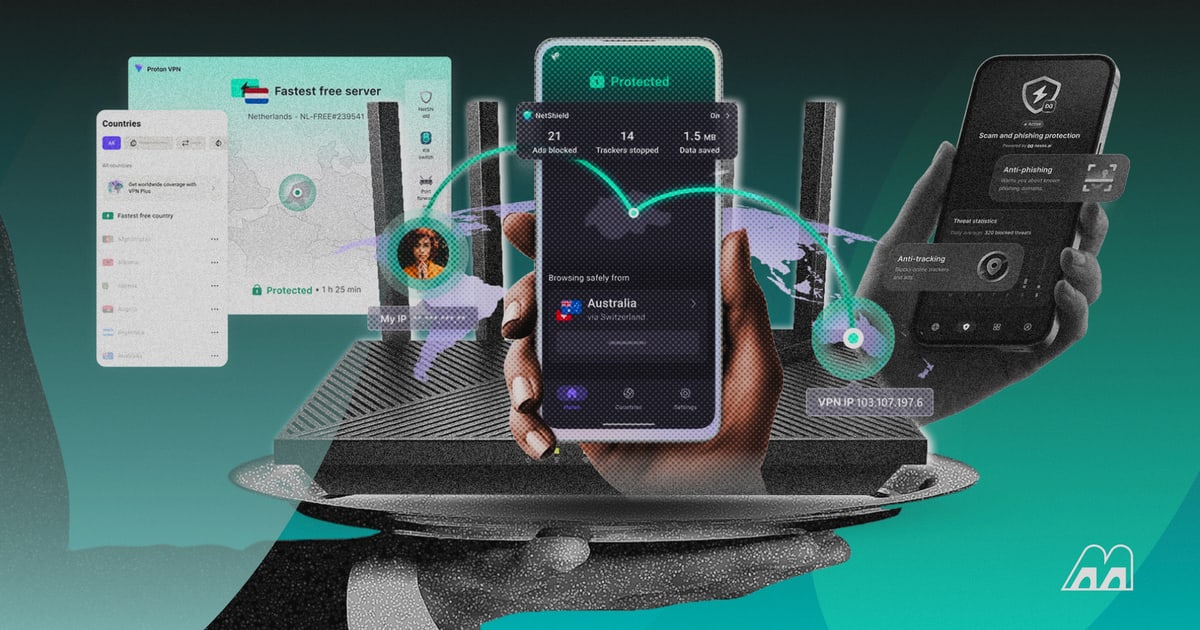
PrivacyTools.io Setup: Build and Verify a Privacy Stack That Actually Works
PrivacyTools.io has been a trusted starting point for privacy-conscious users since 2015. The site helps you replace mainstream apps with alternatives that respect your data, but finding a recommendation is only half the job. A privacy tool that is installed incorrectly, left on default settings, or never tested can give you a false sense of security.
This guide walks through a practical PrivacyTools.io setup: choosing the right tools for your threat level, configuring them correctly, and then verifying that your browser, VPN, and network are not leaking identifiable data. The goal is a privacy stack that protects you without making everyday tasks painful.
What PrivacyTools.io Actually Recommends
PrivacyTools.io Setup: A Practical Privacy Stack Guide - What PrivacyTools.io Actually Recommends.
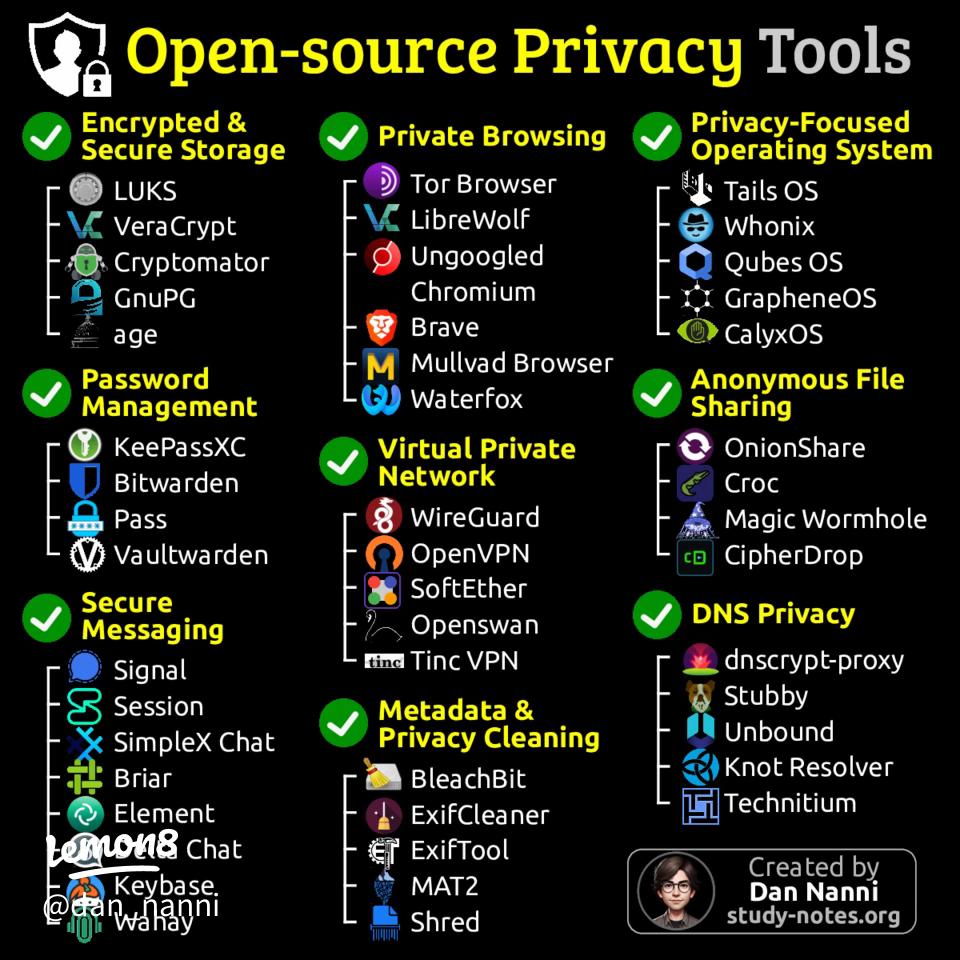
PrivacyTools.io organizes recommendations by what you want to protect. The core categories include private browsers, encrypted messaging, VPNs, password managers, ad blocking, encrypted email, search engines, and file encryption.
Some of the tools frequently highlighted on the platform include:
- LibreWolf as a hardened Firefox-based browser
- Signal for private messaging
- Proton Mail for encrypted email
- KeePassXC for local password management
- NextDNS for configurable DNS-level ad and tracker blocking
- Organic Maps as an offline, privacy-respecting maps app
- VERNAM for client-side file encryption
The platform favors open-source software, active development, cross-platform availability, and tools that have been independently audited. That said, no single tool covers every privacy need. A sensible setup combines a few of these tools and then verifies they are working together correctly.
Step 1: Match Your Setup to Your Threat Level
PrivacyTools.io Setup: A Practical Privacy Stack Guide - Step 1: Match Your Setup to Your Threat Level.
Before installing anything, define what you are protecting against. PrivacyTools.io frames this as three tiers: covered, hardened, and targeted.
- Covered means you want to reduce commercial tracking, data broker collection, and casual surveillance. A privacy browser, password manager, and DNS filtering cover most of this tier.
- Hardened adds protection against more determined tracking, such as browser fingerprinting and ISP-level monitoring. This is where a VPN, fingerprint-resistant browser settings, and leak testing become essential.
- Targeted addresses state-level or highly resourced adversaries. This tier requires compartmentalization, strict operational security, and often specialized hardware or operating systems.
Most people fall into the covered or hardened tiers. Building a setup for the wrong threat level wastes effort and can make your system less usable without meaningfully improving privacy.
Step 2: Start with the Browser
The browser is the largest privacy surface for most users. PrivacyTools.io recommends LibreWolf, a Firefox fork with tracking protection and anti-fingerprinting features enabled by default. Brave is another common recommendation, though it is based in the US.
A practical browser setup includes:
- Install LibreWolf or another privacy-focused browser as your default.
- Keep a secondary mainstream browser for sites that break under strict privacy settings.
- Configure DNS-level blocking through NextDNS or a similar service to catch trackers across all apps, not just the browser.
- Install only essential extensions. Every extension adds fingerprinting surface and potential data exposure.
After configuring the browser, test it. A browser that claims to resist fingerprinting may still expose a unique combination of screen size, fonts, timezone, and hardware characteristics.
Step 3: Configure and Verify Your VPN
PrivacyTools.io Setup: A Practical Privacy Stack Guide - Step 3: Configure and Verify Your VPN.
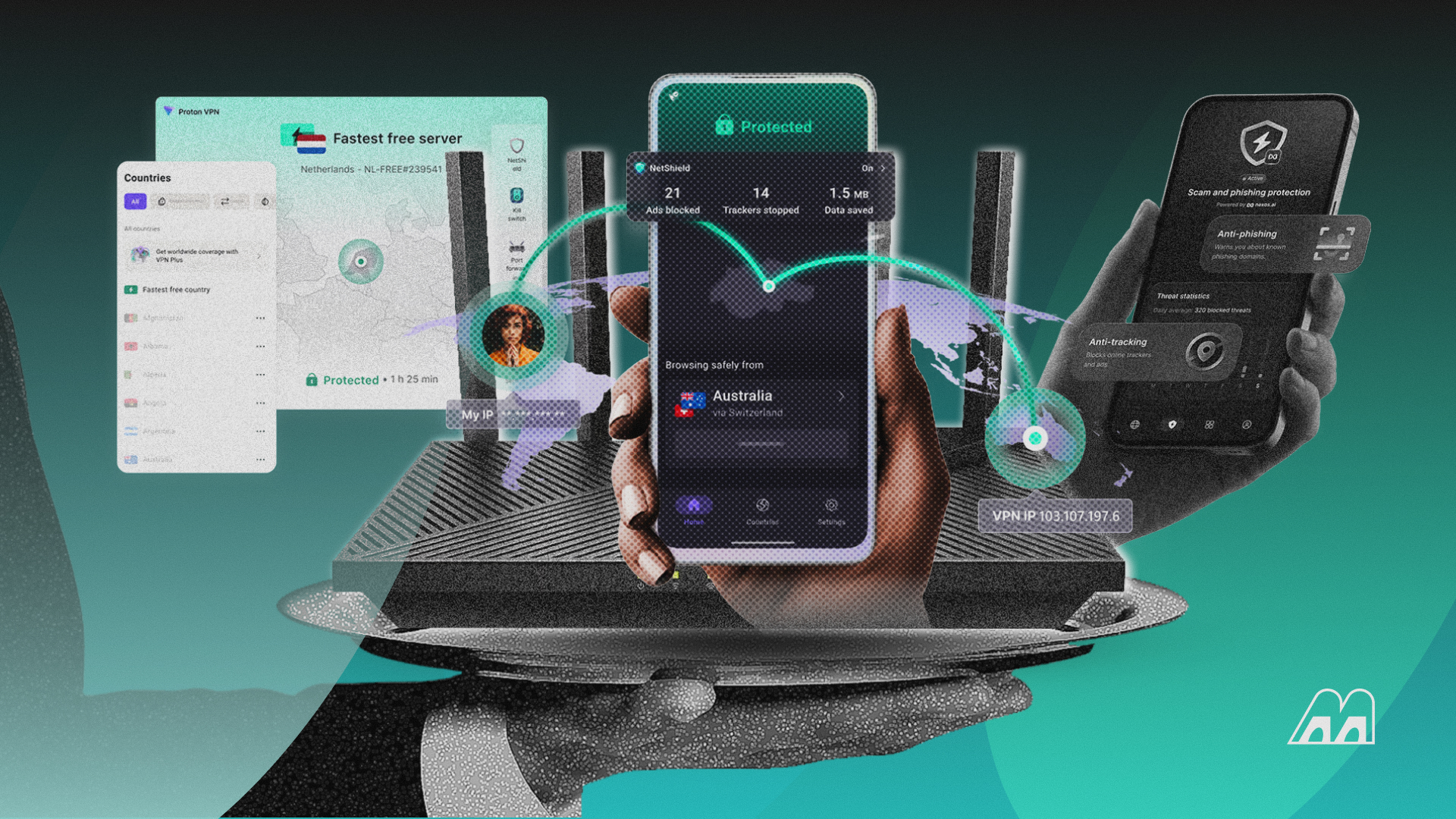
A VPN hides your traffic from your ISP and changes your apparent location, but it is not a magic anonymity tool. The provider matters more than the feature list. PrivacyTools.io weighs jurisdiction, logging policy, independent audits, and business model when listing VPNs.
Once you choose a provider, verify the connection is actually working. The most common VPN failures are:
- DNS leaks: Your device still sends DNS queries to your ISP's resolver instead of the VPN's encrypted tunnel.
- WebRTC leaks: The browser exposes your real local IP address through WebRTC, even when the VPN is active.
- IP leaks: The VPN drops and your real IP address is exposed without warning.
Run these checks every time you change VPN servers, update your browser, or modify network settings. A one-time test is not enough because browser updates can re-enable WebRTC or change DNS behavior.
Step 4: Lock Down Your Accounts
A privacy stack is only as strong as its weakest account. Password reuse is the most common entry point for attackers, and breached credentials often surface on the dark web long before you notice anything wrong.
Practical account hardening steps:
- Use KeePassXC or another offline password manager to generate unique passwords for every service.
- Enable two-factor authentication wherever possible. Avoid SMS-based 2FA when an authenticator app or hardware key is available.
- Monitor for leaked credentials. Dark web monitoring can alert you when your email or passwords appear in breach databases, giving you time to rotate credentials before they are used against you.
- Review account recovery options. A recovery email or phone number is often the easiest way for an attacker to reset your password.
Step 5: Test Your Entire Setup
Configuration is not the same as verification. After setting up your browser, VPN, and accounts, run a full privacy test to confirm everything works together.
A practical testing workflow:
- Check your visible IP address. Confirm it matches the VPN server location, not your real ISP.
- Run a DNS leak test. Verify all DNS queries go through the VPN tunnel.
- Run a WebRTC leak test. Make sure your local IP address is not exposed.
- Analyze your browser fingerprint. Look for unique or inconsistent values that make your browser identifiable across sessions.
- Scan your network for open ports. An unexpected open port can expose services you did not know were reachable.
BrowserScan offers a suite of free, web-based tools for exactly this verification step. The platform includes browser fingerprint analysis, DNS and WebRTC leak tests, an IP address lookup with geolocation and proxy detection, and an Nmap-powered port scanner. Because everything runs in the browser, there is nothing to install. After configuring a VPN or hardening a browser, running these checks gives you a clear before-and-after picture of what changed and what still leaks.
For a deeper look at browser fingerprinting specifically, see this Pixelscan setup guide, which covers a similar testing workflow and explains how to interpret the results.
Step 6: Maintain the Setup
Privacy is not a one-time configuration. Tools update, browser fingerprints drift, VPN providers change policies, and new tracking techniques emerge.
A simple maintenance routine:
- Re-run leak tests after every browser or VPN update.
- Review your installed extensions quarterly and remove anything you no longer use.
- Check PrivacyTools.io periodically for updated recommendations and newly discovered issues.
- Rotate passwords for critical accounts at least once a year, or immediately after any breach notification.
Common PrivacyTools.io Setup Mistakes
Even privacy-conscious users make predictable mistakes. Here are the most common ones and how to avoid them.
Relying on Incognito Mode
Incognito mode only stops your browser from saving local history. Websites, advertisers, your ISP, and Google can still see what you do. It is not a privacy tool and should never be treated as one.
Installing Too Many Extensions
Every extension increases your fingerprinting surface and may collect browsing data. A lean browser with two or three trusted extensions is more private than a bloated one with twenty privacy-themed add-ons.
Trusting a VPN Without Testing It
A VPN that leaks DNS queries or exposes your real IP through WebRTC is worse than no VPN because it creates a false sense of security. Always test after connecting.
Forgetting About Mobile Devices
Your phone leaks location, app usage, and device identifiers constantly. Apply the same privacy principles to mobile: privacy browser, DNS filtering, minimal app permissions, and a VPN when on untrusted networks.
Ignoring Account Security
A hardened browser and VPN do not protect an account with a reused password and no 2FA. Account security is part of the privacy stack, not a separate concern.
PrivacyTools.io Setup Checklist
Use this checklist to build and verify your setup in order:
- Define your threat level: covered, hardened, or targeted.
- Install a privacy-focused browser and configure DNS filtering.
- Choose a VPN based on jurisdiction, logging policy, and audit history.
- Set up a password manager and enable 2FA on critical accounts.
- Run IP, DNS, and WebRTC leak tests after connecting the VPN.
- Analyze your browser fingerprint and adjust settings if it is too unique.
- Scan for open ports and close any unnecessary services.
- Schedule a recurring reminder to re-test and review your setup.
Related reading
- WHOIS Lookup: How to Check Domain and IP Ownership - Learn what a WHOIS lookup is, how to check domain and IP ownership, read registration records, protect your privacy, and use the data safely.
- How to Use Algo VPN: Setup, Clients, and Testing - Learn how to deploy Algo VPN, connect WireGuard and IPsec clients, verify your setup, and fix common issues with this practical step-by-step guide.
Sources and further reading
- Best Privacy Tools & Software Guide in 2026 - The most reliable website for privacy tools since 2015. Find private alternatives to the apps you use every day.
- How to Protect Your Privacy Online: Guides & Tutorials - Evergreen privacy guides, threat modeling, encryption, practical tutorials.
- Privacy Tools Criteria: How We List Software - The requirements and criteria a privacy tool or service must meet to be listed on PrivacyTools.io: open-source, usability, active development, jurisdiction, and more.
Frequently Asked Questions
Are PrivacyTools.io recommendations free?
Many are. Strong free and open-source options exist for browsers, messengers, password managers, and DNS filtering. Some services, like VPNs and encrypted email, charge a subscription to cover infrastructure and audits. The platform flags which tools are free and which require payment.
Do I need a VPN if I use a privacy browser?
A privacy browser reduces tracking and fingerprinting, but it does not hide your traffic from your ISP or change your apparent location. A VPN covers a different layer of the privacy stack. The two tools complement each other rather than replace one another.
How do I know if my VPN is leaking my real IP?
Connect to the VPN, then visit an IP lookup tool and compare the displayed IP and location against your real ISP. Run DNS and WebRTC leak tests as well, since a VPN can hide your IP while still leaking your DNS queries or local network address.
What is browser fingerprinting and why does it matter?
Browser fingerprinting combines dozens of characteristics—screen resolution, fonts, timezone, language, hardware details—into a unique identifier. Even with cookies blocked, a unique fingerprint can track you across sites. Testing your fingerprint helps you understand how identifiable your browser is.
Is open-source software automatically safer?
Open-source code can be inspected for flaws and hidden data collection, which is a strong advantage. But it is not a guarantee. Independent audits, active development, and a track record of handling incidents matter just as much.
How often should I re-test my privacy setup?
At minimum, re-test after every browser update, VPN client update, or network change. A monthly scheduled check is a good habit even when nothing appears to have changed.
Conclusion
A PrivacyTools.io setup is more than downloading a list of apps. It means choosing tools that match your actual threat level, configuring them correctly, and then verifying that they work together without leaking data. The verification step is where most setups fall short—and where a few minutes of testing can reveal problems before they become exposures.
Start with the browser, add a VPN and DNS filtering, lock down your accounts, and then run the full test suite: IP lookup, DNS leak test, WebRTC leak test, fingerprint analysis, and port scan. Re-test regularly, keep your extension list lean, and treat account security as part of the stack. A privacy setup that is tested and maintained will serve you far better than a long list of tools that were installed once and never checked again.
For more on securing your network and remote connections, see this guide to secure remote access and the Nmap setup guide for running your own port scans.