
How to Use BrowserScan Fingerprint Detection with IPWHOIS.io
How to Use BrowserScan Fingerprint Detection with IPWHOIS.io
Your browser broadcasts a detailed profile every time you visit a site: screen size, fonts, WebGL renderer, time zone, IP address, and more. BrowserScan shows you that profile and flags leaks. The IP Geolocation API from IPWHOIS.io adds a second layer: programmatic IP intelligence you can query from your own scripts. This article explains how the two tools work together, a step-by-step workflow, practical examples, and the problems the combination solves.
What BrowserScan reveals about your browser
BrowserScan is a diagnostic tool, not an anonymizer. It runs a series of in-browser and network checks and reports what websites can see. Key areas include:
- Fingerprint authenticity score – a percentage that indicates how consistent and plausible your browser profile appears. Scores below 90% often signal spoofing or misconfiguration.
- IP and network data – your visible IP address, proxy status, DNS leak results, and WebRTC leak evidence.
- Hardware and software signals – canvas and WebGL fingerprints, audio context, screen resolution, CPU cores, installed fonts, and user agent details.
- Additional utilities – port scanner, 2FA code generator, user agent parser, speed test, and cookie converter.
BrowserScan answers the question: What does my browser reveal right now? It is ideal for quick audits, especially when you use a VPN, proxy, or anti-detect browser and need to confirm that your setup behaves as intended.
What the IPWHOIS.io API adds
What is Geolocation of visitors for? Using the IP Geolocation API.
BrowserScan gives you a human-readable report in the browser. The IP Geolocation API from IPWHOIS.io gives you structured IP intelligence you can call from code. According to its product description, it provides location, ISP, currency, and threat detection data, and it is free for small projects.
That makes it useful for:
- Automated checks – verify that the IP your script sees matches the expected country or ISP.
- Enrichment – attach geolocation and ISP data to logs, sign-up forms, or analytics events.
- Risk signals – use threat detection flags to spot suspicious IPs before they interact with your app.
- Consistency testing – compare the IP reported by BrowserScan with the IP your API returns to confirm there is no mismatch.
How the two tools complement each other
BrowserScan is a point-in-time browser audit. IPWHOIS.io is a programmatic IP lookup service. Used together, they close a gap: BrowserScan tells you what your browser leaks, and the API lets you verify and monitor IP data at scale.
| Need | BrowserScan | IPWHOIS.io API |
|---|---|---|
| See full browser fingerprint | Yes | No |
| Detect WebRTC and DNS leaks | Yes | No |
| Get IP location and ISP in code | No | Yes |
| Automate IP checks across sessions | No | Yes |
| Threat detection flags | Limited | Yes |
| Human-readable privacy report | Yes | No |
Use BrowserScan when you need a visual, comprehensive fingerprint report. Use the API when you need repeatable, scriptable IP data. The combination is especially useful for QA testing of privacy setups, multi-account workflows, and developer debugging.
Step-by-step workflow
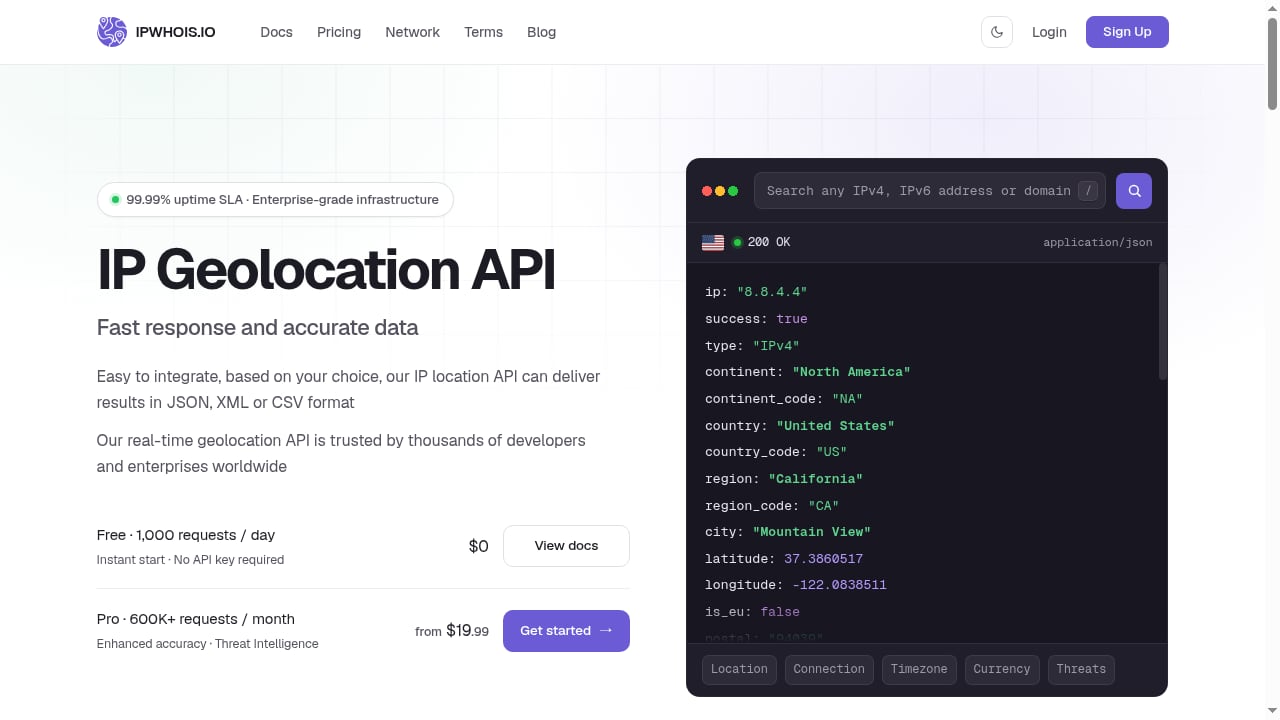
First viewport screenshot of ipwhois.io.
Step 1: Run a baseline BrowserScan test
Open BrowserScan in a clean browser profile with no extensions. Record the fingerprint authenticity score, IP address, proxy status, DNS leak result, and WebRTC leak result. Save a screenshot or export the data if available.
Step 2: Query the same IP with IPWHOIS.io
Take the IP address BrowserScan reports and query it through the IPWHOIS.io API. Compare the country, region, city, ISP, and any threat flags with what BrowserScan shows. A mismatch — for example, BrowserScan says Germany but the API returns a US ISP — suggests a proxy chain or DNS inconsistency worth investigating.
Step 3: Test your privacy configuration
Enable your VPN, proxy, or anti-detect browser and repeat Step 1. Then repeat Step 2 with the new IP. Check that:
- The IP changes consistently in both tools.
- WebRTC does not expose your real IP.
- DNS queries resolve through the expected resolver.
- The fingerprint authenticity score remains high.
Step 4: Automate recurring checks
For teams, wrap the API call in a small script that runs before each test session. Log the IP, geolocation, ISP, and threat flags alongside the BrowserScan score. Over time, this creates an audit trail that reveals patterns — such as a proxy that intermittently leaks or a region that triggers extra verification.
Practical examples
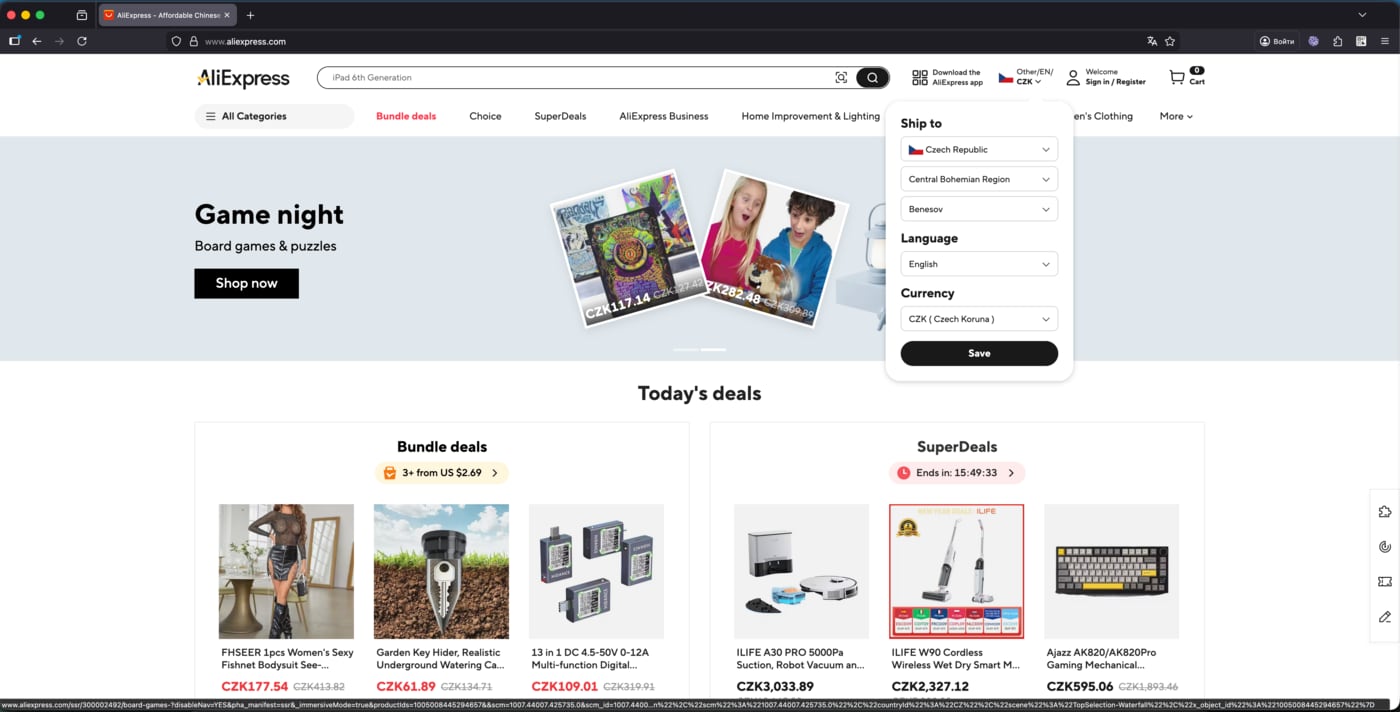
Sales (for example, aliexpress.com).
Example 1: Verifying a residential proxy You buy a residential proxy in France. BrowserScan shows a French IP, but the IPWHOIS.io API returns a data-center ISP. That mismatch tells you the proxy is not truly residential, which may affect how sites treat your session.
Example 2: Debugging a WebRTC leak BrowserScan reports a WebRTC leak exposing your local IP. You disable WebRTC in your browser settings and rerun the test. The API confirms the public IP is unchanged, and BrowserScan now shows no leak. The combination proves the fix worked at both the browser and network level.
Example 3: QA for a multi-account setup A team manages several accounts through anti-detect browser profiles. Before each session, a script calls the IPWHOIS.io API to confirm the profile's IP matches the intended country and ISP. BrowserScan is run weekly to check fingerprint consistency. Together, they reduce the risk of account association.
Common problems and how the combination solves them
- Proxy misconfiguration – BrowserScan shows a proxy is active, but the API reveals the exit node is in the wrong country. You can fix the proxy chain before it affects your work.
- DNS leaks – BrowserScan detects DNS leaks, while the API confirms which ISP owns the resolving IP. This helps you identify whether the leak comes from your local network or the proxy.
- Fingerprint spoofing detection – A low authenticity score in BrowserScan, combined with inconsistent IP data from the API, suggests your anti-detect setup is not coherent.
- Threat exposure – The API's threat detection flags can warn you that an IP is associated with abuse, which BrowserScan alone does not report.
When to use each tool
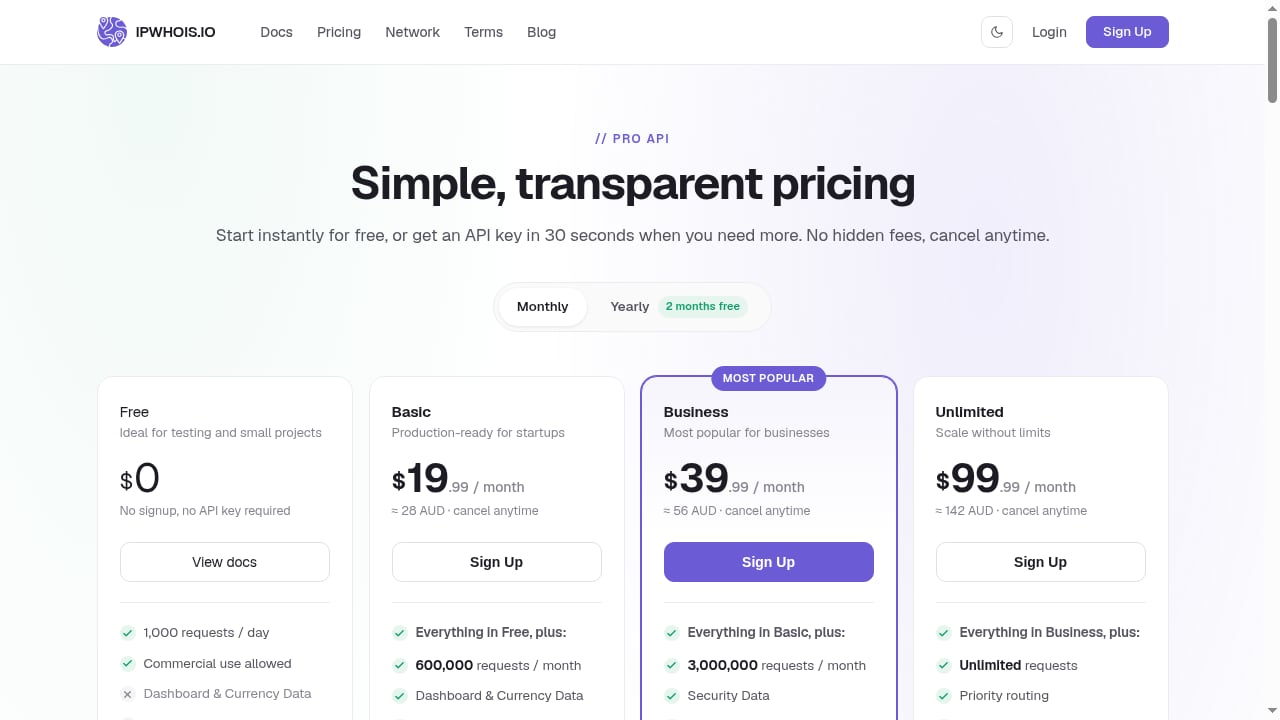
First viewport screenshot of ipwhois.io.
- Use BrowserScan alone for quick personal privacy checks, one-off fingerprint audits, and visual reports.
- Use IPWHOIS.io alone when you need IP data inside an application, such as geolocation-based content or fraud screening.
- Use both when you need to verify that browser-level and network-level signals agree — especially for proxy testing, multi-account management, and developer QA.
For a deeper comparison of BrowserScan with other privacy checkers, see our BrowserScan vs Whoer.net comparison and the top 10 browser privacy and fingerprint testing tools for 2026.
Related reading
- BrowserScan vs What Is My IP Address & ToDetect: Comparison - Compare BrowserScan, What Is My IP Address?, and ToDetect for fingerprint detection, leak tests, and IP checks. Find the best tool for your privacy needs.
- BrowserScan vs WebBrowserTools: Fingerprint Detection Compared - Compare BrowserScan and WebBrowserTools for fingerprint detection. See which tool better protects your online privacy with leak tests and practical fixes.
- DeviceAtlas Review: Device Intelligence for 2026 - Evidence-based DeviceAtlas review: ideal users, use cases, strengths, limits, pricing signals, setup, and decision criteria for device intelligence.
Sources and further reading
- How to Use BrowserScan to Check Your Browser Fingerprint and Avoid Detection - Complete guide to BrowserScan in 2026—what it is, how it tests your browser fingerprint, how to interpret your score, and how to fix leaks with residential proxies.
- BrowserScan — Free Browser Fingerprint & Trust Score Analyzer - Analyze your browser fingerprint and get a trust score. Compare WebRTC evidence, DNS capability status, VPN/proxy signals, and bot indicators.
Frequently asked questions
Is BrowserScan free?
BrowserScan offers free browser-based tests. Check the site for current limits on advanced features.
Does BrowserScan store my fingerprint?
BrowserScan runs tests in your browser. Review its privacy policy for data handling details.
Can IPWHOIS.io replace BrowserScan?
No. The API provides IP intelligence but does not analyze browser fingerprints, canvas, WebGL, or WebRTC leaks.
Do I need an API key for IPWHOIS.io?
The product is free for small projects; check the IPWHOIS.io documentation for current access requirements and rate limits.
Can I use these tools together in a script?
Yes. Call the IPWHOIS.io API from your script and compare its output with BrowserScan results manually or via exported data.
Conclusion
BrowserScan and the IPWHOIS.io IP Geolocation API solve different but complementary problems. BrowserScan shows what your browser leaks; IPWHOIS.io gives you structured, scriptable IP data. Together, they help you verify proxy setups, catch leaks, and maintain consistent privacy configurations. Start with a baseline BrowserScan test, then add API checks to automate verification and catch mismatches early.