
Mozilla VPN Login: Sign In, Fix Errors, Verify Privacy
Mozilla VPN Login: How to Sign In, Fix Errors, and Verify It's Working
Mozilla VPN doesn't use a separate username and password. Your login is your Mozilla account — the same one you use for Firefox sync and other Mozilla services. That single-account design is convenient, but it's also the source of most login problems: if the Mozilla account is fine but the VPN app isn't, the fix is usually in the app, the subscription, or the device list, not the password.
This guide covers the sign-in flow, the errors people actually hit, and how to confirm the VPN is doing its job once you're connected.
How Mozilla VPN login works
Mozilla VPN Login: Sign In, Fix Errors, Verify Privacy - How Mozilla VPN login works.
Mozilla VPN authenticates through a Mozilla account. There is no VPN-only credential to create or recover.
- Install Mozilla VPN from the official Mozilla site or your platform's app store.
- Open the app and choose Sign in (or Get started on first launch).
- Your default browser opens the Mozilla account sign-in page.
- Enter your Mozilla account email and password, or use a linked sign-in method such as a Google or Apple account if you set one up.
- Complete two-factor authentication if it's enabled on your account.
- Approve the request and return to the app — it should now show your subscription status and a server list.
The browser step is intentional. Mozilla keeps authentication in the browser so the app never handles your password directly, which is a reasonable security trade-off but also why a broken browser session can block the app.
Common Mozilla VPN login problems and fixes
Mozilla VPN Login: Sign In, Fix Errors, Verify Privacy - Common Mozilla VPN login problems and fixes.
The sign-in page won't load
This is the most frequently reported symptom, and it usually isn't a Mozilla outage. Mozilla's support pages themselves display a load failure when a browser extension, network filter, or ad blocker interferes with required scripts.
Try, in order:
- Disable ad blockers, tracker blockers, and privacy extensions for the Mozilla sign-in domain only.
- Switch to a different browser or a private window with extensions off.
- Turn off any DNS-level filtering (Pi-hole, NextDNS, corporate DNS) temporarily.
- Try a different network — some corporate and campus networks block authentication redirects.
If the page loads but the redirect back to the app fails, the app may not be registered as a handler for the callback URL. Reinstalling the app usually restores that association.
"Login failed" or the app stays signed out
Work through these in order, because each one rules out a different layer:
- Confirm the Mozilla account itself works. Sign in to your Mozilla account in a browser. If that fails, the problem is the account, not the VPN.
- Check your system clock. Authentication tokens are time-sensitive; a clock that's off by more than a few minutes can cause silent failures.
- Clear the app's cached session. Sign out inside the app, quit it fully, then sign in again.
- Update the app. Older builds can break when the authentication endpoints change.
- Reinstall. This clears corrupted local state and re-registers the callback handler.
Subscription not recognized after login
You're signed in, but the app shows a free state or asks you to subscribe. This almost always means the subscription is attached to a different Mozilla account than the one you just used — for example, you subscribed with a work email and signed in with a personal one.
Check the subscription confirmation email and sign in with that exact address. If you subscribed through an app store (iOS, Android, or a desktop store), the purchase may be tied to your store account rather than your Mozilla account, and you'll need to restore the purchase from within the app.
Too many devices
Mozilla VPN limits how many devices can be connected at once. If you're signed in correctly but can't connect, sign out of devices you're not using. The device list is managed from your Mozilla account, not from inside the VPN app.
Two-factor authentication loops
If 2FA codes are rejected repeatedly, verify the device clock first, then check whether you're generating codes from the correct account entry. If you've lost access to your authenticator, use Mozilla's account recovery options — this is an account-level recovery, not something the VPN app can bypass.
Signing out properly
Signing out of the VPN app does not sign you out of your Mozilla account everywhere. Mozilla's single sign-on keeps sessions active per application, so you may need to sign out of each Mozilla service individually. On shared computers, sign out of the VPN app, then sign out of the Mozilla account in the browser as well.
After you log in: verify the VPN is actually protecting you
Mozilla VPN Login: Sign In, Fix Errors, Verify Privacy - After you log in: verify the VPN is actually protecting you.
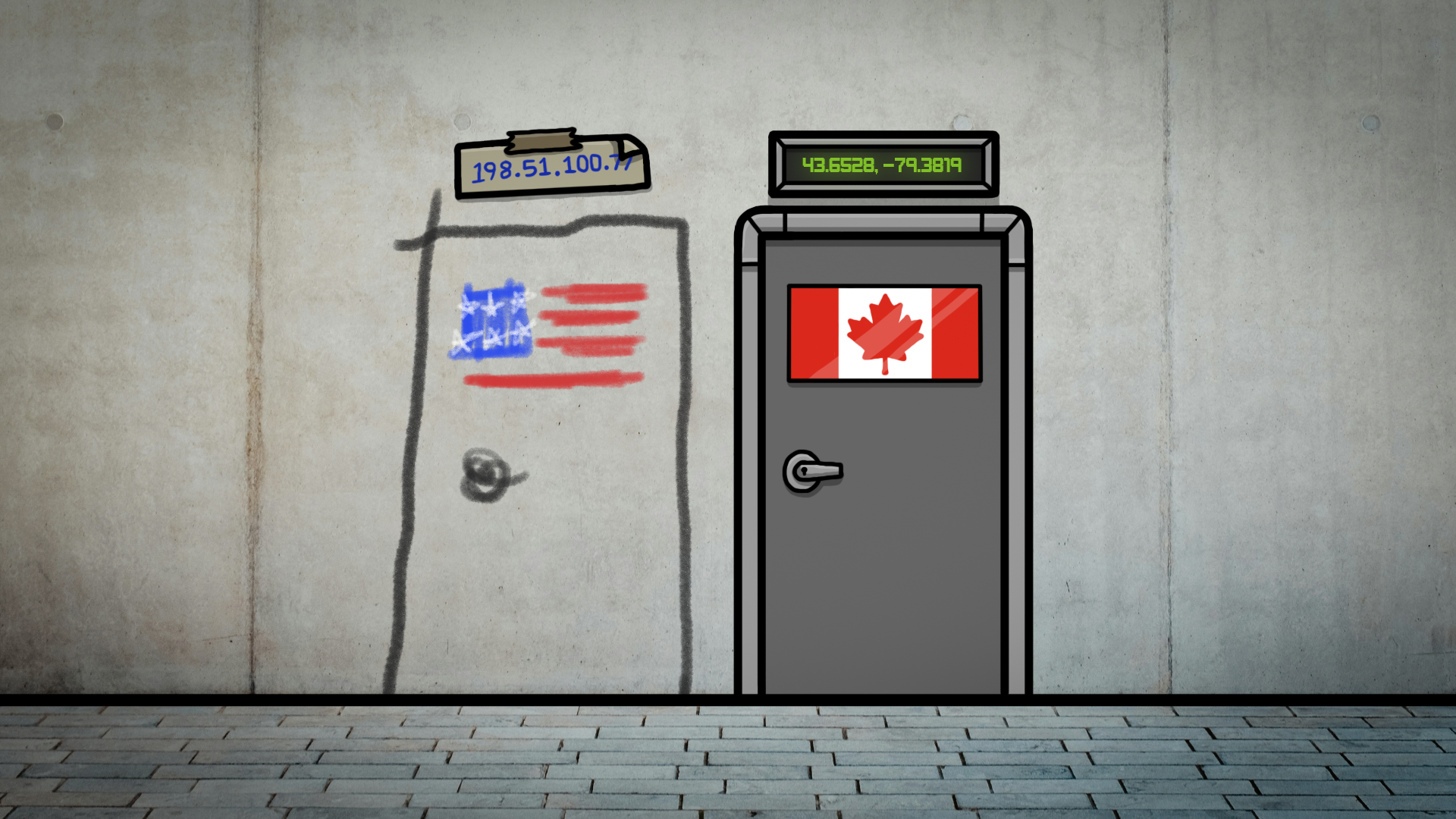
A successful login only proves authentication worked. It doesn't prove your traffic is being routed through the VPN, that your real IP is hidden, or that DNS requests aren't leaking to your ISP. Those are separate checks, and they're worth running the first time you connect on a new device or network.
Three quick verifications:
- IP address check. Confirm the IP your browser reports matches the VPN server location, not your home ISP. An IP address lookup shows geolocation, ISP, and proxy detection so you can spot a mismatch immediately.
- DNS leak test. Make sure DNS queries resolve through the VPN rather than your local network's resolver.
- WebRTC leak test. Browsers can expose your real IP through WebRTC even when a VPN is active. This is the leak people miss most often, because the VPN looks connected and everything else appears normal.
BrowserScan bundles these checks as free, browser-based tools — no installation, and nothing to configure. If you want to understand how location data can leak independently of your VPN, the Geolocation API explainer covers how sites request and receive your coordinates, and how to test whether that's happening.
For a broader picture of what your browser reveals beyond your IP, fingerprint and exposure testing is the next step. The Pixelscan.dev fingerprint and bot detection breakdown explains how that class of detection works and how to verify your own browser.
Quick reference: symptom to fix
| Symptom | Most likely cause | First fix |
|---|---|---|
| Sign-in page won't load | Extension or DNS filtering | Disable blockers for the sign-in domain |
| Login failed, no error detail | Clock skew or stale session | Check system time, sign out and back in |
| Signed in but no subscription | Wrong Mozilla account | Sign in with the purchasing email |
| Can't connect on a new device | Device limit reached | Remove unused devices from your account |
| 2FA codes rejected | Clock skew or wrong entry | Verify time, then check the authenticator entry |
| VPN connected but IP unchanged | Routing or leak | Run IP, DNS, and WebRTC leak tests |
Related reading
- IP-Lookup.net Download: What It Really Offers - Searching for an IP-Lookup.net download? The site is browser-based and needs no install. See what it does, plus free no-download alternatives.
- BrowserLeaks Login: What It Detects and Safer Alternatives - BrowserLeaks login detection shows which social accounts you're signed into. Learn how it works, why it's a privacy risk, and how to test your own exposure.
- Geolocation API: How It Works, Privacy Risks & Testing - Learn how the browser Geolocation API works, its accuracy limits, privacy risks, and how to test location leaks with free tools like BrowserScan.
Sources and further reading
- Client Challenge - A required part of this site couldn’t load. This may be due to a browser extension, network issues, or browser settings. Please check your connection, disable any ad blockers, or try using a different browser.
- Client Challenge - A required part of this site couldn’t load. This may be due to a browser extension, network issues, or browser settings. Please check your connection, disable any ad blockers, or try using a different browser.
- Mozilla Login - mozilla. Log out success. Make sure you also log out of each individual application used this session. Log in to Mozilla · Legal · Privacy · Need help?
FAQ
Do I need a separate Mozilla VPN account? No. Mozilla VPN uses your Mozilla account. There is no separate VPN login to create.
Why does signing in open my browser? Mozilla handles authentication in the browser so the VPN app never processes your password directly. It's a security design choice, but it means browser extensions and network filters can break the flow.
Can I use Mozilla VPN without a Mozilla account? No. The account is required for authentication and for managing your subscription and device list.
I'm signed in but the VPN won't connect. What's wrong? Check three things: whether your subscription is active on this account, whether you've hit the simultaneous device limit, and whether the app needs an update. If all three are fine, reinstall the app.
How do I know the VPN is actually hiding my IP? Run an IP lookup and a WebRTC leak test after connecting. If the reported IP and location match the VPN server rather than your home ISP, routing is working. If they match your real location, traffic is leaking.
Does logging out of the VPN log me out of Mozilla everywhere? No. Mozilla sessions are per-application. On a shared machine, sign out of the VPN app and the browser session separately.
Conclusion
Mozilla VPN login is really Mozilla account login, and most failures trace back to one of four things: a blocked browser sign-in page, a stale session or skewed clock, a subscription tied to a different email, or a device limit. Work through those in order and you'll resolve the majority of cases without support.
Once you're in, don't stop at "connected." Run an IP check, a DNS leak test, and a WebRTC leak test to confirm the VPN is genuinely masking your traffic — authentication and protection are two different things, and only one of them is visible in the app's status indicator.