
Privacy Diagnostics: How to Audit Your Digital Footprint
Privacy Diagnostics: How to Audit Your Digital Footprint
You may have seen corporate privacy policies from companies like Quest Diagnostics or Digital Diagnostics, but privacy diagnostics goes far beyond legal documents. It’s the practical process of actively checking whether your own devices, network, and browser are silently leaking data that can be used to track you. Instead of just reading a privacy notice, you run tests that reveal exactly what information your system exposes to the outside world—your IP address, DNS queries, browser fingerprint, and even open network ports.
This guide explains what privacy diagnostics really means, which tests matter most, and how you can use free online tools to perform a full digital-privacy audit. Along the way, you’ll see how a service like BrowserScan brings all of these checks into one place, so you can quickly spot and fix hidden vulnerabilities.
Why Privacy Diagnostics Matter
Modern browsers, apps, and operating systems generate enormous amounts of metadata. Even if you use a VPN or a private browsing mode, several subtle leaks can still expose your identity or location. Common pitfalls include:
- DNS leaks – your ISP’s DNS server is still used despite the VPN
- WebRTC leaks – real IP address visible through browser APIs
- Browser fingerprinting – a unique combination of fonts, plugins, time zone, screen resolution, and user agent that identifies you across sessions
- Open ports – vulnerabilities that an attacker can probe
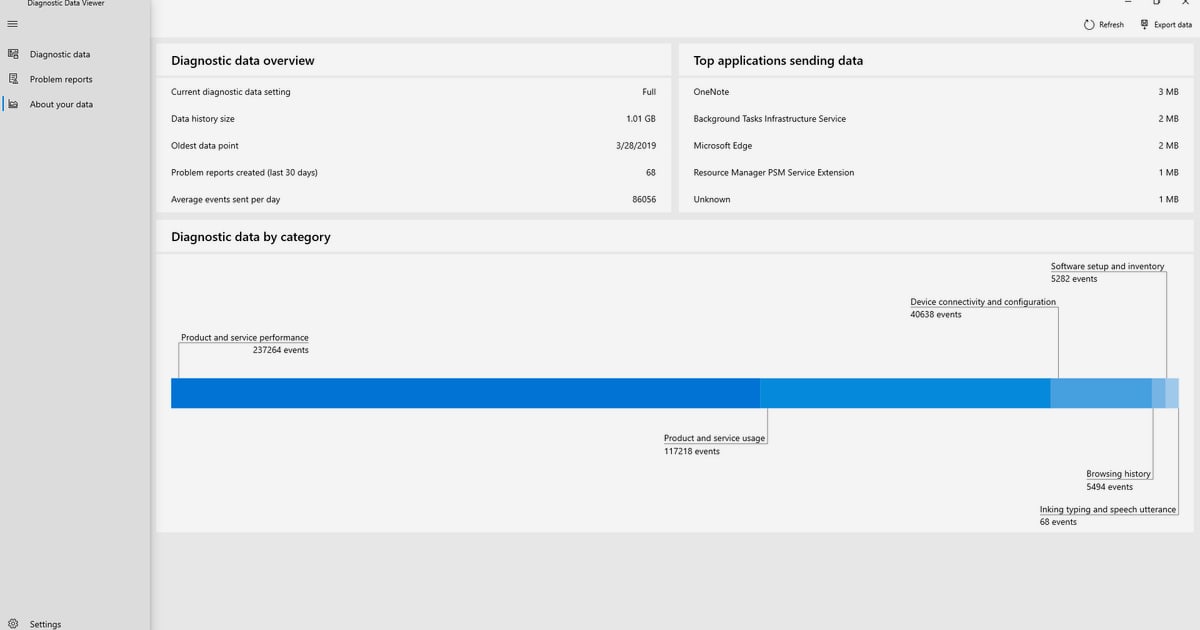
Without regular privacy diagnostics, you might believe you’re protected when you’re actually broadcasting trackable details. Microsoft’s diagnostic data docs, for example, explain how Office apps collect technical telemetry—but that’s data you send to a vendor. What you need to inspect is the data your system leaks outward, often without your knowledge. Read Microsoft’s overview of diagnostic data to see how apps monitor you.
Key Privacy Diagnostics Tests
A complete privacy audit usually covers five essential checks. Run them in order to build a picture of your exposure.
1. Browser Fingerprint Analysis
Your browser leaves a unique signature based on dozens of attributes. Tools like BrowserScan’s fingerprint checker evaluate whether your profile stands out from millions of others. A rare fingerprint makes cross-site tracking easier, even when cookies are deleted. In the results, look for a low uniqueness score and consistent spoofing of values like the User-Agent string, screen dimensions, and installed fonts.
2. DNS Leak Test
When you connect through a VPN, all DNS queries should travel through the encrypted tunnel. A DNS leak test verifies which DNS servers actually resolve your requests. If you see servers belonging to your local ISP or a location you didn’t choose, your VPN is failing. BrowserScan’s DNS leak tool shows each server’s IP, ISP, and geographic location immediately.
3. WebRTC Leak Test
WebRTC enables real-time communication in browsers, but it can also reveal your true local IP address—even behind a VPN. A WebRTC leak test checks if the browser’s ICE candidates expose an IP that doesn’t match the VPN exit node. If a discrepancy appears, you need to disable WebRTC in your browser or use a VPN with built-in leak protection.
4. IP Address Lookup
An IP lookup tool displays your current public IP along with associated geolocation, ISP, and whether the address is flagged as a proxy or VPN. This confirms if your VPN is working and gives you the same visible information any website sees when you visit. BrowserScan enhances this with proxy detection and ASN details, letting you double-check anonymity claims.
5. Port Scanning
Open ports on your router or device can be entry points for attackers. A remote port scanner (often based on Nmap) probes common ports and reports which ones respond. Regular scanning ensures you haven’t accidentally left services exposed after configuration changes. You can learn more about the different types of scanners in our security scanner guide.
How to Perform a Complete Privacy Audit with BrowserScan
BrowserScan puts all these tests together without any installation. Here’s a typical workflow:
- Start with the fingerprint check. Visit BrowserScan and note your browser uniqueness score and any detectable inconsistencies. Compare it with a second browser or a private window to see how much you stand out.
- Run the DNS and WebRTC leak tests. Keep your VPN active, then check both tools. If any IP outside your VPN’s range appears, switch servers or adjust browser flags.
- Verify your public IP. Use the IP lookup to confirm location and ISP. It should match your VPN’s advertised exit node.
- Scan your ports. Use the Nmap-powered port scanner to check for vulnerabilities. Close any unnecessary open ports on your router.
- Dig into extra details. BrowserScan’s user agent parser and client hints analyzer can reveal exactly what your browser tells web servers—handy if you’re debugging tracking or testing anti-fingerprinting setups.
For a wider perspective on available tools, see our top 10 online privacy and security testing tools for 2026.
Interpreting Results and Fixing Leaks
Data without action is useless. After running diagnostics, here’s what to do with the most common issues:
- High fingerprint uniqueness? Normalize your browser by disabling unnecessary plugins, using a standard window size, and enabling “resist fingerprinting” in Firefox or Brave. Learn more about browser tracking prevention in our tracking prevention explained article.
- DNS leak detected? Force your device to use only the VPN’s DNS servers (e.g., via the
dhcp-option DNSsetting in OpenVPN). Some VPN apps have a “kill switch” and DNS leak protection toggle. - WebRTC leaking? Install a browser extension that blocks WebRTC IP disclosure, or change the browser’s internal flag (
peer_connection_handling). - Open ports? Close them through your router’s admin panel, disable UPnP, and run the port scan again to confirm closure.
- IP address still exposing real ISP? Switch to a different VPN protocol (e.g., WireGuard) or test with another server. If the leak persists, check for proxies or misconfigured network settings. Our network tools guide offers more troubleshooting steps.
Related reading
- BrowserScan Login: No Account Needed – Test Your Privacy Now - Searching for BrowserScan login? BrowserScan requires no account. Learn how to access all fingerprint, DNS, and WebRTC leak tests instantly online.
- What Is IPhey? Browser Fingerprint Checker Explained - Discover what IPhey is, how its fingerprint and leak tests work, and how to use it to check your online privacy. See how it compares to BrowserScan and alternatives.
Sources and further reading
- Privacy Policy - Digital Diagnostics - At Digital Diagnostics Inc., we value and respect individual privacy and are strongly committed to safeguarding your Personal Information. Our customers, business partners, and individuals expect that Digital Diagnostics will uphold this commitment with respect to the collection, use, and retention of your Personal Information.
- Privacy Notice - Privacy Notice
FAQ
What is privacy diagnostics?
Privacy diagnostics refers to a set of tests that evaluate how much personal or technical information your device, browser, and network reveal to outside observers. It covers fingerprint uniqueness, IP/DNS/WebRTC leaks, open ports, and other traceable metadata.
Do I need to install anything for privacy diagnostics?
No. Most privacy diagnostics tools, such as BrowserScan, work directly in your browser using JavaScript and server‑side probes. They show results instantly without downloads.
How often should I run privacy diagnostics?
Run checks whenever you change VPN providers, update browsers, modify network configurations, or suspect a data leak. A monthly routine audit is a good baseline.
Can privacy diagnostics replace a VPN’s own leak test?
They complement each other. A VPN’s built‑in test may only check its own DNS configuration. Independent tools like BrowserScan test multiple vectors—WebRTC, fingerprint, and external port scans—giving you a fuller picture.
What should I do if multiple tests show leaks?
Address each leak individually: disable WebRTC, enforce VPN DNS, close ports, and standardize your browser fingerprint. Then rerun all tests to confirm fixes. For a detailed walkthrough, refer back to the “Interpreting Results” section.
Keep Your Privacy Under Your Own Control
Privacy diagnostics isn’t about trusting a company’s policy; it’s about verifying the reality of your digital exposure with repeatable tests. By checking your browser fingerprint, running DNS and WebRTC leak tests, confirming your IP, and scanning for open ports, you take back control over what the internet can see. Tools like BrowserScan make this entire audit simple, fast, and completely free—give you the insights you need without ever installing an app. Bookmark the checks and use them regularly. The more often you diagnose your privacy, the harder it becomes for trackers and snoops to exploit you.