
PrivacyTools.io Download Guide: Find & Install Private Apps
PrivacyTools.io Download Guide: How to Find, Choose, and Install Private Apps
PrivacyTools.io is a long-running directory of privacy-focused software, and "PrivacyTools.io download" is usually the search people type when they want to replace a mainstream app with a private alternative. The important detail is that the site itself is a catalog, not a download host: it points you to each project's official source, where you actually get the installer, package, or browser extension.
This guide explains how to navigate that catalog, choose the right tool for your threat model, install it safely, and then confirm the download really protects you.
What "PrivacyTools.io download" actually means
When you open the PrivacyTools.io homepage, you see a curated set of top picks organized by the job you want done: browsers, email, VPNs, password managers, search engines, and more. The full apps catalog is much larger, listing hundreds of tools with filters for platform, license, cost, and payment method.
The download step always happens somewhere else. Each listing links to the developer's own site, GitHub release page, app store entry, or package repository. That is a deliberate design choice: it keeps the directory from becoming a middleman that could serve modified binaries.
Why there is no single "PrivacyTools.io download button"
A central download server would be a single point of failure and a tempting target for tampering. By sending you to upstream sources, the catalog lets you verify signatures, checksums, and release notes yourself. It also means the version you install is the one the developers actually published.
How to browse the catalog without getting lost
PrivacyTools.io Download Guide: Find & Install Private Apps - How to browse the catalog without getting lost.
The catalog is large, so start with filters rather than scrolling. Useful filters include:
- Platform: Windows, macOS, Linux, Android, iOS, web, or self-hosted.
- License: open source, open core, or proprietary.
- Cost: free, freemium, paid, or donation-based.
- Threat level: Targeted, Covered, or Hardened, depending on how much adversary resistance a tool is designed for.
If you are new to this space, the privacy tools overview is a good companion read because it explains the categories before you start installing anything.
Reading the labels: Targeted, Covered, Hardened
These labels describe the level of protection a tool is built for, not a quality score.
- Covered suits everyday privacy: blocking trackers, reducing ad profiling, and avoiding casual data collection.
- Hardened is for people who want stronger defaults, self-hosting, or minimal telemetry.
- Targeted is for high-risk situations such as journalism, activism, or handling sensitive data, where tools like the Mobile Verification Toolkit help detect spyware indicators.
Pick the lowest level that matches your actual situation. Installing expert-grade tooling you will not maintain can leave you less protected than a simple setup you keep updated.
A practical download and install workflow
PrivacyTools.io Download Guide: Find & Install Private Apps - A practical download and install workflow.
Use the same sequence for almost any tool in the catalog.
- Identify the job first. Decide what you are replacing: your browser, your notes app, your password manager, your DNS resolver.
- Filter the catalog by your operating system and by open-source license if that matters to you.
- Open the project's official page from the listing, not from a search ad or a mirror site.
- Verify the source. Check that the domain matches the project, and prefer signed releases or checksums when they are offered.
- Install one tool at a time and use it for a few days before adding another.
- Test the result with an independent check rather than assuming the defaults work.
Example: replacing your browser
A common first move is swapping to a privacy-oriented browser such as LibreWolf, Firefox with hardening, or a Chromium build with tracker blocking enabled. Download it from the project's own release page, import your bookmarks, then run a fingerprint and leak check to see what the new browser exposes.
Example: adding a password manager
A password manager changes more of your daily security than almost any other single download. Choose one with a published audit history, install the desktop and browser components from the official source, and enable two-factor authentication on the account that protects the vault.
Verify after you download, not before
PrivacyTools.io Download Guide: Find & Install Private Apps - Verify after you download, not before.
A privacy tool is only as good as its configuration. Two quick checks catch most problems.
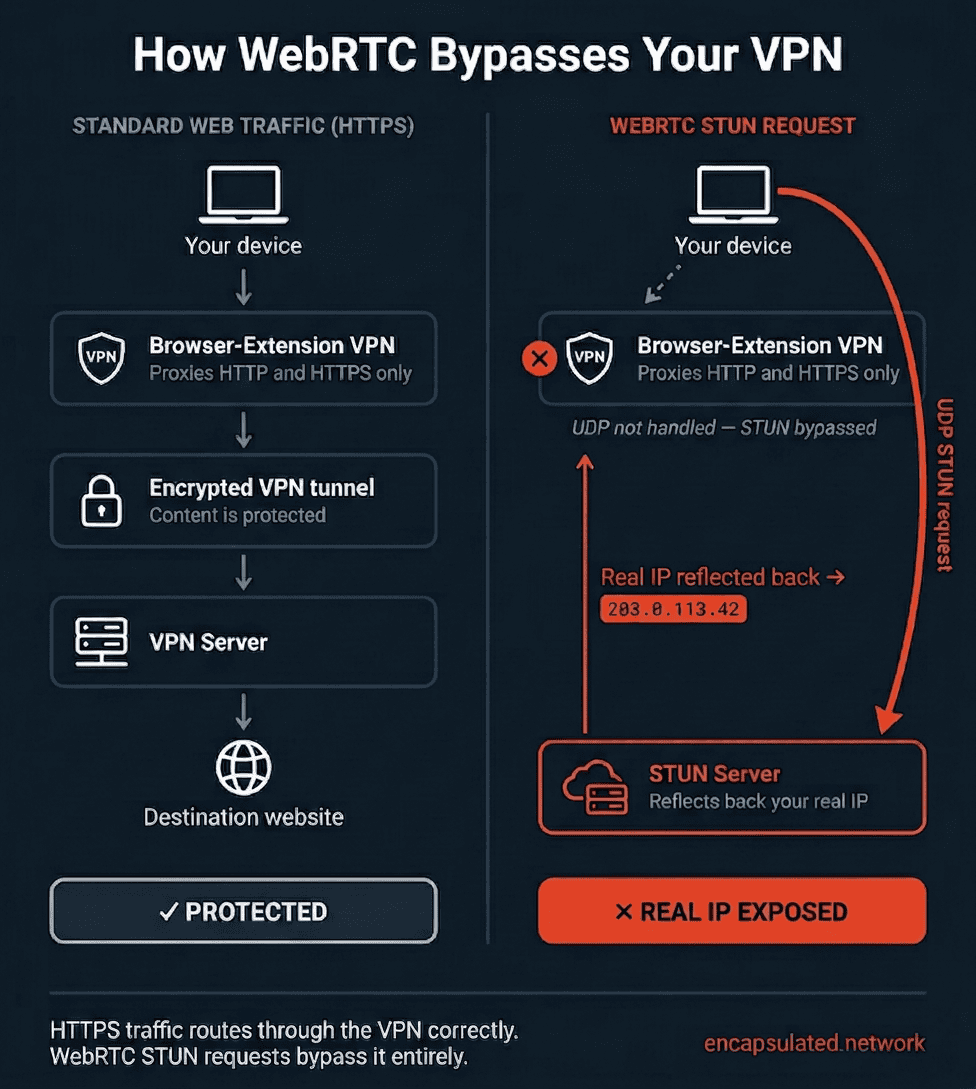
- Leak tests: confirm your real IP address is not exposed through DNS or WebRTC, especially if you use a VPN. The VPN verification guide walks through what each leak type means.
- Fingerprint checks: see how identifiable your browser looks and whether your user agent, canvas output, and client hints are consistent.
BrowserScan is a free, browser-based option for both checks. Its DNS and WebRTC leak tests show whether traffic is escaping outside your tunnel, its fingerprint analysis highlights mismatches that make you stand out, and its IP lookup reports geolocation, ISP, and proxy signals. Nothing needs to be installed, which makes it a convenient second opinion right after you finish setting up a downloaded tool. For a deeper walkthrough of reading fingerprint results, the Pixelscan tutorial covers a similar workflow step by step.
If you work with browser internals or debug strings, the developer tools guide explains how to inspect requests and confirm that a tool is behaving the way its documentation claims.
Common mistakes when downloading privacy software
- Grabbing installers from unofficial mirrors. Always go back to the project's own site or repository.
- Skipping updates. Many privacy fixes ship as point releases; an outdated build can undo the benefit.
- Installing too many overlapping tools. Two VPNs, three blockers, and a proxy at once usually create conflicts and false confidence.
- Trusting labels over configuration. A hardened tool with telemetry left on is not hardened in practice.
- Forgetting mobile. Your phone often leaks more location and identifier data than your laptop.
Related reading
- Reverse Geocoding: Convert Coordinates to Addresses - Learn how reverse geocoding turns latitude and longitude into street addresses, how accuracy works, and how to protect your location privacy online.
- NordVPN Pricing Explained: Plans, Costs, and Real Value - Compare NordVPN pricing across monthly, yearly, and 2-year plans, see what each tier includes, and learn how to verify your VPN actually protects you.
FAQ
Does PrivacyTools.io host the files I download?
No. It is a directory. Each listing links to the developer's official download page, repository, or app store entry, and you install from there.
Are the tools on PrivacyTools.io free?
Many are free and open source, including browsers, messengers, and password managers. Others, such as VPNs and encrypted email services, usually charge a subscription to cover servers and audits.
Is open-source software automatically safe?
No, but it is verifiable. Anyone can inspect the code, which makes hidden data collection harder to sustain. Independent audits and a long track record matter just as much.
Do I need a VPN to use these tools?
Not necessarily. A VPN hides your traffic from your local network and changes your apparent location, but it shifts trust to the provider. Test for DNS and WebRTC leaks after connecting so you know the tunnel is actually working.
How do I know a download worked correctly?
Run a leak test and a fingerprint check, confirm your IP and DNS resolver match what you expect, and verify the app version against the project's release notes.
Conclusion
Searching for a "PrivacyTools.io download" really means searching for a trustworthy starting point. Use the catalog to shortlist tools by platform, license, and threat level, then download from each project's official source, install gradually, and verify the result with independent tests. That last step is what separates a privacy setup that looks good on paper from one that actually holds up.