
Tracking Prevention Explained: How Browsers Block Trackers & Stay Private
Tracking Prevention Explained: How Browsers Block Trackers & Stay Private
Every time you visit a website, invisible scripts, pixels, and cookies can collect data about your behavior—often across multiple sites. Browser tracking prevention is the built‑in shield that automatically fights this surveillance. Yet even with it turned on, subtle data leaks can remain. This guide explains how tracking prevention works, compares implementations across browsers, and shows how to verify your privacy with tools like BrowserScan.

What Is Tracking Prevention?
Trackers come as third‑party cookies, analytics scripts, social media buttons, and embedded pixels. They build profiles of your interests, browsing history, and even your device characteristics. Tracking prevention is a browser feature that intercepts these trackers before they load or store data, significantly reducing your digital footprint.
Microsoft Edge helped popularize the term with its dedicated Tracking prevention settings, but Mozilla Firefox calls it Enhanced Tracking Protection, and Brave has Shields. All rely on similar core mechanisms.
How Tracking Prevention Works
Tracking Prevention Explained: How Browsers Block Trackers & Stay Private - How Tracking Prevention Works.
Classification: How Browsers Identify Trackers
Browsers maintain lists of known tracking domains—Microsoft Edge and others use the open‑source disconnect.me tracker protection lists. When you navigate to a page, the browser compares every third‑party domain request against these lists. If a match is found, the resource is flagged as a tracker.
Enforcement: Blocking Storage and Network Requests
Once a tracker is identified, two enforcement actions typically occur:
- Restrict storage access: The tracker can’t set or read cookies, IndexedDB, or localStorage.
- Block resource loads: The browser stops the request before it reaches the network—no tracking script, iframe, or pixel is downloaded. This can also speed up page loading.
Tracking Prevention Levels
Most browsers offer tiered controls:
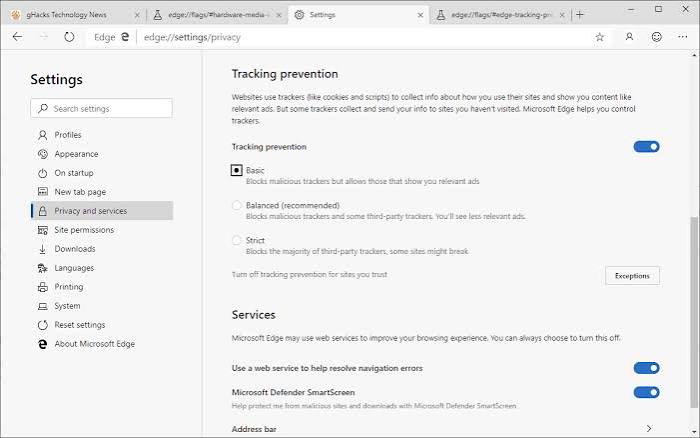
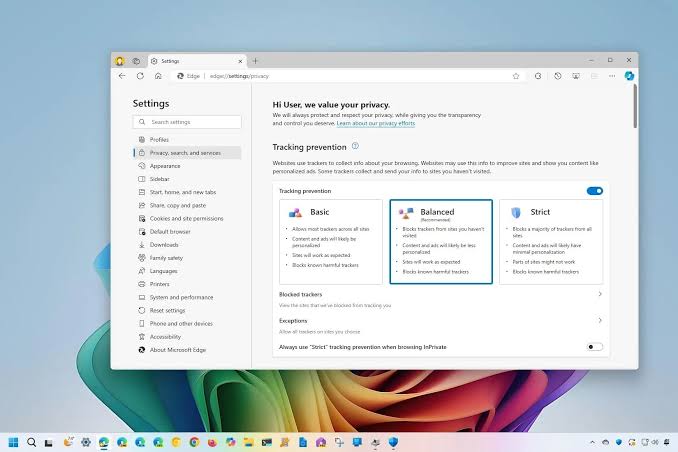
- Basic (or Light): Blocks only known harmful trackers (fingerprinters, cryptominers) and permits most personalized ads.
- Balanced (Default): Blocks trackers from sites you haven’t visited recently, reducing cross‑site tracking while minimizing site breakage.
- Strict: Blocks the greatest number of trackers, but may break login flows, video players, or comment sections.
Tracking Prevention in Popular Browsers
Tracking Prevention Explained: How Browsers Block Trackers & Stay Private - Tracking Prevention in Popular Browsers.
| Browser | Feature Name | Default Level | Blocklist Source | Unique Strengths |
|---|---|---|---|---|
| Microsoft Edge | Tracking prevention | Balanced | disconnect.me | Org Relationship/Engagement mitigations to reduce breakage; per‑site exceptions easy to manage. Learn more in Edge docs |
| Mozilla Firefox | Enhanced Tracking Protection | Standard (similar to Balanced) | disconnect.me | Strict mode also blocks fingerprinters; Custom mode lets you fine‑tune cookie and tracker blocking. |
| Google Chrome | Tracking Protection (gradually replacing third‑party cookies) | Limited until full launch | Google’s own lists | Relies on Privacy Sandbox APIs; tracking prevention works by default in Incognito mode. |
| Brave | Shields | Shields Up (blocks most trackers & fingerprinting) | Multiple lists, including disconnect.me | Fingerprinting randomization; per‑site script blocking; no need for extra extensions. |
The Limits of Built‑in Tracking Prevention
While tracker blockers stop cookie‑based profiling, they don’t address every privacy threat:
- Browser fingerprinting: Your system fonts, canvas rendering, WebGL parameters, and even battery level can be combined to create a unique identifier—without using cookies.
- IP address exposure: Tracking prevention doesn’t hide your IP; the sites you visit still see it, and it reveals your approximate location.
- DNS leaks: Even with a VPN, your browser might send DNS queries to your ISP’s resolver, disclosing the domains you access.
- WebRTC leaks: The WebRTC API can leak your real local and public IP addresses, bypassing VPN encryption.
To catch these gaps, you need a dedicated privacy checking tool. A privacy scanner like BrowserScan (What Is a Security Scanner?) performs a complete audit of what your browser is really exposing.
How to Verify Your Tracking Prevention Setup with BrowserScan
Tracking Prevention Explained: How Browsers Block Trackers & Stay Private product interface and feature overview.
After enabling tracking prevention in your browser, run these free, plugin‑free checks on BrowserScan to confirm nothing is leaking:
- Browser Fingerprint Test – See your fingerprint uniqueness score and which attributes are exposed. A high score means you’re still identifiable even with trackers blocked. Tools like Pixelscan.dev (What Is Pixelscan.dev?) offer similar tests, but BrowserScan provides granular authenticity scoring and detailed breakdowns.
- IP Leak Test – Go to BrowserScan’s IP lookup to verify your public IP and geolocation. If you’re using a VPN, make sure the displayed IP belongs to the VPN server, not your real one.
- DNS Leak Test – Check which DNS servers are handling your queries. BrowserScan lists all detected DNS server IPs and can flag mismatches that indicate a leak.
- WebRTC Leak Test – Essential for VPN users. BrowserScan queries multiple STUN servers to detect any local or public IP addresses revealed via WebRTC.
By layering these tests on top of your browser’s tracking prevention, you close the gaps that pure tracker blocking can’t fix.
Related reading
- BigDataCloud Tutorial: Get Started with IP Geolocation APIs - Learn BigDataCloud IP geolocation API from scratch. Step-by-step guide with code examples, GraphQL, hazard reports, and privacy leak testing with BrowserScan.
- WireGuard: The Fast, Secure VPN Protocol Explained (2026 Guide) - Learn how WireGuard works, why it’s faster and more secure than OpenVPN/IPsec, and how to test for IP, DNS, and WebRTC leaks after setup.
- What Is a Cybersecurity Suite? 2026 Complete Guide - A cybersecurity suite bundles essential tools to protect your data, privacy, and devices. Compare enterprise and personal suites, and learn how BrowserScan’s privacy checks strengthen your defense.
Sources and further reading
- Learn about tracking prevention in Microsoft Edge - Learn about how tracking prevention works in Microsoft Edge. Adjust your tracking prevention setting to detect and block known trackers.
- Top 12 Ways To Stop Being Tracked Online - Secure your online privacy with our top strategies to avoid being tracked. Discover tools and practices to safeguard your digital footprint.
FAQ
Does tracking prevention block all ads?
No, it focuses on trackers, not ads per se. Non‑tracking ads (those that don’t collect data) may still appear. For a completely ad‑free experience, pair it with a dedicated ad blocker.
Can tracking prevention break websites?
Yes, especially in Strict mode. Login buttons, embedded videos, or comment widgets may stop working. If that happens, add the site to your browser’s exception list.
Do I still need a VPN if I have tracking prevention?
Absolutely. Tracking prevention doesn’t hide your IP address. A VPN encrypts your traffic and masks your real IP, while tracking prevention handles on‑page trackers. For a step‑by‑step guide on combining VPNs with leak testing, see our NordVPN & BrowserScan tutorial.
How can I see which trackers were blocked?
Most browsers show a shield or lock icon in the address bar; click it to view the list of blocked trackers on the current page. For a deeper analysis, run BrowserScan’s privacy checks.
Does Chrome’s Tracking Protection replace third‑party cookies completely?
Google is phasing out third‑party cookies in favor of its Privacy Sandbox APIs, but the transition is gradual. For now, tracking prevention in Chrome remains less aggressive than in Edge or Firefox.
Conclusion
Browser tracking prevention is a powerful first layer of defense, but it’s not a silver bullet. Fingerprinting, IP leaks, and DNS or WebRTC vulnerabilities can still betray your privacy. Pair your browser’s built‑in protection with routine audits using BrowserScan—a few clicks can reveal hidden exposures and give you true peace of mind. For more privacy‑focused guides and tool comparisons, keep following BrowserScan.