
What Is My IP Address? Review: IP Lookup & Privacy Tools
What Is My IP Address? Review: A Practical IP Lookup and Privacy Toolkit
What Is My IP Address? is a long-running IP lookup and privacy resource. The core experience is simple: load the page and it shows the public IPv4 and IPv6 address your connection is using, along with an approximate location (city, region, country), your ISP, and related connection details. Around that core, the site layers educational content and additional tools such as proxy detection, email tracing, blacklist checks, and a speed test.
This review focuses on what the tool is actually good at, where it falls short, and how to decide whether it belongs in your privacy or troubleshooting workflow. It is not a hands-on lab test with measured latency numbers; it is an evidence-based assessment drawn from the product's described capabilities and comparable public IP lookup services.
What the tool does
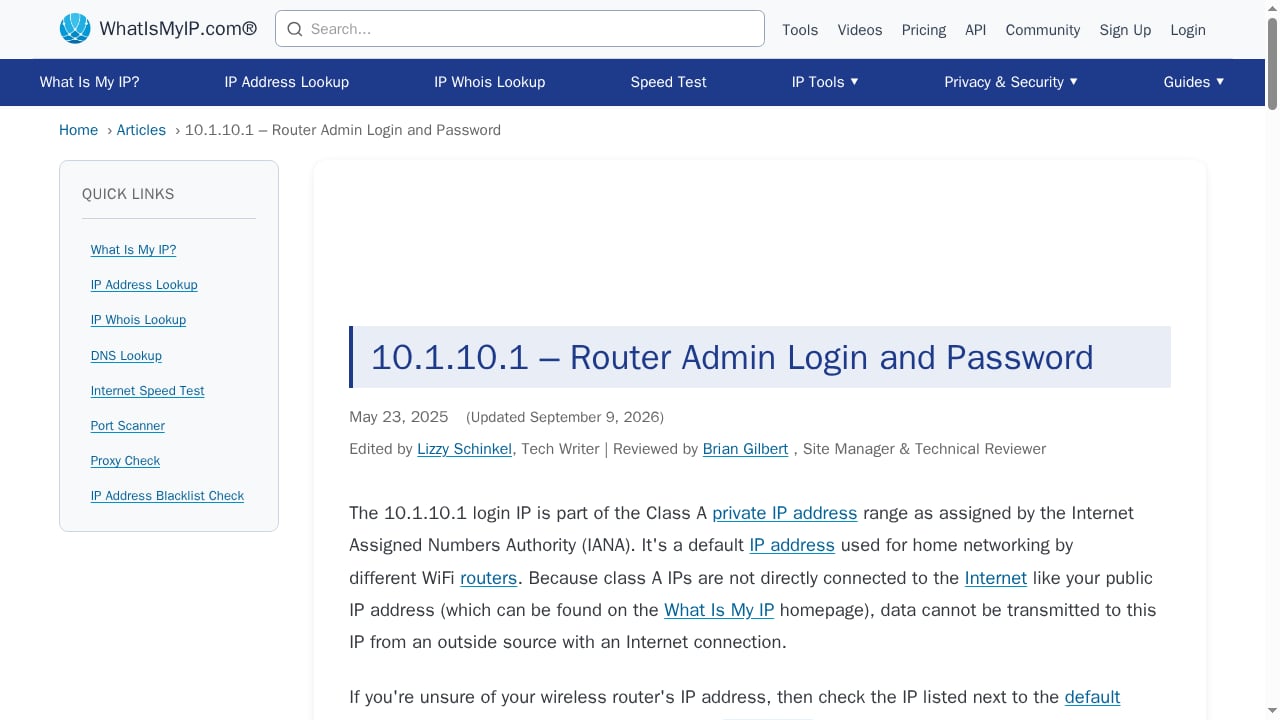
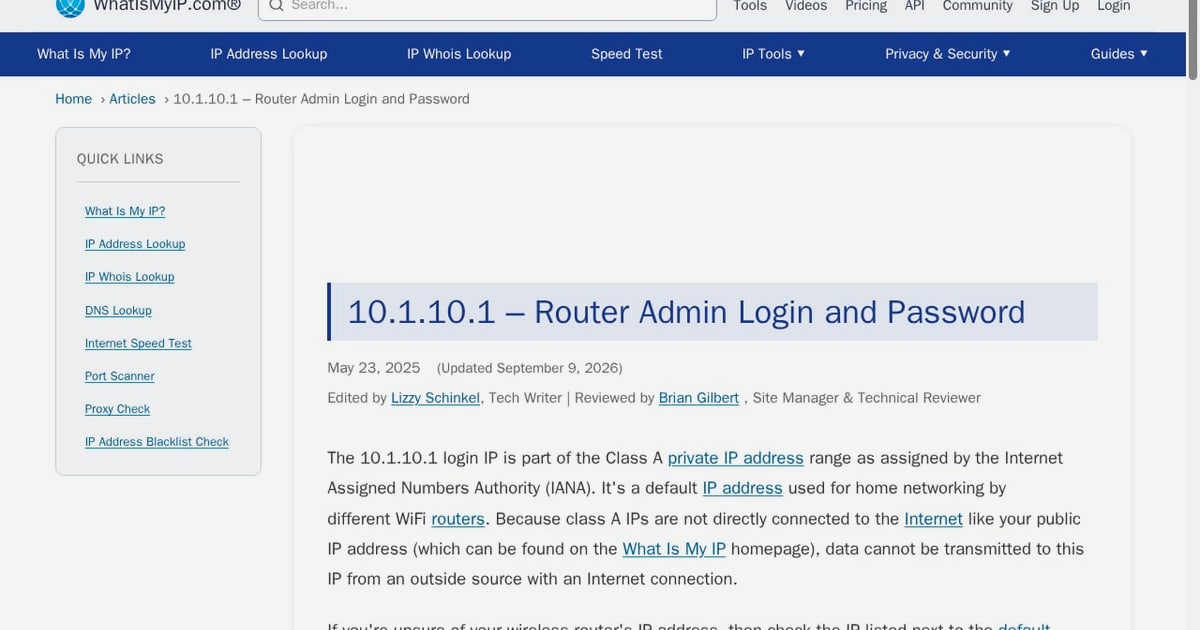
First viewport screenshot of 10.1.10.1 - Router Admin Login and Password.
At its most basic, the site answers one question: what is my IP address? The page automatically detects and displays the public address used to reach it. Because that address is assigned by your ISP (or by a VPN, proxy, or mobile carrier), it is the address websites actually see.
The tool also reports:
- Approximate location — city, state or region, and country, based on IP geolocation databases.
- ISP and network details — the organization that owns the address block, and often the autonomous system number (ASN).
- IPv4 and IPv6 — the current address for each protocol version your connection supports.
- Additional utilities — proxy detection, email header tracing, blacklist checks, and connection speed testing.
That combination makes it more than a one-line answer. It is a lightweight diagnostic dashboard for anyone who wants to understand how their connection appears to the outside world.
Who should use it
Surfshark.
Ideal users
- Everyday users checking their exposure. If you have ever wondered what a website learns when you visit, this is the fastest way to see the address and rough location attached to your connection.
- Remote workers and travelers. Verifying that a corporate VPN or travel router is routing traffic as expected starts with confirming the public IP and its reported location.
- Gamers and self-hosters. Anyone setting up port forwarding, remote access, or a home server needs to know their public address and whether it is static or dynamic.
- People assessing VPN claims. Comparing the IP before and after connecting a VPN is the simplest sanity check that the tunnel is working.
Users who will need more
If your goal is browser fingerprinting analysis, WebRTC leak testing, or DNS leak detection, an IP lookup alone is not enough. Those checks require dedicated tools that inspect what the browser exposes beyond the IP address. A monthly VPN, for example, can hide your IP while leaving your browser fingerprint intact — a gap covered in VPN 1 Month $11.99: What It Really Hides Online.
Key use cases in practice
What Is My IP Address? See Your Current Public IP product interface.
1. Confirming a VPN is active
Connect to a VPN, reload the page, and compare the displayed IP, ISP, and location with what you saw before. If the address and network change to the VPN provider's range, the tunnel is carrying your traffic. If they do not, something is misconfigured — split tunneling, a kill switch bypass, or a browser using a different route.
2. Troubleshooting connection and access issues
Support teams often ask for your public IP. It also matters for allowlists: if a service restricts access by IP, you need to know which address to register. Note that dynamic addresses can change when your router reconnects or your ISP rotates leases.
3. Understanding geolocation errors
IP geolocation is an estimate, not GPS. Mobile networks, corporate gateways, and VPN exit nodes frequently map to a city far from your physical location. Seeing your reported location is the first step to understanding why a streaming service, store, or bank behaves oddly.
4. Checking for proxy or blacklist signals
Proxy detection and blacklist checks help explain why a site may block you or serve endless CAPTCHAs. Shared IPs, especially those used by VPNs, are common triggers.
Strengths
- Instant, no-friction lookup. No account or install is required to see your public IP and basic connection details.
- Broad coverage of the basics. IPv4, IPv6, ISP, ASN, and approximate location in one view covers most everyday questions.
- Beyond the IP. Proxy detection, email tracing, blacklist checks, and a speed test add practical value for troubleshooting and privacy awareness.
- Educational depth. The site explains public vs. private IPs, IPv4 vs. IPv6, and how to change your IP, which helps non-technical users interpret the results.
- Works across devices. Any browser on any connected device can use it.
Limitations
- Location is approximate. City-level results can be wrong, especially on mobile or behind VPNs. Do not treat the reported city as your physical address.
- Not a full leak test. Seeing a VPN IP does not prove DNS or WebRTC are not leaking. Those require separate checks.
- No fingerprint analysis. The tool does not show canvas, WebGL, or other fingerprinting surfaces that sites can use to recognize you even when your IP changes.
- Dynamic IPs change. A result is a snapshot, not a permanent record. Restarting a router or switching networks can change the answer.
- Tool sprawl. The site bundles many utilities, which can feel overwhelming if you only want a quick IP check.
Pricing signals
The core IP lookup and the main browser-based tools are free to use without registration, which is consistent with how public IP lookup sites typically operate. Some adjacent services — such as API access for programmatic lookups — are usually separate offerings with their own terms and limits. For most individual users, the free lookup covers the primary need; teams that need automated or high-volume queries should check current API terms directly on the site.
Setup and first run
First viewport screenshot of 10.0.0.1 Admin Login | 10.0.0.1 IP Address | WhatIsMyIP.com®.
Setup is effectively zero:
- Open the site in any browser.
- Read the public IP, location, ISP, and protocol details at the top.
- Optionally run a speed test or proxy check.
- For comparison, connect a VPN and reload to see what changes.
If you want a more complete privacy picture, pair the IP check with browser-level tests. A step-by-step approach is outlined in How to Use BrowserScan with IP.me: Complete Workflow, and a direct feature comparison is available in BrowserScan vs What Is My IP Address: Which IP Tool Wins?.
How it compares
| Need | What Is My IP Address? | Dedicated fingerprint/leak tools |
|---|---|---|
| See public IPv4/IPv6 | Yes | Yes |
| Approximate location and ISP | Yes | Yes |
| DNS/WebRTC leak tests | Not the focus | Yes |
| Browser fingerprint analysis | No | Yes |
| Proxy and blacklist checks | Yes | Varies |
| Setup effort | None | None to low |
For a broader view of the category, see Top 10 Browser Privacy and Security Tools for 2026.
Decision criteria
Choose What Is My IP Address? if you want a fast, free answer to "what is my IP," plus basic ISP, location, and proxy context. It is a solid first stop for troubleshooting and privacy awareness.
Look elsewhere — or add a second tool — if you need leak detection, fingerprinting insight, or automated API access at scale. In those cases, treat the IP lookup as one layer of a larger privacy workflow rather than the whole solution.
Related reading
- BrowserScan vs BrowserLeaks vs What Is My IP Address? - Compare BrowserScan, BrowserLeaks, and What Is My IP Address for IP lookup, DNS/WebRTC leak tests, and browser fingerprinting. Pick the right tool.
Sources and further reading
- What is my IP address location? See your public IP address - Instantly check your IP address, service provider, the location you’re connecting from, and if your network traffic is secured.
FAQ
Is What Is My IP Address? free? The core lookup and main browser tools are free without registration. Separate API or premium offerings may have their own terms.
Does it show my exact location? No. It shows an approximate location based on IP geolocation databases, which can be inaccurate for mobile networks, VPNs, and corporate connections.
Can it tell if I am using a VPN? It can show an IP and ISP associated with a VPN provider, and it offers proxy detection. It does not prove anonymity or detect every privacy tool.
Does it test for DNS or WebRTC leaks? Leak testing is not its primary focus. Use a dedicated leak-test tool for those checks.
Why does my IP change? Many ISPs assign dynamic addresses that rotate on reconnect or after a lease period. Switching networks or connecting a VPN also changes the address websites see.
Conclusion
What Is My IP Address? earns its place as a dependable, no-friction IP lookup and privacy education resource. It answers the core question quickly and adds useful context — ISP, ASN, approximate location, and proxy signals — without requiring an account or install. Its limits are equally clear: it is a starting point for privacy checks, not a complete leak or fingerprint audit. Use it to see what the internet sees, then layer in dedicated tests if you need to know what your browser reveals beyond the IP.
For reference, see the official site at whatismyipaddress.com, a comparable multi-tool lookup at whatsmyip.com, and a VPN vendor's IP check at nordvpn.com/what-is-my-ip.