
Why Use a VPN on a Router? Privacy, Leaks & Browser Tests
Why Use a VPN on a Router? Privacy, Leaks, and Browser Tests
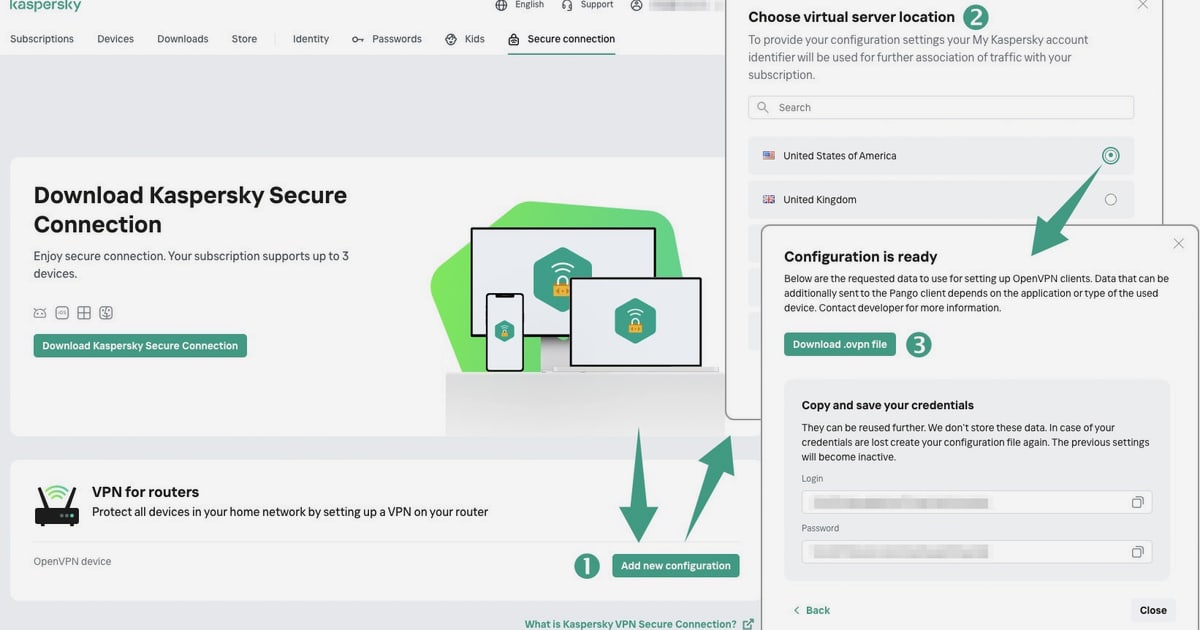
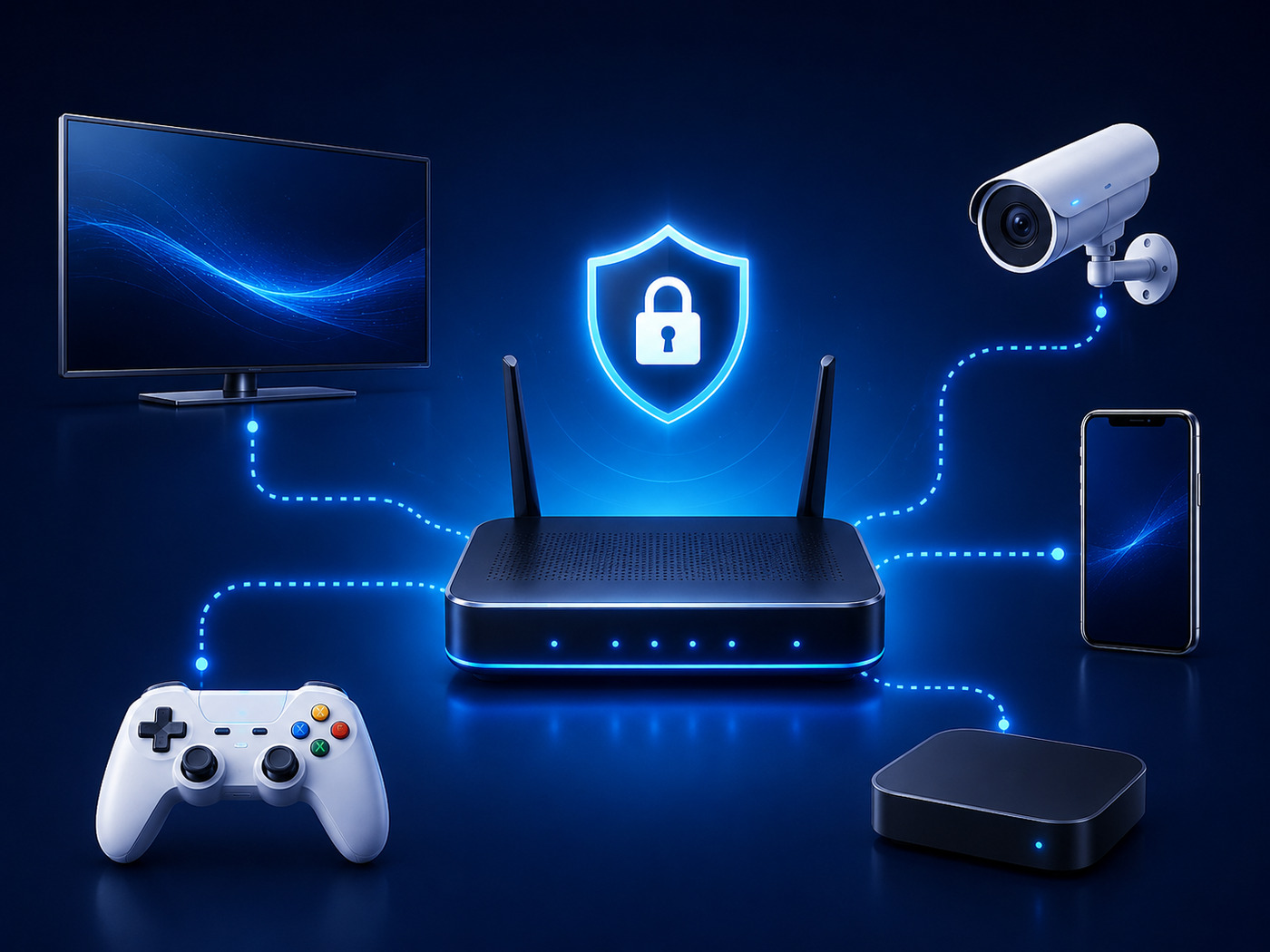
A VPN app protects the device it runs on. A VPN on your router protects everything connected to that router — laptops, phones, smart TVs, game consoles, and the smart-home gadgets that never got a VPN app in the first place. That single change is the core reason people move VPN protection up from the device to the network edge.
But router-level encryption is not a magic shield. It can still leak at the DNS, WebRTC, or IP layer, and it can change how websites see your browser. This guide explains the real benefits, the trade-offs, and how to verify what your router VPN is actually doing with browser-based privacy tests.
What a Router VPN Actually Does
Why Use a VPN on a Router? Privacy, Leaks & Browser Tests - VPN on Router vs VPN on Device: Which Should You Choose?.
A router with VPN client support connects to your VPN provider on behalf of every device behind it. You enter your provider credentials once in the router admin panel, choose a protocol such as WireGuard or OpenVPN, and outbound traffic is encrypted before it leaves your home network.
There are two common modes:
- VPN client mode: the router connects to a commercial VPN service and routes all outbound traffic through it. This is the setup most people mean by "VPN on a router."
- VPN server mode: the router acts as a private server, letting you connect back to your home network securely from outside. Useful for remote work, but not the same as hiding your traffic from your ISP.
If your router does not support VPN clients out of the box, you may be able to flash custom firmware, or you may need a router that supports WireGuard or OpenVPN natively. ISP-provided routers often lock these settings down.
The Real Benefits of Putting a VPN on the Router
1. Every device is covered, including ones that cannot run apps
Smart TVs, streaming boxes, game consoles, security cameras, and most smart-home devices do not support VPN apps. A router VPN is often the only practical way to route their traffic through an encrypted tunnel.
2. One configuration instead of many
Instead of installing and updating a VPN app on every phone, tablet, and computer, you configure the router once. New devices that join the Wi-Fi inherit the protection automatically.
3. No per-device account limits
Many VPN services cap the number of simultaneous devices. A router typically counts as a single device on that list, even when it is protecting a dozen gadgets.
4. No startup gap
On a phone or laptop, there is a brief window between boot and the VPN connecting. During that window, traffic can leave unencrypted. A router VPN closes that gap because the tunnel is established before devices reach the internet.
5. Guest devices get protection too
Friends and family who join your Wi-Fi are covered without installing anything. That matters on shared networks where you cannot control what other people's devices are doing.
6. Less battery and CPU strain on small devices
The router handles encryption, so phones, tablets, and lightweight laptops spend less processing power and battery on VPN overhead.
Where Router VPNs Fall Short
The trade-offs are real and worth planning for:
- Router compatibility: not every router supports VPN clients, and some only support older protocols like PPTP.
- Performance ceiling: encrypting an entire network takes CPU. An underpowered router can become the bottleneck for your whole connection.
- ISP router restrictions: if your provider controls the router firmware, you may not be able to install a VPN client at all.
- Service blocks: banks, streaming platforms, and some government sites may block or restrict traffic from VPN IP ranges.
- Leaks still happen: DNS requests, WebRTC candidates, and misconfigured kill switches can expose your real IP even when the VPN tunnel is up.
That last point is where browser-based testing becomes essential. A router VPN that looks correctly configured can still leak DNS queries to your ISP or expose your local IP through WebRTC.
VPN on Router vs VPN on Device: Which Should You Choose?
First viewport screenshot of Media Devices.
| Situation | Router VPN | Device VPN |
|---|---|---|
| Many devices, including smart TVs and consoles | Best fit | Not possible on many devices |
| One or two personal devices | Overkill for most users | Simpler and faster |
| Frequent travel | Less useful on hotel Wi-Fi | Better for public networks |
| Remote work with a corporate VPN | Works well as a layered setup | Can conflict with corporate VPN |
| Streaming and banking apps that block VPNs | Needs split tunneling or a second network | Easier to toggle per app |
A practical middle ground is to run the VPN on the router for whole-home coverage and keep a device VPN app for travel. If you want to see how a device VPN and BrowserScan fit together, the ExpressVPN workflow guide walks through verifying IP, DNS, and WebRTC after connecting.
How to Verify Your Router VPN Is Not Leaking
First viewport screenshot of Gyroscope Visualizer.
Configuration is only half the job. The other half is confirming that your traffic is actually going where you think it is.
Step 1: Check your visible IP
Visit an IP detection page from a device behind the router. If the IP matches your VPN provider's range and not your ISP's, the tunnel is working at the IP layer.
Step 2: Run a DNS leak test
DNS is a common leak point. Even with a VPN tunnel, your device may still send DNS queries to your ISP's resolver. A DNS leak test shows which resolvers are answering your queries and whether they belong to your VPN provider or your ISP.
Step 3: Run a WebRTC leak test
WebRTC can reveal local and public IP addresses through browser APIs, sometimes bypassing the VPN tunnel entirely. This is especially relevant for anyone using video conferencing or browser-based chat.
Step 4: Inspect your browser fingerprint
A VPN changes your IP, but it does not change your browser fingerprint. Canvas rendering, fonts, screen size, client hints, and dozens of other signals can still identify you across sessions. BrowserScan's fingerprint detection shows what websites can learn about your browser and hardware, independent of your IP.
Step 5: Check for bot or automation flags
Some sites treat VPN IP ranges as higher risk. If your router VPN exit node is on a shared or flagged range, you may see more CAPTCHAs or blocks. A proxy and bot detection check helps you understand whether the IP itself is the problem.
Practical Router VPN Scenarios
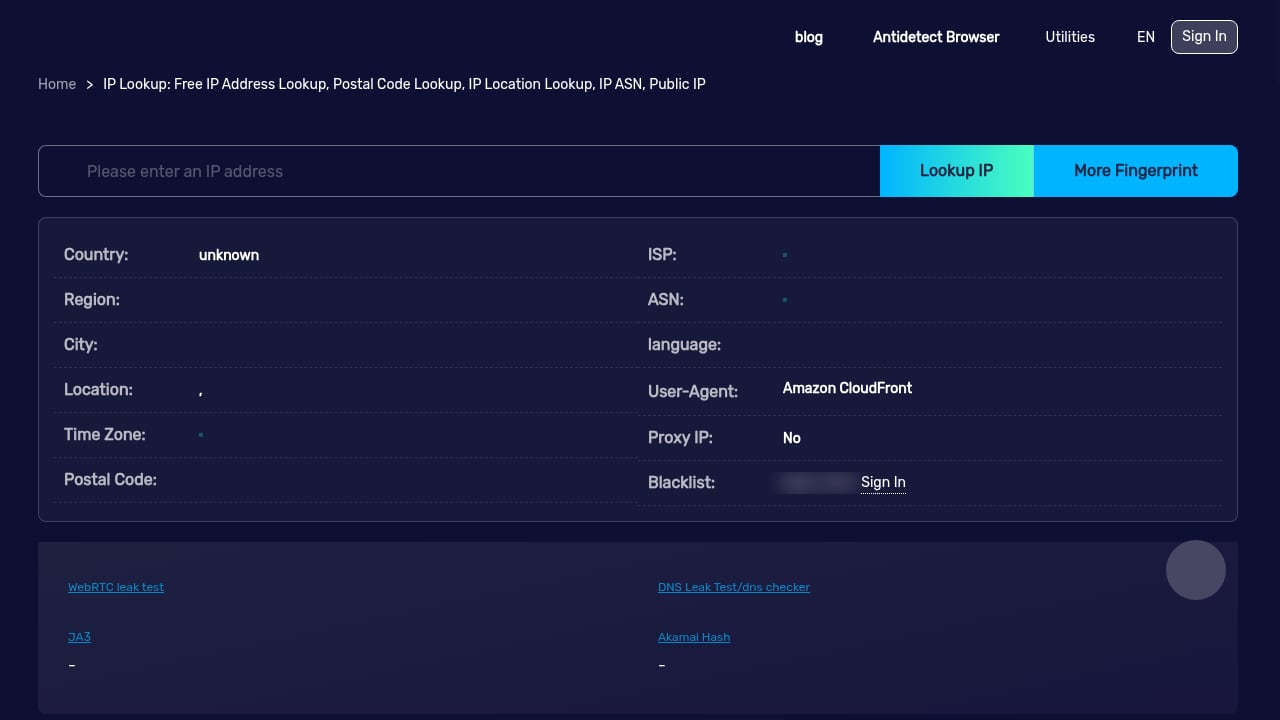
First viewport screenshot of My IP, public IP, IPv4 lookup, IPv6 lookup, geographic location, ping test, ip lookup, ip location lookup - BrowserScan.
Whole-home privacy for a mixed-device household
A family with smart TVs, tablets, consoles, and smart speakers gets uniform encryption without installing anything on each device. The trade-off is that streaming services may need split tunneling or a separate non-VPN network.
Remote work with a layered VPN
Your work laptop connects to a corporate VPN, which runs on top of the router's personal VPN. The result is a nested tunnel: corporate VPN → Wi-Fi → router VPN → internet. This usually works, but you should verify that DNS and WebRTC are not leaking at either layer.
Testing environments and proxy workflows
Developers and researchers who route traffic through proxies or router-level tunnels often need to confirm that exit IPs match expectations. BrowserScan's IP and proxy detection helps verify that the browser is presenting the intended network identity. The Decodo proxy workflow covers this in more detail for scraping and data collection use cases.
Router VPN Setup Checklist
Before you commit to a router VPN, confirm the following:
- Your router supports VPN client mode with WireGuard or OpenVPN.
- Your VPN provider offers router configuration files or native router support.
- You have admin access to the router, or you can replace an ISP-locked router.
- You understand how to set up a kill switch so traffic stops if the tunnel drops.
- You have a plan for services that block VPN IPs, such as split tunneling or a second Wi-Fi network.
- You can test for DNS, WebRTC, and IP leaks after setup.
For a broader comparison of testing tools and what each one covers, the 2026 fingerprint and privacy audit tool ranking is a useful reference.
Related reading
- BrowserScan vs WhoerIP vs Fingerprint: 2026 Comparison - Compare BrowserScan, WhoerIP, and Fingerprint for browser fingerprinting, IP leak checks, and device intelligence. Find the right tool for your workflow.
Sources and further reading
- Why do you need a VPN on your router & how to get the most out of it : r/surfshark - Let's start with a question, "Why the hell do I need a VPN on my router?" Since it's most certainly a matter of personal preference, let’s weigh the pros and cons first.
- What Is a VPN Router? How It Works, Who It's For, and How to Get Started - A VPN router protects every device on your network at once. Learn what a VPN router is, how it works, and whether its the right choice for your home.
- Nine reasons to set up a VPN on your router - Installing a VPN on your router can make your home network more convenient, faster, and safer. Here are nine scenarios where it makes a real difference, from automatic setup to full privacy.
FAQ
Does a VPN on a router hide my IP from websites?
Yes, for devices routed through the VPN. Websites see the VPN server's IP instead of your ISP-assigned IP. However, your browser fingerprint can still identify you even when your IP changes.
Can a router VPN leak my real IP?
It can. DNS requests, WebRTC candidates, and a failed kill switch are common leak paths. Testing after setup is the only reliable way to confirm your real IP is not exposed.
Do I still need a VPN app if I have a router VPN?
For home use, a router VPN often covers everything. For travel and public Wi-Fi, a device VPN app is still useful because you cannot carry your router everywhere.
Will a router VPN slow down my internet?
It can. Encryption consumes router CPU, and older or low-power routers may become the bottleneck. WireGuard generally performs better than OpenVPN on the same hardware.
Can websites detect that I am using a router VPN?
They can often detect that you are using a VPN by checking whether your IP belongs to a known VPN range. They generally cannot tell whether the VPN runs on your router or on your device.
How do I check if my router VPN is working properly?
Run an IP check, a DNS leak test, and a WebRTC leak test from a device behind the router. Then inspect your browser fingerprint to see what additional signals are still visible. BrowserScan provides these tests in one place.
Conclusion
A VPN on your router is the most practical way to protect every device in a home network, especially the ones that cannot run VPN apps. It removes per-device setup, closes startup gaps, and covers guests automatically.
But encryption at the router does not guarantee privacy at the browser. DNS leaks, WebRTC exposure, and fingerprinting can still reveal who you are and where you are. The right approach is to configure the router VPN carefully, test it from a real device, and use browser fingerprint and leak testing to confirm what websites actually see. That combination — network-level encryption plus browser-level verification — is what turns a router VPN from a checkbox into genuine privacy protection.