
Check IP: What Your Address Reveals Online
Check IP: What Your Address Reveals Online
Your IP address is the return label on every request you send. Checking it tells you which network you are exiting from, what a website can infer about your location and provider, and whether your VPN or proxy is actually doing its job. This guide explains how to check your IP properly, what each signal means, and how to verify that your privacy tools are not leaking.
What Checking an IP Address Actually Tells You
First viewport screenshot of US Dollar to Chinese Yuan RMB, USD to CNY - Currency Converter.
A basic IP check returns a short list of facts. The useful ones are:
- Public IP address — the address visible to every site you visit.
- Geolocation — country, region, and city, usually derived from ISP allocation data rather than your exact position.
- ISP and organization — who owns the network block, often shown as an ASN (Autonomous System Number).
- Connection type — residential, business, hosting, or anonymizing network.
- Reverse DNS and hostname — the name tied to the address, which can reveal server roles.
- Risk and reputation signals — blacklist status, proxy/VPN flags, and abuse history.
A typical lookup on a service like checkip.com shows location, ASN ownership, reverse DNS, and a risk score in one view. That is a solid starting point, but it only describes the network layer. It does not tell you whether your browser is leaking a second address through WebRTC or whether your DNS queries are escaping to a different region.
How to Check Your IP Address on Any Device
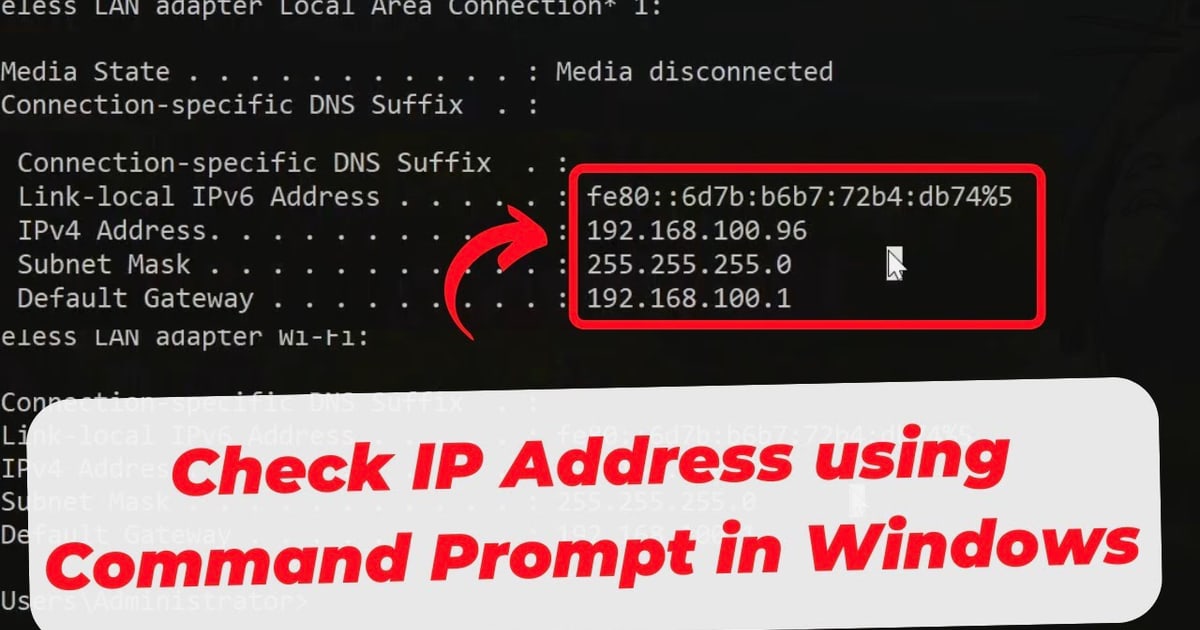
The fastest method is a web-based lookup: open an IP checking page and read the address at the top. For local addresses, use your operating system:
- Windows:
ipconfigin Command Prompt shows your local IPv4 and IPv6 addresses. - macOS and Linux:
ifconfigorip addrin Terminal. - Mobile: Settings → Wi-Fi → network details, or Settings → About → Status on Android.
Local addresses (like 192.168.x.x) are only meaningful inside your own network. The address that matters for privacy is the public one, and that is what any website sees when you connect.
Reading IP Geolocation Without Over-Trusting It
First viewport screenshot of Client Hints.
IP geolocation is an estimate. It is usually accurate at the country level, often at the city level, and rarely at the street level. Accuracy depends on how the ISP registers its blocks and whether the address is reassigned frequently.
This matters in two directions:
- For privacy: a city-level match does not mean a site knows your home address. It means your ISP's allocation is registered there.
- For verification: if your VPN claims to exit in Germany but the lookup shows a US datacenter, the tunnel is not behaving as advertised.
Services like browserleaks.com/ip go further by showing TCP/IP OS fingerprinting, TLS and HTTP/2 fingerprints, and request headers alongside the address. That combination is what makes IP checks useful for detecting mismatches between what you claim to be and what your traffic actually looks like.
IP Reputation, Blacklists, and Risk Scores
An IP address accumulates history. If it was used for spam, scraping, or fraud, it may appear on blacklists, and some sites will block or challenge it before you even log in.
When you check an IP, look for:
- Blacklist entries across major DNSBLs.
- Proxy, VPN, Tor, or hosting flags.
- Abuse reports tied to the network block.
- First seen / last seen dates for the allocation.
This is why a clean residential IP often passes checks that a shared VPN exit node fails. If you rely on a VPN for account access, checking reputation before you log in can save you a CAPTCHA loop or an outright block.
Leak Tests: The Part a Basic IP Check Misses
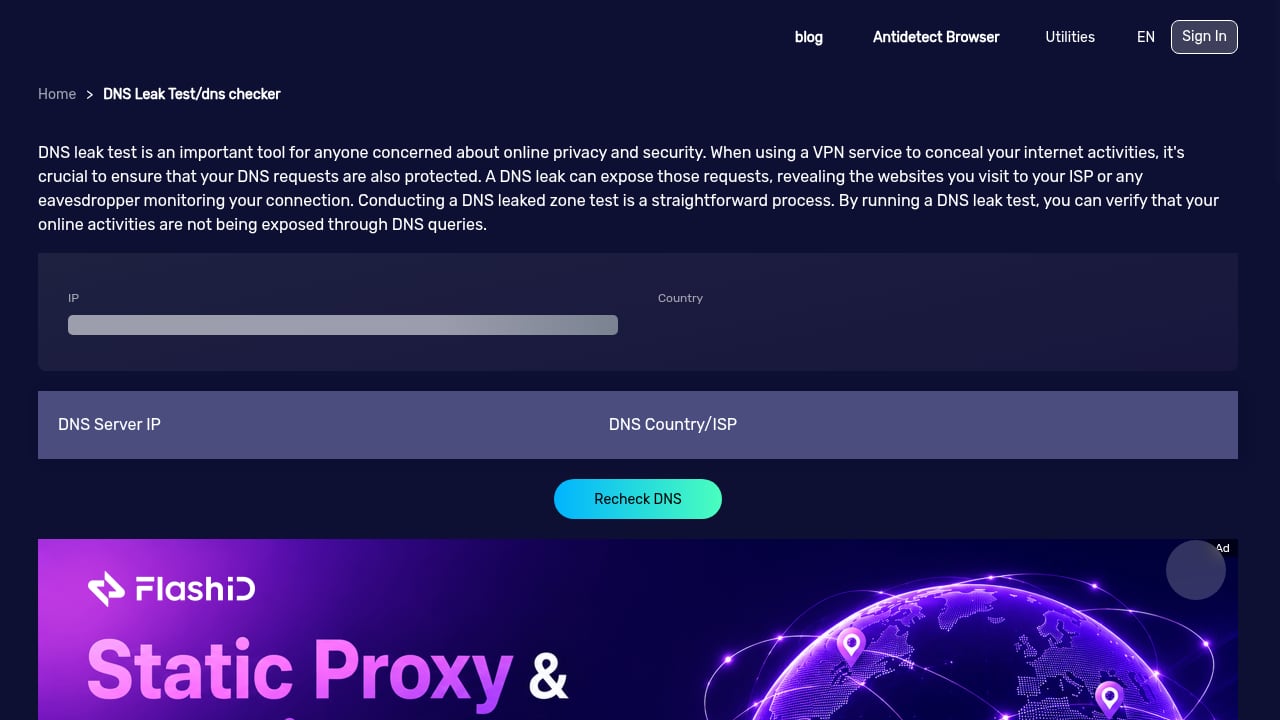
First viewport screenshot of BrowserScan - DNS Leak Test.
Your public IP can look correct while other signals leak. Three tests cover the common cases:
- DNS leak test — confirms your DNS queries resolve through the servers you expect, not your ISP's default resolvers.
- WebRTC leak test — checks whether your browser exposes a local or public IP through WebRTC APIs, even when a VPN is active.
- IPv6 leak test — catches IPv6 traffic that bypasses an IPv4-only tunnel.
Running these alongside an IP lookup gives a fuller picture. BrowserScan's browser fingerprint test combines DNS, WebRTC, and IPv6 checks with fingerprint analysis, so you can see whether the address, the resolver, and the browser profile all tell the same story.
IP Checks vs. Browser Fingerprint Checks
First viewport screenshot of Cookie Format Converter - Convert Cookies from Netscape to JSON.
IP checking and fingerprinting answer different questions:
| Question | IP check | Fingerprint check |
|---|---|---|
| Where does my traffic exit? | Yes | Partly |
| Who owns the network? | Yes | No |
| Is my IP blacklisted? | Yes | No |
| Does my browser look unique? | No | Yes |
| Are canvas, fonts, or hardware signals exposed? | No | Yes |
| Can a site link sessions without cookies? | No | Yes |
If you change your IP but keep the same browser fingerprint, sites can still recognize you. That is why serious privacy workflows use both. For a broader comparison of tools that handle each layer, see the top 10 IP lookup and browser fingerprint tools.
Common Reasons to Check an IP
- Verifying a VPN or proxy actually changes your visible address and region.
- Troubleshooting access when a site blocks or challenges your connection.
- Investigating suspicious traffic in server or firewall logs.
- Checking email deliverability before sending from a new IP.
- Auditing your own exposure before signing into sensitive accounts.
For a workflow that pairs fingerprint detection with proxy and VPN verification, the BrowserScan and IP2Proxy guide walks through the steps.
Practical Checklist After You Check Your IP
- Confirm the public IP matches your expected network or VPN exit.
- Verify the country and city are plausible for that exit.
- Check the ASN owner — residential ISP, hosting provider, or anonymizing service.
- Review blacklist and risk flags.
- Run DNS, WebRTC, and IPv6 leak tests.
- Compare the result with a browser fingerprint check to catch session-linking signals.
If any step disagrees with the others, that mismatch is the finding worth investigating.
Related reading
- BrowserScan vs ToDetect vs Fingerprint: 2026 Comparison - BrowserScan vs ToDetect vs Fingerprint compared: fingerprint depth, leak tests, IP purity, fraud signals, pricing, and which tool fits your privacy or fraud workflow.
- BrowserScan vs WhoerIP: Which Privacy Tool Wins in 2026? - Compare BrowserScan and WhoerIP for fingerprint detection, leak tests, and privacy scoring. See which free tool fits your anonymity workflow in 2026.
Sources and further reading
- What Is My IP Address? IP Address Tools and More - IP address lookup, location, proxy detection, email tracing, IP hiding tips, blacklist check, speed test, and forums. Find, get, and show my IP address.
FAQ
Does checking my IP address expose my identity? No. An IP check only shows what any website already sees when you connect. It does not reveal your name or exact address unless you are logged into a service that knows you.
How accurate is IP geolocation? Country-level accuracy is high. City-level accuracy is moderate and depends on ISP registration. Street-level accuracy is not reliable for most consumer connections.
Can a website see my real IP if I use a VPN? Not through the normal connection path, but leaks are possible. WebRTC, IPv6, and DNS misconfigurations can expose your real address or resolver. Run leak tests after enabling a VPN.
Why does my IP show a different city than where I live? ISPs register address blocks in bulk, and routing does not always follow geography. A nearby city or regional hub is common and not a sign of a problem.
What is an ASN, and why does it matter? An Autonomous System Number identifies the network that owns a block of IP addresses. It tells you whether traffic comes from a residential ISP, a datacenter, or a privacy service — a key signal for fraud and access decisions.
How often should I check my IP? After changing networks, enabling or switching a VPN, or before accessing accounts where location consistency matters. A quick check takes seconds and prevents avoidable blocks.
Conclusion
Checking your IP is the first step in understanding what the internet sees when you connect. The address, its geolocation, its reputation, and its leak behavior together form a picture that a single number cannot. Use IP checks to verify your network path, use leak tests to confirm nothing escapes, and use fingerprint checks to see whether your browser gives you away even when your address does not. BrowserScan brings these checks together in one place so you can test, compare, and fix the gaps before someone else finds them.