
How to Use BrowserScan Fingerprint Detection with Multilogin
How to Use BrowserScan Fingerprint Detection with Multilogin
Your browser tells websites far more than your IP address. Canvas hashes, WebGL renderers, font lists, timezone settings, and WebRTC routes combine into a fingerprint that can follow you across sessions—even in incognito mode. BrowserScan exposes that fingerprint; Multilogin gives you controlled profiles to reshape it. Used together, they turn guesswork into a repeatable audit loop.
This guide explains how the two tools complement each other, walks through a practical setup, and shows how to diagnose the mismatches that cause privacy leaks and account flags.
Why BrowserScan and Multilogin Belong Together
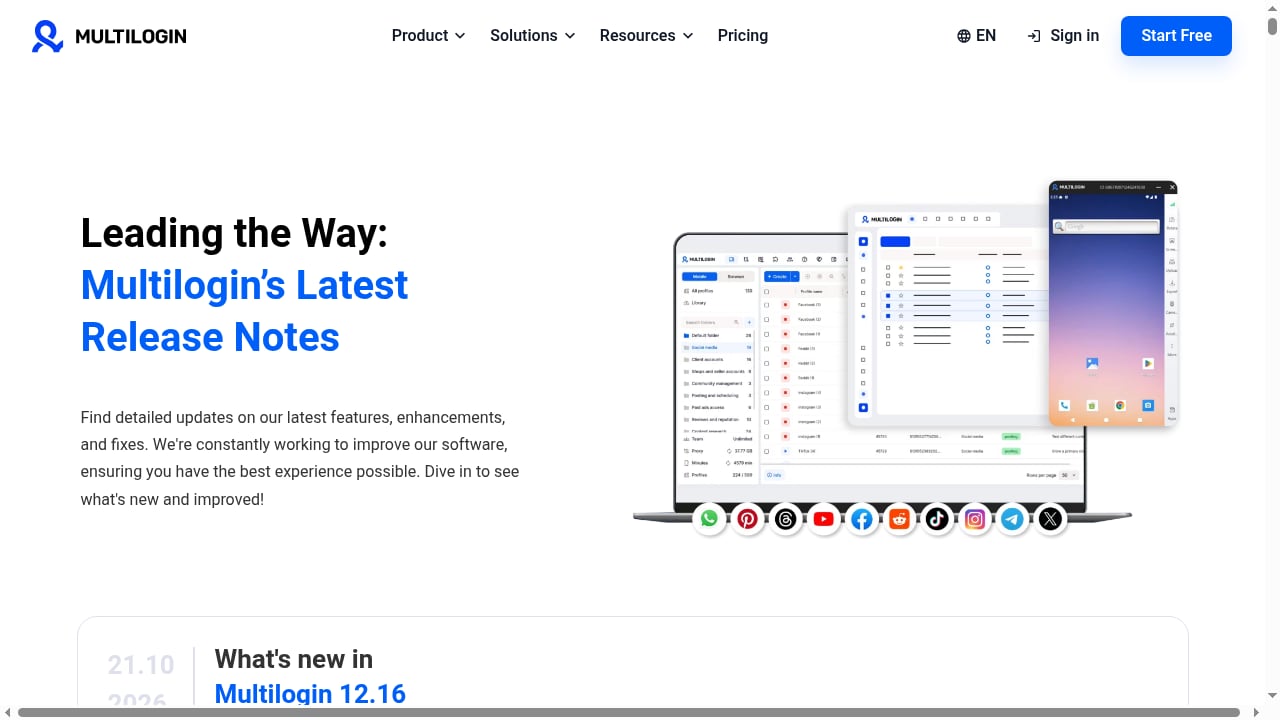
First viewport screenshot of multilogin.com.
BrowserScan is a browser fingerprint detection and online privacy testing tool. It reports what a website can see: IP and geolocation, User-Agent, operating system, screen and hardware details, Canvas and WebGL signatures, timezone, language, fonts, and whether a proxy is in use. It also includes DNS leak tests, WebRTC leak tests, port scanning, speed tests, User-Agent parsing, and 2FA live checks.
Multilogin is an anti-detect browser and cloud phone platform. It lets you create isolated browser profiles with configurable fingerprints and run Android cloud phones from the same workspace.
The division of labor is simple:
- BrowserScan measures. It shows the fingerprint your browser actually presents and highlights inconsistencies in red.
- Multilogin controls. It lets you define the fingerprint each profile should present, including platform, timezone, language, and proxy routing.
Neither tool is sufficient alone. An anti-detect browser without verification can still leak through WebRTC or a mismatched timezone. A detection tool without a controlled environment tells you what is wrong but not how to fix it at scale.
What BrowserScan Checks
Before configuring anything, know what the report covers. BrowserScan groups results into several areas:
- Overview: IP address, geolocation, ISP, browser version, operating system, and proxy detection, plus an overall authenticity score.
- IP and WebRTC: whether your real IP is exposed through WebRTC even when a proxy is active.
- Browser: User-Agent string, plugins, and browser type.
- Hardware: GPU, memory, CPU concurrency, screen resolution, media devices, Canvas, and WebGL fingerprints.
- Software: timezone, local time, language, fonts, Do Not Track, and cookie settings.
- Automation and ports: whether the browser exhibits bot-like traits and whether risky ports are open.
A score below roughly 90% is a signal to inspect the detailed sections rather than a pass/fail verdict. Red values mark where the fingerprint contradicts itself.
Setting Up the Workflow
First viewport screenshot of Multilogin knowledge base.
Step 1: Create a Multilogin Profile
In Multilogin, create a new browser profile and choose the operating system, browser engine, and proxy you intend to use. Match the profile's timezone and language to the proxy's location. If you are running Android cloud phones, apply the same logic to each phone's environment.
Step 2: Open BrowserScan Inside the Profile
Launch the profile and navigate to BrowserScan. Run the main fingerprint test and let it complete fully—Canvas and WebGL checks take a few seconds. Do not run the test in your everyday browser and assume the results apply to the profile.
Step 3: Read the Overview First
Check the authenticity score, the detected IP, and whether a proxy is flagged. Confirm that the IP geolocation matches the country you intended. If the overview already shows a mismatch, fix that before drilling into hardware details.
Step 4: Run the Leak Tests
Run the WebRTC leak test and the DNS leak test. WebRTC can reveal your real IP even when traffic is proxied. DNS leaks can expose your ISP's resolver. Both are common causes of a profile that looks correct on the surface but fails deeper checks.
Step 5: Compare Hardware and Software Sections
Look for contradictions between the declared platform and the reported hardware. A profile claiming macOS but reporting a Windows GPU is a classic mismatch. Check that timezone and local time align with the IP location, and that the browser language matches the profile's intended region.
Step 6: Adjust and Re-Test
Return to Multilogin, change the inconsistent setting, and rerun BrowserScan. Repeat until the overview score is high and the detailed sections show no red flags. Record the final configuration so future profiles start from a known-good baseline.
Practical Example: A US Profile That Leaks
Suppose you create a Multilogin profile with a US residential proxy, set the timezone to New York, and open BrowserScan. The overview shows a US IP, but the WebRTC section reveals a local IP from another country. The timezone also reads as the local system time rather than the proxy region.
What happened: the proxy routed HTTP traffic, but WebRTC bypassed it, and the profile inherited the host machine's timezone. The fix is to enable WebRTC protection in the profile and explicitly set the timezone to match the proxy. After rerunning, the WebRTC section should show only the proxy IP, and the timezone should align with the US location.
This is the core value of the pairing: BrowserScan finds the leak, and Multilogin provides the switch that closes it.
Practical Example: Checking Consistency Across Profiles
If you operate several profiles, compare their BrowserScan reports side by side. Look for repeated Canvas or WebGL hashes, identical font lists, or the same screen resolution combined with the same User-Agent. Repetition across supposedly separate profiles is what platforms use to link accounts.
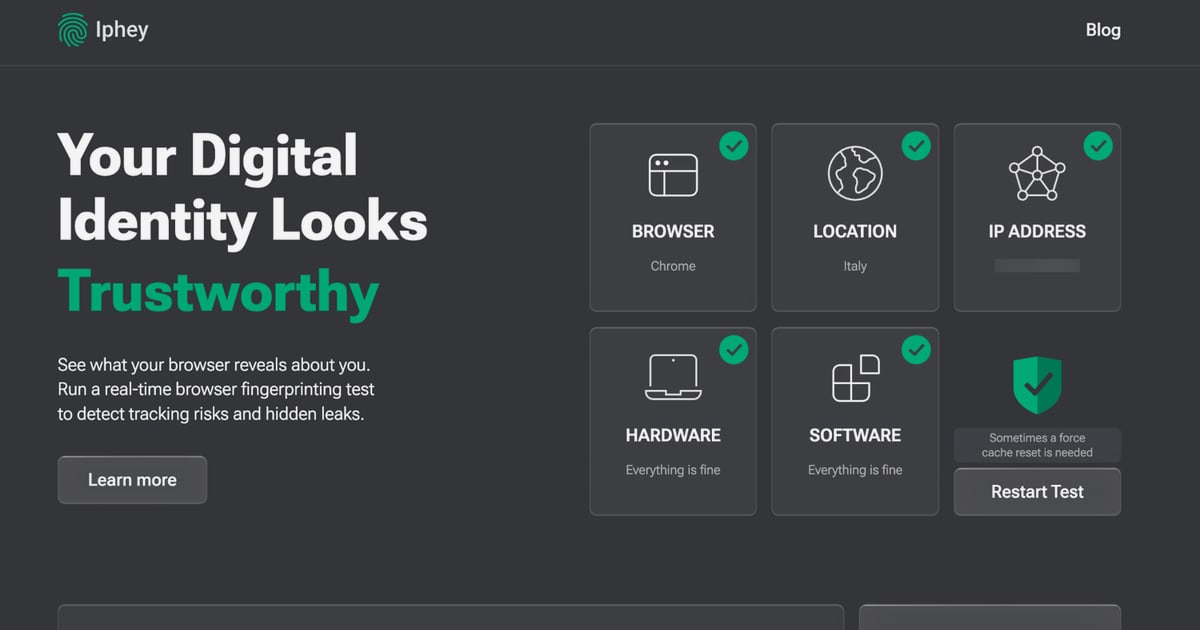
For a structured comparison method, see BrowserScan vs IPhey: Best Fingerprint Detection Tool, which covers how different tools score the same fingerprint. If you want to understand how device intelligence vendors evaluate these signals, the Fingerprint Device Intelligence Review breaks down accuracy and limitations.
When to Use Which Tool
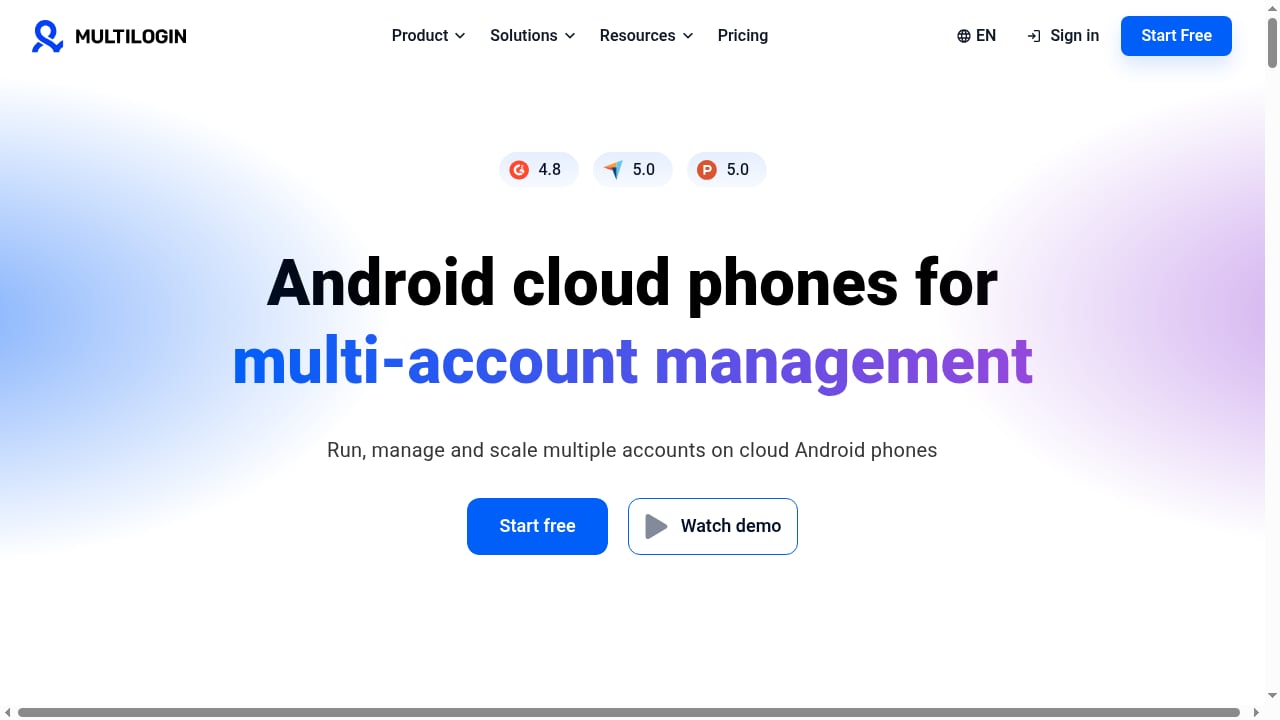
First viewport screenshot of Multilogin Homepage.
| Goal | Primary tool | Supporting tool |
|---|---|---|
| See what websites detect about your browser | BrowserScan | — |
| Create isolated, configurable profiles | Multilogin | BrowserScan for verification |
| Diagnose WebRTC or DNS leaks | BrowserScan | Multilogin to change routing |
| Manage many accounts or cloud phones | Multilogin | BrowserScan for spot checks |
| Test regional website behavior | BrowserScan | Multilogin regional profiles |
Use BrowserScan as the audit layer and Multilogin as the control layer. If you only need a one-off privacy check on your personal browser, BrowserScan alone is enough. If you need repeatable, isolated environments, the combination is the practical choice.
Common Problems and Fixes
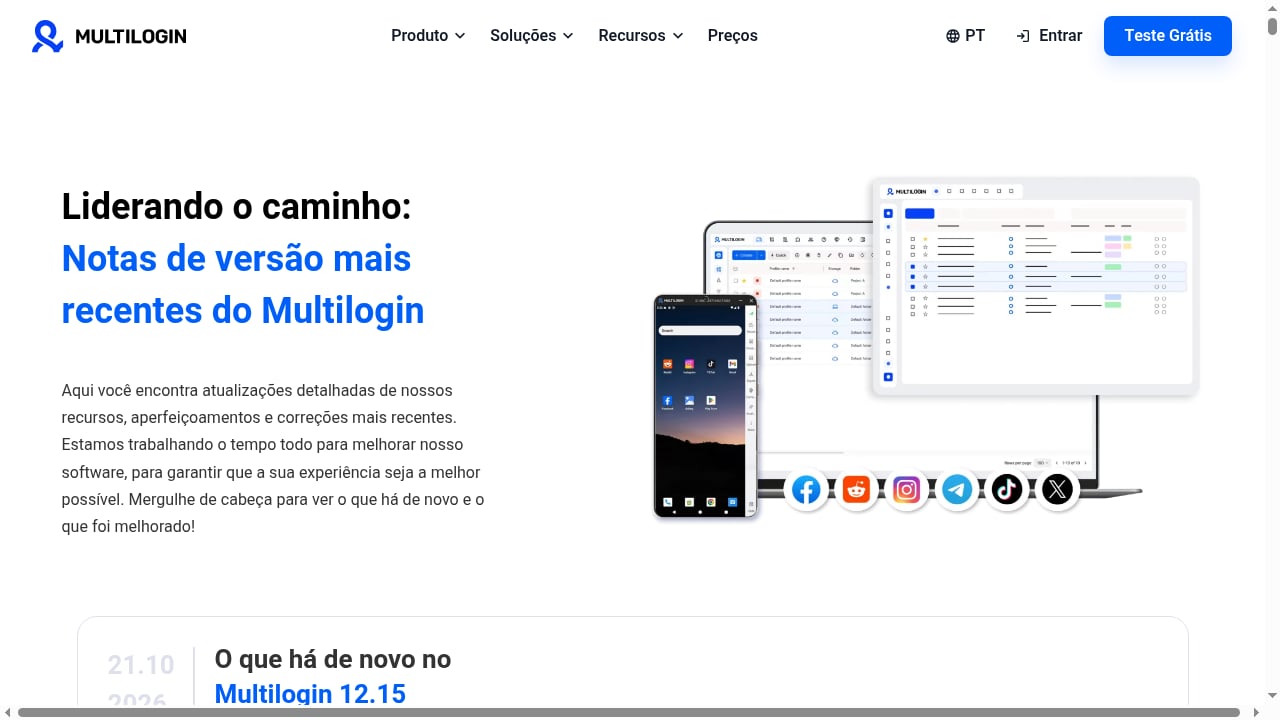
First viewport screenshot of multilogin.com.
Low authenticity score despite a clean proxy. Check WebRTC first, then timezone and language. Proxies do not automatically align these signals.
Proxy detected as a proxy. Some datacenter IPs are flagged by reputation databases. Switch to a residential proxy and rerun the test.
Hardware mismatch. A profile declaring one operating system while reporting another platform's GPU will fail consistency checks. Align the profile's platform settings with the expected hardware profile.
DNS leak. Configure DNS to resolve through the proxy rather than the local network. Rerun the DNS leak test to confirm.
Bot-like traits. If BrowserScan flags automation characteristics, review whether scripts or extensions are exposing automation APIs. For regional testing specifically, the BrowserScan regional website testing guide covers location-based leaks in more detail.
FAQ
Is BrowserScan safe to use?
BrowserScan is designed to report how your browser appears to websites. It does not require you to install tracking software; you run tests in the browser and read the results. As with any diagnostic tool, review its privacy documentation before use.
Do I need Multilogin to use BrowserScan?
No. BrowserScan works in any browser. Multilogin becomes useful when you need isolated, configurable profiles and want to verify each one systematically.
How often should I test a profile?
Test after creating a profile, after changing proxy or timezone settings, and periodically thereafter. Browser fingerprinting techniques evolve, so a configuration that passed last month may need adjustment.
Can BrowserScan detect my real IP behind a proxy?
Yes, through the WebRTC leak test. This is one of the most common findings and one of the easiest to fix once identified.
Does Multilogin guarantee undetectability?
No tool can guarantee that. Multilogin provides profile isolation and fingerprint controls; BrowserScan verifies the result. Detection systems change, so ongoing testing is part of the process.
Conclusion
BrowserScan and Multilogin solve different halves of the same problem. BrowserScan shows you the fingerprint your browser presents, including leaks through WebRTC and DNS. Multilogin gives you isolated profiles where you can control that fingerprint and correct inconsistencies.
Start with one profile, run the full BrowserScan report, fix the red flags, and document the working configuration. Then scale that verified baseline across additional profiles and cloud phones. For a broader comparison of detection tools, see BrowserScan vs Panopticlick vs Pixelscan.
Sources: