
How to Use BrowserScan Fingerprint Detection with BitBrowser
How to Use BrowserScan Fingerprint Detection with BitBrowser
Your browser quietly tells every website who you are. Screen size, fonts, graphics rendering, time zone, language, and network routing combine into a fingerprint that can follow you across sessions even when you clear cookies. If you run multiple accounts for e-commerce, Facebook, Instagram, or TikTok, that fingerprint is the thread that ties your identities together.
BrowserScan is a free fingerprint detection tool built to expose that thread. BitBrowser is a free antidetect browser built to cut it. Used separately, each does half the job. Used together, they form a test-and-fix loop: BitBrowser creates a controlled identity, BrowserScan verifies whether that identity actually holds up.
This article explains how the two tools complement each other, walks through a practical setup, and shows what to do when a check fails.
Why fingerprint testing and antidetect browsing belong together
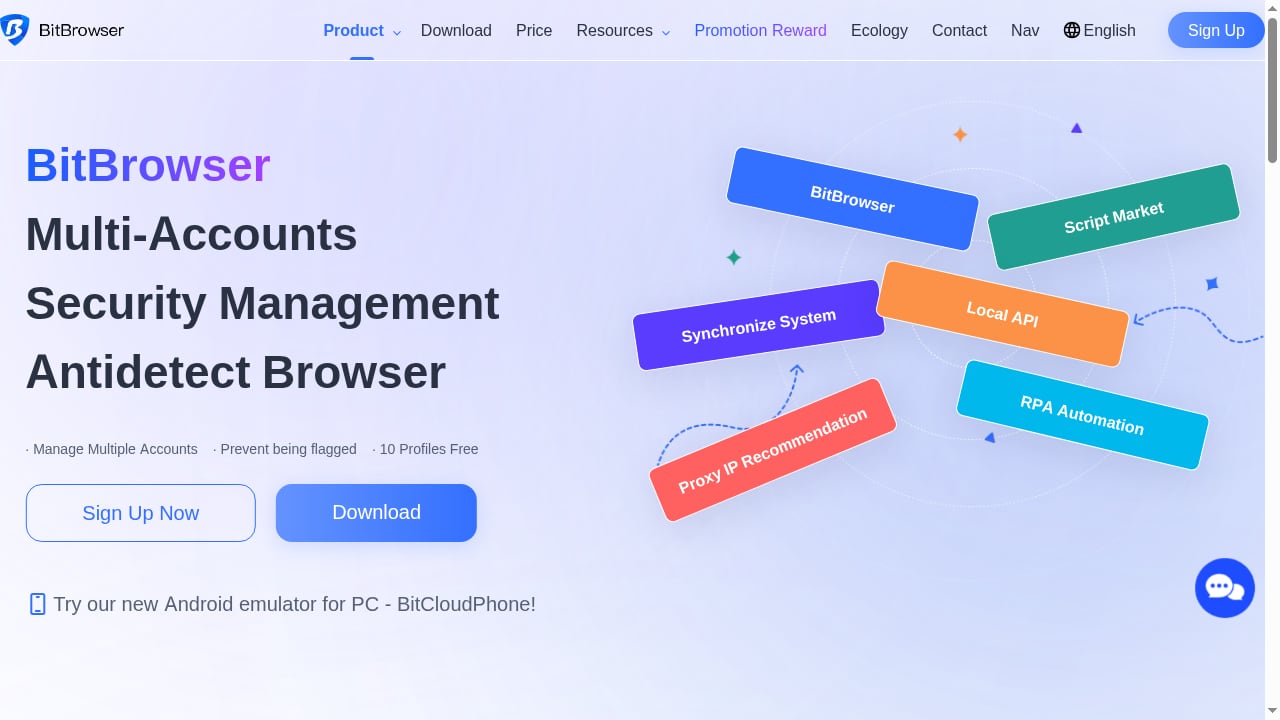
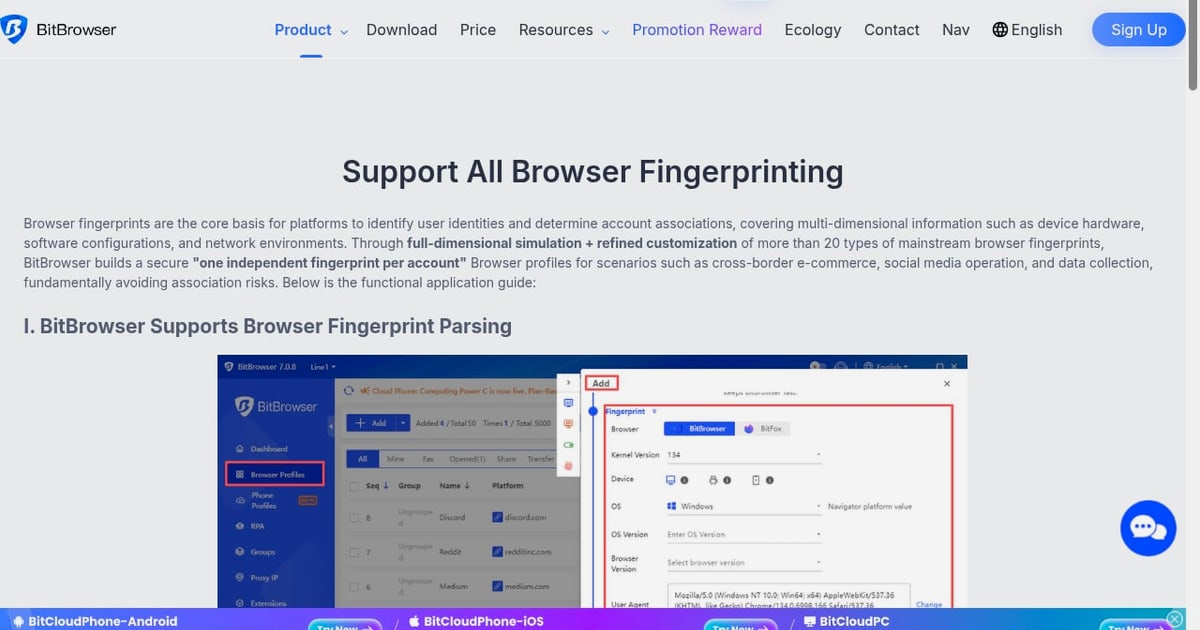
First viewport screenshot of BitBrowser - Best Free Antidetect Browser for E-Commerce/FB/Ins/Tiktok.
An antidetect browser works by generating a unique, stable fingerprint for each profile you create. Instead of one browser identity shared across every account, you get many isolated identities, each with its own canvas signature, WebGL data, user agent, and network path.
The problem is that configuration is not proof. A profile can look correct in the settings panel and still leak your real IP through WebRTC, expose a mismatched time zone, or reveal a proxy that websites already flag. That is where detection tooling earns its place.
BrowserScan covers a broad set of checks in one place, including DNS leak testing, WebRTC leak testing, IP and proxy server detection, user agent parsing, port scanning, speed testing, and live 2FA checks. Running these checks inside a BitBrowser profile turns guesswork into evidence.
Think of it as a two-part system:
- BitBrowser builds the identity: isolated profiles, customizable fingerprint parameters, and proxy assignment per window.
- BrowserScan audits the identity: leak tests, consistency checks, and authenticity scoring that reveal whether the disguise is convincing.
What each tool actually does
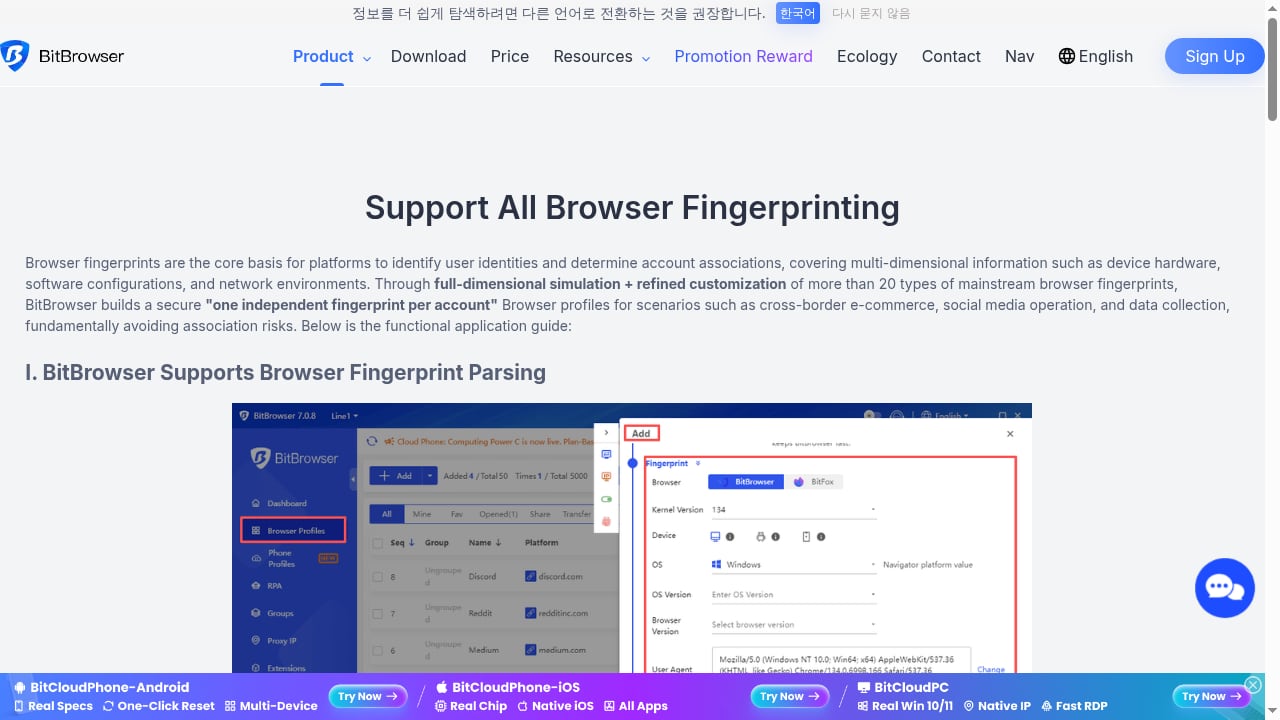
First viewport screenshot of Support All Browser Fingerprinting | bitbrowser.
BrowserScan: the detection layer
BrowserScan is an online privacy and security testing tool. You open it in a browser, and it reports what that browser reveals about you. Its most useful checks for antidetect workflows are:
- Fingerprint authenticity scoring — flags parameters that look synthetic or inconsistent with each other.
- DNS leak test — confirms which DNS resolver your traffic actually reaches, not which one you configured.
- WebRTC leak test — catches the classic failure where a real IP slips out through WebRTC even while a proxy is active.
- Proxy server detection — shows whether your proxy is visible, and whether it appears flagged or datacenter-class.
- User agent parsing — breaks down the declared browser and OS so you can compare it against the rest of the fingerprint.
- IP check, port scanner, speed test, and 2FA live check — supporting diagnostics for connectivity and account security.
BitBrowser: the identity layer
BitBrowser is an antidetect browser designed for multi-account work on platforms like Facebook, Instagram, TikTok, and e-commerce marketplaces. Its core capabilities:
- Unique, stable fingerprints per profile — each window presents its own consistent browser identity rather than a randomized one that changes on every load.
- Deep fingerprint customization — system language, window size, and other parameters can be tuned to match the persona you are building.
- Proxy compatibility — works with most proxy types, with one IP per profile to prevent account association.
- Batch profile creation — generate many independent fingerprints and IPs at once.
- Free tier — 10 permanent profiles, which is enough to validate the workflow before paying.
- Windows and Mac support, plus team collaboration features.
The workflow: build, test, fix, repeat
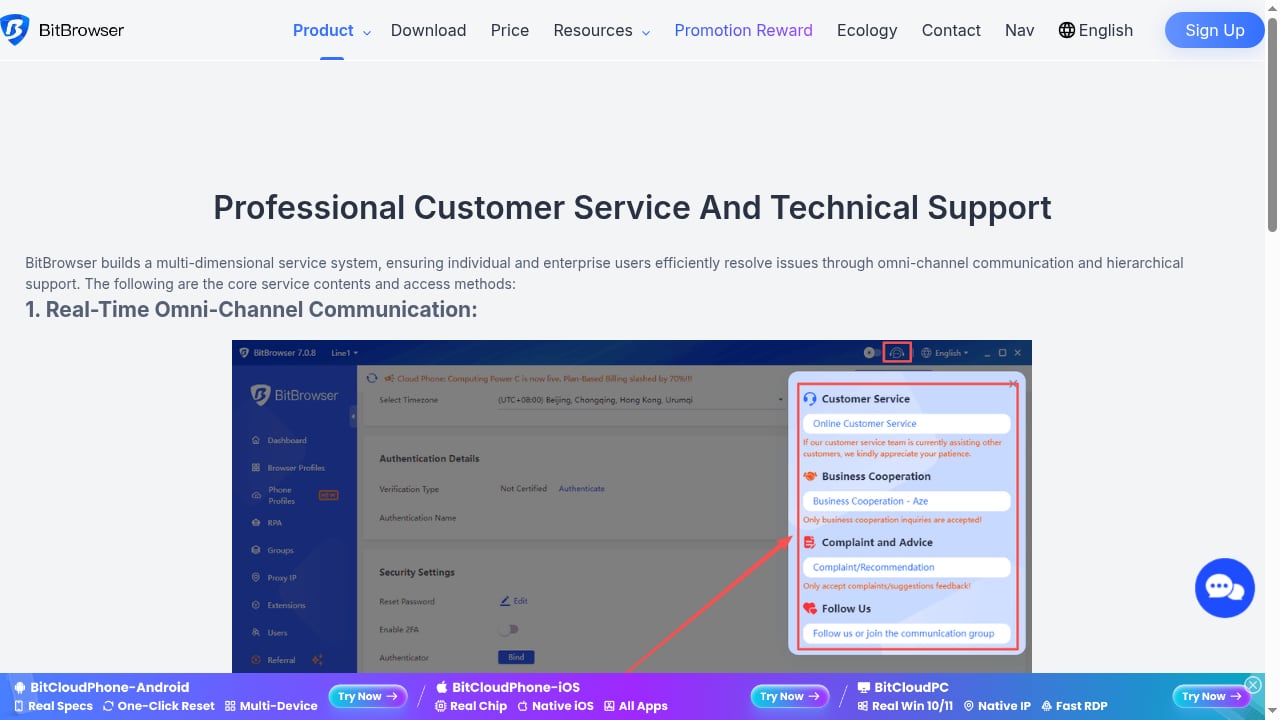
First viewport screenshot of Professional Customer Service And Technical Support | bitbrowser.
The combination works as a loop, not a one-time setup.
Step 1: Create a BitBrowser profile
Open BitBrowser and create a new profile. Give it a name that maps to the account it will hold, such as a specific TikTok or Facebook account. Keep one profile per account — never share a profile between two identities, because shared profiles mean shared fingerprints.
Step 2: Assign a dedicated proxy
Attach a proxy to the profile before you open it. Each profile should have its own IP. If two profiles exit through the same address, platforms can link them regardless of how different their fingerprints look.
Match the proxy's geography to the persona. A profile claiming to be a US-based user should not route through a server in another region.
Step 3: Open BrowserScan inside the profile
Launch the profile and navigate to BrowserScan. Run the full check rather than a single test. You want the complete picture: fingerprint score, IP and proxy status, DNS resolution path, WebRTC exposure, and user agent details.
Step 4: Read the results against your intent
This is the step most people rush. Do not just look for red warnings. Look for consistency:
- Does the declared time zone match the proxy location?
- Does the user agent's operating system match the fingerprint's platform signals?
- Does the language setting align with the region?
- Is the canvas fingerprint stable across two consecutive loads, or is it shifting?
A fingerprint that changes between reloads is often more suspicious than one that is simply unusual.
Step 5: Fix and re-test
If BrowserScan flags a WebRTC leak, adjust the profile's WebRTC handling or your proxy configuration. If the DNS resolver does not match the proxy region, correct the DNS settings. If the user agent conflicts with the platform signals, align them.
Then run the check again. A profile is ready only when repeated tests produce the same clean result.
Practical examples
BitBrowser - Best Free Antidetect Browser for E-Commerce/FB/Ins/Tiktok product interface.
Example 1: Verifying a new TikTok profile
You create a BitBrowser profile for a TikTok account targeting a specific region. Before logging in, you open BrowserScan inside the profile. The IP check shows the correct country, but the WebRTC test reveals a local IP address leaking through. You fix the WebRTC setting, re-test, and confirm the leak is closed. Only then do you log into TikTok.
Testing before the first login matters. Once an account is associated with a leaked IP, that association can persist.
Example 2: Auditing an existing e-commerce profile
A marketplace profile has been running for months. You suspect something changed. Running BrowserScan inside it shows a proxy that now appears flagged, plus a DNS resolver in a different country than the proxy. You rotate to a clean proxy, align the DNS, and re-verify. The fingerprint itself was fine — the network layer was the problem.
Example 3: Comparing two profiles side by side
You manage two Instagram accounts. Open each in its own BitBrowser window and run BrowserScan in both. Compare the results. If the canvas fingerprints, WebGL data, or user agents are identical, the profiles are not truly isolated. Adjust the fingerprint parameters until the two reports diverge in the ways a real pair of users would differ.
For a deeper look at how canvas data persists without cookies, see this explanation of canvas fingerprinting and how to test yours.
Common problems this combination solves
| Problem | What it looks like | How the pairing helps |
|---|---|---|
| WebRTC IP leak | Proxy is active, but the real IP still appears | BrowserScan's WebRTC test exposes it; BitBrowser settings close it |
| DNS mismatch | Traffic resolves through the wrong region | DNS leak test reveals the resolver; you correct it before use |
| Flagged proxy | Sites challenge or block the profile | Proxy detection surfaces the issue; you rotate the IP |
| Duplicate fingerprints | Two accounts look like one device | Side-by-side testing reveals overlap; you differentiate parameters |
| Unstable fingerprint | Values shift between page loads | Repeated tests catch inconsistency before a platform does |
| User agent conflict | Declared browser contradicts other signals | User agent parsing exposes the mismatch for correction |
Choosing your testing depth
Not every workflow needs every check. A reasonable progression:
- Minimum viable test: IP check, WebRTC leak test, DNS leak test. These three catch the failures that most often break account isolation.
- Standard test: add proxy detection and user agent parsing to confirm the network and browser layers agree.
- Thorough test: add fingerprint authenticity scoring and repeat the full run twice to confirm stability.
If you are evaluating detection tools more broadly, this comparison of BrowserScan vs BrowserLeaks vs Cover Your Tracks covers where each one is strongest. If you want to see how the same test-and-fix loop applies to a different antidetect browser, the BrowserScan and Nstbrowser walkthrough follows the same structure.
Related reading
- BrowserScan vs Iphey: Best Fingerprint Detection Tool 2026 - Compare BrowserScan and Iphey for browser fingerprint testing. See which tool offers deeper leak detection, authenticity scoring, and privacy protection in 2026.
- Whoer.net Review 2026: Free IP Checks, VPN & Anti-Detect - Hands-on Whoer.net review: free IP, DNS leak and fingerprint checks, WhoVPN pricing and speed, WADE X anti-detect browser, plus who should use it.
Sources and further reading
- 8 Best Antidetect Browsers for Privacy & Multi-Account - Discover the 8 best anti-detect browsers of 2025 to enhance your online privacy and manage multiple accounts effortlessly. Click and explore it now!
- Secure Your TikTok: Profile Viewer Tips & Privacy Guide - Unlock the secrets of using a TikTok profile viewer safely. Discover how to manage your privacy, avoid scams, and keep your digital footprint secure with our comprehensive guide.
- Homepage - No card required - Anti-detect browser that helps you remain anonymous online. Manage multiple accounts and profiles in an easy-to-use interface.
FAQ
Is BrowserScan free to use?
Yes. BrowserScan runs in your browser and provides its core fingerprint, leak, and IP checks without a paid plan, which makes it practical to run repeatedly during profile setup.
Does BitBrowser include proxies?
BitBrowser is compatible with most proxy types and assigns an IP per profile, but you generally supply your own proxy service. The free plan includes 10 permanent profiles for testing.
How often should I re-test a profile?
Re-test after any change: a new proxy, a browser update, a fingerprint parameter edit, or a long period of inactivity. Also spot-check profiles that suddenly trigger platform challenges.
Can I use BrowserScan without an antidetect browser?
Yes. It works as a standalone privacy check in any browser. The value of pairing it with BitBrowser is that you can verify each isolated identity individually rather than testing one shared browser.
What is the single most important check?
The WebRTC leak test. A leaked real IP undermines every other fingerprint measure, because it directly connects the profile to your actual network.
Does a good BrowserScan score guarantee I will not be detected?
No tool can guarantee that. A clean report means the technical signals are consistent and no obvious leaks are present. Platform detection also weighs behavior, account history, and activity patterns.
Conclusion
BrowserScan and BitBrowser solve two halves of the same problem. BitBrowser gives each account its own isolated, customizable browser identity. BrowserScan tells you whether that identity survives contact with real detection logic.
Run the loop consistently: create the profile, assign a dedicated proxy, test inside BrowserScan, fix what fails, and test again. The profiles that pass repeated checks are the ones worth trusting with accounts you cannot afford to lose.
Start with the free tier of both tools. Ten BitBrowser profiles and unlimited BrowserScan checks are enough to prove the workflow on your own accounts before you scale.