
Public Wi-Fi Security: Risks, Safety Tips & How to Test
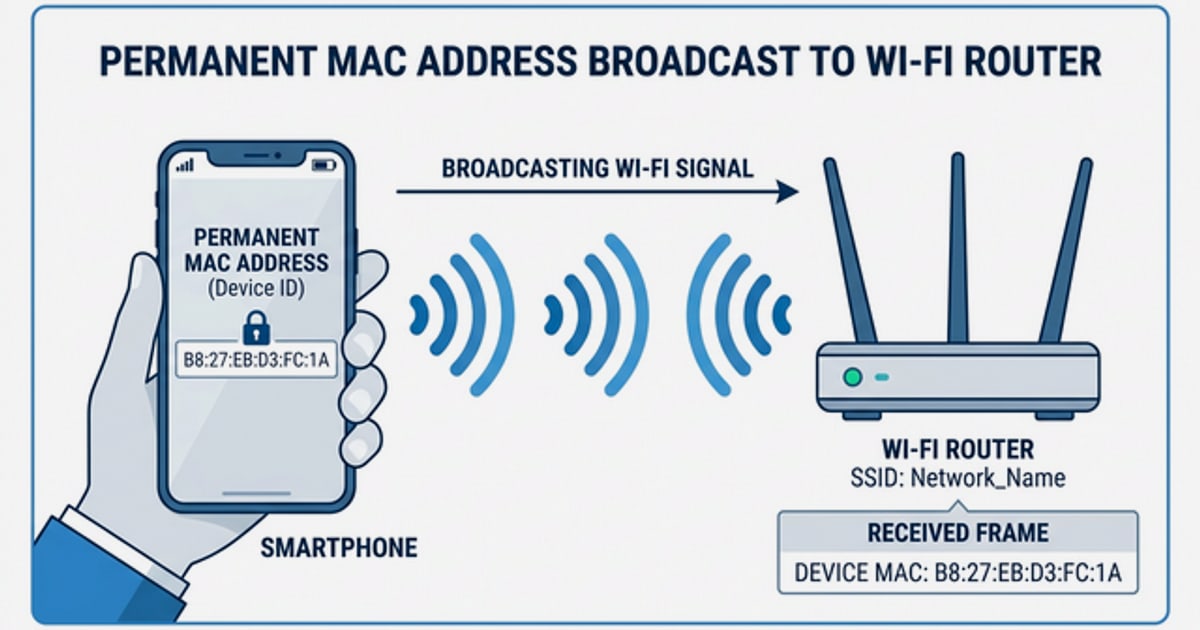
Public Wi-Fi Security: Real Risks, Practical Fixes, and How to Test Your Connection
Public Wi-Fi is everywhere: airports, coffee shops, hotels, libraries, and shopping malls. It is convenient, but it also puts your data in a shared space where other people can potentially see or intercept it. The good news is that public Wi-Fi is safer today than it was a decade ago, largely because most websites now encrypt traffic with HTTPS. The bad news is that encryption alone does not solve every problem. Fake networks, misconfigured devices, and leaky VPNs can still expose your data.
This guide explains the real risks of public Wi-Fi, walks through practical steps to reduce them, and shows how to verify that your connection is actually private using free browser-based tools.
What Are the Actual Risks of Public Wi-Fi?

Public Wi-Fi Security: Risks, Safety Tips & How to Test - What Are the Actual Risks of Public Wi-Fi?.
Public Wi-Fi risks fall into a few distinct categories. Understanding them makes it easier to choose the right defenses.
1. Unencrypted or Weakly Encrypted Networks
Some public networks still operate without encryption, meaning data sent over them can be read by anyone with the right tools. Even networks that require a password are not automatically safe: if the network uses outdated or weak encryption, a determined attacker can still break in. The practical rule is to prefer networks that require a password or a sign-in page over completely open ones, but never treat a password alone as proof of security.
2. Evil Twin and Rogue Access Points
An attacker can set up a fake Wi-Fi network with a name that looks legitimate, such as "Airport_Free_WiFi" or "CoffeeShop_Guest." When you connect to the rogue network, the attacker can monitor everything you do, serve fake login pages, or inject malicious content. Always verify the exact network name with an employee or posted signage before connecting.
3. Packet Sniffing and Man-in-the-Middle Attacks
On an open or compromised network, an attacker can use packet-sniffing software to capture unencrypted traffic. A man-in-the-middle attack goes further: the attacker positions themselves between your device and the website you are visiting, potentially intercepting or altering communications. HTTPS prevents most of this by encrypting the connection end to end, which is why checking for the lock icon matters.
4. Session Hijacking and Credential Theft
If you log in to a website over an unencrypted connection, an attacker on the same network can steal your session cookie or credentials and impersonate you. This risk is much lower on HTTPS sites, but it still exists on older sites or misconfigured apps that send some data in plain text.
5. Malware Distribution and Fake Portals
Some public networks require you to install software or a browser extension before connecting. This is a red flag. Legitimate captive portals do not require extra software. Attackers also use fake login portals that look like the real sign-in page for a hotel or airline to harvest your credentials.
6. Leaky VPNs and Browser Fingerprints
A VPN is one of the strongest defenses on public Wi-Fi, but only if it works correctly. A misconfigured VPN can leak your real IP address through WebRTC or DNS requests, which defeats the purpose. Even with a working VPN, your browser fingerprint can still identify you across sites. Testing for these leaks is an important part of public Wi-Fi security.
12 Practical Steps to Stay Safe on Public Wi-Fi
Public Wi-Fi Security: Risks, Safety Tips & How to Test - 12 Practical Steps to Stay Safe on Public Wi-Fi.
These recommendations come from government security guidance and are ordered from basic to advanced.
1. Verify the Exact Network Name
Before connecting, confirm the network name with an employee or check posted signage. Attackers often create look-alike networks with nearly identical names. A single character difference is enough to redirect you to a rogue access point.
2. Turn Off Auto-Connect
Most phones and laptops automatically join known networks. On public Wi-Fi, this can silently connect you to a malicious network. Disable auto-connect in your device settings, especially when traveling. After using a public network, use the "Forget Network" option so your device does not rejoin it later.
3. Prefer Secured Networks Over Open Ones
A secured network requires a password, a sign-in page, or both. An unsecured network lets anyone join without any authentication. Whenever possible, choose the secured option. It is not a guarantee of safety, but it raises the bar for attackers.
4. Turn Off File Sharing and AirDrop
File sharing features can expose your folders to other devices on the same network. On Windows, select the "Public" network profile to disable sharing automatically. On macOS, go to System Settings > General > Sharing and turn everything off. Set AirDrop to "No One" or "Contacts Only."
5. Keep Your Firewall Enabled
A firewall blocks unsolicited inbound connections. On Windows, check Control Panel > System and Security > Windows Defender Firewall. On macOS, go to System Settings > Network > Firewall and make sure it is on.
6. Use a VPN
A VPN encrypts all traffic between your device and the VPN server, so even on a compromised network, an attacker cannot read your data. This is the single most effective privacy tool for public Wi-Fi. Choose a reputable VPN provider, and if you are technically inclined, consider an open source VPN such as WireGuard or OpenVPN for full transparency into the code.
7. Check for HTTPS on Every Site
Look for the lock icon and "https://" in the address bar before entering any information. HTTPS encrypts the connection between your browser and the website. However, do not trust a site solely because it has a lock icon: scammers can also host HTTPS sites. The lock means the connection is encrypted, not that the site is legitimate.
8. Avoid Sensitive Transactions
Even with a VPN, avoid logging into bank accounts or entering credit card numbers on public Wi-Fi when you can wait. If you must, use your phone's cellular hotspot instead, which is generally more secure than a shared public network.
9. Use Multi-Factor Authentication
Enable MFA on your email, banking, and social accounts. If an attacker somehow steals your password on public Wi-Fi, MFA adds a second barrier that stops them from logging in.
10. Keep Software Updated
Operating system and browser updates patch known vulnerabilities that attackers exploit on shared networks. Turn on automatic updates on all devices.
11. Use Antivirus and Anti-Malware Software
A current antivirus program can detect malware that tries to install itself while you are on a public network. Keep it updated and run regular scans.
12. Turn Off Wi-Fi When Not in Use
When you are not actively browsing, turn off Wi-Fi. This reduces your exposure window and prevents your device from silently connecting to nearby networks.
How to Test Your Public Wi-Fi Security
Public Wi-Fi Security: Risks, Safety Tips & How to Test - How to Test Your Public Wi-Fi Security.
Following the steps above reduces risk, but you should verify that your defenses actually work. A few free browser-based checks can reveal problems that are otherwise invisible.
Run a DNS and WebRTC Leak Test
If you use a VPN, a leak test confirms that your real IP address is not escaping through DNS requests or WebRTC. Connect to the public network, enable your VPN, then run a DNS and WebRTC leak test. If the results show your ISP's DNS servers or your real IP address instead of the VPN's, your VPN is leaking and needs a different configuration.
Check Your Browser Fingerprint
A VPN hides your IP address, but your browser still broadcasts a unique combination of settings, fonts, plugins, and hardware characteristics. This fingerprint can identify you across sessions even when your IP changes. Use a browser fingerprint checker to see what your browser reveals. If the fingerprint is highly unique, consider using privacy-focused browser settings or an anti-detect browser for high-risk workflows. You can also test anti-detect browser protection to verify that your privacy tools actually change the fingerprint.
Scan for Open Ports
An open port on your device is an entry point for attackers on the same network. A port scanner can identify which ports are exposed. Run a port scan while connected to public Wi-Fi; if common ports like 22 (SSH), 445 (SMB), or 3389 (RDP) are open, close them or adjust your firewall rules.
Verify the IP and Network Details
An IP lookup shows your public IP address, geolocation, ISP, and whether the IP is flagged as a proxy or VPN. After connecting to a VPN, run an IP address lookup to confirm the IP matches your VPN server location rather than your real location.
Secured vs. Unsecured Public Wi-Fi: A Quick Comparison
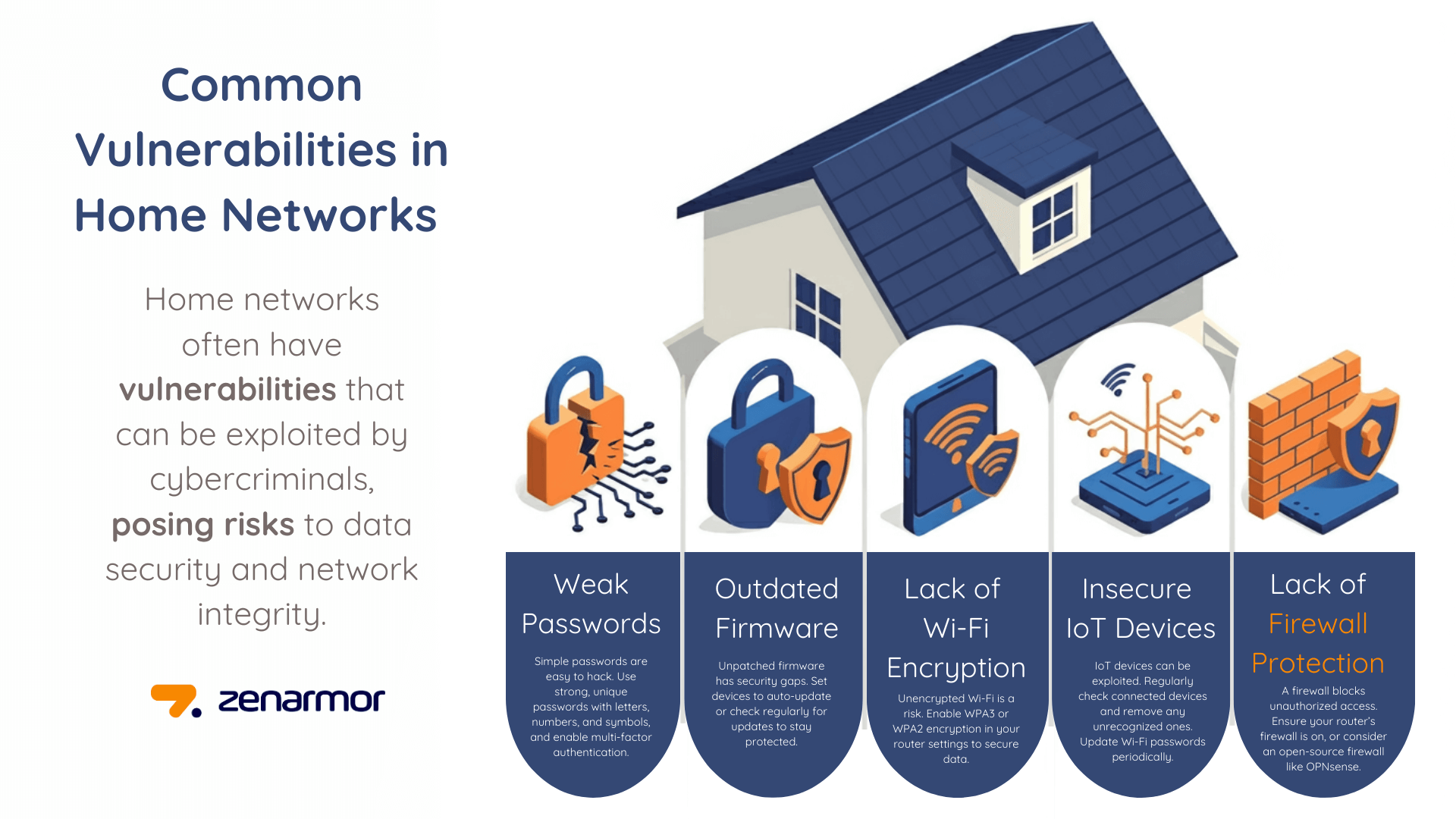
Public Wi-Fi Security: Risks, Safety Tips & How to Test - Secured vs. Unsecured Public Wi-Fi: A Quick Comparison.
| Factor | Secured Network | Unsecured Network |
|---|---|---|
| Authentication | Password, sign-in page, or both | None required |
| Encryption | Usually encrypted | Often unencrypted |
| Risk of packet sniffing | Lower | Higher |
| Risk of evil twin | Still possible | Still possible |
| Recommended for sensitive data | Only with VPN + HTTPS | Avoid |
A secured network is better than an unsecured one, but neither is a substitute for HTTPS and a VPN.
Common Public Wi-Fi Security Myths
Myth: "The lock icon means the website is safe."
The lock icon only means the connection is encrypted. A phishing site can also use HTTPS. Always verify the domain name matches the site you intended to visit.
Myth: "A password-protected network is always secure."
A password controls who can join, but it does not necessarily encrypt traffic or prevent other users on the network from attacking you. Many public networks use a shared password that anyone can obtain.
Myth: "VPNs make public Wi-Fi completely safe."
A VPN encrypts your traffic and hides your IP, but it does not protect against malware downloads, phishing sites, or browser fingerprinting. It is one layer of defense, not a complete solution.
Myth: "Public Wi-Fi is always dangerous."
The widespread adoption of HTTPS has made public Wi-Fi significantly safer than it used to be. The FTC notes that connecting through public Wi-Fi is usually safe for everyday browsing when encryption is in place. The risk is highest when you ignore basic precautions or handle sensitive data carelessly.
Related reading
- Algo VPN Pricing: Real Costs of Self-Hosting in 2025 - Algo VPN is free software, but hosting it costs money. See real cloud pricing for AWS, Vultr, DigitalOcean, and how to budget your self-hosted VPN.
Sources and further reading
- Public Wi-Fi | Best Practices | IT Security | SDSU - Best Practices · Use a safe and trusted network. Do not use Wi-Fi offered in public places to access University resources. · Verify the network name before ...
Frequently Asked Questions
Is public Wi-Fi safe for online banking?
It is not recommended. Even with HTTPS and a VPN, public networks carry more risk than your home network or a cellular connection. If you must access a bank account, use your phone's hotspot instead of public Wi-Fi.
Can someone see what I am doing on public Wi-Fi?
If the site uses HTTPS, other people on the network can see which domains you visit but not the content of your traffic. If the site does not use HTTPS, or if you are on an unencrypted network, an attacker with packet-sniffing tools can read your data. A VPN prevents both scenarios by encrypting everything.
What is an evil twin attack?
An evil twin is a fake Wi-Fi network that mimics a legitimate one. When you connect to it, the attacker can intercept your traffic, serve fake login pages, or steal credentials. Always verify the exact network name before connecting.
How do I know if my VPN is leaking on public Wi-Fi?
Connect to the public network, enable your VPN, and run a DNS and WebRTC leak test. If the test shows your real IP address or your ISP's DNS servers, your VPN is leaking and should be reconfigured or replaced.
Does a VPN slow down public Wi-Fi?
A VPN adds some overhead because your traffic is encrypted and routed through a remote server. The slowdown is usually small with a good provider, but it can be noticeable on already slow public networks. The privacy benefit generally outweighs the speed cost.
Should I use a free VPN on public Wi-Fi?
Free VPNs often have data caps, slower speeds, and weaker privacy policies. Some have been caught logging user data or injecting ads. If you need a free option, choose a reputable provider's free tier rather than an unknown service. For full control and transparency, an open source VPN you host yourself is another option, though it requires more technical effort.
Conclusion
Public Wi-Fi security is about layers. HTTPS protects most everyday browsing, but it does not stop fake networks, malware, or leaky VPNs. Verify the network name, disable auto-connect and file sharing, keep your firewall on, and use a VPN for anything sensitive. Then test your setup: run a DNS and WebRTC leak test, check your browser fingerprint, and scan for open ports. A few minutes of verification can reveal a problem before an attacker does.
For more guidance, the FTC's public Wi-Fi article and Washington state's public Wi-Fi tips offer additional best practices from government sources.