
How to Use BrowserScan with AdsPower for Fingerprint Privacy
How to Use BrowserScan with AdsPower for Fingerprint Privacy
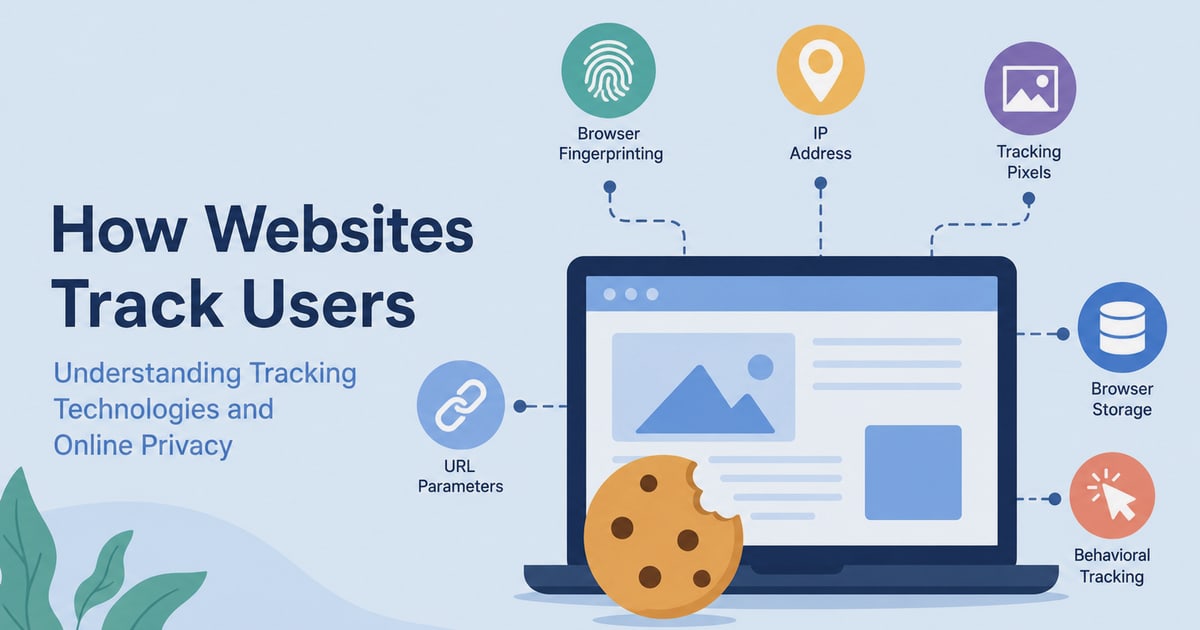
Your browser reveals more than you think. Canvas rendering, WebGL output, time zone, fonts, and WebRTC connections combine into a fingerprint that platforms can use to recognize you—even when you change IPs. BrowserScan shows you what that fingerprint looks like. AdsPower lets you control it. Used together, they form a practical audit-and-fix loop for anyone managing multiple accounts or protecting their privacy.
This guide explains how the two tools complement each other, walks through setup and testing, and shows how to interpret results so you can act on them.
Why pair BrowserScan with AdsPower?
First viewport screenshot of www.adspower.com.
BrowserScan is a diagnostic tool. It does not hide you; it measures how identifiable you are by checking browser attributes, IP and DNS leaks, WebRTC exposure, port status, and more. AdsPower is an anti-detect browser that creates isolated profiles with customizable fingerprints, so each account appears to come from a distinct, consistent device.
The combination solves a specific problem: an anti-detect browser is only as good as its configuration. A mismatched user agent and GPU, a leaking WebRTC connection, or a time zone that contradicts the proxy location can flag an account as suspicious. BrowserScan catches those inconsistencies; AdsPower gives you the controls to correct them.
Think of BrowserScan as the inspection and AdsPower as the repair kit.
What BrowserScan checks
First viewport screenshot of www.adspower.com.
A full scan typically reports on:
- Browser fingerprint authenticity – an overall score reflecting how consistent and realistic your browser profile appears.
- IP and network data – your visible IP, ISP, geolocation, and whether a proxy or VPN is detected.
- WebRTC leaks – whether your real IP is exposed through WebRTC, even when using a proxy.
- DNS leaks – whether DNS requests resolve through your intended network path.
- Hardware and software signals – Canvas, WebGL, audio, fonts, screen resolution, time zone, language, and user agent.
- Bot detection – whether automation or script characteristics are visible.
- Port scanner and speed test – open ports and connection performance.
BrowserScan also offers individual tools such as a DNS leak test, WebRTC leak test, user agent parser, and IP lookup, so you can isolate a single problem without rerunning everything.
How AdsPower complements the audit
First viewport screenshot of www.adspower.net.
AdsPower creates separate browser profiles, each with its own fingerprint settings for Canvas, WebGL, network, user agent, and more. It supports proxy configuration per profile, encrypted profile data, and team collaboration with granular permissions. For teams running many accounts, batch profile management and profile recovery help keep operations organized.
Because AdsPower lets you customize the exact signals BrowserScan measures, the two tools map directly onto each other. When BrowserScan flags a mismatch, you can usually adjust the corresponding setting inside the AdsPower profile and retest.
Step-by-step workflow
First viewport screenshot of www.adspower.net.
1. Create or open an AdsPower profile
Start with a single profile. Assign a proxy that matches the target region and configure the fingerprint settings you need—user agent, platform, time zone, language, WebGL, and Canvas. Keep the profile consistent: a Windows user agent should pair with Windows-like GPU and font signals.
2. Run a full BrowserScan test inside that profile
Open BrowserScan in the AdsPower profile and let the full scan complete. Note the authenticity score and scroll through each section. Pay particular attention to red-flagged values, which indicate deductions.
3. Check for leaks first
Before fine-tuning fingerprints, confirm there are no leaks:
- WebRTC: The IP address BrowserScan sees should match the WebRTC IP. If WebRTC exposes your real location, fix the proxy or WebRTC settings in AdsPower.
- DNS: Run the DNS leak test. DNS resolvers should align with your proxy region, not your local ISP.
- IP consistency: Use the IP lookup to confirm geolocation and ISP data are plausible for the proxy you chose.
4. Audit fingerprint consistency
Compare related signals:
- Does the time zone match the IP location?
- Does the browser language align with the region?
- Does the reported GPU and renderer match the operating system in the user agent?
- Are Canvas and WebGL outputs stable across repeated tests?
If BrowserScan shows a Mac user agent but Windows-style GPU strings, adjust the profile in AdsPower until the signals agree.
5. Fix and retest
Change one variable at a time in AdsPower, then rerun the relevant BrowserScan test. A clean profile should show a high authenticity score, no WebRTC or DNS leaks, and internally consistent hardware and software signals.
6. Repeat across profiles
Once one profile passes, apply the same configuration pattern to others. For larger operations, batch-create profiles in AdsPower and spot-check a sample with BrowserScan. Comparing fingerprints across profiles helps ensure they are not duplicates.
Practical examples
Example 1: WebRTC leak on a US proxy. BrowserScan reports a US IP but WebRTC reveals a local IP. In AdsPower, enable WebRTC masking or switch to a proxy mode that prevents local IP exposure, then rerun the WebRTC leak test.
Example 2: Time zone mismatch. The proxy is in Germany, but the browser time zone is set to New York. Platforms may see this as inconsistent. Set the time zone in the AdsPower profile to Europe/Berlin and confirm with BrowserScan's time zone detection.
Example 3: GPU and user agent conflict. A profile claims macOS but reports an unmasked Windows renderer. Adjust the WebGL and user agent settings in AdsPower so the GPU strings match the claimed platform, then verify with BrowserScan's WebGL report.
Interpreting results and common pitfalls
- A high score is not a guarantee. Fingerprinting techniques evolve; retest periodically.
- Do not over-randomize. Inconsistent combinations can look more suspicious than a stable, plausible profile.
- Proxy quality matters. A residential proxy with mismatched geolocation will fail even with a perfect fingerprint.
- Bot signals are separate. If BrowserScan detects automation characteristics, review your scripts and RPA workflows in AdsPower.
- Port scan results depend on your network. Open ports may be a router or firewall issue, not a browser one.
For a broader comparison of detection tools, see our BrowserScan vs Panopticlick vs Pixelscan comparison. If you are evaluating other anti-detect browsers, the Multilogin workflow guide follows a similar audit process.
When to use this combination
Use BrowserScan with AdsPower if you:
- Manage multiple e-commerce, social media, or advertising accounts and need each to appear as a separate device.
- Run affiliate marketing or crypto airdrop campaigns where account linkage can cause bans.
- Need to verify that proxies and anti-detect profiles actually conceal your real fingerprint.
- Want a repeatable QA step before scaling profiles to a team.
If you only need a one-time privacy check and do not manage multiple identities, BrowserScan alone may be enough. If you need to create and isolate many profiles, AdsPower provides the environment; BrowserScan keeps it honest. For a deeper look at what your IP reveals, read our IP data privacy guide.
Related reading
- BrowserScan vs VPN Master Pro IP Checker vs Pixelscan - Compare BrowserScan, VPN Master Pro IP Checker, and Pixelscan for fingerprint detection, leak testing, and privacy diagnostics. Find the right tool for your needs.
- BrowserScan vs Panopticlick: Best Fingerprint Detection Tool - Compare BrowserScan and Panopticlick for browser fingerprint detection. See which tool better protects your online privacy with leak tests, DNS checks, and risk scores.
- WebBrowserTools Review: Browser Privacy Tools & Limits - An evidence-based WebBrowserTools review covering its browser privacy tools, ideal users, strengths, limitations, pricing signals, and setup effort.
Sources and further reading
- What is BrowserScan? Check Fingerprints, IP Leaks & Stay Private - What is BrowserScan? Find out how it detects IP leaks & unique fingerprints, plus tips for privacy with AdsPower.
- Best BrowserScan Fingerprint Detection Tool - Improve your online privacy security - Enhance your online security with the best BrowserScan fingerprint checking tool. Protect and prevent your privacy from leaking with our advanced technology.
- How to Use BrowserScan to Detect Browser Fingerprints - Risks of Multi-Accounting Whether in the e-commerce sector, social media platforms, advertising placements, or affiliate marketing, multi-account operations have become a common operational strategy. However, the implementation of this strategy may face a neglected risk, that is, the leakage of browser fingerprints!
Browser fingerprints are unique sets of information composed of your device and browser settings. If you use the same device and browser while operating multiple accounts, then the browser fingerprints of these accounts will be identical. This could attract the attention of the platform, as it may be considered as brushing or fraudulent behavior, leading to account bans.
For example, on e-commerce platforms, sellers often create multiple accounts to increase product exposure and sales. However, if the browser fingerprints of these accounts are the same, they may be recognized as spam accounts by the platform, resulting in restrictions or bans. Similarly, on social media platforms, marketers also create multiple accounts to promote products or brands. If the browser fingerprints of these accounts are the same, they may be recognized as fraudulent behavior by the platform, thereby affecting marketing results and revenue.
Anti-Detect Browsers Are Not a Panacea
Even though many users have become aware of the risks of browser fingerprinting and have started using fingerprint browsers to mask their real device information, this does not mean that their accounts are completely safe. In fact, due to the different technologies used by different fingerprint browsers, or improper use, personal information may still be leaked, or a false browser fingerprint may be generated. This could lead to the user's device being marked as suspicious by the website platform, or multiple accounts being marked as associated.
Therefore, when using a fingerprint browser, users need to utilize a tool to:
Check if their browser fingerprint is authentic


See if the local real IP address will be leaked


Compare the fingerprint of the fingerprint browser with the browser fingerprint of the real device


Compare whether there are many repetitions in the browser fingerprints of different accounts
After confirming the authenticity of the browser fingerprint, it is obviously safer to operate multiple accounts.
Using BrowserScan to Detect Browser Fingerprints
By accessing browserscan.net with a fingerprint browser or any other browser, you can understand the complete browser fingerprint just by waiting a few seconds.
Overview
In this section, you will check the authenticity of the browser fingerprint, giving you a rough understanding of the current browser fingerprint. The main information is as follows:
IP address


Postal code of the IP address location


Geolocation of the IP address (Country, Latitude and Longitude)


Time zone of the IP address location


Internet service provider of the IP address


Browser version being used


Operating system of the current device


Whether a proxy server is being used
If the authenticity of the browser fingerprint is only 90% or lower, then you need to continue to look at more detailed fingerprint information.
(Values in Red Font are areas of deduction)
IP Address
BrowserScan will use WebRTC to detect if your real IP address will leak. This is because WebRTC can leak the user's real IP address. As shown in the figure, the IP address visiting BrowserScan is from the United States, but WebRTC leaked the real IP address (Singapore). In the eyes of some platforms, this user's behavior may be abnormal, especially on some social media platforms.
When you use an anti-detect browser, please be sure to check the IP address to see if WebRTC has leaked your real IP address.
Geolocation
This part can understand the attribution of an IP address (country, state/region, city, postal code), latitude and longitude, and other information. If you need to understand more accurate geolocation, you can click "Show my location on the map" to view. (It can be displayed normally after allowing BrowserScan to obtain the current location information.)
Browser
This part is mainly to view browser-related information, such as the operating system and version used by the current user, the type and version of the browser.
The information about UserAgent, browser plugins, and other information.
Hardware
This part is mainly to view hardware-related fingerprint information, such as GPU information, memory size, CPU concurrency, screen resolution, media device fingerprints, Canvas fingerprint, WebGL fingerprint, etc.
For example, when the fingerprint browser uses the UserAgent of Mac OS, if the fingerprint browser does not simulate the real Apple computer's GPU information, then the hardware fingerprint information will not match the UserAgent information. This kind of abnormal browser fingerprint will arouse the suspicion of the platform.
Software
The software part is mainly to view the timezone of the IP, check the local time of the IP address location, the language used by the browser, font fingerprint, whether Do Not Track, Cookie and other functions are enabled.
When an IP address is located in the United States, the timezone and local time should also be in the United States, not in other countries.
At the same time, if you are using automated scripts to control the browser, you should also check whether the browser behaves like a robot, because website platforms usually do not welcome "robot" visits.
Use the automatic detection function of BrowserScan to see if the current browser has "robot characteristics".
Port scanning not only risks exposing your personal information but also carries the risk of being hacked. You can use port detection to see if there are any open ports.
Other Tools
In addition to detecting browser fingerprints, BrowserScan also provides other tools. In the previous section, we introduced the automated detection tool and port detection tool. In addition, BrowserScan also offers IP address lookup and Cookie format conversion tools.
IP Address Lookup BrowserScan's IP address lookup feature includes seven major IP databases and can query the ownership information of an IP address in seven different IP databases. Due to database synchronization delays and differences, it is possible that the same IP address will yield different ownership results when queried in different IP databases. Therefore, when you are operating multiple accounts on a website, and the website is sensitive to changes in the IP address of the account, this feature can come in handy. If the proxy IP address used appears to have different ownership, then you might need to consider changing it.
Cookie Converter
You can check whether there are any missing fields in the Cookie.
BrowserScan supports converting Cookies from Netscape format to JSON format.
Conclusion
BrowserScan is constantly researching browser fingerprinting and continuously optimizing techniques to detect browser fingerprints. If you are currently using anti-detect browsers like AdsPower, Multilogin, Gologin, etc., you might as well use BrowserScan for a detection, just like doing a health checkup, to see if there are any abnormalities. Based on the abnormal information detected by BrowserScan, you can then use different solutions to solve these problems, thereby making your account environment more realistic and your account more secure.
In general, BrowserScan.net is a powerful browser fingerprints detection tool that can help you understand browser fingerprints and help you in protecting your personal privacy and network security.
FAQ
Does BrowserScan store my fingerprint data? BrowserScan runs tests in your browser and displays results; treat any online tool as a third party and avoid testing sensitive accounts in a profile you do not control.
Can AdsPower guarantee I won't be detected? No tool can guarantee that. AdsPower provides isolated profiles and customizable fingerprints; BrowserScan helps you verify consistency, but platform detection methods change constantly.
How often should I retest? After any proxy change, fingerprint adjustment, or browser update. For active operations, a weekly spot-check is reasonable.
What score should I aim for? There is no universal threshold. Focus on eliminating red flags and ensuring internal consistency rather than chasing a perfect number.
Does BrowserScan work with other anti-detect browsers? Yes. It tests whatever browser environment you open it in, making it useful across tools.
Conclusion
BrowserScan and AdsPower solve different halves of the same problem. BrowserScan tells you how trackable your browser is; AdsPower gives you the controls to make that fingerprint consistent and isolated. By running a scan, fixing leaks and mismatches in your AdsPower profiles, and retesting, you build a repeatable privacy workflow that supports both individual privacy and multi-account operations.
Start with one profile, verify it thoroughly, and scale only after the results are clean.